Nighthawk Wpa3 Missing Secure Your Router Guide
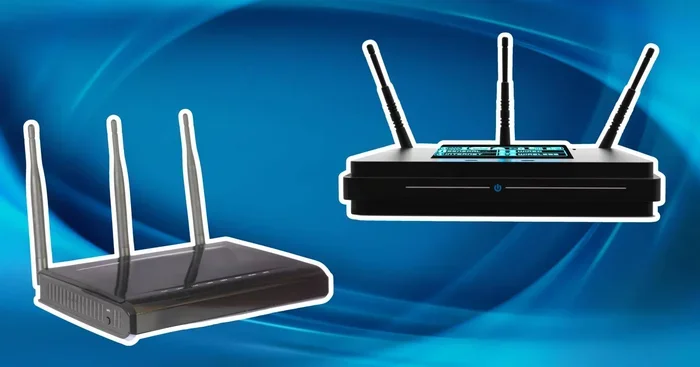
WPA3 is the latest wireless security protocol that keeps your Nighthawk router safe from modern threats. If the WPA3 option is missing from your router settings, don’t worry. This guide walks you through every step to find, enable, and troubleshoot WPA3 on your Netgear Nighthawk device. You will learn how to update firmware, access the router dashboard, and strengthen your wireless network in minutes.
Key Takeaways
- WPA3 is the newest encryption standard: It offers stronger protection than WPA2 for your wireless network.
- Missing WPA3 is often a firmware issue: A simple update can unlock the option on your Nighthawk router.
- Older Nighthawk models may not support WPA3: Check your model number before troubleshooting.
- Accessing the router admin panel is the first step: You need to log in to change security settings.
- Combining WPA3 with strong WiFi password practices boosts network security: This keeps intruders out.
📑 Table of Contents
- Why WPA3 Matters for Your Nighthawk Router
- Common Reasons WPA3 Is Missing on Your Nighthawk Router
- How to Access Your Nighthawk Router Admin Panel
- Step-by-Step Guide to Enable WPA3 on Your Nighthawk Router
- WPA2 vs WPA3: What Is the Difference?
- Tips to Keep Your Nighthawk Router Secure
- When to Consider a New Router
- Frequently Asked Questions
- Conclusion
Why WPA3 Matters for Your Nighthawk Router
Your Nighthawk router is the gateway to your entire home network. Every device you connect relies on the security settings you choose. WPA3 is the latest wireless security protocol designed to protect your data from modern attacks. If the WPA3 option is missing, your router might still be using older encryption that is easier to crack.
Think of Wi-Fi encryption like a lock on your front door. WPA2 has been the standard for years, but hackers have found ways around it. WPA3 fixes many of those weaknesses. It uses stronger encryption standards that make it much harder for strangers to access your wireless network. This is especially important if you work from home or store sensitive files on your devices.
The good news is that most modern Netgear Nighthawk routers support WPA3. The problem usually comes down to one of a few simple causes. In this guide, we will show you exactly how to find and enable it. You do not need to be a tech expert to follow along.
Common Reasons WPA3 Is Missing on Your Nighthawk Router
Outdated Router Firmware
The most common reason WPA3 is missing is that your router firmware is outdated. Netgear releases updates that add new features and security options. If you have never updated your router, it might still be running an older version that does not include WPA3 support. A firmware update can fix this quickly.
Your Nighthawk Model Is Too Old
Not every Nighthawk router supports WPA3. Older models were built before this standard became widely available. If your router is several years old, it may simply not have the hardware needed for WPA3. You can check your model number on the bottom of the device and compare it against Netgear’s official support page.
Mixed Device Compatibility
Sometimes WPA3 appears missing because your connected devices do not support it. When you set your router to WPA3-only mode, older devices cannot connect. Netgear routers often default to a mixed mode or fall back to WPA2 when they detect older devices. This can make it look like WPA3 is not available, even though it is.
How to Access Your Nighthawk Router Admin Panel
Before you can change any router settings, you need to log into the admin panel. This is where you control your router configuration and security settings. Follow these simple steps to get started.
- Open a web browser on a device connected to your Nighthawk router.
- Type routerlogin.net or 192.168.1.1 into the address bar.
- Enter your admin username and password. The default is usually “admin” for the username and “password” for the password.
- Once logged in, you will see the router dashboard with all your settings.
If you changed your login details and forgot them, you can reset the router by pressing the small reset button on the back. Hold it for about 10 seconds. This will restore the default settings, including the default login credentials.
Step-by-Step Guide to Enable WPA3 on Your Nighthawk Router
Once you are in the router dashboard, enabling WPA3 is straightforward. Here is exactly what to do.
- Go to the Wireless Settings section on the left side of the dashboard.
- Look for the Security Options or Encryption Type dropdown menu.
- Select WPA3-Personal if it is available. If you see WPA3/WPA2 Mixed, that is also a good choice.
- Create a strong WiFi password that is at least 12 characters long. Use a mix of letters, numbers, and symbols.
- Click Apply or Save to lock in your changes.
After saving, your router may restart briefly. All your devices will need to reconnect using the new password. This is a great time to update the WiFi password on your phone, laptop, and smart home devices.
What If WPA3 Still Does Not Show Up?
If the WPA3 option is still not visible, try updating your router firmware first. Go to Advanced > Administration > Firmware Update in the dashboard. Check for updates and install any that are available. After the update, log back in and check the wireless security settings again. This solves the problem in most cases.
WPA2 vs WPA3: What Is the Difference?
Understanding the difference between WPA2 and WPA3 helps you see why upgrading matters. Here is a quick comparison.
| Feature | WPA2 | WPA3 |
|---|---|---|
| Encryption Type | AES-CCMP | AES-GCMP-256 |
| Protection Against Brute Force | Limited | Strong |
| Forward Secrecy | No | Yes |
| Public Network Support | Basic | Enhanced |
| Device Compatibility | Nearly all devices | Most modern devices |
WPA3 offers much better network security than WPA2. It protects against offline password guessing attacks, which means hackers cannot capture your data and try to crack it later. Even if someone gets your WiFi password, WPA3 makes it much harder for them to use it. This is why enabling WPA3 is one of the best things you can do for your home network.
If some of your older devices struggle with WPA3, use the mixed WPA3/WPA2 mode. This gives you the best of both worlds. You get modern security while keeping older devices connected. Just remember that the weakest link is always the oldest device on your network.
Tips to Keep Your Nighthawk Router Secure
Enabling WPA3 is a great start, but true network security takes a few more steps. Here are some practical tips to keep your router and wireless network safe.
- Update your firmware regularly: Set a calendar reminder to check for updates every month. New updates patch security holes and add features.
- Change default login credentials: The default admin password is easy to guess. Create a unique one that is hard to crack.
- Use a strong WiFi password: Avoid common words or personal information. Use a password manager to generate and store complex passwords.
- Disable WPS (Wi-Fi Protected Setup): WPS has known vulnerabilities. Turning it off removes an easy entry point for attackers.
- Enable the guest network: Keep visitors on a separate network so they cannot access your main devices and files.
- Check connected devices regularly: The router dashboard shows all devices on your network. Remove anything you do not recognize.
These habits take just a few minutes each month, but they make a huge difference. Think of them as routine maintenance for your secure connection. Just like you update your phone and laptop, your router needs attention too.
When to Consider a New Router
If your Nighthawk router is several years old and does not support WPA3, it may be time for an upgrade. Newer routers come with the latest encryption standard built in. They also offer faster speeds, better range, and improved router settings that make managing your network easier.
Before buying a new router, check what devices you need to connect and how fast your internet plan is. If you have many smart home devices or gamers in your household, a best mesh router for gaming might be a great choice. Mesh systems spread Wi-Fi coverage throughout your home and eliminate dead zones. They also tend to have the newest security features, including full WPA3 support.
For those who need a portable option, a best portable WiFi router can keep you secure on the go. These compact devices are perfect for travel or small apartments. Whatever you choose, make sure WPA3 is listed as a supported security feature.
You can also explore best parental control router options if you have children at home. These routers let you manage screen time, block inappropriate content, and monitor network activity. They often include the same strong WPA3 encryption to keep your family safe online.
Frequently Asked Questions
Why is WPA3 not showing on my Nighthawk router?
The most common reason is outdated firmware. Log into your router dashboard and check for a firmware update. If your model is very old, it may not support WPA3 at all. Updating the firmware often unlocks the WPA3 option that was previously hidden.
Can I use WPA3 with older devices?
Yes, you can use WPA3/WPA2 mixed mode. This setting allows both modern and older devices to connect. WPA3 devices get the strongest encryption, while older devices fall back to WPA2. Check your router’s wireless settings for this mixed option.
Is WPA3 better than WPA2 for home networks?
Absolutely. WPA3 provides stronger encryption and better protection against brute force attacks. It also offers forward secrecy, which means past traffic stays safe even if your password is compromised later. For home networks, WPA3 is the recommended choice.
How often should I update my Nighthawk router firmware?
You should check for firmware updates at least once a month. Netgear releases updates when they fix security issues or add new features. Some Nighthawk models support automatic updates, which makes this process hands-free.
What should I do if my WPA3 settings keep resetting?
This usually happens when the router firmware is corrupted or outdated. Try performing a manual firmware update first. If the problem continues, reset the router to factory defaults and reconfigure your settings. Make sure to save a backup of your configuration if the router dashboard supports it.
Do I need to change my WiFi password when switching to WPA3?
It is a good idea to do so. When you switch encryption types, all devices will need to reconnect. Use this opportunity to create a new, strong WiFi password that is at least 12 characters long. This strengthens your password protection and keeps your network safe.
Conclusion
Securing your Nighthawk router with WPA3 is one of the simplest and most effective steps you can take for network security. Whether the WPA3 option was missing because of outdated firmware, an older model, or device compatibility, this guide gave you the tools to fix it. You now know how to access your router dashboard, update firmware, and enable the strongest encryption available.
Take a few minutes today to check your router settings and apply what you learned. A strong secure connection protects everything on your wireless network from your smart TV to your personal files. Do not wait until a security breach happens. Update your Nighthawk router now and enjoy peace of mind knowing your home network is properly protected.