How to Know What Ram Is Compatible with My Laptop
Figuring out how to know what ram is compatible with my laptop is simpler than most people think. This guide walks you through checking your laptop model, finding the right RAM type, speed, and maximum capacity. You will learn practical steps to upgrade or replace your laptop memory with confidence.
Your laptop feels slow. Apps take forever to open. You have too many browser tabs open and your system starts to lag. The problem might be your laptop memory. Before you rush out to buy new RAM, you need to know exactly what will work with your machine. This guide shows you how to know what ram is compatible with my laptop, step by step.
RAM, or Random Access Memory, is the short-term memory your laptop uses to handle tasks right now. More RAM means smoother multitasking, faster app switching, and better overall performance. But not all RAM works in every laptop. The wrong type, speed, or size simply will not fit or function. That is why checking compatibility first is so important.
In this article, we cover everything you need to know. You will learn how to find your laptop specifications, understand different RAM types, check speed and frequency, and avoid common mistakes. Whether you want a simple RAM upgrade or are replacing a faulty module, this guide has you covered.
Key Takeaways
- Check your laptop manual or system specs: Your laptop model number reveals the exact RAM type and maximum capacity supported.
- DDR4 and DDR5 are the main RAM types today: Know which generation your laptop uses before buying any memory module.
- SODIMM modules fit most laptops: Desktop RAM will not work in a laptop, so always look for the smaller form factor.
- Speed and frequency matter for performance: Matching your RAM speed to your laptop’s capabilities ensures the best results.
- Use free tools to scan your system: Built-in Windows tools and third-party apps make checking your current RAM easy.
- Maximum RAM limits vary by laptop: Some laptops support up to 32GB or more, while others are capped at 8GB or 16GB.
📑 Table of Contents
- Why Laptop RAM Compatibility Matters
- How to Find Your Laptop Specifications
- Understanding RAM Types and Generations
- RAM Speed, Frequency, and Timings
- How Much RAM Does Your Laptop Need?
- How to Check Your Current RAM and Free Up Slots
- Where to Buy Compatible RAM and What to Look For
- Common Mistakes to Avoid When Buying Laptop RAM
- How to Install New RAM in Your Laptop
- When to Seek Professional Help
- Final Thoughts
Why Laptop RAM Compatibility Matters
Not all RAM sticks are the same. Your laptop has specific requirements for the type of memory it can use. Putting the wrong RAM into your laptop can cause serious problems. The system might not turn on at all. Or it might run with reduced performance. In some cases, the laptop will simply not recognize the new memory.
Here is why compatibility matters so much:
- Physical fit: Laptop RAM uses a different shape than desktop RAM. Laptop memory modules are called SODIMM sticks. They are much smaller and have a different notch placement.
- Generation match: DDR4 and DDR5 RAM are not interchangeable. Your laptop motherboard supports only one generation.
- Speed limits: Your laptop can only handle a certain RAM speed. Faster RAM will still work, but it will run at the slower supported speed.
- Capacity limits: Every laptop has a maximum amount of RAM it can use. Exceeding that limit wastes money.
Taking the time to check compatibility saves you money, frustration, and the hassle of returning the wrong product.
How to Find Your Laptop Specifications
The first step in knowing what RAM works with your laptop is finding your exact specifications. You need to know your laptop model, the current RAM type, and the maximum supported capacity. Here are the easiest ways to do this.
Check Your Laptop Model Number
Every laptop has a model number printed on the bottom or inside the battery compartment. You can also find it in your system settings. On Windows, go to Settings, then System, then About. Look for the device name or model number. Write this down. You will need it to search for your laptop’s RAM specifications.
Once you have your model number, visit the manufacturer’s website. Look up the support or specifications page for your exact model. This page will list the RAM type, maximum capacity, number of memory slots, and supported speeds. This is the most reliable source of information.
Use Built-In Windows Tools
Windows offers several free tools to check your current RAM and system details:
- Task Manager: Press Ctrl + Shift + Esc, then click the Performance tab. Select Memory. You will see your current RAM type, speed, and how many slots are in use.
- System Information: Press Windows Key + R, type msinfo32, and press Enter. Look for “Installed Physical Memory” and “System Model.”
- Command Prompt: Open Command Prompt and type wmic memorychip get speed, memorytype, capacity. This shows details about each installed RAM module.
These tools help you understand what you currently have and what your laptop can support.
Use Third-Party Diagnostic Tools
Free tools like CPU-Z and Speccy provide detailed information about your laptop’s hardware. CPU-Z shows your RAM type, generation, frequency, timings, and module size. These tools are especially helpful when you want to verify the exact RAM specifications before making a purchase.
Understanding RAM Types and Generations
RAM comes in different generations. Each new generation offers better speed and efficiency. Knowing which generation your laptop uses is the most important part of finding compatible RAM.
DDR4 vs DDR5
The two most common RAM types for laptops today are DDR4 and DDR5. DDR4 has been the standard for several years and is still widely used. DDR5 is the newer generation and offers faster speeds and better power efficiency. However, DDR4 and DDR5 are physically different and will not fit in the same slot.
Here is a quick comparison:
- DDR4: Speeds typically range from 2133 MHz to 3200 MHz. It is widely available and more affordable.
- DDR5: Speeds start at 4800 MHz and go much higher. It is newer and offers better performance for demanding tasks.
To find out which type your laptop uses, check your laptop specifications page or use Task Manager. The memory type will be listed as DDR4 or DDR5.
What Is SODIMM RAM?
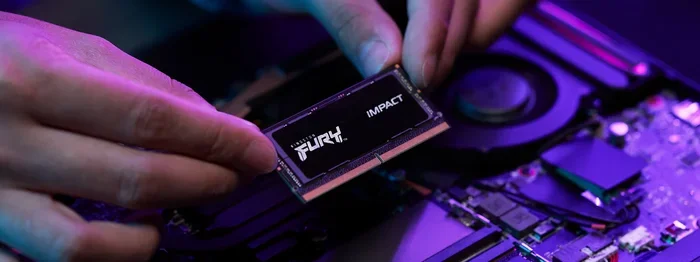
Laptop RAM uses a form factor called SODIMM, which stands for Small Outline Dual In-Line Memory Module. These are much smaller than desktop RAM sticks. A standard desktop RAM module is called a DIMM. You must never try to put a desktop DIMM into a laptop. The physical size and pin layout are completely different.
When shopping for laptop RAM, always look for SODIMM modules. Most laptop RAM comes in 4GB, 8GB, 16GB, and 32GB sizes. For the best performance, many laptops use two smaller modules instead of one large one. This is called dual channel memory and it improves speed significantly.
RAM Speed, Frequency, and Timings
RAM speed, also called frequency, is measured in megahertz (MHz). Higher MHz numbers mean faster data transfer. But your laptop can only use the speed it supports. Buying RAM that is faster than your laptop supports will work, but it will run at the slower speed your laptop allows.
Here is what you need to know about RAM speed:
- Check your laptop manual: It will list the supported RAM speed, such as 2666 MHz or 3200 MHz.
- Match the speed: For best results, buy RAM that matches your laptop’s supported speed exactly.
- Mixing speeds: If you mix different speed RAM sticks, all modules will run at the speed of the slowest one.
Timings are another factor. Timings are listed as a series of numbers like 16-18-18-38. Lower numbers mean faster response times. However, timings matter less than the RAM type and speed for most users. If you are doing basic tasks like browsing and office work, you do not need to worry too much about timings.
How Much RAM Does Your Laptop Need?
The amount of RAM you need depends on how you use your laptop. Different tasks require different amounts of memory. Here is a simple breakdown:
- 4GB: Enough for basic tasks like web browsing and word processing. But it feels limited in 2024 and beyond.
- 8GB: The sweet spot for most users. Handles multitasking, light gaming, and everyday work smoothly.
- 16GB: Great for heavy multitasking, photo editing, video editing, and modern gaming.
- 32GB or more: Best for professional workstations, 4K video editing, and intensive software development.
To find out how much RAM your laptop can hold, check the maximum capacity in your laptop specifications. Some older laptops only support 8GB total, while newer ones can handle 32GB or even 64GB.
If you are unsure about how much RAM you need, check out our guide on how much ram do i need on my laptop. It helps you choose the right amount based on your usage.
How to Check Your Current RAM and Free Up Slots
Before buying new RAM, you should check what is already installed. This tells you how many free slots you have and what type of RAM to buy.
Step-by-Step: Checking Installed RAM
Follow these simple steps to check your current RAM setup:
- Open Task Manager by pressing Ctrl + Shift + Esc.
- Click on the Performance tab.
- Select Memory from the left sidebar.
- Look at the top right corner. You will see your total RAM, speed, and how many slots are being used.
- If it says “2 of 2 slots used,” you need to replace existing modules to add more RAM.
If your laptop has free slots, you can simply add a new RAM module. If all slots are full, you will need to remove the existing RAM and replace it with higher-capacity modules.
For a detailed walkthrough on checking your RAM, you can also read our guide on how to check the ram on my laptop. It covers every method in detail.
Where to Buy Compatible RAM and What to Look For
Once you know your laptop’s RAM requirements, it is time to shop. Here are the best places to buy compatible RAM:
- Manufacturer websites: Brands like Crucial and Kingston offer laptop-specific RAM selectors. You enter your laptop model, and they show you exactly what is compatible.
- Amazon and retail stores: Major retailers carry a wide range of laptop RAM. Always double-check the specifications before purchasing.
- Authorized resellers: Buying from authorized dealers ensures you get genuine products with warranties.
When buying RAM, always verify these three things:
- The RAM type matches your laptop (DDR4 or DDR5).
- The form factor is SODIMM for laptops.
- The speed and capacity are within your laptop’s supported limits.
If you plan to upgrade your RAM yourself, our guide on how to upgrade ram on a laptop provides a detailed walkthrough with tips for a safe and successful upgrade.
Common Mistakes to Avoid When Buying Laptop RAM
Buying the wrong RAM is one of the most common mistakes people make. Here are some pitfalls to avoid:
- Buying desktop RAM for a laptop: Desktop DIMMs will not fit into laptop SODIMM slots. Always confirm the form factor before purchasing.
- Ignoring the maximum capacity: Buying a 32GB module for a laptop that only supports 16GB total is a waste of money.
- Mixing RAM generations: DDR4 and DDR5 are not compatible. Your laptop motherboard only supports one generation.
- Skipping the laptop manual: The manufacturer’s website has the most accurate and up-to-date compatibility information.
- Forgetting about the operating system: A 32-bit operating system can only use about 4GB of RAM. A 64-bit system is required for 8GB and above.
Avoiding these mistakes ensures you buy the right RAM the first time. It saves you money, shipping costs, and the frustration of returns.
How to Install New RAM in Your Laptop
Once you have the correct RAM, installation is straightforward. Here is a quick overview of the process:
- Power off your laptop: Turn it completely off and unplug the power adapter.
- Remove the battery: If your laptop has a removable battery, take it out. This prevents any electrical damage.
- Find the RAM slot: Most laptops have a small panel on the bottom held by screws. Remove the panel to access the RAM slots.
- Remove old RAM (if needed): Push the side clips outward. The old RAM module will pop up at an angle. Pull it out gently.
- Insert new RAM: Align the notch on the RAM stick with the slot. Press it down firmly until the side clips click into place.
- Replace the panel and battery: Put everything back together and power on your laptop.
Your laptop should recognize the new RAM automatically. If it does not, try restarting the laptop. You can also check the BIOS settings to ensure the new memory is detected.
For more detailed instructions, our guide on how to install laptop ram covers the entire process with images and tips.
When to Seek Professional Help
Most laptop RAM upgrades are simple and can be done at home. But there are times when you should seek professional help. If your laptop has soldered RAM that cannot be removed, you will need professional assistance. If you are uncomfortable opening your laptop, a technician can handle the upgrade safely. Also, if your laptop is still under warranty, opening it yourself might void the warranty. Check with the manufacturer first.
Final Thoughts
Knowing how to know what ram is compatible with my laptop is an essential skill for anyone who wants to improve their laptop’s performance. By checking your laptop model, understanding RAM types and generations, and verifying speed and capacity limits, you can make the right purchase with confidence. Always buy SODIMM modules that match your laptop’s supported DDR generation and speed. Avoid the common mistakes outlined in this guide, and you will have a smooth and successful upgrade experience.
Take the time to do your research before buying RAM. A few minutes of checking specifications can save you hours of frustration and a lot of wasted money. Your laptop will thank you with faster speeds, smoother multitasking, and a much better overall experience.
Frequently Asked Questions
Can I mix different brands of RAM in my laptop?
Yes, you can mix different brands of RAM as long as they are the same type, speed, and form factor. However, using matching RAM sticks from the same brand and model is always recommended for the best stability and performance. Mixing RAM can sometimes cause compatibility issues, so it is safer to use identical modules when possible.
Do I need to install RAM in pairs?
Installing RAM in pairs enables dual channel mode, which improves memory bandwidth and performance. If your laptop has two slots, using two matching sticks is better than using one. However, using a single stick still works perfectly fine. Your laptop will run in single channel mode, which is slower but perfectly usable for most tasks.
What happens if I install the wrong RAM in my laptop?
If you install the wrong RAM type, such as putting DDR5 into a DDR4 slot, the laptop will not boot. The RAM physically will not fit in the wrong slot. If you install RAM that exceeds your laptop’s maximum capacity, the laptop will only recognize up to its supported limit. Always verify compatibility before purchasing.
How do I know if my laptop RAM is upgradeable?
Check your laptop’s specifications on the manufacturer’s website. Look for information about memory slots, maximum RAM capacity, and whether the RAM is soldered or removable. Many gaming laptops and business laptops have upgradeable RAM, while some thin and light laptops have soldered memory that cannot be changed.
Is 16GB RAM enough for a laptop in 2024?
For most users, 16GB of RAM is more than enough in 2024. It handles web browsing, office work, photo editing, and even casual gaming with ease. If you do heavy video editing, 3D rendering, or run virtual machines, you may benefit from 32GB. Check out our guide on how much ram do i need on my laptop to find the right amount for your needs.
Can I upgrade my laptop RAM from 4GB to 16GB?
Yes, in most cases you can upgrade from 4GB to 16GB if your laptop supports it. Check your laptop’s maximum RAM capacity and the number of available slots. You may need to replace the existing 4GB stick with a 16GB stick or add a second 16GB stick if there is a free slot. For detailed guidance, visit our page on can i upgrade my laptop ram from 4gb to 16gb.