What Is Routine Computer Maintenance
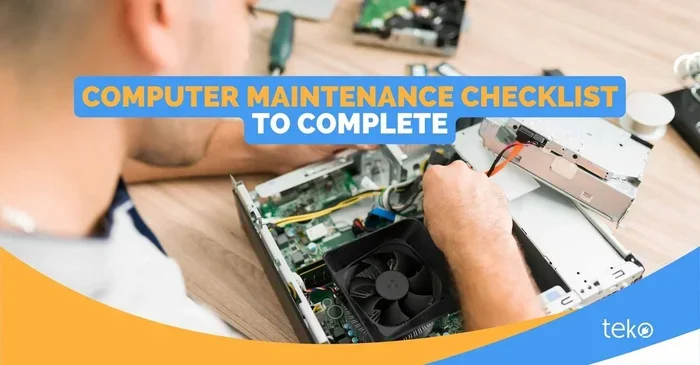
Routine computer maintenance means regularly caring for your PC to keep it running smoothly and safely. It includes cleaning dust, updating software, scanning for malware, and checking hardware health. Doing these simple tasks prevents slowdowns, extends your computer’s lifespan, and saves you from costly repairs.
Your computer works hard every single day. It runs programs, stores files, and connects you to the world. But like any machine, it needs regular care to keep performing at its best. That is where routine computer maintenance comes in.
Routine computer maintenance means doing simple, regular tasks to keep your PC healthy. Think of it like changing the oil in your car. You do not wait for the engine to fail. You take preventive steps to keep everything running smoothly.
Many people ignore their computers until something goes wrong. The screen freezes. The fan sounds like a jet engine. Programs take forever to open. These problems are almost always preventable. A little PC upkeep each week or month can save you hours of frustration and hundreds of dollars in repairs.
In this guide, we will walk you through everything you need to know about routine computer maintenance. You will learn what it is, why it matters, and exactly how to do it. Whether you use a desktop or a laptop, these tips will help your machine run faster and last longer.
Key Takeaways
- Regular cleaning prevents overheating and hardware failure
- Software updates patch security holes and improve performance
- Disk cleanup and defragmentation keep your system fast
- Monitoring temperatures helps catch cooling problems early
- Backing up data protects you from permanent loss
- Checking hardware health like RAM and storage avoids surprises
- Preventive maintenance costs far less than replacing parts
📑 Table of Contents
- What Is Routine Computer Maintenance?
- Hardware Maintenance Tasks
- Software Maintenance Tasks
- Storage and Memory Maintenance
- Data Backup and Security
- How Often Should You Maintain Your Computer?
- Common Mistakes to Avoid
- Expert Insights on Computer Maintenance
- Quick Tips for Everyday Computer Care
- Conclusion
What Is Routine Computer Maintenance?
Routine computer maintenance is the regular practice of caring for your computer’s hardware and software. It covers everything from physical cleaning to software updates. The goal is simple: keep your system running at peak performance and avoid unexpected problems.
There are two main sides to PC upkeep. The first is hardware care. This means keeping your computer physically clean and checking that parts work correctly. The second is software care. This means updating programs, scanning for threats, and organizing files.
Why Routine Maintenance Matters
Skipping maintenance leads to real problems. Dust builds up inside your machine and blocks airflow. This causes overheating. Overheating slows down your processor and can damage components over time. Software that is never updated becomes a security risk. Old files pile up and eat your storage space. All of these issues add up.
On the other hand, consistent preventive maintenance gives you many benefits:
- Faster performance because your system is not bogged down by clutter
- Better security since updates patch known vulnerabilities
- Longer hardware life because parts are not stressed by heat or wear
- Fewer surprises like crashes, freezes, or sudden failures
- Lower costs since you avoid expensive repairs or replacements
Think of routine computer maintenance as a small investment of time that pays off big. Spending just 15 to 30 minutes every few weeks on system cleanup and checks can add years to your computer’s life.
Hardware Maintenance Tasks
Your computer is a physical machine with moving parts and sensitive electronics. Hardware maintenance keeps those parts in good shape. These tasks are simple but often overlooked.
Cleaning Dust and Dirt
Dust is the number one enemy of computers. It collects on fans, vents, and heat sinks. Over time, it forms a thick layer that blocks airflow. When air cannot flow properly, components heat up. This leads to throttling, slowdowns, and eventually hardware failure.
Here is how to clean your computer safely:
- Turn off and unplug your computer before cleaning.
- Use compressed air to blow dust out of vents and fans. Hold the can upright.
- Wipe the exterior with a soft, slightly damp cloth.
- Clean your keyboard by turning it upside down and gently tapping it.
- Avoid vacuum cleaners because they create static electricity that can damage parts.
For desktops, open the side panel every 3 to 6 months. For laptops, use compressed air around the vents regularly. This simple step is one of the most important parts of hardware care.
Checking Your Cooling System
Cooling is critical to routine computer maintenance. If your computer runs hot, it will slow down to protect itself. This is called thermal throttling, and it kills performance.
To keep your cooling system working well:
- Check that all fans spin when the computer is on
- Monitor temperatures using free software like HWMonitor or Core Temp
- Replace thermal paste on your CPU every 2 to 3 years
- Make sure vents are not blocked by papers, fabric, or furniture
If your cooling system is not doing its job, you may need to replace a fan or add more cooling. For desktops, choosing the best CPU cooler for your setup can make a huge difference in temperature and noise levels.
Monitoring GPU Temperature
Your graphics card works hard, especially if you game or edit video. It generates a lot of heat. Keeping an eye on your GPU temperature is an important part of preventive maintenance.
A good idle GPU temperature is usually between 30 and 50 degrees Celsius. If your GPU sits much higher than that when doing nothing, something is wrong. It could be a dusty fan, poor airflow, or a failing cooler.
You can check your GPU temperature using tools like MSI Afterburner or GPU-Z. If temperatures are consistently high, clean your fans and make sure your case has good airflow. If the problem persists, it might be time to replace the cooler or reapply thermal paste.
Software Maintenance Tasks
Hardware gets all the attention, but software maintenance is just as important. Keeping your programs and operating system updated protects you from security threats and keeps things running fast.
Updating Your Operating System and Programs
Software updates do more than add new features. They fix bugs, patch security holes, and improve performance. Ignoring updates leaves your computer vulnerable to malware and slows it down over time.
Here is a simple routine for staying up to date:
- Turn on automatic updates for your operating system
- Check for app updates once a month, especially your browser and security software
- Restart your computer after updates are installed
- Remove old programs you no longer use to free up resources
Outdated software is one of the biggest security risks. Hackers often target known vulnerabilities in older versions. Keeping everything current is one of the easiest forms of routine computer maintenance.
Scanning for Malware and Viruses
Malware can sneak onto your computer through emails, downloads, or unsafe websites. Once inside, it can steal your data, slow your system, or even lock your files.
Follow these steps to stay protected:
- Use a reputable antivirus program and keep it updated
- Run a full scan at least once a month
- Do not click suspicious links in emails or messages
- Avoid downloading software from untrusted websites
Even with antivirus software, you should practice safe browsing habits. Malware protection is a team effort between your software and your behavior.
Managing Startup Programs
When you turn on your computer, many programs start automatically. Some are necessary, but many are not. These background programs eat up your RAM and slow down your boot time.
To manage startup programs:
- Open Task Manager on Windows (Ctrl + Shift + Esc)
- Go to the Startup tab
- Disable programs you do not need running immediately
- Keep only essential tools like your antivirus enabled
This simple step can make your computer feel much faster. It is one of the most overlooked parts of routine computer maintenance.
Storage and Memory Maintenance
Your computer’s storage and memory are the backbone of its performance. Keeping them in good shape is essential for a fast, reliable machine.
Running Disk Cleanup
Over time, your hard drive fills up with temporary files, cache data, and old downloads. These files take up space and slow things down. Running a disk cleanup removes them.
On Windows, type “Disk Cleanup” in the search bar and run it. On Mac, use the built-in Storage Management tool. You should do this at least once a month. It frees up space and helps your system run more efficiently.
Checking Your RAM
RAM is what your computer uses to handle active tasks. If your RAM is not working properly, programs will lag or crash. Part of good routine computer maintenance is making sure your memory is functioning well.
On Windows, use the built-in Memory Diagnostic tool. On Mac, Activity Monitor shows your RAM usage in real time. If you find your RAM is consistently maxed out, it may be time to upgrade. Knowing what RAM is good for helps you decide whether an upgrade makes sense for your needs.
Defragmenting Your Hard Drive
If you use a traditional hard drive (not an SSD), files can become fragmented over time. This means pieces of files are scattered across the disk, making access slower.
Windows has a built-in defragmentation tool. Just search for “Defragment and Optimize Drives.” Mac computers do this automatically. Note: you do not need to defragment SSDs, as it can actually reduce their lifespan.
Data Backup and Security
One of the most important parts of routine computer maintenance is protecting your data. No matter how well you care for your hardware, accidents happen. Hard drives fail. Laptops get dropped. Ransomware attacks encrypt your files.
Backing Up Your Data
A good backup strategy follows the 3-2-1 rule:
- 3 copies of your important data
- 2 different storage types (like an external drive and cloud storage)
- 1 copy offsite (like a cloud backup service)
Set up automatic backups so you do not have to remember. Services like Google Drive, OneDrive, and Dropbox make this easy. For local backups, use an external hard drive and schedule weekly backups.
Protecting Your System from Threats
Security is a key part of PC upkeep. Beyond antivirus software, here are some practices that keep you safe:
- Use strong, unique passwords for your accounts
- Enable two-factor authentication wherever possible
- Use a VPN on public Wi-Fi networks
- Keep your firewall enabled at all times
- Be cautious with email attachments from unknown senders
These habits take minutes but protect you from potentially devastating data loss or identity theft.
How Often Should You Maintain Your Computer?
The frequency of your routine computer maintenance depends on how you use your machine. Here is a simple schedule to follow:
| Task | Frequency |
|---|---|
| Dust cleaning | Every 3 months |
| Software updates | Weekly or as released |
| Full malware scan | Monthly |
| Disk cleanup | Monthly |
| Temperature check | Every 3 months |
| Full backup | Weekly |
| Driver updates | Every 3 months |
| Thermal paste replacement | Every 2 to 3 years |
Sticking to a schedule makes maintenance feel less like a chore. Set reminders on your phone or calendar. After a few weeks, these tasks will become second nature.
Common Mistakes to Avoid
Even people who care about their computers make mistakes. Here are the most common ones:
- Ignoring warning signs. If your computer is running hot or making strange noises, do not ignore it. These are early signals of problems.
- Skipping updates. It is tempting to click “Remind Me Later,” but updates matter for security and performance.
- Using too many antivirus programs. Running two antivirus tools at once causes conflicts and slows your system.
- Overheating your laptop. Using your laptop on a bed or couch blocks the vents. Always use it on a hard, flat surface.
- Never restarting. Restarting clears temporary files and refreshes your system. Do not let your computer run for weeks without a reboot.
Avoiding these mistakes keeps your system diagnostics running smoothly and prevents many common problems.
Expert Insights on Computer Maintenance
Tech professionals agree that routine computer maintenance is the single best thing you can do for your machine. Here are some expert-backed tips:
- Monitor your hard drive health using tools like CrystalDiskInfo. It warns you before a drive fails completely.
- Keep your laptop on a hard surface to ensure proper airflow. Soft surfaces like blankets block vents.
- Consider a surge protector to shield your computer from power spikes.
- Invest in your PC’s longevity by choosing quality components and maintaining them well. The best investment for your PC’s lifespan is regular care.
These small habits add up. They keep your machine running like new for years beyond what neglected computers can achieve.
Quick Tips for Everyday Computer Care
Not everyone has time for deep maintenance sessions. Here are quick tips you can do in under five minutes:
- Restart your computer at least once a week
- Close programs you are not using to free up memory
- Clear your browser cache regularly for faster browsing
- Unplug your computer during storms to protect against power surges
- Keep liquids away from your keyboard and laptop
These tiny habits make a big difference over time. They are the foundation of good PC upkeep.
Conclusion
Routine computer maintenance is not complicated or time-consuming. It is about building small habits that protect your investment. From cleaning dust to updating software, each task plays a role in keeping your computer fast, safe, and reliable.
Your computer works hard for you every day. Taking care of it with regular system cleanup, temperature monitoring, and software updates is the least you can do. Start with one task today. Add another next week. Before long, maintenance will feel like second nature.
The best part? A well-maintained computer lasts longer, runs faster, and causes fewer headaches. That is a win for everyone. Start your routine computer maintenance routine today, and your future self will thank you.
Frequently Asked Questions
What does routine computer maintenance include?
Routine computer maintenance includes cleaning dust, updating software, scanning for malware, managing startup programs, running disk cleanup, and backing up your data. It also involves checking hardware health like temperatures and RAM performance. These tasks keep your system running smoothly and prevent problems before they start.
How often should I do computer maintenance?
You should do light tasks like software updates and restarting weekly. Monthly tasks include malware scans and disk cleanup. Every few months, clean dust and check temperatures. Once a year, consider deeper maintenance like replacing thermal paste. A consistent schedule makes it easy to stay on track.
Can routine maintenance speed up a slow computer?
Yes, absolutely. Many slow computers suffer from dust buildup, outdated software, too many startup programs, or full storage. Regular routine computer maintenance addresses all of these issues. A clean, updated system runs noticeably faster than a neglected one.
Is routine computer maintenance expensive?
No, routine maintenance costs almost nothing. You just need time and basic tools like compressed air and free software. The money you save on repairs and replacements far outweighs any small investment. Think of it as free insurance for your computer.
What happens if I never do computer maintenance?
Without maintenance, dust accumulates and causes overheating. Software becomes outdated and vulnerable to attacks. Files become fragmented and slow to access. Eventually, hardware fails prematurely. A neglected computer runs slower, crashes more, and has a much shorter lifespan.
Do I need to be tech-savvy to maintain my computer?
Not at all. Most routine computer maintenance tasks are simple and do not require technical skills. Cleaning dust, running updates, and scanning for viruses are easy for anyone. If you are ever unsure, a quick online search or a visit to a local tech shop can help with more advanced tasks.