What Is Teamviewer Host 2
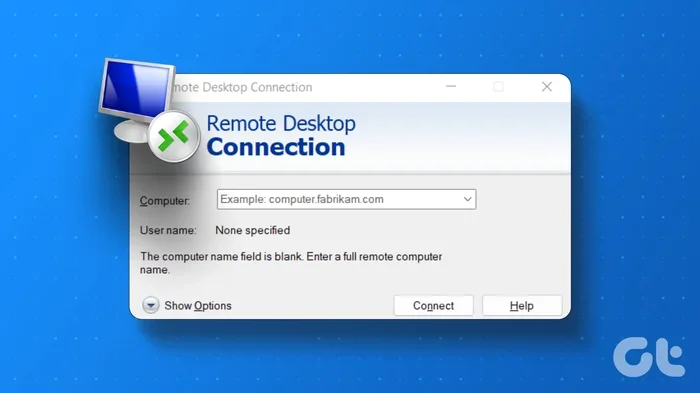
TeamViewer Host 2 is a remote access tool that lets you connect to your laptop or PC from anywhere in the world. It gives you full control over your computer, making remote support, file transfer, and unattended access simple and secure. Whether you are an IT professional or a casual user, TeamViewer Host 2 is a powerful solution for managing your devices remotely.
TeamViewer Host 2 is a remote desktop software that lets you take full control of a computer from anywhere in the world. Think of it as a digital bridge between your devices. You sit on one laptop and can operate another one as if you were sitting right in front of it. This technology has become a must-have for IT professionals and everyday users alike.
The software works over the internet. You just need a connection ID and a password to get started. Once connected, you can see the entire screen of the remote computer. You can move the laptop mouse, type on the keyboard, and open programs. It feels like you are physically there.
What makes TeamViewer Host 2 stand out is its simplicity. You do not need to be a tech expert to use it. The setup takes only a few minutes. Even if you are new to remote access, you will feel comfortable right away. The interface is clean and straightforward, so you spend less time figuring things out and more time getting work done.
Key Takeaways
- Remote Access Made Easy: TeamViewer Host 2 lets you control your laptop from any device with an internet connection.
- Unattended Access: You can connect to your computer even when nobody is sitting in front of it.
- Built for IT Support: It is a go-to tool for technicians providing remote assistance and troubleshooting.
- Secure Connections: End-to-end encryption keeps your remote sessions private and safe.
- File Transfer Included: You can send and receive files between devices without extra software.
- Free for Personal Use: Personal users can use it at no cost, while businesses need a paid plan.
📑 Table of Contents
What Is TeamViewer Host 2?
TeamViewer Host 2 is a specific version of TeamViewer designed for unattended remote access. Unlike the standard TeamViewer setup, the Host version lets you set up a computer to be accessed at any time. You do not need someone to be present and approve the connection each time. This is called unattended access, and it is a game-changer for many users.
The software is developed by TeamViewer AG, a German company. It has been around for many years and is trusted by millions of users worldwide. People use it for everything from IT support to working from home. The remote desktop capability is at the core of what makes this tool so valuable.
How Does It Work?
Here is how TeamViewer Host 2 works in simple terms. First, you install the software on the computer you want to access remotely. This computer becomes the “host.” The software assigns a unique ID to that computer. You then use another device, like your personal laptop or phone, to connect to that ID.
Once you enter the ID and the password, the remote session begins. You see the host computer’s screen on your device. You can control it just like you would if you were sitting in the same room. The connection is real-time, so there is no lag in most cases. This makes remote control feel natural and smooth.
The software uses end-to-end encryption to keep your connection safe. This means no one else can spy on your remote sessions. Even when you are using public Wi-Fi, your data stays protected. Security is a top priority for TeamViewer, and that is one of the main reasons people trust it.
Key Features of TeamViewer Host 2
TeamViewer Host 2 comes packed with features that make remote access a breeze. Let us look at the most important ones.
Unattended Access
This is the biggest selling point. With unattended access, you can connect to your computer even when no one is there. For example, you can access your office PC from home after hours. You do not need someone to be at the other end and give you permission. The computer is always ready and waiting for you.
File Transfer
You can transfer files between your local device and the remote computer. This is incredibly useful when you need to send documents, photos, or videos back and forth. The file transfer feature is fast and reliable. You do not need to use email or USB drives anymore.
Screen Sharing
Screen sharing lets you show your screen to someone else. This is perfect for remote assistance sessions. If a friend or colleague needs help, you can share your screen and walk them through the steps. It makes explaining things much easier than trying to describe them over the phone.
Multi-Monitor Support
If your computer has more than one monitor, TeamViewer Host 2 supports that. You can switch between screens during your remote session. This is especially helpful for people who use multiple displays for work. It keeps your workflow seamless and uninterrupted.
Remote Reboot
Sometimes the remote computer needs a restart. TeamViewer Host 2 lets you reboot the machine remotely and then reconnect automatically. This saves a lot of time, especially when you are helping someone who is far away. You do not need to physically press the power button.
Who Uses TeamViewer Host 2?
Many different people and businesses use TeamViewer Host 2. Let us explore some of the most common use cases.
IT Professionals and Technicians
IT support teams rely heavily on remote desktop software like TeamViewer. When a user reports a problem, the technician can connect to their computer and fix it without being in the same building. This saves time and money. It also means faster solutions for the person who needs help. Remote support has become the backbone of modern IT service desks.
Businesses and Corporations
Many companies use TeamViewer Host 2 for system administration and employee support. IT departments manage hundreds of computers from a single location. They can install software, update systems, and troubleshoot issues remotely. This is especially useful for companies with employees working from home. Laptop connectivity tools like TeamViewer keep business operations running smoothly.
Personal Users
Even regular users benefit from TeamViewer Host 2. You might want to access your home computer while traveling. Or you might need to help a family member fix a problem on their device. The software is free for personal use, which makes it very accessible. Anyone can download it and start using it right away.
Educators and Students
Teachers can use remote access to help students with computer problems. They can take control of a student’s device and show them the right steps. This is a great way to provide remote assistance in online learning environments. Students also benefit because they can access their school computers from home.
Setting Up TeamViewer Host 2 on Your Laptop
Setting up TeamViewer Host 2 is straightforward. Here is a step-by-step guide to get you started.
Step 1: Download and Install
Go to the official TeamViewer website and download the installer. Run the file and follow the on-screen instructions. The installation usually takes less than five minutes. Make sure you have a stable network connection during the setup process.
Step 2: Set Up Unattended Access
During setup, you will be asked if you want to enable unattended access. Choose yes if you plan to connect to this computer without someone being present. You will also create a personal password. This password is what you will use to log in from your other device.
Step 3: Note Your ID
After installation, TeamViewer will display your unique ID. Write this down or keep it somewhere safe. You will need this ID every time you want to connect to this computer from another device. The ID is what identifies your laptop in the remote access network.
Step 4: Connect from Another Device
Install TeamViewer on the device you will use to connect. Open the app, enter the host ID, and type in your password. The remote session will start immediately. You now have full control over the host computer.
Quick Tips for a Smooth Setup
- Always use the latest version of TeamViewer to get the best security updates.
- Use a strong password for your unattended access to keep your laptop safe.
- Make sure both devices have a reliable internet connection for the best performance.
- Check your system resources before connecting. If your laptop has low memory, the remote desktop experience may be slower.
Benefits of Using TeamViewer Host 2
TeamViewer Host 2 offers many advantages that make it a top choice for remote access. Here are the key benefits.
Convenience
You can access your computer from anywhere. Whether you are at a coffee shop, on a train, or at home on the couch, your files and applications are just a click away. This level of laptop connectivity gives you freedom and flexibility.
Cost Savings
For businesses, remote support eliminates the need for on-site visits. Technicians can fix problems remotely, saving travel time and expenses. Even for personal use, you do not need to pay for extra tools. TeamViewer Host 2 is free for personal use, which is a huge advantage.
Increased Productivity
When you can access your work computer from home, you stay productive. You do not have to wait until you are in the office. Remote management tools like TeamViewer help people get more done in less time. This is especially true for freelancers and remote workers.
Better Security
TeamViewer Host 2 uses strong encryption to protect your data. Every remote session is secured from end to end. You also have full control over who can connect to your computer. You can block unauthorized users and set up two-factor authentication for extra safety.
TeamViewer Host 2 vs. Other Remote Access Tools
There are many remote desktop software options available. Here is how TeamViewer Host 2 compares to some popular alternatives.
| Feature | TeamViewer Host 2 | Other Tools |
|---|---|---|
| Unattended Access | Yes | Varies |
| Ease of Setup | Very Easy | Moderate |
| File Transfer | Built-in | Sometimes Extra |
| Multi-Monitor Support | Yes | Varies |
| Free for Personal Use | Yes | Sometimes |
| Encryption | End-to-End | Varies |
| Remote Reboot | Yes | Not Always |
What sets TeamViewer Host 2 apart is its balance of power and simplicity. Many other tools offer similar features but require more technical knowledge to set up. TeamViewer keeps things user-friendly without sacrificing capability. It is a great choice whether you are a beginner or an experienced system administrator.
One thing to keep in mind is that TeamViewer Host 2 does use some of your laptop’s resources. It runs in the background, so it takes up a small amount of RAM and processing power. If you are concerned about performance, you can check your system resources and adjust the settings. For most users, the impact is minimal and barely noticeable.
Common Mistakes to Avoid
Even though TeamViewer Host 2 is easy to use, there are a few common mistakes you should watch out for.
- Using weak passwords: Always set a strong, unique password for your unattended access. This is the first line of defense for your remote sessions.
- Ignoring updates: Software updates often include important security patches. Keep your TeamViewer app up to date at all times.
- Forgetting to log out: If you are using a shared computer, always log out after your remote session ends. This prevents unauthorized access.
- Using public Wi-Fi without a VPN: While TeamViewer encrypts your connection, using a VPN on public networks adds an extra layer of protection.
By avoiding these mistakes, you can enjoy a safe and smooth experience with TeamViewer Host 2. A little caution goes a long way when it comes to remote access tools.
Final Thoughts
TeamViewer Host 2 is a reliable and powerful tool for anyone who needs remote access to their computer. Whether you are an IT professional helping clients, a business managing multiple devices, or a personal user accessing files on the go, this software delivers. Its unattended access, secure connections, and user-friendly design make it a standout choice in the world of remote desktop software.
If you are looking for a way to stay connected to your laptop from anywhere, give TeamViewer Host 2 a try. It is free for personal use, easy to set up, and packed with features that make remote management simple. Once you start using it, you will wonder how you ever managed without it. The world of remote access is at your fingertips.
Remember that keeping your software updated and using strong passwords will help you get the most out of TeamViewer Host 2. And if you ever need to check your laptop’s hardware, knowing about your what is the ram on a laptop or what is the mouse on a laptop called can help you troubleshoot any issues that come up. Tools like TeamViewer Host 2 and a solid understanding of your device go hand in hand for a great remote experience.
Frequently Asked Questions
Is TeamViewer Host 2 free to use?
Yes, TeamViewer Host 2 is free for personal use. However, businesses and commercial users need a paid license. The free version includes all the core features you need for personal remote access.
Can I use TeamViewer Host 2 on any laptop?
Yes, TeamViewer Host 2 works on Windows, Mac, and Linux laptops. As long as your device meets the minimum system requirements, you can install and use it without any problems. It is a versatile remote desktop software that supports many platforms.
Is TeamViewer Host 2 secure?
Absolutely. TeamViewer uses end-to-end encryption to protect all remote sessions. It also offers two-factor authentication and session logging. These security features keep your remote access safe from unauthorized users.
Do I need an internet connection to use TeamViewer Host 2?
Yes, you need a stable internet connection on both the host and client devices. The remote session depends on internet connectivity to transmit screen data and input commands. A faster connection will give you a smoother remote control experience.
Can I access multiple computers with TeamViewer Host 2?
Yes, you can set up TeamViewer Host 2 on multiple computers and access each one from a single device. This is very useful for managing several machines. Just make sure each computer has its own unique ID and password.
Will TeamViewer Host 2 slow down my laptop?
It uses a small amount of system resources, but the impact is usually minimal. If you notice any slowdown, you can adjust the quality settings in TeamViewer. Keeping your what is the ram on a laptop in good condition also helps maintain overall performance during remote sessions.