Laptop Screen Flickering Green
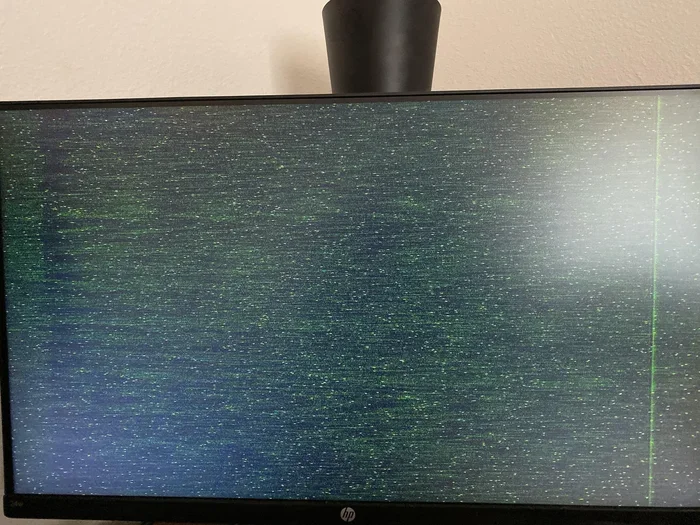
A laptop screen flickering green is a frustrating but fixable problem caused by loose cables, outdated drivers, or hardware issues. This guide walks you through every possible cause and solution, so you can get your display back to normal without spending a fortune. Whether you own a budget model or a high-end machine, the tips here will help you diagnose and resolve the green flicker quickly.
You are working on an important project, and suddenly your laptop screen starts flickering green. It is annoying, distracting, and honestly a little scary. Before you panic or rush to buy a new laptop, take a breath. A green flickering screen is one of the most common display problems laptop users face, and it is usually fixable.
In this guide, we will cover every reason your laptop screen might flicker green, from simple software glitches to hardware failures. We will also walk you through step-by-step fixes you can try right now. By the end, you will know exactly what is causing the problem and how to solve it.
A laptop screen flickering green can happen on any brand or model. It does not matter if you have a budget laptop or a premium machine. The causes are similar, and so are the solutions. Let us dive in and get your screen back to normal.
Key Takeaways
- Loose or damaged display cables are the most common reason for a green flickering screen and are easy to check at home.
- Outdated or corrupted graphics drivers often trigger screen flickering and can be fixed with a simple update.
- Overheating and inverter board failure can cause persistent green tint and flickering on older laptops.
- Software conflicts and refresh rate settings are frequently overlooked but simple to adjust.
- Knowing when to seek professional repair saves time and money compared to DIY attempts on complex hardware issues.
- Regular maintenance like proper cleaning and driver updates can prevent flickering from returning.
📑 Table of Contents
- What Causes a Laptop Screen to Flicker Green?
- How to Diagnose the Green Flicker on Your Laptop Screen
- Proven Fixes for a Laptop Screen Flickering Green
- Prevention Tips to Stop Your Screen from Flickering Green Again
- When Should You Seek Professional Help?
- Comparison Table: Common Causes vs. Fixes
- Final Thoughts
What Causes a Laptop Screen to Flicker Green?
Understanding the root cause is the first step to fixing the problem. A green flicker on your screen can come from many sources, and each one needs a different approach. Below are the most common reasons this happens.
Loose or Damaged Display Cable
The display cable connects your laptop screen to the motherboard. Over time, this cable can become loose, especially if you open and close your laptop often. A loose cable sends scrambled signals to the screen, which often shows up as a green flicker or tint.
In some cases, the cable itself is damaged. This can happen if the laptop has been dropped or bumped hard. When the internal wires fray or break, the green flicker becomes a regular occurrence rather than an occasional glitch.
Outdated or Corrupted Graphics Drivers
Your graphics driver is the software that tells your laptop how to display images on the screen. When this driver becomes outdated or corrupted, strange things happen to your display. A green flicker is one of the most common symptoms of a driver problem.
This issue is especially common after a Windows update. Sometimes the new update conflicts with your current driver, and the screen starts acting up. It is one of the easiest causes to fix, which is great news.
Overheating Components
Laptops generate a lot of heat, especially when running demanding tasks like gaming or video editing. When internal components overheat, the display can start flickering. A green tint often appears when the GPU or display circuitry gets too hot.
Dust buildup inside the laptop makes overheating worse. If you have not cleaned your laptop in a while, dust can block the vents and fans. This traps heat inside and puts extra stress on the display components.
Inverter Board Failure
Older laptops use an inverter board to power the backlight of the LCD screen. When this board starts to fail, the screen can flicker and develop a green or blue tint. This is more common in laptops that are three years old or older.
The inverter board is a small component on the motherboard, and replacing it requires some technical skill. If you are not comfortable opening your laptop, this is a job for a professional repair tech.
Software Conflicts and Settings
Sometimes the problem is not hardware at all. Certain software programs can conflict with your display settings and cause a green flicker. This is especially true for screen calibration tools, third-party display managers, and some antivirus programs.
Your screen refresh rate can also play a role. If the refresh rate is set too high or too low for your display, the screen may flicker or show color distortions. Checking this setting takes just a few seconds and is well worth trying.
How to Diagnose the Green Flicker on Your Laptop Screen
Before you start fixing anything, you need to figure out what is causing the problem. A few simple diagnostic steps can save you a lot of time and effort. Here is how to narrow down the cause.
Check If the Flicker Happens on an External Monitor
Connect your laptop to an external monitor or TV using an HDMI cable. If the green flicker disappears on the external display, the problem is with your laptop screen or its cable. If the flicker stays, the issue is likely with your graphics driver or software settings.
This one simple test can tell you a lot. It separates screen hardware problems from software problems, and that changes everything about how you approach the fix.
Boot Into Safe Mode
Safe Mode loads only the essential drivers and software. If your screen stops flickering green in Safe Mode, a third-party program or driver is the culprit. To enter Safe Mode on Windows, hold the Shift key while clicking Restart, then choose Troubleshoot, then Advanced Options, then Startup Settings.
Once in Safe Mode, try uninstalling recent software or rolling back your graphics driver. This is a quick way to confirm whether the problem is software-related.
Inspect the Screen Cable Connection
Open and close your laptop gently while watching the screen. If the flicker changes or stops momentarily, the display cable is likely loose or damaged. You can also shine a flashlight at the screen in a dark room. If you can faintly see the image, the backlight or inverter may be failing.
These diagnostic steps take only a few minutes. They give you a clear direction for the next steps, whether that means a driver update or a hardware fix.
Proven Fixes for a Laptop Screen Flickering Green
Now that you know the possible causes, let us get into the solutions. These fixes are ordered from easiest to most complex, so start at the top and work your way down.
Fix 1: Update Your Graphics Driver
An outdated graphics driver is the number one software cause of screen flickering. Updating it is simple and free. Here is how to do it on Windows:
- Right-click the Start button and select Device Manager.
- Expand the Display adapters section.
- Right-click your graphics card and select Update driver.
- Choose Search automatically for drivers.
- Follow the on-screen prompts and restart your laptop.
If Windows does not find a new driver, visit your laptop manufacturer’s website or the GPU maker’s site (NVIDIA, AMD, or Intel) and download the latest driver manually. This alone fixes the green flicker for many users.
Fix 2: Adjust the Screen Refresh Rate
Sometimes the refresh rate is set to a value your screen does not support. This can cause flickering and color issues. Here is how to check and change it:
- Right-click on your desktop and select Display settings.
- Scroll down and click Advanced display settings.
- Look for the Refresh rate dropdown menu.
- Select the recommended refresh rate for your display.
- Click Apply and then Keep changes.
Stick with the recommended rate. Choosing a rate that is too high or too low can trigger the green flicker you are trying to eliminate.
Fix 3: Clean Your Laptop and Improve Ventilation
Dust buildup is a silent killer of laptop performance and display health. If your laptop runs hot, the display components can malfunction and start flickering green. Regular cleaning helps prevent this.
Use compressed air to blow dust out of the vents and fans. You can also use a soft, dry brush to gently clean the vents. For a deeper clean, check out our guide on the best way to clean your computer screen and laptop for safe and effective methods.
Keep your laptop on a hard, flat surface when using it. Soft surfaces like beds or couches block the vents and trap heat. A simple cooling pad can also help reduce temperatures during heavy use.
Fix 4: Reseat or Replace the Display Cable
If the diagnostic tests suggest a loose cable, you can try reseating it yourself. This involves opening the laptop and reconnecting the display cable to the motherboard and the screen panel. It requires a screwdriver and a little patience.
If the cable is damaged, you will need to replace it. Replacement cables are usually inexpensive, ranging from $10 to $30 depending on your model. You can find the right cable by searching for your laptop brand and model number online.
Be careful when opening your laptop. Take photos at each step so you can remember how everything goes back together. If you are not confident, a local repair shop can do this for a reasonable fee.
Fix 5: Replace the Inverter Board
For older laptops with a failing inverter board, replacement is the best fix. The inverter board is a small component that powers the LCD backlight. When it fails, the screen flickers and often shows a green or blue tint.
Inverter board replacements cost between $15 and $50, depending on the model. However, installing it requires opening the laptop and working with delicate components. If you are not experienced with laptop repair, this is a job best left to a professional.
Fix 6: Perform a System Restore
If the green flicker started after a recent software change, a system restore can undo that change and fix the problem. System Restore rolls your laptop back to a previous point in time when everything was working correctly.
To use System Restore, type “Create a restore point” in the Windows search bar, click the result, and then click System Restore. Follow the prompts and choose a restore point from before the flickering started. This is a safe and non-destructive way to fix software-related display issues.
Prevention Tips to Stop Your Screen from Flickering Green Again
Once you have fixed the green flicker, you want to make sure it does not come back. Prevention is always easier than repair. Here are some simple habits that keep your laptop display healthy.
- Update your drivers regularly. Set a monthly reminder to check for driver updates. This prevents conflicts that can cause flickering.
- Keep your laptop clean. Dust the vents every few weeks and deep clean the interior every six months. Clean airflow keeps temperatures stable.
- Avoid extreme temperatures. Do not leave your laptop in a hot car or in freezing conditions. Extreme heat and cold damage display components over time.
- Handle your laptop gently. Avoid dropping or bumping it, especially when the screen is open. Physical shocks can loosen the display cable.
- Use a surge protector. Power surges can damage internal components, including the display circuitry. A simple surge protector adds valuable protection.
- Keep your operating system updated. Windows updates often include fixes for display bugs and driver compatibility issues.
If you are shopping for a new laptop and want one with a reliable display, consider checking out our guide on the best laptop with touch screen options that feature high-quality displays built to last.
When Should You Seek Professional Help?
Most green flicker issues can be fixed at home with the steps above. But some situations call for professional help. If you have tried all the software fixes and the flickering continues, the problem is likely hardware-related.
Here are signs that you should take your laptop to a repair shop:
- The green flicker persists even after updating drivers and checking settings.
- The screen has visible cracks or physical damage.
- The laptop overheats even after cleaning the vents and fans.
- The display cable or inverter board replacement seems too complex for you.
- The flickering gets worse over time instead of better.
A professional technician can diagnose the exact problem and recommend the right repair. In many cases, the cost is much lower than buying a new laptop. If your laptop is older and the repair cost is high, it might be time to consider an upgrade. Look for a laptop with SSD and 16GB RAM to ensure smooth performance and a better display experience going forward.
Comparison Table: Common Causes vs. Fixes
| Cause | Symptom | Fix Difficulty | Estimated Cost |
|---|---|---|---|
| Loose Display Cable | Flicker changes when opening/closing lid | Easy | Free to $15 |
| Outdated Graphics Driver | Flicker starts after a software update | Very Easy | Free |
| Overheating | Flicker worsens during heavy use | Easy | Free to $20 |
| Inverter Board Failure | Persistent green tint with flicker | Moderate to Hard | $15 to $50 |
| Damaged Display Cable | Flicker is constant and worsening | Moderate | $10 to $30 |
| Software Conflict | Flicker only happens with certain apps | Easy | Free |
Final Thoughts
A laptop screen flickering green is a common problem, but it is almost always fixable. Start with the simplest solutions like updating your graphics driver and adjusting the refresh rate. If those do not work, move on to checking the display cable and cleaning your laptop to prevent overheating.
Most of the time, the fix is free and takes less than 30 minutes. Even hardware repairs like replacing a cable or inverter board are affordable and straightforward. Do not let a green flickering screen ruin your productivity or stress you out. Follow the steps in this guide, and you will have a clear, flicker-free display in no time.
Remember, regular maintenance goes a long way. Keep your drivers updated, clean your laptop regularly, and handle it with care. These simple habits prevent most display problems before they start. Your laptop screen works hard for you every day, so give it the care it deserves.
Frequently Asked Questions
Why is my laptop screen flickering green only when I open it?
This usually means the display cable is loose or damaged. The cable connects the screen to the motherboard, and when you open the lid, the movement can disrupt the connection. Try gently pressing the cable connection or reseating it if you are comfortable opening your laptop.
Can a green flickering screen damage my laptop?
The flickering itself does not cause damage, but the underlying issue might. If the problem is overheating, continued use without fixing it can harm other components. If it is a loose cable, it will not get worse on its own but will keep being annoying. It is best to address the root cause promptly.
How do I know if the green flicker is a software or hardware problem?
Connect your laptop to an external monitor. If the flicker disappears on the external display, it is likely a hardware issue with your laptop screen or cable. If the flicker persists on the external monitor, it is probably a software or driver problem. Booting into Safe Mode can also help you tell the difference.
Is it worth repairing an older laptop with a green flickering screen?
It depends on the repair cost and the laptop’s overall condition. If the fix is simple like updating a driver or reseating a cable, it is absolutely worth it. If the inverter board or screen needs replacement and the cost exceeds half the value of the laptop, you might be better off saving for a new one.
Can updating Windows fix a green flickering screen?
Yes, sometimes Windows updates include display driver improvements that fix flickering issues. However, if the update itself causes the problem, rolling back to a previous version or manually updating the graphics driver is the way to go. Always check for driver updates after a major Windows update.
How can I prevent my laptop screen from flickering green in the future?
Keep your graphics drivers updated, clean your laptop vents regularly to prevent overheating, and handle your laptop gently to avoid loosening internal connections. Using a surge protector and keeping your laptop on hard surfaces also helps maintain display health over time.