What Is Video Rendering

Video rendering is the process of turning raw footage and edits into a finished video file. It uses your computer’s GPU or CPU to process effects, transitions, and color grading. Whether you are a beginner or a pro, understanding rendering helps you create faster and higher-quality content.
Have you ever wondered what happens behind the scenes when you hit export on a video project? That magical moment when raw clips turn into a smooth, polished video is all thanks to video rendering. It is the invisible engine that powers every YouTube video, movie, and TikTok you watch.
Video rendering might sound technical, but the core idea is simple. Your computer takes all the pieces of a video project — clips, music, effects, text overlays — and combines them into one single file. Think of it like baking a cake. You gather all the ingredients, mix them together, and the oven transforms them into something amazing.
Understanding how rendering works can change the way you create videos. It helps you pick the right equipment, choose better settings, and avoid frustrating wait times. In this guide, we will break everything down in plain language. You will learn what rendering is, how it works, and how to get better results every time.
Key Takeaways
- Video rendering converts raw footage into a playable video file by processing all edits, effects, and transitions.
- There are two main types: real-time rendering for previews and final rendering for export.
- GPU rendering is faster for most tasks, while CPU rendering handles complex calculations better.
- Hardware matters a lot — your RAM, storage speed, and GPU all affect rendering time.
- Choosing the right render settings can balance quality and file size effectively.
- Render farms and cloud tools offer powerful alternatives for large projects.
📑 Table of Contents
- What Is Video Rendering?
- How Does Video Rendering Work?
- CPU Rendering vs GPU Rendering
- Factors That Affect Rendering Time
- Common Video Rendering Formats and Codecs
- Tips to Speed Up Video Rendering
- Common Rendering Mistakes to Avoid
- When Should You Use a Render Farm?
- The Future of Video Rendering
- Conclusion
What Is Video Rendering?
At its core, video rendering is the process of generating a final video file from your project timeline. When you edit a video, you are working with a project file that references all your raw clips and edits. Rendering is the step that processes all of that data into a standalone video you can share.
During rendering, your computer reads every frame, applies all the effects, adjusts colors, syncs audio, and encodes everything into a format like MP4 or MOV. This is why rendering can take time. Your computer is doing a massive amount of work behind the scenes to deliver the final video output.
The term “rendering” comes from the word “to render,” which means to transform or convert. In video, it means converting a digital project into a finished product. The better your hardware and the more optimized your settings, the faster and smoother this process will be.
Why Does Rendering Matter?
Rendering matters because it directly affects the quality of your finished video. Poor render settings can lead to blurry footage, choppy playback, or huge file sizes. On the flip side, good rendering gives you crisp visuals, clear audio, and a file that plays smoothly on any device.
For content creators, rendering speed is also a big deal. The faster you can render, the quicker you can publish. If you are working on a deadline, waiting hours for a render can be stressful. That is why knowing how to optimize your render workflow is a valuable skill.
How Does Video Rendering Work?
The rendering process follows a clear sequence of steps. Understanding these steps helps you troubleshoot issues and make smarter choices during editing. Here is what happens when you hit the render button.
- Reading the project file. Your computer loads the timeline, clips, and edit decisions.
- Processing effects and transitions. Every filter, color grade, and animation gets calculated frame by frame.
- Syncing audio. The software aligns your audio tracks with the video timeline.
- Encoding the file. The raw processed data gets compressed into a video format like MP4 or AVI.
- Writing the output. The final file gets saved to your hard drive.
Each frame of your video goes through this entire process. A 10-minute video at 30 frames per second means 18,000 individual frames need to be processed. That is a lot of work, which is why rendering speed depends heavily on your computer’s power.
Real-Time Rendering vs Final Rendering
There are two main types of rendering you will encounter. Real-time rendering happens while you work. When you scrub through your timeline or play back your edit, the computer renders each frame on the fly. This is why playback might stutter if your project is too complex.
Final rendering happens when you export the completed project. This is the full, thorough process that creates the actual video file you will upload or share. Final rendering takes longer but produces the best quality because every detail is processed completely.
Many modern editing programs use preview rendering to create cached files. These cached files let you play back complex sections smoothly without waiting for a full render each time. It is a smart shortcut that saves a lot of time during editing.
CPU Rendering vs GPU Rendering
When it comes to video rendering, two hardware components do the heavy lifting: the CPU and the GPU. Understanding the difference between them helps you choose the right setup for your needs.
What Is CPU Rendering?
The CPU, or central processing unit, is the brain of your computer. It handles general tasks and complex calculations. CPU rendering processes video frames one at a time using a few powerful cores. It excels at tasks that require careful, sequential processing.
CPU rendering is great for tasks like 3D modeling, complex simulations, and handling large amounts of data. However, it tends to be slower than GPU rendering for standard video projects. If you are doing heavy color grading or working with high-resolution footage, a strong CPU makes a big difference.
What Is GPU Rendering?
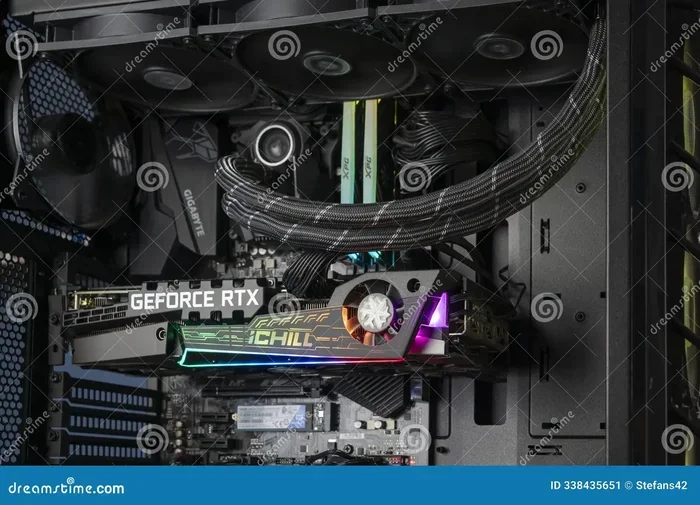
The GPU, or graphics processing unit, is designed to handle many tasks at once. GPU rendering uses hundreds or thousands of smaller cores to process multiple frames simultaneously. This parallel processing makes it much faster for most video rendering tasks.
Most modern editing software supports GPU acceleration. Programs like DaVinci Resolve and Adobe Premiere Pro can offload much of the rendering workload to your graphics card. If you want faster render times, a solid GPU is one of the best investments you can make.
That said, GPU rendering can cause your graphics card to heat up significantly. Keeping an eye on GPU temperature during long renders is important. If your GPU runs too hot, it may throttle performance or even shut down to protect itself.
Which One Should You Use?
For most video editors, GPU rendering is the go-to choice. It is faster and handles video effects efficiently. However, if you are working on very complex projects with heavy compositing, CPU rendering might be more stable. The best approach is often a balanced system with a strong CPU and a capable GPU.
Factors That Affect Rendering Time
Not all renders are created equal. Several factors determine how long your rendering time will take. Knowing these factors helps you plan your workflow and set realistic expectations.
Video Resolution and Frame Rate
Higher resolution means more pixels to process. Rendering a 4K video takes significantly longer than rendering a 1080p video. Similarly, a higher frame rate like 60fps requires more frames to be processed than 30fps. If you are working with 4K footage, consider whether your final export really needs that resolution.
Effects and Transitions
Every effect you add adds to the rendering workload. Color grading, motion tracking, particle effects, and transitions all require extra processing power. The more effects in your timeline, the longer the render will take. A simple cut-and-splice project will render much faster than one packed with visual effects.
Hardware Specifications
Your computer’s hardware is the biggest factor in rendering speed. A powerful CPU, plenty of RAM, and a fast GPU all contribute to quicker renders. Storage speed also matters — using an NVMe SSD instead of a traditional hard drive can dramatically reduce the time it takes to read and write large video files.
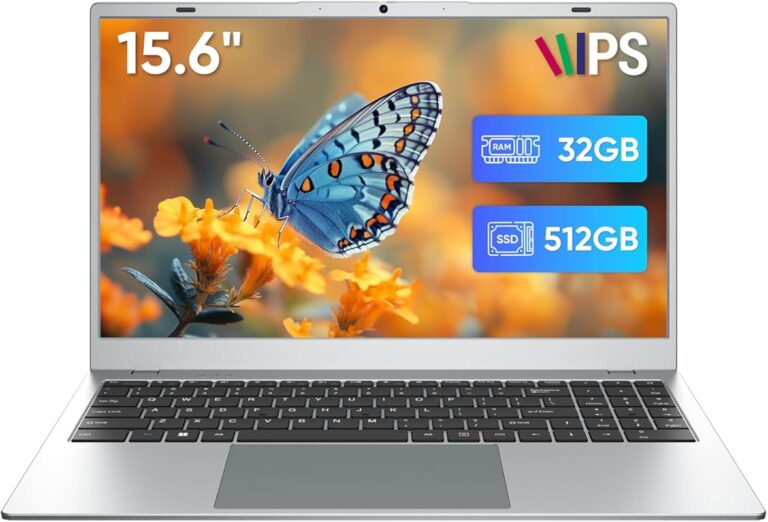
Having enough RAM is especially important for video work. If your system runs out of memory during a render, it will slow down significantly or crash. For smooth video editing and rendering, make sure your system meets or exceeds the recommended requirements.
Software and Render Settings
The software you use and the settings you choose also impact rendering time. Some programs are more optimized than others. Choosing the right codec and bitrate for your export can make a big difference. A highly compressed export will render faster than an uncompressed one, but the quality will be lower.
Common Video Rendering Formats and Codecs
When you export a rendered video, you need to choose a format and codec. The format is the container (like MP4), and the codec is the compression method (like H.264). Together, they determine your file size and quality.
| Format | Codec | Best For | File Size |
|---|---|---|---|
| MP4 | H.264 | Web uploads, social media | Small to medium |
| MP4 | H.265 | High quality at lower bitrates | Small |
| MOV | ProRes | Professional editing, archiving | Large |
| AVI | Uncompressed | Maximum quality, no compression | Very large |
| MKV | H.264/H.265 | High quality with flexibility | Medium to large |
For most creators, MP4 with H.264 is the best all-around choice. It offers great quality, small file size, and wide compatibility. If you are uploading to YouTube or Instagram, H.264 is the standard. For professional work where quality is the top priority, ProRes in a MOV container is the way to go.
Tips to Speed Up Video Rendering
Waiting for a render can test your patience. Here are some practical tips to speed up your rendering process and get back to creating faster.
- Close unnecessary programs. Free up your CPU and RAM by closing apps you do not need while rendering.
- Use proxy files. Work with lower-resolution copies during editing, then render the final video in full resolution.
- Optimize your timeline. Remove clips you are not using and clean up unused effects and transitions.
- Update your software. Newer versions often include performance improvements and bug fixes.
- Use a render farm. For massive projects, cloud-based render farms distribute the workload across multiple machines. This can cut hours off your render time.
- Check your storage. Make sure your drive has enough free space and is fast enough to handle large video files. A slow or full drive will bottleneck your render.
- Pause background tasks. Disable automatic updates, backups, and other tasks that compete for system resources during rendering.
Another helpful tip is to render a short test section first. This lets you check your settings and quality before committing to a full render. If something looks wrong, you can fix it without wasting time on a long render that you would need to redo.
Common Rendering Mistakes to Avoid
Even experienced creators make rendering mistakes. Here are some common pitfalls and how to avoid them.
- Ignoring render settings. Using default settings without checking them can lead to poor quality or unnecessarily large files. Always review your export settings before rendering.
- Rendering on outdated hardware. If your computer is struggling, it might be time to upgrade. Investing in better RAM or a faster GPU pays off in reduced render times.
- Skipping the preview render. Not using cached previews can lead to surprises in the final output. Always preview your work before the final render.
- Choosing the wrong codec. Exporting in a codec that is not compatible with your target platform can cause playback issues. Check platform recommendations before exporting.
- Not monitoring temperatures. Long renders push your hardware to its limits. If your GPU or CPU overheats, your render could fail or your hardware could be damaged. Keep your system cool and well-ventilated.
One mistake that catches many beginners off guard is not leaving enough storage space. Video files are large, and a full hard drive will stop a render in its tracks. Always make sure you have several gigabytes of free space before starting a render.
When Should You Use a Render Farm?
A render farm is a network of computers that work together to render video projects. Instead of using one machine, the workload is split across many machines. This can reduce render times from hours to minutes for complex projects.
Render farms are most useful for professionals working on large-scale projects. If you are creating animated films, visual effects-heavy commercials, or 3D animated content, a render farm can be a game-changer. Services like RenderStreet and GarageFarm offer cloud-based solutions that are easy to use.
For most everyday video creators, a render farm is overkill. Your local hardware is sufficient for standard projects. But if you are scaling up and taking on bigger work, a render farm can save you time and help you deliver projects faster.
The Future of Video Rendering
Video rendering technology is evolving fast. Artificial intelligence is playing a bigger role in making rendering faster and smarter. AI-powered tools can now upscale footage, remove backgrounds, and even generate effects automatically, all with less processing power.
Cloud-based rendering is also becoming more accessible. Instead of relying solely on your local machine, you can offload rendering tasks to powerful remote servers. This means even creators with modest hardware can produce high-quality content without long wait times.
Real-time rendering is another exciting development. With advances in GPU technology, some editing programs can now render effects and previews almost instantly. This blurs the line between editing and final output, making the creative process more fluid and intuitive.
As hardware continues to improve, rendering will only get faster and more efficient. For now, the best approach is to understand the fundamentals, optimize your workflow, and keep learning about new tools and techniques.
Conclusion
Video rendering is the essential final step in turning your creative vision into a shareable video. From real-time previews to final exports, understanding how rendering works empowers you to create better content more efficiently. Whether you are editing a simple vlog or a complex short film, the principles remain the same.
The key is to match your render settings to your project needs, use the right hardware, and avoid common mistakes. With practice, you will develop an intuitive sense for what settings work best and how to get the most out of your system. Keep experimenting, keep learning, and most importantly, keep creating.
Now that you understand the basics of video rendering, you are better equipped to tackle your next project with confidence. Happy editing!
Frequently Asked Questions
What is the difference between rendering and exporting?
Rendering and exporting are closely related but not exactly the same. Rendering is the process of processing all your edits, effects, and transitions into a viewable format. Exporting is the final step of saving that rendered video as a file on your computer. In most editing software, you render and export in one step.
How long does video rendering take?
Render time depends on several factors including your hardware, video resolution, project complexity, and render settings. A simple 10-minute video might take 10 to 30 minutes to render, while a complex 4K project with heavy effects could take several hours. Using a powerful GPU can significantly reduce render times.
Can I use my computer while rendering?
Yes, but your computer will run slowly because rendering uses most of your CPU and GPU resources. You can browse or do light tasks, but heavy work like gaming or running other video software will slow down both the render and your other tasks. It is best to let your computer focus on the render.
Do I need a good GPU for video rendering?
A good GPU makes a big difference in rendering speed, especially for projects with visual effects and color grading. However, you can still render videos on a basic GPU or even a CPU-only setup. It will just take longer. For most creators, a mid-range GPU offers the best balance of cost and performance.
What is hardware acceleration in rendering?
Hardware acceleration means using your GPU or dedicated hardware to speed up the rendering process instead of relying solely on the CPU. Most modern editing programs support hardware acceleration. Turning it on can dramatically reduce your render times and make the editing experience smoother.
Is video rendering the same as 3D rendering?
No, they are different processes. Video rendering combines edited footage, effects, and audio into a final video file. 3D rendering generates images or animations from three-dimensional models. However, some software like Blender handles both, and the underlying concepts of processing frames share similarities.
=== INTERNAL LINKS ===
If you are working with large video files, consider upgrading your storage to a fast NVMe drive. Check out our guide on what is the biggest NVMe SSD to find the right storage solution for your editing workflow.
Your RAM plays a crucial role in how smoothly your editing software runs and how quickly it can process video. Learn more about whether 12GB RAM is enough for video editing in our detailed breakdown.
Long rendering sessions can push your graphics card to its limits. Make sure your GPU is running at healthy temperatures by checking our article on what is a good idle GPU temperature to keep your system performing at its best.