What Word Processing Program Comes with Apple Computers
What Word Processing Program Comes with Apple Computers is answered simply: Apple includes Pages, a free and powerful built-in word processor. It works on Mac, iPhone, and iPad, offering templates, formatting tools, and real-time collaboration. You can start writing documents right away without installing anything extra.
Key Takeaways
- Apple Pages is the default word processor: It comes free with every Mac, iPhone, and iPad.
- Pages offers rich formatting and templates: You can create professional documents quickly.
- It works across all Apple devices: Seamless sync via iCloud keeps your documents up to date.
- You can use other word processors too: Microsoft Word and Google Docs are also available on Mac.
- Pages is great for basic to intermediate needs: It handles reports, resumes, and letters with ease.
- No extra cost or installation required: It is ready to use right out of the box.
📑 Table of Contents
- What Word Processing Program Comes with Apple Computers
- The Built-In Word Processor: Apple Pages
- How to Access and Use Pages on Your Mac
- Key Features of Apple Pages
- Pages vs. Other Word Processors
- Can You Use Other Word Processors on Apple Computers?
- Quick Tips for Using Pages
- Common Mistakes to Avoid
- Expert Insights
- Conclusion
What Word Processing Program Comes with Apple Computers
When you turn on a new Mac, you might wonder what tools are ready to use. The answer is simple. Apple includes a built-in word processor called Pages. This free app lets you create, edit, and format documents without downloading anything extra. What Word Processing Program Comes with Apple Computers is a question many new users ask, and Pages is the clear answer. It works on Mac, iPhone, and iPad, so you can start writing anywhere. Whether you need a quick note or a polished report, Pages has you covered.
Pages is part of Apple’s productivity suite. It handles text, images, tables, and charts with ease. You can choose from dozens of templates for resumes, letters, and flyers. The app saves your work automatically in iCloud, so you never lose a document. If you are shopping for a new Apple computer, you can explore our guide on best-buy-apple-laptop-computers to find a machine that fits your needs. Even older laptops with limited memory can run Pages smoothly. For example, many laptop computers with 4GB RAM handle word processing without any issues. You do not need a powerful computer to write a great document.
In this article, we will cover everything you need to know about the word processor that comes with Apple computers. You will learn what Pages can do, how to use it, and when you might want a different app. We will also compare Pages to other popular tools and share quick tips to boost your productivity. By the end, you will know exactly how to get started with your Mac’s built-in word processor.
The Built-In Word Processor: Apple Pages
Apple Pages is the official word processing app for macOS, iOS, and iPadOS. It is free for all Apple device users. You do not need to buy a separate license or subscribe to a service. Pages is designed to be simple, yet powerful. It gives you everything you need for everyday writing tasks.
What Is Apple Pages?
Pages is a rich text editor that lets you format text, add images, and create layouts. It uses a word processor format, but it also supports page layout features. You can mix text and graphics freely. This makes it great for newsletters, flyers, and posters. The app is part of the Apple ecosystem, so it syncs across all your devices.
Who Is Apple Pages Best For?
Pages is ideal for students, home users, and professionals who need a straightforward writing tool. It is perfect for:
- Writing essays and school reports
- Creating resumes and cover letters
- Drafting business letters and memos
- Designing simple flyers and posters
- Taking notes and organizing ideas
If you only need basic to intermediate word processing, Pages is more than enough. It is not meant for complex publishing or advanced mail merge, but it handles most tasks with ease.
How to Access and Use Pages on Your Mac
Finding Pages on your Mac is easy. The app is already installed on every new Mac. You just need to open it and start writing.
Finding Pages in Applications
Click the Launchpad icon in your Dock. Look for the Pages icon, which looks like a white sheet of paper with a pen. You can also open Finder, go to the Applications folder, and double-click Pages. If you cannot find it, you can download it for free from the Mac App Store. Just search for “Pages” and install it.
Setting Up a New Document
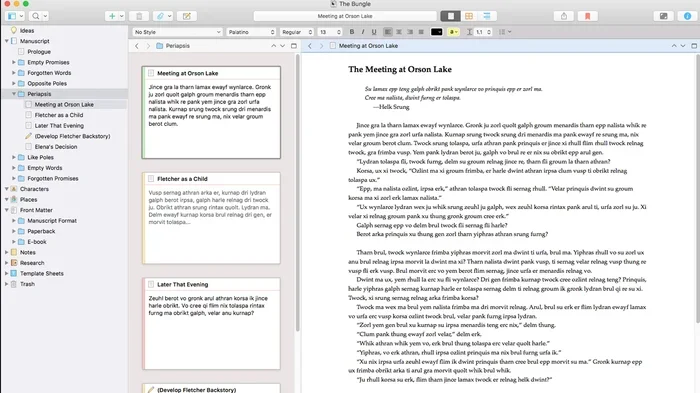
When you open Pages, you see a gallery of templates. You can choose a blank document or pick a pre-designed template. To start fresh, click “Blank” in the left sidebar. You can also search for templates by category, such as “Resumes” or “Letters.” Once you pick a template, double-click it to open a new document. The interface is clean and intuitive. You will see a toolbar at the top with formatting options.
Key Features of Apple Pages
Pages offers a range of features that make document creation simple and enjoyable. Here are the highlights.
Templates and Formatting
Apple provides over 100 free templates. These include styles for resumes, letters, reports, and flyers. Each template uses professional fonts and color schemes. You can change fonts, sizes, and colors with just a few clicks. The formatting toolbar lets you bold, italicize, and underline text. You can also adjust line spacing and alignment. Pages supports styles, so you can apply consistent formatting throughout your document. This makes document editing fast and painless.
Collaboration and Real-Time Editing
One of the best features of Pages is real-time collaboration. You can share a document link with anyone. They can view or edit the document in their browser, even if they do not have a Mac. Changes appear instantly. You can also leave comments and suggestions. This makes Pages great for group projects and team work. The app also works offline, so you can write anywhere and sync later.
Integration with iCloud and Other Apps
Pages saves your documents to iCloud automatically. This means you can access the same file on your iPhone, iPad, and Mac. You can also export documents to Word, PDF, or EPUB formats. Pages works well with other Apple apps like Numbers and Keynote. You can embed spreadsheets and presentations directly into your document. This tight Apple ecosystem integration saves you a lot of time.
Pages vs. Other Word Processors
While Pages is excellent for most users, you might wonder how it compares to other word processors. Here is a quick look at the differences.
Pages vs. Microsoft Word
Microsoft Word is the industry standard. It offers advanced features like mail merge, macros, and complex formatting. However, Word requires a subscription or a one-time purchase. Pages is free and simpler. For everyday writing, Pages is often enough. If you need advanced features, Word might be a better choice.
Pages vs. Google Docs
Google Docs is a free, browser-based word processor. It is great for collaboration and cloud storage. Pages offers a more polished interface and better offline support. Google Docs works on any device with a browser, while Pages is limited to Apple devices. Both are excellent, but Pages feels more native on a Mac.
| Feature | Apple Pages | Microsoft Word | Google Docs |
|---|---|---|---|
| Price | Free | Paid (subscription or one-time) | Free |
| Platform | Mac, iPhone, iPad | Mac, Windows, iPad | Any browser |
| Templates | 100+ free | Many, some premium | Basic |
| Offline Use | Full support | Full support | Limited |
| Collaboration | Real-time via link | Real-time via OneDrive | Real-time via link |
| Export Formats | Word, PDF, EPUB | PDF, Word, ODT | Word, PDF, ODT |
As you can see, Pages holds its own against the competition. It is free, works offline, and offers beautiful templates. For most users, it is the best starting point.
Can You Use Other Word Processors on Apple Computers?
Yes, you are not limited to Pages. Apple computers support many word processors. You can install Microsoft Word from the Mac App Store or Microsoft’s website. Word for Mac offers the full feature set. You can also use Google Docs in any browser. LibreOffice is another free option that runs on Mac. If you need a lightweight alternative, you can try what amount of RAM is good on a laptop to ensure your system can handle the software. Most modern word processors run fine on even modest hardware.
Quick Tips for Using Pages
Here are some fast tips to make your Pages experience even better.
- Use keyboard shortcuts: Command + B for bold, Command + I for italic, and Command + U for underline speed up formatting.
- Save templates: After customizing a document, save it as a template for future use.
- Export to PDF: Always export final documents as PDF to preserve formatting when sharing.
- Turn on iCloud sync: Go to Pages settings and ensure iCloud is enabled so your documents are available on all devices.
- Use the ruler: Drag the ruler to set precise margins and tab stops for professional layouts.
Common Mistakes to Avoid
Even with a simple app, users sometimes make avoidable errors. Here are a few to watch out for.
- Forgetting to save to iCloud: If you work on multiple devices, make sure iCloud sync is turned on. Otherwise, you might not see your latest changes on your iPad.
- Using Pages for complex mail merge: Pages is not designed for bulk mailings. If you need to send letters to hundreds of people, use Word or a dedicated mail merge tool.
- Not checking compatibility: If you share a Pages file with a Windows user, they may need to export it as a Word document first. Always confirm the format your recipient can open.
- Overloading with images: Adding too many high-resolution images can slow down the document. Optimize images before inserting them.
Expert Insights
Many Apple users prefer Pages because of its simplicity and integration. According to Apple, Pages is designed to be the most user-friendly word processor available. It focuses on the writing experience rather than overwhelming features. For students and casual users, Pages is often the only word processor they will ever need. Power users who work in environments that require Microsoft Word formats may still prefer Word, but Pages continues to improve with each macOS update.
One expert tip is to use Pages for drafting and then export to Word for final review. This gives you the best of both worlds. You get a smooth writing experience in Pages and perfect compatibility when sharing with colleagues who use Word. Another tip is to use the “Track Changes” feature in Pages to review edits without altering the original text.
Conclusion
So, what word processing program comes with Apple computers? The answer is Apple Pages. It is free, powerful, and ready to use on every Mac, iPhone, and iPad. Pages offers everything you need for everyday writing, from simple notes to polished reports. It works seamlessly across your Apple devices and syncs through iCloud. If you ever need more advanced features, you can always explore Microsoft Word or Google Docs. But for most users, Pages is the perfect starting point. Start writing today and see how easy it can be.
Remember, you do not need an expensive computer to write well. Even a budget-friendly machine can run Pages without any trouble. Check out our article on what amount of RAM is good on a laptop to learn more about system requirements. Happy writing!
Frequently Asked Questions
Is Apple Pages completely free?
Yes, Apple Pages is free for all Apple device users. You do not need to pay for a subscription or license. It comes pre-installed on new Macs, iPhones, and iPads. You can also download it for free from the App Store if it is not already on your device.
Can I open a Word document in Pages?
Yes, Pages can open Microsoft Word documents. You can import .doc and .docx files directly. Pages also lets you export your documents to Word format. This makes it easy to collaborate with people who use Microsoft Word.
Does Pages work offline?
Yes, Pages works fully offline. You can create and edit documents without an internet connection. Your changes sync to iCloud the next time you connect. This is great for working on flights or in areas with limited Wi-Fi.
Can I use Pages on my iPhone and iPad?
Absolutely. Pages is available on iPhone, iPad, and Mac. It is optimized for each device. You can start a document on your Mac and continue editing it on your iPad. iCloud keeps everything synchronized across all your Apple devices.
How do I share a Pages document with someone who does not use Apple?
You can share a Pages document in several ways. You can export it as a Word file or PDF and send it via email. You can also share a link that allows others to view or edit the document in their browser. This works on any device, even Windows computers.
Is Pages good for professional documents?
Pages is great for many professional documents, including resumes, letters, and reports. It offers professional templates and formatting tools. However, for highly complex documents or advanced publishing needs, you might prefer Microsoft Word. For most everyday business tasks, Pages is more than sufficient.