When to Consider Replacing an Aging Laptop Battery
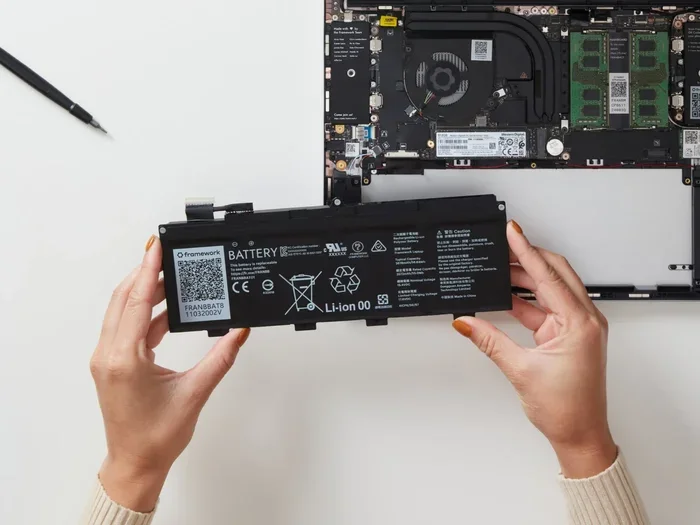
Knowing when to replace your aging laptop battery can save you from unexpected shutdowns, sluggish performance, and frustrating power issues. A deteriorating battery affects your entire laptop experience, from portability to productivity. This guide covers the top warning signs, how to check your battery health, and practical steps to decide if replacement is the right move.
Your laptop battery works hard every single day. It powers your device through meetings, movie nights, and work sessions on the go. But over time, every battery loses its edge. You might notice your laptop battery dying faster, swelling up, or failing to hold a charge at all. These are not just minor annoyances. They are clear signals that something needs attention.
So when exactly should you pull the trigger on a replacement? This guide walks you through every sign, every test, and every consideration you need to make. By the end, you will know exactly whether your aging battery deserves a second life or a full swap-out.
Key Takeaways
- Shortened battery life: If your laptop lasts less than an hour on a full charge, it is time to consider a replacement.
- Physical swelling: A bloated battery is a serious safety hazard that needs immediate attention.
- Unexpected shutdowns: Your laptop shutting down even with a full charge signals battery degradation.
- Built-in battery reports: Your operating system can generate a battery health report to show wear levels.
- Cost vs. replacement decision: Sometimes replacing the battery is cheaper than buying a new device.
- Charging cycles matter: Most lithium-ion batteries last between 300 and 1000 charge cycles before significant decline.
📑 Table of Contents
Why Laptop Batteries Degrade Over Time
Understanding why batteries age helps you make smarter decisions. Most modern laptops use lithium-ion batteries. These batteries are reliable, but they are not immortal. Every time you charge your laptop, the battery goes through a charge cycle. Over hundreds of cycles, the internal chemistry breaks down.
Heat is another major factor. Leaving your laptop on a hot surface or running heavy tasks for hours can speed up battery wear. Even storing your laptop at full charge for long periods can cause damage. The good news is that knowing this helps you slow the process down.
How Charge Cycles Affect Battery Health
A charge cycle happens every time you drain your battery from 100% to 0% and back to 100%. Partial charges count too. For example, draining from 100% to 50% and charging back up counts as half a cycle. Most laptop batteries are rated for around 500 to 1000 cycles before they start to lose significant capacity.
If you use your laptop daily, you might hit that number within two to three years. This does not mean your battery is dead overnight. It simply means the decline is gradual and often hard to notice at first.
The Role of Heat in Battery Aging
Excessive heat is a battery’s worst enemy. When your laptop runs hot during gaming or video editing, the battery cells degrade faster. Even the power adapter can generate heat that affects the battery over time. Keeping your laptop cool with good ventilation can help preserve battery life longer.
Warning Signs That Your Battery Needs Replacement
Your laptop will tell you when something is wrong. You just need to pay attention. Here are the most common warning signs that your battery is aging out.
Drastically Reduced Battery Life
This is the most obvious sign. If your laptop used to last six hours but now dies after one hour, something is wrong. A healthy battery should hold a reasonable charge for your normal usage. When the decline becomes sudden or extreme, it is time to investigate.
Keep in mind that background apps and screen brightness also affect battery drain. However, if you have already optimized those settings and the problem persists, the battery itself is likely the culprit.
Unexpected Shutdowns
Has your laptop ever shut down right out of the blue, even though the battery indicator showed plenty of charge? This is a classic symptom of a failing battery. The battery can no longer deliver consistent power, especially under heavy load. Your system cuts out to protect itself, which is incredibly frustrating mid-task.
Physical Swelling or Bulging
A swollen battery is a serious issue. If your laptop case starts to warp, the trackpad feels raised, or the back panel pops open slightly, stop using the device immediately. A swollen battery can be a fire hazard. Do not attempt to puncture or press on it. Take it to a professional for safe removal and replacement.
Slow Charging or Failure to Charge
If your laptop takes forever to charge or refuses to charge at all, the battery may be degraded beyond repair. Before replacing the battery, rule out a faulty power adapter or charging port. But if both of those check out, the battery is the likely problem.
Battery Health Warnings from Your Operating System
Both Windows and macOS can alert you when your battery health drops below a safe threshold. These warnings are built into the system and are designed to help you take action before a total failure. Ignoring these alerts can lead to worse problems down the road.
How to Check Your Laptop Battery Health
You do not need to be a tech expert to check your battery health. Both major operating systems offer built-in tools that give you a clear picture of your battery’s condition.
Checking Battery Health on Windows
Open the Command Prompt as an administrator on your Windows laptop. Type powercfg /batteryreport and press Enter. This generates a detailed HTML report that shows your battery’s design capacity, full charge capacity, and cycle count. Comparing these numbers tells you how much capacity you have lost over time.
If the full charge capacity is significantly lower than the design capacity, your battery has worn out. A drop of more than 20% is a strong signal that replacement is worth considering.
Checking Battery Health on macOS
On a Mac, click the Apple menu and select About This Mac. Then click System Report and scroll to the Power section. You will find your cycle count and condition status. A condition listed as “Replace Soon” or “Replace Now” means your battery is no longer performing at its best.
Using Third-Party Battery Monitoring Tools
Several free tools can give you even more detailed insights into your battery health. Apps like BatteryInfoView for Windows or coconutBattery for macOS provide real-time data on voltage, temperature, and wear level. These tools are especially helpful if you want to track battery health over time.
When to Replace vs. When to Wait
Not every battery issue requires immediate replacement. Sometimes small fixes can extend your battery’s life a bit longer. Other times, replacement is the only smart choice.
Situations That Call for Immediate Replacement
- Swollen battery: This is a safety risk. Replace immediately.
- Battery lasts under one hour: If you cannot work unplugged, replacement makes sense.
- Frequent unexpected shutdowns: This disrupts your workflow and can cause data loss.
- Battery health below 60%: Most experts agree this is the threshold for replacement.
Situations Where You Can Wait
If your battery still holds a decent charge and does not cause shutdowns, you might be able to wait. Sometimes a simple battery calibration can improve accuracy and performance. You can also adjust your power settings to reduce drain and get more out of your current battery.
Another factor is how you use your laptop. If you mostly use it plugged in at a desk, a slightly degraded battery may not bother you at all. You can still use your laptop on battery when you need to, but the urgency is lower.
How Much Does a Laptop Battery Replacement Cost?
The cost of replacing a laptop battery varies widely. OEM batteries from the manufacturer tend to be more expensive but offer better quality and safety guarantees. Third-party batteries are more affordable but can vary in reliability.
On average, you can expect to pay between $50 and $150 for a replacement battery. Some premium or rare laptop models may cost more. If you are comfortable with DIY work, you can save on labor costs by replacing the battery yourself. Many manufacturers provide step-by-step guides online.
When you compare the cost of a new battery to the cost of a whole new laptop, the math usually favors replacement. Especially if the rest of your laptop is still performing well. This is especially true if you have already invested in upgrades like upgrading your laptop RAM or installing an M.2 NVMe SSD to boost performance.
Tips to Extend Your Laptop Battery Life
Even if your battery is still healthy, good habits can help it last longer. Here are some practical tips you can start using today.
- Avoid extreme heat: Keep your laptop in a cool, well-ventilated area.
- Do not always charge to 100%: Keeping your charge between 20% and 80% reduces stress on the battery.
- Calibrate your battery regularly: Run a full discharge and recharge cycle once a month.
- Reduce screen brightness: Your display is one of the biggest power hogs.
- Close unused apps and tabs: Background processes drain battery faster than you might think.
- Use battery saver mode: Both Windows and macOS offer built-in power-saving features that help extend charge time.
These small changes add up over time. They can slow down battery degradation and keep your laptop running smoothly for years. If you are also thinking about buying a new device, check out our guide on the best time to purchase a laptop to make the most informed decision.
Final Thoughts
Replacing an aging laptop battery is one of the most affordable ways to breathe new life into your device. You do not need to buy a brand-new laptop just because the battery is wearing out. With the right information, you can spot the warning signs early, check your battery health accurately, and make a confident decision about replacement.
Pay attention to what your laptop is telling you. Whether it is shortened battery life, unexpected shutdowns, or physical swelling, these signs should never be ignored. A fresh battery can restore your freedom to work and play anywhere, without being tied to a wall outlet. Take action today, and your laptop will thank you for it.
Frequently Asked Questions
How do I know if my laptop battery needs replacing?
Watch for signs like drastically reduced battery life, unexpected shutdowns, slow charging, or physical swelling. You can also run a built-in battery health report on your operating system to see the current capacity and cycle count. If the full charge capacity drops more than 20% below the design capacity, replacement is a smart move.
How much does it cost to replace a laptop battery?
Most laptop battery replacements cost between $50 and $150, depending on the brand and model. OEM batteries tend to be pricier but safer and more reliable. Third-party options are more budget-friendly but may vary in quality. Labor costs are usually zero if you replace the battery yourself.
Can I use my laptop while the battery is swollen?
No, you should stop using a laptop with a swollen battery immediately. A swollen battery poses a serious safety risk, including potential fire or explosion. Remove the battery if possible and take the device to a professional for safe handling and replacement.
How long should a laptop battery last before needing replacement?
Most lithium-ion laptop batteries last between two and four years, or roughly 500 to 1000 charge cycles. Heavy users may see faster decline, especially if the laptop runs hot or is frequently charged to 100%. Regular maintenance can help extend this timeline.
Is it better to replace the battery or buy a new laptop?
If the rest of your laptop is still performing well, replacing the battery is almost always the better choice. A new battery costs a fraction of a new laptop and can restore your device to near-original performance. Consider upgrades like adding more RAM or installing a faster SSD to further extend your laptop’s lifespan.
Does leaving my laptop plugged in damage the battery?
Leaving your laptop plugged in constantly can accelerate battery wear over time. Most modern laptops have built-in mechanisms to stop charging once the battery reaches 100%, but it is still best to keep your charge between 20% and 80% when possible. If you use your laptop plugged in most of the time, consider removing the battery if it is removable.