Why Is My Iphone Not Playing Through Usb
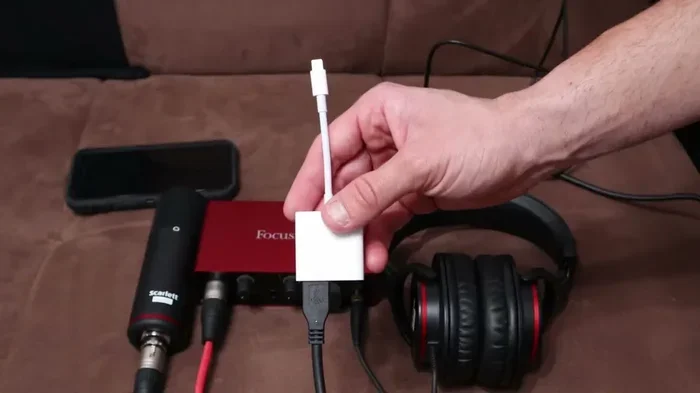
When your iPhone is not playing through USB, it can be frustrating and confusing. This issue usually stems from a faulty cable, incorrect audio settings, or a compatibility problem with your adapter. In this guide, we walk you through every possible cause and fix so you can get your iPhone USB audio working again quickly and easily.
You plug your iPhone into a USB cable, expecting music or audio to flow through, but nothing happens. This is a common problem that many iPhone users face every day. The good news is that most reasons behind this issue are easy to fix. In this article, we will explore every possible cause and walk you through proven solutions. Whether you are trying to play audio through a car stereo, a USB speaker, or a computer, this guide has you covered.
The iPhone USB audio setup depends on several things working together. Your cable, your adapter, your iOS settings, and the host device all play a role. When one part fails, the whole chain breaks. That is why understanding each piece matters. Let us dive into the details and get your sound back.
Key Takeaways
- Check Your Cable First: A damaged or non-data USB cable is the most common reason your iPhone will not play audio through USB.
- Adjust iOS Audio Settings: Your iPhone may not be set to route audio through USB, and a quick settings change can fix this instantly.
- Use Certified Accessories: Non-certified adapters and cables often cause iPhone USB troubleshooting headaches and audio failures.
- Restart and Reconnect: Simple steps like restarting your device and re-plugging the cable resolve many USB connection iPhone problems.
- Update Your Software: Outdated iOS versions can cause compatibility issues with USB audio output.
- Try a Different Port or Device: Testing another USB port or host device helps isolate whether the problem is with your iPhone or the accessory.
📑 Table of Contents
How iPhone USB Audio Works
Before we troubleshoot, it helps to understand the basics. When you connect your iPhone to a USB device, the phone sends a digital audio signal through the Lightning to USB cable or a USB-C to Lightning cable. The receiving device then converts that signal into sound. This process relies on proper communication between your iPhone and the host device.
iOS has built-in audio routing features. By default, your iPhone plays sound through its built-in speakers. When you connect a USB device, the phone should automatically switch to that output. However, this does not always happen. Sometimes the switch fails, and your iPhone audio routing stays stuck on the internal speakers.
The Role of the Cable and Adapter
Your cable is the bridge between your iPhone and the external device. A USB cable not working iPhone problem often starts right there. If the cable only charges and does not transfer data, it cannot carry an audio signal. This is a very common mistake many users make.
Adapters add another layer of complexity. A cheap or uncertified iPhone USB adapter may not support audio transmission at all. Apple recommends using MFi-certified accessories for the best results. These certified products meet strict quality and compatibility standards.
Common Reasons Your iPhone Is Not Playing Through USB
Several factors can cause your iPhone not playing sound through USB. Let us look at the most common ones so you can quickly identify the culprit.
1. Faulty or Damaged Cable
A worn-out cable is the number one cause of USB audio failures. Frayed wires, bent connectors, and exposed internal wires all interrupt the signal. If your cable has been bent repeatedly or stored improperly, it may be time for a replacement.
To test this, try using a different cable. If the audio starts working with a new cable, you have found your answer. Always use high-quality cables that support data transfer, not just charging.
2. Incorrect Audio Output Settings
Your iPhone may not be set to use USB as an audio output. Go to Settings, then look for any audio or Bluetooth-related options that control output routing. Sometimes after disconnecting and reconnecting a USB device, the settings do not refresh automatically.
Also check if your iPhone is in Do Not Disturb mode or if the volume is muted on the connected device. These simple oversights cause more problems than people realize.
3. Incompatible or Uncertified Accessories
Not every USB cable or adapter works with your iPhone for audio. Non-certified accessories often lack the proper wiring for data and audio transmission. If you are using a generic cable from an unknown brand, this could be your problem.
Using a USB DAC iPhone setup can also cause issues if the DAC is not compatible with iOS. Always check compatibility before purchasing any accessory for audio use.
4. Software or iOS Glitches
Sometimes the problem is not hardware at all. A software bug or glitch can prevent your iPhone from recognizing the USB connection properly. Outdated iOS versions are especially prone to this.
Running iPhone USB debugging steps can help identify software-related issues. A simple restart often clears these glitches and restores normal audio routing through USB.
5. Dirty or Damaged Lightning Port
Dust, lint, and debris can accumulate inside your iPhone’s Lightning port over time. This buildup blocks the connection and prevents data and audio signals from passing through. A gentle cleaning with a soft brush or compressed air can make a big difference.
Avoid using metal objects to clean the port, as this can cause permanent damage. If the port is physically damaged, you may need professional repair.
Step-by-Step Troubleshooting Guide
Now that you know the common causes, let us walk through the fixes. Follow these steps in order for the best results.
Step 1: Restart Your iPhone
A restart clears temporary software glitches and refreshes all system connections. This simple step resolves many iPhone USB troubleshooting issues. Power off your device completely, wait ten seconds, and turn it back on.
Step 2: Inspect and Replace Your Cable
Look closely at your cable for any visible damage. Try a different cable that you know supports data transfer. If the audio starts working, your original cable was the problem.
When shopping for a new cable, choose one that is MFi-certified. These cables are designed specifically for Apple devices and guarantee proper data and audio support.
Step 3: Check Your Audio Output Settings
Go to Settings on your iPhone and look for audio output options. Play a song or video and see if the output selector shows your USB device. If it does not appear, the connection may not be recognized properly.
You can also try going to Settings, then General, then About, and look for any USB-related notifications or prompts. This can sometimes trigger the phone to recognize the connected device.
Step 4: Update Your iOS
Outdated software can cause compatibility problems with USB accessories. Go to Settings, then General, then Software Update, and install any available updates. Apple regularly releases fixes for known audio and connectivity bugs.
Step 5: Try a Different USB Port or Device
Plug your iPhone into a different USB port on your computer or try a different host device altogether. This helps you determine whether the problem is with your iPhone or the original device you were using.
Similarly, just as when your USB mouse is not working on your laptop, the USB port itself might be the issue. A faulty port on your computer or car stereo can prevent proper audio transmission.
Step 6: Reset All Settings
If none of the above steps work, try resetting all settings on your iPhone. Go to Settings, then General, then Transfer or Reset iPhone, then Reset All Settings. This will not delete your data but will restore all system settings to their defaults.
iPhone USB Audio in Cars and Car Systems
Many users connect their iPhones to car stereos via USB for both charging and audio playback. When this setup stops working, it can be especially frustrating during a commute or road trip.
Car USB ports are often designed primarily for charging and may not support audio data transfer. If your car stereo has a USB port but no audio plays, try using an AUX cable or Bluetooth instead. Some older car systems simply do not support USB audio.
If you are using Apple CarPlay and experiencing issues where CarPlay is not playing through car speakers, that is a separate but related problem. CarPlay uses a different audio pathway than standard USB audio, and troubleshooting it requires different steps. Make sure you are not confusing a CarPlay issue with a basic USB audio issue.
For cars that do support USB audio, try these tips:
- Use the USB port labeled for audio, if your car has multiple ports.
- Try a different USB cable, as car ports often have limited power output.
- Check if your car’s infotainment system needs a firmware update.
- Disconnect other USB devices from the same port to avoid power conflicts.
Sometimes the car’s USB port simply cannot provide enough power or data bandwidth for audio. In these cases, a powered USB hub or a different cable can help restore the connection.
When to Replace Your Cable or Adapter
Knowing when to let go of an old cable saves you time and frustration. If you have tried all the troubleshooting steps and the audio still does not work through USB, the cable or adapter is likely the problem.
Here are clear signs that your accessory needs replacing:
- The cable only charges your iPhone but does not transfer data.
- The connector is loose or wobbly in the port.
- You see visible fraying or exposed wires near the connectors.
- The audio cuts in and out intermittently when you move the cable slightly.
- Your iPhone does not recognize the accessory at all, similar to when your mouse is not connecting to your laptop due to a bad connection.
Invest in high-quality, MFi-certified cables and adapters. They cost a little more but last significantly longer and provide reliable audio performance every time.
Expert Tips for Better iPhone USB Audio
Once you get your iPhone USB audio working, these expert tips will help you maintain a reliable connection going forward.
Keep Your Cables Organized
Avoid tossing cables loosely into bags or drawers. Coiled or tangled cables develop internal wire damage over time. Use cable organizers or cases to keep them in good condition.
Clean Your Ports Regularly
Dust and lint build up in charging ports and can interfere with connectivity. Make it a habit to inspect and gently clean your iPhone’s Lightning port and any USB ports on your accessories or devices.
Use Short Cables for Better Signal Quality
Longer cables can weaken the audio signal, especially for high-quality audio. Shorter cables maintain stronger signal integrity and reduce the chance of interference or dropouts.
Avoid Cheap Unbranded Accessories
Budget accessories might seem like a good deal, but they often cut corners on wiring and shielding. This leads to poor audio quality and frequent connection failures. Stick with trusted brands and certified products.
Disconnect and Reconnect After Software Updates
After updating your iPhone’s iOS, disconnect and reconnect your USB accessories. This forces the system to re-establish proper communication with the connected device and often resolves any new audio routing issues.
Common Mistakes to Avoid
Avoid these common mistakes that make iPhone USB troubleshooting harder than it needs to be:
- Using a charging-only cable: These cables cannot carry audio data. Always use a cable that supports data transfer.
- Ignoring software updates: Outdated iOS versions often have known bugs that affect USB audio. Keep your phone updated.
- Forcing the cable in: If the connector does not fit easily, do not force it. This can damage the port and the cable.
- Assuming every USB port works the same: Different ports on the same device may have different capabilities. Test multiple ports.
- Skipping the restart: Many users jump to complex solutions when a simple restart would have fixed the problem.
Final Thoughts
Dealing with an iPhone not playing through USB can be annoying, but it is almost always fixable. Start with the simplest solutions like restarting your device and checking your cable. Work your way through the troubleshooting steps systematically, and you will find the fix. Most of the time, it comes down to a cable replacement, a settings adjustment, or a simple reconnection.
Remember that iPhone USB audio depends on a chain of components working together. Your cable, adapter, port, settings, and the host device all need to be in good shape. When one link in that chain breaks, the audio stops. By following the steps in this guide, you can identify and fix the broken link quickly.
Keep your accessories in good condition, stay on top of software updates, and always use certified products. These habits will keep your USB connection iPhone audio running smoothly for years to come. If the problem persists after trying everything in this guide, consider reaching out to Apple Support or visiting an authorized service center for professional help.
Frequently Asked Questions
Why Does My iPhone Play Sound Through Speakers but Not Through USB?
This usually means your iPhone has not switched the audio output to the USB device. Check your audio settings and make sure the USB accessory is properly connected. Try disconnecting and reconnecting the cable to force the audio routing to update.
Can a Charging-Only USB Cable Cause Audio Problems?
Yes, absolutely. A charging-only cable lacks the data wires needed to transmit audio signals. Always use a cable that supports data transfer for any USB audio use. Look for cables labeled as data-capable or MFi-certified.
Do I Need a Special Adapter to Play iPhone Audio Through USB?
It depends on the device you are connecting to. For most setups, a standard Lightning to USB or USB-C to Lightning cable works fine. However, some devices like USB DACs or car stereos may require a specific adapter. Always check compatibility before purchasing.
Why Does My iPhone USB Audio Keep Cutting Out?
Intermittent audio cutouts are usually caused by a loose connection or a damaged cable. Check the connectors for debris or damage. Try a shorter cable, as longer cables are more prone to signal loss. Also, make sure the USB port is clean and secure.
Is It Normal for iPhone USB Audio to Stop Working After an iOS Update?
Yes, this can happen occasionally. Software updates sometimes reset audio routing settings or introduce temporary bugs. Restarting your iPhone after an update usually fixes this. If the problem persists, try resetting all settings or checking for a subsequent patch update from Apple.
Can Dirt in the Lightning Port Prevent iPhone USB Audio from Working?
Yes, even small amounts of dust or lint can block the connection and prevent audio from transmitting. Clean your Lightning port gently with a soft, dry brush or compressed air. Never use metal objects, as they can damage the internal pins.
=== CONCLUSION ===
When your iPhone is not playing through USB, the fix is almost always within reach. Start with the basics: check your cable, inspect your port, and verify your audio settings. Work through each troubleshooting step patiently, and you will resolve the issue in most cases. Using certified accessories, keeping your software updated, and maintaining clean connections will prevent many USB connection iPhone problems from happening in the first place. Share this guide with anyone who is struggling with iPhone USB audio, and help them get their sound back today.