Why Is My Mouse Not Working on Laptop
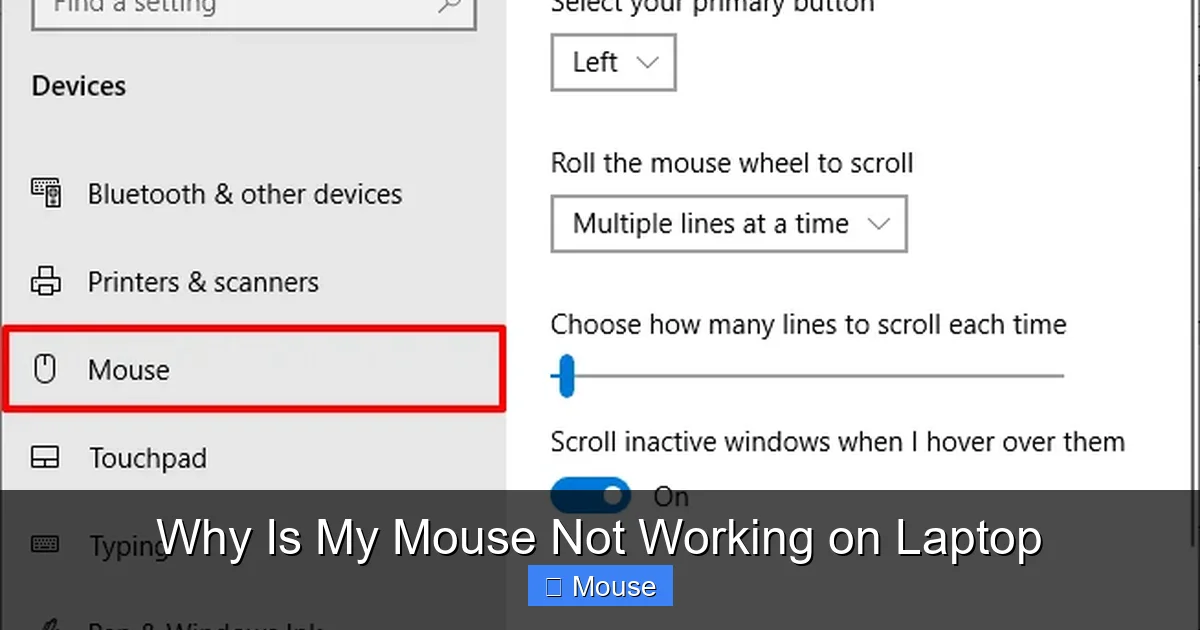
Is your laptop mouse suddenly unresponsive? You’re not alone. From simple software glitches to hardware failures, there are many reasons why a mouse might stop working. In this guide, we’ll walk through the most common causes, show you step‑by‑step troubleshooting, and give you actionable tips to get your pointer moving again.
Key Takeaways
- Check the basics first: power, battery, and USB ports often hold the culprit.
- Software conflicts matter: outdated drivers or misconfigured settings can freeze your cursor.
- Hardware isn’t dead: a simple reconnect or cleaning can revive a stubborn mouse.
- Touchpad settings can override mice: ensure “disable touchpad when mouse connected” isn’t blocking input.
- Operating system quirks: Windows, macOS, and Linux each have unique fixes for pointer issues.
- When all else fails: consider a reputable replacement or professional repair.
📑 Table of Contents
Introduction
Picture this: you’re deep in a spreadsheet, the mouse pointer freezes in the middle of the screen, and a tiny green dot on the taskbar says “This program isn’t responding.” You’ve tried shaking it, plugging it into another port, and even restarting your laptop, but the cursor still won’t budge. Sound familiar? A non‑working mouse can feel like a major roadblock, especially when deadlines loom.
In this article, we’ll break down the most common reasons a laptop mouse stops responding, walk through practical troubleshooting steps, and share expert tips to help you restore smooth navigation. Whether you’re using a built‑in touchpad, an external USB or Bluetooth mouse, or a combination of both, these solutions will cover you.
1. The Basics: Power, Battery, and Physical Connections
1.1 Check the Mouse’s Power Source
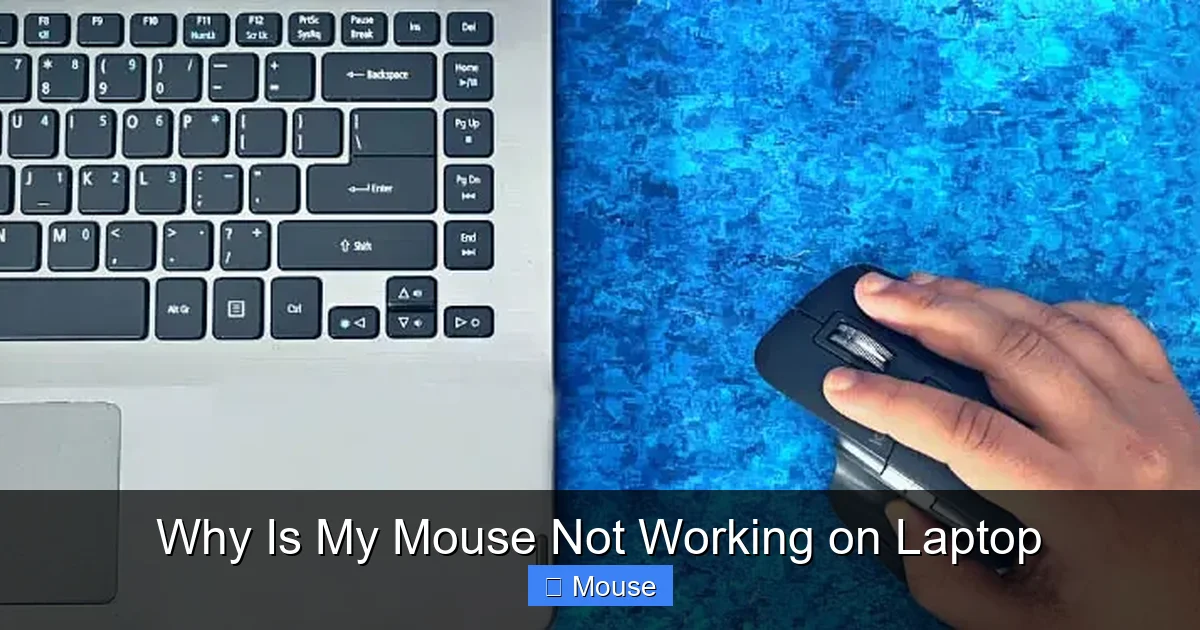
Most laptop mice are either USB or Bluetooth. USB mice draw power directly from the laptop, while Bluetooth mice rely on a battery. If the battery is low or dead, the mouse will stop working.
Visual guide about Why Is My Mouse Not Working on Laptop
Image source: technewstoday.com
- USB mice: Try a different USB port. Some ports may be damaged or have insufficient power.
- Bluetooth mice: Check the battery level on the mouse or replace the batteries with fresh ones.
For a quick test, connect the mouse to another computer. If it works there, the issue likely lies with your laptop’s ports or settings.
1.2 Inspect the Physical Connection
Loose cables, damaged USB connectors, or a worn‑out mouse lead can cause intermittent or complete failure. Carefully examine the mouse cable and the port for bent pins or debris.
Use a can of compressed air to blow out dust from the USB port. If you’re comfortable, gently straighten any bent pins with a small flat‑head screwdriver.
1.3 Test the Built‑In Touchpad
Sometimes the mouse stops working because the touchpad is disabled. Press the Fn + touchpad toggle key (often F7 or F8) to enable or disable the touchpad. If the touchpad works, the mouse may be conflicting with it.
2. Software and Driver Issues
2.1 Update or Reinstall Mouse Drivers
Outdated or corrupted drivers are a frequent cause of mouse problems. On Windows, go to Device Manager → Mice and other pointing devices, right‑click your mouse, and choose Update driver. If that fails, select Uninstall device and restart your laptop; Windows will reinstall the driver automatically.

Visual guide about Why Is My Mouse Not Working on Laptop
Image source: i.ytimg.com
2.2 Resolve Conflicts with Touchpad Settings
Some laptops have a setting that disables the touchpad when an external mouse is connected. This can sometimes backfire and disable both devices. In Windows, go to Settings → Devices → Touchpad and toggle Disable touchpad when a mouse is connected off.
2.3 System Updates and Patches
Operating system updates often include bug fixes for peripheral issues. Make sure your system is fully updated. On macOS, check System Settings → General → Software Update.
2.4 Check for Interfering Software
Some third‑party programs, especially custom mouse utilities or gaming mice drivers, can interfere with standard mouse operation. Temporarily disable or uninstall such software to see if the mouse returns.
3. Hardware Troubleshooting
3.1 Test the Mouse on Another Device
Connect your mouse to a different computer or a different laptop. If it works elsewhere, the mouse is fine; the problem is with your laptop’s configuration.
3.2 Inspect the Mouse for Physical Damage
Look for cracked buttons, loose scroll wheels, or a frayed cable. Even minor wear can cause intermittent failures.
3.3 Clean the Mouse Sensor
Dust or fingerprints on the sensor can hinder tracking. Use a microfiber cloth to gently wipe the underside of the mouse.
3.4 Replace the Mouse
If the mouse has been in use for years, it may simply be worn out. Consider purchasing a new mouse that’s compatible with your laptop’s OS.
4. Operating System‑Specific Fixes
4.1 Windows 10/11
- Device Manager: Ensure the mouse is listed under “Mice and other pointing devices.” If it’s listed as “Unknown device,” update the driver.
- Touchpad Settings: Go to Settings → Devices → Touchpad and adjust sensitivity or disable it temporarily to test the external mouse.
- Pointer Options: In Control Panel → Mouse → Pointer Options, check that “Show pointer trails” isn’t causing visual lag.
4.2 macOS
- System Settings → Trackpad: Disable “Use trackpad when mouse or trackpad is present” to see if the external mouse works.
- Bluetooth Preferences: Remove the mouse from the Bluetooth list and re‑pair it.
- Safe Mode: Restart in Safe Mode to rule out third‑party software conflicts.
4.3 Linux (Ubuntu/Debian)
- Check /dev/input: Run
ls /dev/input/by-id/to see if the mouse appears. - udev Rules: Ensure no custom udev rules are blocking the mouse.
- Xorg.conf: For older Xorg setups, create or edit
/etc/X11/xorg.conf.d/10-mouse.confto specify the input device.
5. Advanced Diagnostics and Tools
5.1 Use Device Manager’s “Scan for Hardware Changes”
Sometimes the OS fails to detect a newly connected device. In Windows Device Manager, click Action → Scan for hardware changes to force detection.

Visual guide about Why Is My Mouse Not Working on Laptop
Image source: i.ytimg.com
5.2 Check Event Viewer for Errors
Open Event Viewer (Windows) and look under System and Application logs for any mouse‑related errors that could hint at driver or hardware faults.
5.3 Run a Hardware Diagnostic
Many laptops come with built‑in diagnostics. For example, Lenovo laptops have the Lenovo Diagnostics tool, while Dell offers SupportAssist. Run a peripheral test to pinpoint hardware issues.
5.4 Use Third‑Party Utilities
Utilities like USBDeview (Windows) can list all USB devices, their status, and allow you to disable/enable them. This can help isolate the mouse from other peripherals.
6. When to Seek Professional Help
If all the steps above fail, it may be time to consult a professional. Check your laptop’s warranty status; most manufacturers cover peripheral failures for a limited period. If your laptop is out of warranty, a local computer repair shop can diagnose and replace faulty hardware.
Conclusion
Having a mouse that suddenly stops working can feel like a mini‑crisis, especially during crunch time. But most mouse problems are straightforward to diagnose and fix. By systematically checking power, connections, drivers, and settings—and by using the OS‑specific tools outlined here—you can usually bring your cursor back online in minutes.
Remember, a healthy mouse, whether it’s a USB stick or a Bluetooth companion, is essential for smooth laptop use. Keep it clean, update drivers regularly, and don’t ignore those little error messages that pop up on your screen. With the right knowledge and a methodical approach, you’ll be back to clicking, dragging, and scrolling in no time.
Frequently Asked Questions
Why is my mouse not working on my laptop?
A common cause is a loose or damaged USB connection, but it could also be due to outdated drivers, conflicting touchpad settings, or battery depletion in Bluetooth mice.
How do I get my mouse back on my laptop?
First, try reconnecting the mouse and checking the battery. If that fails, update or reinstall the mouse drivers, disable any “touchpad when mouse connected” setting, and ensure your OS is fully updated.
Can a laptop’s touchpad disable my external mouse?
Yes, many laptops have a setting that automatically turns off the touchpad when an external mouse is detected. Disabling this option often resolves conflicts.
Is it possible that my mouse is dead?
Absolutely. If the mouse works on another computer but not on your laptop, it’s likely a hardware issue with the mouse itself. In that case, replacing it is the simplest solution.
What if my mouse works on another device but not on my laptop?
Check for driver issues, USB port problems, or settings that disable the mouse. Running a system diagnostic or updating drivers usually resolves these issues.
When should I replace my mouse instead of troubleshooting?
If the mouse has been in use for several years, shows physical wear, or fails to connect to multiple devices, it’s time for a replacement. A new mouse can save you time and frustration.