Amd Am4 Desktop Ram Compatibility Guide For Beginners
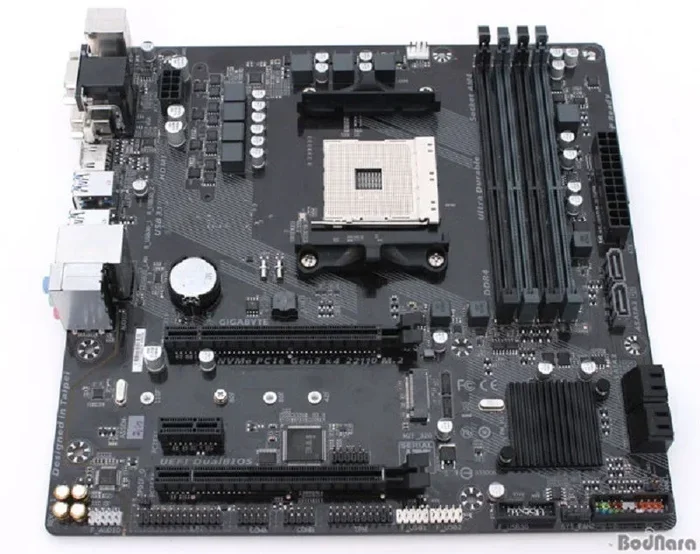
The Amd Am4 Desktop Ram Compatibility guide helps beginners choose the right DDR4 memory for AMD Ryzen AM4 motherboards. You will learn about speed, capacity, dual channel setup, and common mistakes to avoid. This guide covers everything from JEDEC standards to XMP profiles so you can build or upgrade with confidence.
If you are building or upgrading a desktop PC with an AMD AM4 motherboard, one of the most important decisions you will make is choosing the right Amd Am4 Desktop Ram Compatibility setup. The wrong memory can cause boot failures, blue screens, or poor performance. This guide breaks down everything you need to know in simple, beginner-friendly terms. You will learn what RAM works with AM4, how to pick the right speed and capacity, and how to avoid common mistakes that trip up even experienced builders.
The AM4 platform has been AMD’s go-to desktop socket for several years. It supports Ryzen processors from the first generation all the way through the Ryzen 5000 series. Each of these processors uses a memory controller that only works with DDR4 desktop RAM. Understanding this basic fact saves you from buying the wrong type of memory entirely. Let us walk through the details step by step so you can shop with confidence.
Key Takeaways
- AM4 platforms only support DDR4 RAM: You cannot use DDR3 or DDR5 memory with AM4 motherboards.
- RAM speed matters for Ryzen CPUs: Higher frequency memory can boost performance on AM4 systems significantly.
- Dual channel setup doubles bandwidth: Always install RAM in matched pairs for the best results on AM4 desktops.
- Check the CPU and motherboard support list: Not all AM4 boards support every RAM speed or capacity out of the box.
- BIOS updates can unlock new RAM profiles: A simple BIOS update may fix compatibility issues with newer memory kits.
- Avoid mixing RAM kits: Using different brands or speeds can cause instability and performance drops on AM4 platforms.
📑 Table of Contents
- What Is Amd Am4 Desktop Ram Compatibility
- Understanding DDR4 RAM And AM4 Platforms
- Ram Speed And Frequency For Am4 Systems
- Ram Capacity And Dual Channel Setup
- Common Am4 Ram Compatibility Issues
- How To Check Ram Compatibility For Your Am4 System
- Best Practices For Am4 Ram Upgrades
- Final Thoughts On Amd Am4 Desktop Ram Compatibility
What Is Amd Am4 Desktop Ram Compatibility
Amd Am4 Desktop Ram Compatibility refers to the specific types of memory modules that work correctly with AM4 socket motherboards. AM4 is a CPU socket used by AMD for its Ryzen lineup of processors. Every AM4 motherboard supports DDR4 SDRAM, which is the fourth generation of double data rate synchronous dynamic random access memory. This is a fixed rule. You cannot use DDR3 or DDR5 RAM on an AM4 board.
When people talk about RAM compatibility, they usually mean three things. First, the RAM type or generation. Second, the speed or frequency the memory can run at. Third, the maximum capacity the motherboard and CPU can handle together. All three of these factors matter when you are picking memory for your AM4 build.
Why Compatibility Matters
Using incompatible RAM can cause real problems. Your PC might not boot at all. You could experience random crashes during gaming or heavy workloads. Even if the system turns on, mismatched memory can lead to terrible performance. This is especially true for Ryzen processors, which rely heavily on memory speed for overall system responsiveness.
For example, a Ryzen 5 5600X paired with slow DDR4-2133 RAM will feel sluggish compared to the same CPU with DDR4-3600 memory. The memory controller inside the CPU plays a huge role here. AMD Ryzen chips are known to benefit from faster memory, making AM4 RAM compatibility a topic worth understanding before you spend any money.
Understanding DDR4 RAM And AM4 Platforms
All AM4 motherboards use DDR4 memory. This is the standard you need to remember. DDR4 stands for Double Data Rate Fourth Generation. It replaced DDR3 and offers higher speeds, lower power consumption, and better overall efficiency. When shopping for RAM for an AM4 desktop, look for DDR4 UDIMM or DDR4 SODIMM modules. UDIMM is the standard desktop stick. SODIMM is the smaller version used in laptops.
If you are wondering whether laptop RAM can be used in a desktop, the short answer is usually no. Laptop RAM uses a different physical form factor and pin configuration. Desktop AM4 boards require full-size DDR4 UDIMMs with 288 pins. Always double-check the module type before purchasing.
DDR4 JEDEC Standards vs XMP Profiles
DDR4 RAM comes with base JEDEC standards. These are the default speeds every memory module supports out of the box. For example, DDR4-2133 and DDR4-2400 are common JEDEC speeds. These work on every AM4 motherboard without any extra setup.
XMP stands for Extreme Memory Profile. It is an Intel-originated standard that AMD also supports on AM4 boards. XMP allows your RAM to run at higher speeds than the JEDEC default. When you enable XMP in your BIOS, your memory kicks up to its rated speed, such as DDR4-3200 or DDR4-3600. This is a simple way to get better performance without manual tuning.
However, not all AM4 motherboards support every XMP speed. Older boards may only handle DDR4-2666 or DDR4-2933 through XMP. Always check your motherboard manual or the manufacturer’s website to confirm which XMP profiles are supported.
Ram Speed And Frequency For Am4 Systems
RAM speed, measured in megahertz (MHz), is one of the most talked-about specs in the Amd Am4 Desktop Ram Compatibility world. For AM4 platforms, the sweet spot has traditionally been DDR4-3200. This speed offers excellent performance for gaming, content creation, and everyday use. But what does speed actually mean for your system?
Faster RAM means more data can move between the memory and the CPU each second. Ryzen processors in particular benefit from higher memory speeds because their Infinity Fabric interconnect ties directly to the memory clock. When you increase RAM speed, you often get better frame rates in games and faster load times in demanding applications.
Popular RAM Speeds For AM4
Here are the most common DDR4 speeds you will encounter for AM4 builds:
- DDR4-2133: The basic JEDEC standard. Works everywhere but offers the lowest performance.
- DDR4-2400: A slight step up. Good for budget builds.
- DDR4-2666: A solid middle ground. Supported by most AM4 boards.
- DDR4-3000: Great for Ryzen systems. Offers a nice balance of speed and price.
- DDR4-3200: The recommended sweet spot for most AM4 Ryzen builds.
- DDR4-3600 and above: Excellent for enthusiasts. May require a motherboard BIOS update for full support.
When choosing a speed, consider your CPU and motherboard. A Ryzen 5 5600 paired with a B550 motherboard will happily run DDR4-3600. But an older A320 board might cap you at DDR4-2666. Always check the motherboard CPU support list and memory QVL (Qualified Vendor List) before buying.
Ram Capacity And Dual Channel Setup
Capacity refers to how much data your RAM can hold at once. For AM4 desktops, common capacities include 8GB, 16GB, 32GB, and even 64GB per module. Most users will find 16GB to be the sweet spot for gaming and general use. If you do video editing or 3D rendering, 32GB or more gives you room to work with large files.
One of the most important rules for AM4 desktop RAM is the dual channel principle. Modern CPUs use a dual channel memory controller. This means the CPU can access two memory modules at the same time, effectively doubling the data bandwidth. To take advantage of dual channel, you must install RAM in matching pairs.
How To Set Up Dual Channel Correctly
Follow these steps to ensure your AM4 system runs in dual channel mode:
- Install two identical RAM sticks in the correct slots. Most AM4 motherboards have four slots. Check your manual for the recommended slot pairing, usually slots 2 and 4.
- Use RAM from the same brand, same model, same speed, and same capacity. Even slight differences can prevent dual channel mode from activating.
- Verify dual channel is active after booting. On Windows, open Task Manager, go to the Performance tab, and look at Memory. It should say “Dual” under the graph.
If you want to upgrade later, you can add more sticks. Just make sure the new modules match the existing ones as closely as possible. Mixing different speeds will cause all modules to run at the slowest speed. This is a common mistake that hurts performance on AM4 systems.
Common Am4 Ram Compatibility Issues
Even when you buy the right type of RAM, compatibility issues can still happen on AM4 platforms. These problems are more common than most people think. Understanding what can go wrong helps you troubleshoot faster and avoid costly mistakes.
Boot Failure After Installing New RAM
If your AM4 PC will not turn on after installing new RAM, the first thing to check is the RAM type. Make sure you are using DDR4, not DDR3 or DDR5. Next, check the RAM speed. Older AM4 motherboards may not support very high frequencies without a BIOS update. Try resetting the CMOS by removing the battery on the motherboard for a few minutes. This resets the BIOS to default settings and often fixes boot issues.
Random Crashes And Blue Screens
Blue screens of death (BSODs) after installing RAM are often caused by mismatched modules or incorrect XMP settings. If you are running XMP and experiencing crashes, try disabling XMP in the BIOS and running the RAM at its JEDEC speed. If the crashes stop, the issue is likely an unstable XMP profile. You can try manually adjusting the RAM voltage and timings in the BIOS for better stability.
RAM Not Running At Rated Speed
Sometimes your RAM will show a lower speed than what is printed on the sticker. This usually happens because XMP is not enabled. Go into your BIOS, find the memory or overclocking section, and enable the XMP profile. If XMP is already enabled but the speed is still wrong, your motherboard or CPU may not support that speed. Check the motherboard manual for the maximum supported RAM frequency.
Maximum Capacity Limitations
Every AM4 motherboard has a maximum RAM capacity. Most consumer boards support 64GB total (four 16GB sticks). Some high-end boards support 128GB. If you install more RAM than the board supports, the system may not boot or will ignore the excess modules. Always check your motherboard specifications before buying large-capacity kits.
How To Check Ram Compatibility For Your Am4 System
Checking Amd Am4 Desktop Ram Compatibility before buying is the smartest thing you can do. It saves time, money, and frustration. Here is a simple process you can follow every time.
First, identify your exact motherboard model. You can find this by opening your PC and reading the board itself, or by using a free tool like CPU-Z on Windows. Once you know the model, visit the manufacturer’s website and look up the memory support list. This list tells you exactly which RAM modules, speeds, and capacities have been tested and approved for your board.
Second, check your CPU. Different Ryzen CPUs have different memory controllers. A Ryzen 9 5950X will support higher memory speeds than a Ryzen 5 3400G. The CPU support list on the motherboard website will tell you the maximum RAM speed for each supported processor.
Third, look at the QVL, or Qualified Vendor List. This is a list of specific RAM kits that the motherboard manufacturer has tested. Buying a kit on the QVL gives you the best chance of a hassle-free experience. If your desired RAM is not on the QVL, it does not mean it will not work. It just means it has not been officially tested.
If you are curious about how desktop RAM differs from other types, you can read more about laptop RAM vs desktop RAM to understand the key differences. This knowledge helps you make better purchasing decisions for any build.
Best Practices For Am4 Ram Upgrades
Upgrading RAM on an AM4 system is straightforward, but following best practices ensures long-term stability and performance. Here are some tips that experienced builders swear by.
- Buy matched pairs: Always purchase a two-stick kit rather than individual sticks. Kits are tested together to ensure compatibility.
- Check for BIOS updates: Before installing new RAM, update your motherboard BIOS to the latest version. This can unlock support for newer memory speeds and fix known compatibility bugs.
- Do not mix generations: Never combine DDR3 and DDR4 RAM. They have different pin layouts and will not fit in the same slots.
- Reseat existing RAM first: If you are experiencing issues, try removing all RAM sticks, cleaning the contacts gently, and reseating them firmly in their slots.
- Use the right slots: For dual channel, always follow the motherboard manual’s recommended slot configuration. Using the wrong slots can force single channel mode.
- Monitor temperatures: While RAM does not usually need active cooling, keeping your case well-ventilated helps memory modules run at their best, especially at high speeds.
Following these simple steps will help you get the most out of your AM4 desktop build. Whether you are a first-time builder or upgrading an existing system, taking the time to verify compatibility pays off in a smoother, more reliable experience.
Final Thoughts On Amd Am4 Desktop Ram Compatibility
Understanding Amd Am4 Desktop Ram Compatibility is easier than it might seem at first. The key rules are simple. Use DDR4 RAM only. Match your speed and capacity to your motherboard and CPU capabilities. Always install RAM in matched pairs for dual channel mode. And when in doubt, check the motherboard manual and support lists before making a purchase.
The AM4 platform has served AMD users well for years. With the right memory, it delivers excellent performance for gaming, productivity, and everyday tasks. Take your time, do your research, and you will build a system that runs smoothly for years to come. If you ever need to check what type of RAM you currently have, tools like CPU-Z or the built-in Windows memory diagnostics can help you identify your existing modules quickly.
Remember, RAM is one of the easiest components to upgrade. Start with 16GB of DDR4-3200 in a dual channel kit, and you will have a solid foundation for almost any task. As workloads grow and software demands increase, you can always add more sticks later. Just make sure every new module matches what you already have installed.
Frequently Asked Questions
Can I use DDR5 RAM in an AM4 motherboard?
No, AM4 motherboards only support DDR4 RAM. DDR5 uses a different architecture and physical connector that is not compatible with AM4 sockets. Always make sure you are purchasing DDR4 memory for any AM4 build.
What is the best RAM speed for AM4 Ryzen processors?
DDR4-3200 is widely considered the best speed for most AM4 Ryzen builds. It offers excellent performance and is well-supported by nearly all AM4 motherboards. Higher speeds like DDR4-3600 can provide additional gains but may require a BIOS update on older boards.
Can I mix different brands of RAM in an AM4 system?
You can physically install different brands, but it is not recommended. Mixing RAM can cause compatibility issues, instability, and prevent dual channel mode from activating properly. Always use a matched kit from the same brand and model for the best results.
How do I know if my AM4 motherboard supports a specific RAM speed?
Check the motherboard manufacturer’s website for the memory support list and CPU support list. These documents detail which RAM speeds, capacities, and modules have been tested and verified for your specific board.
Do I need to enable XMP for my RAM to run at full speed on AM4?
Yes, most DDR4 RAM rated above the JEDEC default speed requires XMP to be enabled in the BIOS. Without XMP, the memory will run at a lower default speed. Simply enter your BIOS, find the XMP or memory profile setting, and enable it.
What happens if I install RAM in the wrong slots on an AM4 motherboard?
Installing RAM in the wrong slots can force your system into single channel mode, which cuts memory bandwidth in half. Always refer to your motherboard manual for the correct slot configuration to enable dual channel operation.
=== CONCLUSION ===
Choosing the right RAM for your AM4 desktop does not have to be confusing. By following the guidelines in this Amd Am4 Desktop Ram Compatibility guide, you can confidently pick the right DDR4 memory for your build. Focus on DDR4 type, matched dual channel kits, appropriate speed for your CPU, and verified motherboard support. These simple steps will save you time and money while ensuring your system runs at its best. Take the knowledge you have gained here, apply it to your next AM4 project, and enjoy a smooth, stable, and high-performing desktop experience.