Windows Themes That Will Completely Change Your Desktop
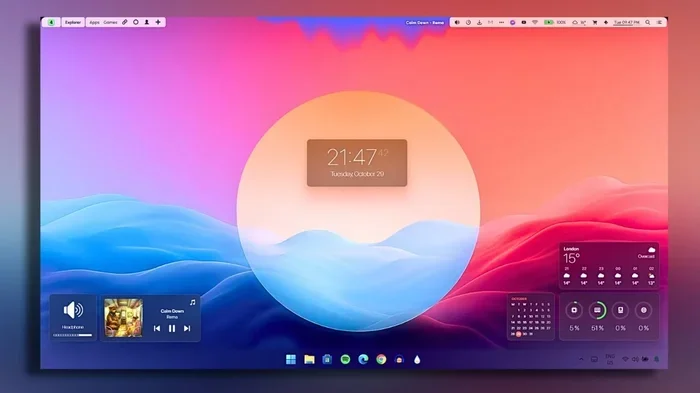
Windows themes are an easy and free way to completely transform how your desktop looks and feels. Whether you prefer a sleek dark mode, vibrant colors, or a minimalist aesthetic, there is a theme out there for everyone. In this guide, we will walk you through the best built-in themes, where to find free custom packs, and how to create your own unique look. You will learn simple steps to install themes, avoid common mistakes, and make your PC stand out. By the end, you will have everything you need to give your desktop a full makeover.
Your desktop is the first thing you see every time you open your computer. So why settle for a boring default look? Windows themes are one of the simplest and most effective ways to give your entire desktop a fresh, personalized feel. Whether you want a clean minimalist setup or a bold colorful workspace, themes make it happen in just a few clicks.
Many people do not realize how much difference a good theme can make. It is not just about pretty pictures. A well-chosen desktop customization setup can reduce eye strain, boost your mood, and even help you stay focused. In this article, we will explore the best Windows themes available, show you how to install them, and give you tips to create your own unique look.
We will also cover where to find free themes safely, what to avoid, and how to make your PC makeover last. Whether you are using Windows 10 or Windows 11, this guide has you covered. Let us dive in and make your desktop shine.
Key Takeaways
- Built-in Windows themes offer quick and easy desktop transformations without any downloads.
- Custom theme packs from trusted sources can completely change your desktop aesthetic.
- Personalization settings in Windows let you fine-tune colors, wallpapers, and sounds.
- Creating your own theme is simpler than most people think and gives you full creative control.
- Free theme websites offer thousands of options for every style and preference.
- Avoiding common mistakes like downloading from untrusted sources keeps your PC safe and running smoothly.
📑 Table of Contents
Why Your Desktop Deserves a Fresh New Look
Think about how many hours you spend staring at your desktop every day. Your workspace environment matters more than you might think. A dull, generic desktop can feel uninspiring, while a well-designed desktop aesthetic can make your computer feel like it truly belongs to you.
The Psychology of a Personalized Workspace
Studies show that a personalized workspace can improve focus and productivity. When your desktop reflects your personality, you feel more comfortable and in control. This is especially true for students and remote workers who spend long hours at their screens.
For example, if you are a student using a best Windows laptop for students, a calming nature theme can help you stay relaxed during study sessions. On the other hand, a vibrant retro theme might give you energy during creative work. The key is choosing a look that matches how you use your computer.
More Than Just Wallpapers
When most people think of themes, they think of background images. But a true Windows theme does much more. It changes your color accent, cursor style, lock screen, and even system sounds. A complete theme package transforms every part of your experience.
Here is what a full theme can customize:
- Wallpaper and lock screen images
- Color accent and window borders
- Cursor style and mouse pointer
- System sounds for notifications and events
- Icon appearance and folder backgrounds
- Start menu and taskbar colors
As many Windows users have discovered, customization options like themes give you more control over your experience. They are a great way to make Windows feel the way you want it to.
Best Built-In Windows Themes to Try
You do not need to download anything to get a stunning desktop. Windows comes with several built-in themes that look fantastic right out of the box. Let us explore the best ones.
Windows Spotlight Themes
Windows Spotlight automatically downloads beautiful wallpaper collection images from Bing. These change daily and are always high quality. You can set Spotlight as your lock screen and wallpaper source for a constantly refreshing desktop.
The Spotlight theme works great with both dark mode and light mode settings. It adapts to your system colors and gives your desktop a polished, curated feel without any effort on your part.
Windows Default Themes
Windows includes several default themes like “Windows,” “Flowers,” “Nature,” and “Retro.” Each one comes with a matching wallpaper, color scheme, and sound profile. They are a great starting point if you are new to desktop customization.
To access these, go to Settings > Personalization > Themes. You will see all available options right there. Click on any theme to apply it instantly.
Dark Mode vs Light Mode Themes
The dark mode vs light mode debate is one of the most popular topics in desktop customization. Dark mode uses darker colors across your interface, which many people find easier on the eyes, especially in low-light environments.
Light mode, on the other hand, uses brighter whites and pastels. It gives a clean, airy feel that many people prefer for daytime work. You can switch between them anytime in Settings > Personalization > Colors.
Here is a quick comparison of the two modes:
- Dark Mode: Reduces eye strain in dim lighting, looks sleek and modern, saves battery on OLED screens
- Light Mode: Feels clean and open, better for bright environments, easier to read long documents
How to Download and Install Custom Themes
Once you have explored the built-in options, you will probably want more. Custom themes open up a world of possibilities. The process is simple and works on both Windows 10 and Windows 11.
Step-by-Step Installation Guide
Follow these steps to install a custom theme pack on your PC:
- Find a trusted source for theme packs. The Microsoft Store is the safest option.
- Browse the Themes section in the Microsoft Store or your preferred website.
- Download the theme file (it will end in .theme).
- Right-click the downloaded file and select Install.
- Go to Settings > Personalization > Themes and click on your new theme.
- Apply it and enjoy your transformed desktop!
If you are using a best Windows 2-in-1 laptop, themes look especially great because the higher-resolution touchscreens display every detail beautifully. The colors pop and the wallpapers look crisp on these hybrid devices.
Safety Tips for Downloading Themes
Not all theme websites are safe. Some free theme packs can contain malware or unwanted software. Here is how to stay safe:
- Always download from the Microsoft Store or well-known theme communities
- Check reviews and ratings before downloading any theme pack
- Avoid sites that ask you to install extra software or browser extensions
- Use antivirus software to scan downloaded files before opening them
- Stick to .theme files rather than executable (.exe) files
What Makes a Great Custom Theme?
A great custom theme has several key qualities. First, the wallpaper collection should be high resolution and cohesive. Second, the color accent should complement the images. Third, the system sounds should match the overall vibe of the theme.
Some themes also include custom icon packs and cursor styles. These small details make a big difference in creating a truly immersive desktop experience. Look for themes that offer all of these elements together for the best results.
Tips for Creating Your Own Windows Theme
Creating your own theme is easier than you might think. You do not need any special design skills. With a few images and some patience, you can build a desktop aesthetic that is uniquely yours.
Gathering Your Assets
Start by collecting the elements you want to include:
- 3 to 5 wallpaper images that share a color palette or theme
- A color accent that matches your wallpapers
- Optional cursor style and icon pack
- Background sounds or a system sound scheme
Free stock photo sites like Unsplash and Pexels are excellent places to find high-quality wallpapers. Choose images that you love and that work well together as a set.
Putting It All Together
Open Settings > Personalization > Themes and click Create a theme. Give it a name, then upload your wallpapers and choose your accent color. You can also customize your lock screen, color settings, and sounds from the same menu.
Save your theme and it will appear in your Themes library. You can switch between your custom theme and any others you have installed anytime. This is a great way to create different moods for different times of day or different tasks.
Quick Tips for Theme Creation
- Use images with a consistent color palette for a cohesive look
- Choose high-resolution images so your wallpapers look sharp
- Test your theme in both dark mode and light mode
- Keep your lock screen and desktop wallpapers related but not identical
- Save multiple versions of your theme for different moods or seasons
Where to Find the Best Free Themes Online
The internet is full of amazing free themes. Here are some of the best places to find them safely and easily.
Microsoft Store
The Microsoft Store is the safest and most convenient place to find themes. They are vetted and tested, so you do not have to worry about security risks. Browse the Themes section and you will find hundreds of options for every taste.
DeviantArt and Theme Communities
Communities like DeviantArt and Reddit’s r/WindowsThemes are treasure troves of creative themes. Users share their custom packs for free, and many include stunning artwork and thoughtful color choices. Just be sure to follow the safety tips mentioned earlier when downloading from these sites.
Windows Theme Websites
Several dedicated websites curate collections of free Windows themes. Sites like WindowThemes.com and WinCustomize.com offer thousands of options. You can filter by style, color, or popularity to find exactly what you are looking for.
Common Mistakes to Avoid When Choosing Themes
While customizing your desktop is fun, there are some common pitfalls to watch out for. Avoiding these mistakes will keep your PC safe and running smoothly.
Downloading from Untrusted Sources
This is the biggest risk when installing custom themes. Untrusted websites may bundle malware with theme files. Always stick to reputable sources and scan downloaded files with antivirus software before opening them.
Choosing Themes That Are Too Busy
A theme with too many colors, busy wallpapers, or clashing sounds can actually hurt your productivity. Choose themes that are visually appealing but not distracting. Less is often more when it comes to desktop customization.
Ignoring System Performance
Some themes with animated wallpapers or heavy visual effects can slow down your system. If you notice performance issues after installing a theme, try switching to a simpler option. Your system performance should always come first.
Forgetting to Back Up Your Settings
Before making major changes to your theme, it is a good idea to back up your current settings. This way, you can easily revert if something does not look right. Go to Settings > Personalization > Themes and note which themes you currently have active.
Final Thoughts
Windows themes are one of the easiest and most rewarding ways to personalize your computer. Whether you use built-in options, download free packs, or create your own, the results can completely transform your daily computing experience. A great theme makes your PC feel like home.
Start with the built-in themes to get a feel for what works for you. Then explore custom options and maybe even try creating your own. The beauty of Windows customization is that there is no wrong choice. Your desktop, your rules. So go ahead, give your PC makeover a try, and enjoy a desktop that truly reflects who you are.
Frequently Asked Questions
What are Windows themes and how do they work?
A Windows theme is a collection of settings that change how your desktop looks and sounds. It includes your wallpaper, color accent, cursor style, lock screen image, and system sounds. You can apply a theme instantly from the Personalization settings in Windows. Themes work on both Windows 10 and Windows 11.
Can I create my own Windows theme for free?
Yes, absolutely. Windows has a built-in tool that lets you create custom themes without any cost. You just need to gather your preferred wallpapers, choose a color accent, and optionally add custom sounds. The process is simple and requires no special software or design skills.
Are free theme downloads safe to use?
Most free themes are safe when downloaded from trusted sources like the Microsoft Store or well-known theme communities. Always avoid downloading from unfamiliar websites, and never open .exe files that claim to be themes. Scanning downloaded files with antivirus software is a smart precaution.
How do I change my Windows theme back to the default?
To revert to the default Windows theme, go to Settings > Personalization > Themes. You will see the default “Windows” theme listed. Simply click on it to apply it. This will restore the original colors, sounds, and wallpaper that came with your Windows installation.
Can themes improve my laptop’s performance?
Themes themselves do not directly improve performance, but choosing a light theme with simple wallpapers can reduce visual strain and make your system feel more responsive. Avoid themes with heavy animated effects if you want to maintain optimal performance on your device.
Where can I find the best Windows themes online?
The Microsoft Store is the safest place to find themes. For more creative options, try communities like DeviantArt, Reddit’s r/WindowsThemes, or dedicated theme websites like WinCustomize.com. Always check reviews and ratings before downloading any theme pack from third-party sites.
=== CONCLUSION ===
Windows themes are a powerful and simple way to completely change your desktop experience. From built-in options to custom creations, there is no shortage of ways to make your PC feel uniquely yours. The tips and guides in this article should give you everything you need to get started on your desktop customization journey.
Remember to keep safety in mind when downloading themes, choose looks that match your workflow, and have fun with the process. Your desktop is your daily workspace, and it deserves to look as good as it performs. So take a few minutes today, pick a theme you love, and enjoy your beautifully transformed PC makeover.