16gb Ram for Dell Laptop

16GB RAM is the ideal memory upgrade for most Dell laptops, delivering smooth multitasking, faster performance, and better future-proofing. Whether you own a Dell XPS, Inspiron, or Latitude, adding 16GB of RAM can transform how your laptop handles everyday tasks and demanding workloads. This guide covers compatibility, benefits, upgrade steps, and common mistakes to help you make the right choice for your Dell machine.
Key Takeaways
- 16GB RAM is the sweet spot: It balances performance and cost for most users.
- Dell laptops widely support 16GB: Most modern Dell models accept this memory size.
- Upgrade benefits are clear: Expect smoother multitasking and faster app loading.
- Check compatibility first: Confirm your Dell model supports the RAM type and slots.
- Avoid common mistakes: Don’t mix RAM types or ignore speed matching.
- DIY upgrades are doable: With basic tools, you can upgrade your Dell RAM at home.
📑 Table of Contents
- Why 16GB RAM is the Sweet Spot for Dell Laptops
- Which Dell Laptops Support 16GB RAM?
- How to Check if Your Dell Laptop Has 16GB RAM
- Benefits of Upgrading to 16GB RAM on Your Dell Laptop
- Common Mistakes When Upgrading Dell Laptop RAM
- How to Upgrade RAM in Your Dell Laptop
- Where to Buy 16GB RAM for Your Dell Laptop
- Is 16GB RAM Enough for Your Needs?
- Conclusion
Why 16GB RAM is the Sweet Spot for Dell Laptops
If you own a Dell laptop, you have probably wondered whether 16gb ram for dell laptop is worth the investment. The short answer is yes. 16GB of memory hits a perfect balance between price and performance. It handles everyday tasks with ease and manages heavier workloads without breaking a sweat.
Think about how you use your laptop. Do you browse the web with many tabs open? Do you edit photos or videos? Maybe you run virtual machines or play games. Whatever your use case, 16GB of system memory gives you room to breathe. You will notice fewer slowdowns and smoother transitions between apps.
Many people start with 8GB of RAM and quickly find it limiting. As apps grow heavier and operating systems demand more resources, 8GB simply cannot keep up. That is where 16GB makes a real difference. It is not overkill for most users. It is the minimum recommended amount for anyone who wants a responsive and future-ready Dell laptop.
RAM, or random access memory, acts as your laptop’s short-term workspace. When you open programs, your processor pulls data from storage and places it in RAM for quick access. More RAM means your laptop can hold more data in this workspace at once. The result? Faster performance and fewer frustrating pauses.
Who Benefits Most from 16GB RAM?
Not everyone needs the same amount of memory. Here are the users who benefit the most from 16gb ram for dell laptop setups:
- Students: Running multiple browser tabs, word processors, and research tools at once.
- Remote workers: Using video conferencing apps alongside spreadsheets and email.
- Content creators: Editing photos in Adobe Photoshop or videos in Premiere Pro.
- Gamers: Playing modern games that demand steady memory performance.
- Developers: Running code editors, browsers, and virtual machines simultaneously.
If you fall into any of these categories, upgrading to 16GB will feel like a noticeable boost. Your Dell laptop will feel snappier and more capable.
Which Dell Laptops Support 16GB RAM?
One of the first questions people ask is whether their specific Dell model can handle 16GB of RAM. The good news is that most modern Dell laptops support this memory size. From the sleek XPS series to the reliable Inspiron line, Dell has made 16GB RAM accessible across its product range.
Dell XPS Series
The Dell XPS lineup is known for premium build quality and strong performance. Models like the XPS 13, XPS 15, and XPS 17 typically support 16GB of RAM. Many come factory-installed with 16GB, but you can also upgrade older models. The XPS series uses DDR4 or DDR5 RAM depending on the generation, so always check your specific model’s specs before purchasing memory.
Dell Inspiron Series
The Inspiron series is Dell’s popular consumer line. These laptops are affordable and versatile, making them a great candidate for RAM upgrades. Most Inspiron models from the last few years support 16GB of RAM. Whether you have an Inspiron 13, 14, 15, or 17, there is a good chance you can upgrade to 16GB and enjoy a significant performance lift.
Dell Latitude Series
Dell Latitude laptops are built for business professionals. They are durable, secure, and powerful. The Latitude series fully supports 16GB RAM configurations. If you use your Dell laptop for office work, data analysis, or running business applications, 16GB will give you the headroom you need to work efficiently throughout the day.
Dell G Series (Gaming)
Dell’s G Series gaming laptops also support 16GB of RAM. Gaming demands fast memory to handle large game worlds, textures, and background processes. With 16GB, you can run modern games smoothly while keeping your browser and communication apps open in the background.
How to Check if Your Dell Laptop Has 16GB RAM
Before you buy new memory, you need to know what your Dell laptop currently has and what it can support. Checking your RAM is quick and easy. You do not need to be a tech expert to do it.
Method 1: Use Task Manager
Right-click on your taskbar and select Task Manager. Click on the Performance tab, then select Memory. You will see how much RAM is installed and how many slots are in use. This gives you a clear picture of your current setup.
Method 2: Check System Information
Press the Windows key and type System Information. Open the app and look for Installed Physical Memory (RAM). This tells you the total amount of memory your Dell laptop recognizes.
Method 3: Use the Dell Support App
Dell laptops come with a built-in support tool. Open it and check your system specs. The app will show you your exact model, RAM type, and maximum supported capacity. This is the most reliable way to confirm ram compatibility for your specific Dell laptop.
Understanding RAM Specifications
When you check your Dell laptop’s RAM, pay attention to three key details:
- RAM Type: DDR4 is common in most modern Dell laptops. Newer models may use DDR5.
- Speed: Measured in MHz. Higher speeds offer slightly better performance.
- Slots Available: Most Dell laptops have two RAM slots. Check how many are currently occupied.
This information helps you choose the right memory upgrade for your Dell machine.
Benefits of Upgrading to 16GB RAM on Your Dell Laptop
Upgrading your Dell laptop to 16GB of RAM brings several real-world benefits. Let us walk through what you can expect after the upgrade.
Smoother Multitasking
The biggest advantage of 16GB RAM is multitasking capability. With more memory, your Dell laptop can keep multiple apps running in the background without slowing down. You can have a browser with 20 tabs open, Spotify playing, a Word document running, and a video call active — all at the same time. That kind of multitasking is simply not possible with 4GB or even 8GB of RAM.
Faster Application Loading
Applications load faster when they have more memory to work with. Programs like Microsoft Office, Adobe Creative Suite, and web browsers respond quicker with 16GB. You will spend less time waiting and more time being productive.
Better Future-Proofing
Software keeps getting heavier. Operating system updates demand more resources. New applications require more memory to run efficiently. By choosing 16GB, you are investing in a laptop that will stay capable for years to come. This is especially important if you plan to keep your Dell laptop for three to five years.
Improved Virtual Machine Performance
If you use virtual machines for testing, development, or running different operating systems, 16GB RAM is essential. Virtual machines eat up memory quickly. With 16GB, you can run one or two virtual machines alongside your main operating system without noticeable lag.
Enhanced Gaming Experience
Modern games require a decent amount of memory to run smoothly. 16GB is the recommended baseline for most current games. With this amount, you can enjoy higher frame rates, faster load times, and the ability to run the game alongside a browser or streaming software.
Common Mistakes When Upgrading Dell Laptop RAM
Upgrading RAM is straightforward, but mistakes can happen. Here are the most common errors people make when adding memory to their Dell laptop — and how to avoid them.
Mixing Different RAM Types
One of the biggest mistakes is mixing DDR4 and DDR5 RAM. These are completely different standards and will not work together. Always match the RAM type in your Dell laptop. If your laptop uses DDR4, buy DDR4. If it uses DDR5, buy DDR5.
Ignoring RAM Speed
RAM speed matters for overall performance. If your existing RAM runs at 3200MHz and you add a stick running at 2666MHz, both will default to the slower speed. Try to match the speed of your existing memory for the best results.
Not Checking Maximum Capacity
Every Dell laptop has a maximum RAM capacity. Some older models only support up to 16GB total, while others can handle 32GB or more. Before buying new RAM, confirm the maximum capacity your Dell model supports. Otherwise, you might waste money on memory your laptop cannot use.
Forgetting About Dual Channel
Most Dell laptops benefit from dual channel memory. This means using two matching RAM sticks instead of one larger stick. Dual channel improves memory bandwidth and can boost performance by 10 to 20 percent. If you have two free slots, consider buying two 8GB sticks instead of one 16GB stick.
Skipping the User Manual
Every Dell laptop comes with a user manual or a support page online. These resources tell you exactly which RAM modules are compatible. Skipping this step can lead to buying the wrong type of memory. Take five minutes to check your model’s specifications before you buy.
How to Upgrade RAM in Your Dell Laptop
Upgrading RAM in a Dell laptop is one of the easiest and most rewarding DIY projects you can tackle. You do not need professional help or expensive tools. Here is a simple step-by-step guide.
Step 1: Gather Your Tools
You will need a small Phillips-head screwdriver and an anti-static wrist strap (optional but recommended). Make sure you have your new 16GB RAM module ready. Purchase memory from a reputable brand like Crucial, Kingston, or Corsair.
Step 2: Power Down and Unplug
Shut down your Dell laptop completely. Unplug the power cable and remove any connected peripherals. If your laptop has a removable battery, take it out. This ensures safety while you work inside the machine.
Step 3: Open the Back Panel
Flip your Dell laptop over and locate the screws on the bottom panel. Use your screwdriver to remove them. Carefully lift off the panel. Some Dell models have a single large panel, while others have multiple smaller ones.
Step 4: Locate the RAM Slots
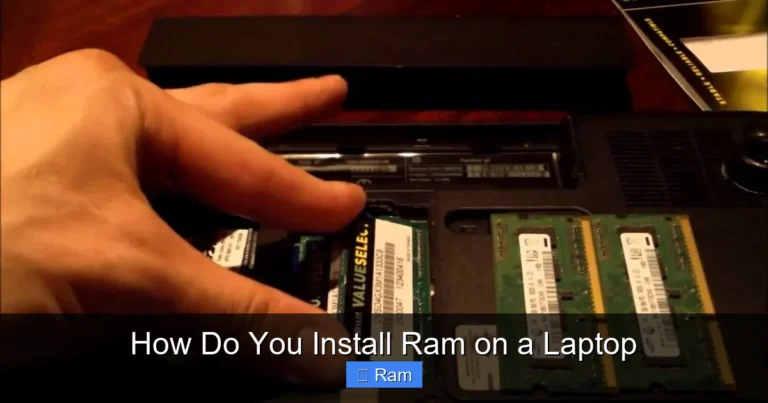
Inside your Dell laptop, you will see the RAM slots. They are long, thin sockets on the motherboard. Existing RAM sticks will be seated in these slots. Note how they are positioned so you can remove or add memory correctly.
Step 5: Remove Old RAM (If Needed)
To remove existing RAM, gently push the clips on either side of the stick outward. The RAM module will pop up at an angle. Carefully pull it out. If you are replacing existing RAM, make sure the new 16GB stick matches the type and speed of your laptop.
Step 6: Insert New RAM
Align the notch on the new RAM stick with the ridge in the slot. Press the stick down firmly at an angle until it clicks into place. The clips on both sides should snap back and lock the RAM securely.
Step 7: Close Up and Test
Replace the bottom panel and screw it back in. Plug in your power cable and turn on the laptop. Check Task Manager or System Information to confirm that 16GB of RAM is recognized. If it shows correctly, you are all set!
Quick Tips for a Successful Upgrade
- Always ground yourself before touching internal components.
- Handle RAM sticks by the edges to avoid damaging the contacts.
- Do not force any component into place — it should fit smoothly.
- Take photos before disassembly to help you remember how things go back together.
Where to Buy 16GB RAM for Your Dell Laptop
Now that you know how to upgrade, you might be wondering where to find the right memory. You can buy 16gb ram for dell laptop modules from several sources. Online retailers like Amazon, Best Buy, and Newegg carry a wide selection. You can also visit the Dell website directly for official memory upgrades. If you prefer to buy used or refurbished options, check reputable sellers on eBay or local electronics stores. Just make sure the RAM matches your Dell model’s specifications for type, speed, and capacity.
Another great option is to check 16gb ram laptop for sale listings that include RAM upgrades as part of a package. This can save you money if you are also looking for other components or accessories for your Dell machine.
Is 16GB RAM Enough for Your Needs?
The question of whether 16gb ram enough for laptop depends on how you use your Dell machine. For the vast majority of users, 16GB is more than sufficient. It handles office work, web browsing, media consumption, light photo editing, and casual gaming with ease.
However, if you are a professional video editor working with 4K footage, a 3D animator rendering complex scenes, or a data scientist running massive datasets, you might want to consider 32GB. For most everyday users though, 16GB strikes the perfect balance between performance and value.
If you are unsure about your needs, ask yourself what you do on your laptop most often. If your tasks fall into the general productivity or moderate creative work category, 16GB will serve you well for years. You can always explore how much ram is good for a laptop based on your specific workflow to make a confident decision.
Conclusion
Upgrading to 16gb ram for dell laptop is one of the best investments you can make for your Dell machine. It delivers smoother multitasking, faster app loading, and better future-proofing at a reasonable price. Whether you own a Dell XPS, Inspiron, Latitude, or G Series, 16GB of RAM will transform your daily computing experience.
The upgrade process is simple and affordable. With the right RAM module and a few basic tools, you can boost your Dell laptop’s performance in under 30 minutes. Just remember to check compatibility, match RAM specifications, and avoid common mistakes like mixing memory types or ignoring dual channel benefits.
Take the time to evaluate your current setup. If your Dell laptop is running on 4GB or 8GB, the jump to 16GB will feel dramatic. You will wonder why you did not upgrade sooner. So go ahead, give your Dell laptop the memory it deserves, and enjoy a faster, more responsive computing experience every single day.
Frequently Asked Questions
Can I upgrade my Dell laptop to 16GB RAM if it currently has 8GB?
Yes, in most cases you can. Check how many RAM slots your Dell laptop has. If it has two slots and one is occupied with 8GB, you can add another 8GB stick to reach 16GB total. If both slots are filled with 4GB sticks, you can replace them with two 8GB sticks or one 16GB stick, depending on your model’s support.
What type of RAM does my Dell laptop need?
Most modern Dell laptops use DDR4 RAM. Newer models may use DDR5. Check your Dell model’s specifications to confirm the exact type. Also pay attention to the speed rating, such as 3200MHz or 4800MHz, and try to match it with your existing memory.
Is 16GB RAM enough for gaming on a Dell laptop?
Yes, 16GB is the recommended minimum for modern gaming. It handles most current games smoothly and allows you to run background applications like Discord, a web browser, or streaming software without noticeable performance drops.
How much does it cost to add 16GB RAM to a Dell laptop?
The cost varies depending on the brand and type of RAM you buy. A single 16GB DDR4 stick typically ranges from $40 to $80. If you need to buy two sticks for dual channel, expect to spend $60 to $150 total. It is one of the most affordable upgrades you can make.
Will upgrading to 16GB RAM void my Dell laptop warranty?
Generally, no. Most Dell laptop warranties cover user-installed RAM as long as you do not damage the laptop during the process. However, it is always a good idea to check your specific warranty terms. If you are concerned, you can have the upgrade performed at a Dell service center.
How do I know if my Dell laptop has two RAM slots or one?
You can check this by opening Task Manager and looking at the Memory tab. It will show you how many slots are available and how many are in use. You can also consult your Dell laptop’s user manual or visit the Dell support website and enter your model number for detailed specs.