Ssd Pcie M 2 Nvme
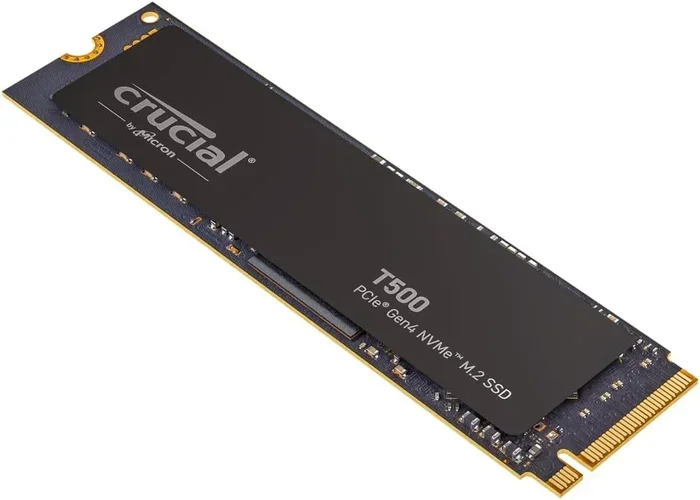
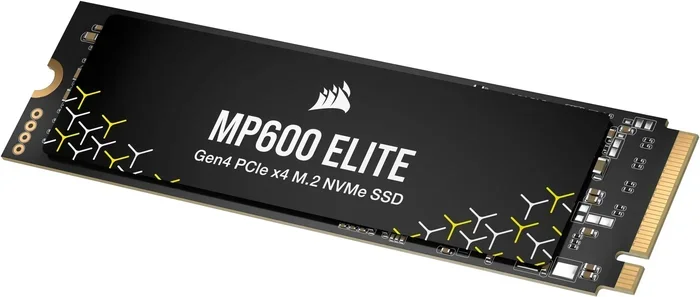
Experience blazing-fast speeds with PCIe M.2 NVMe SSDs, utilizing the PCIe interface and NVMe protocol for dramatically faster performance than SATA drives. These compact M.2 drives deliver instant boot times and seamless multitasking, ideal for gaming, creative work, and modern computing. Upgrade to unlock unmatched responsiveness and fully harness your system’s power.
Key Takeaways
- NVMe drives are vastly faster: They leverage PCIe lanes for speeds far beyond SATA SSDs.
- Check motherboard compatibility: Ensure your board has an M.2 slot supporting your drive’s PCIe generation.
- Mind the form factor: Confirm length (2242/2260/2280) and single/double-sided board fit your slot.
- Heat management is critical: High-performance NVMe drives often require a heatsink to prevent thermal throttling.
- Price-to-performance varies: Higher-end PCIe 4.0/5.0 drives benefit heavy workloads; PCIe 3.0 offers great value.
- Future-proof your choice: Consider a PCIe 4.0 drive for next-gen use, but verify your CPU and motherboard support it.
- Installation is simple: Secure the drive with a single screw; no cables are needed, but check BIOS settings.
📑 Table of Contents
- SSD PCIe M.2 NVMe: Your Computer’s Secret Speed Boost, Explained Simply
- Demystifying the Jargon: What Exactly is SSD PCIe M.2 NVMe?
- The Real-World Speed Difference: From Numbers to Feeling
- Installing an M.2 NVMe SSD: It’s Easier Than You Think
- Your 2024 Buying Guide: Navigating the PCIe Generations
- Beyond the Hype: Practical Considerations and Limitations
- The Future is Fast: Where Storage is Headed Next
- Conclusion: Is an SSD PCIe M.2 NVMe Right For You?
SSD PCIe M.2 NVMe: Your Computer’s Secret Speed Boost, Explained Simply
Remember that feeling? You press the power button on your computer, go make a coffee, and come back to find it’s still staring at you with a spinning wheel or a BIOS screen. Or maybe you’re in the middle of a game, and that new world you’re excited to explore takes a full minute to load. We’ve all been there, and it’s frustrating. For years, the biggest bottleneck in our PCs wasn’t the processor or the graphics card—it was the humble hard drive. Then came the SSD revolution. But within that revolution, there’s a superstar: the SSD PCIe M.2 NVMe. If you’ve shopped for a new laptop or PC parts lately, you’ve seen this term everywhere. It sounds like techno-babble, but it’s actually the key to making your machine feel instantly new again. Let’s cut through the jargon and talk about what this thing is, why it matters, and whether it’s the right upgrade for you.
Think of your computer’s storage as a library. An old traditional hard disk drive (HDD) is like a librarian who has to walk up and down endless aisles to find a single book. It’s slow, mechanical, and clunky. A standard 2.5-inch SATA SSD is like a super-efficient librarian with a cart who knows exactly where every book is—much faster, but still has limits. An SSD PCIe M.2 NVMe? That’s like having the entire library’s catalog beamed directly into your brain. The speed difference isn’t just noticeable; for many tasks, it’s transformative. Whether you’re a gamer, a creative professional, or just someone who hates waiting, understanding this technology is one of the best investments you can make in your computing experience.
Demystifying the Jargon: What Exactly is SSD PCIe M.2 NVMe?
Okay, let’s break this down. The full term is a mouthful, but each part describes a specific characteristic. It’s like a postal address for your storage device. We’ll take it piece by piece.
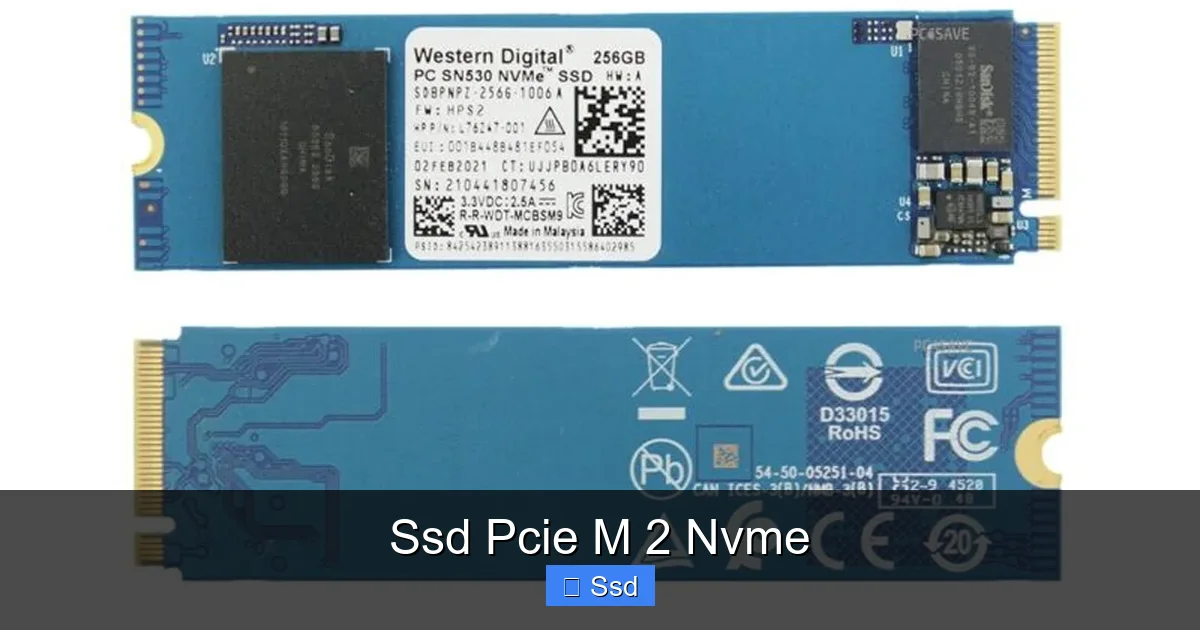
Visual guide about Ssd Pcie M 2 Nvme
Image source: trivico.la
SSD: The Foundation
SSD stands for Solid-State Drive. The critical difference from an HDD is that it has no moving parts. Instead of spinning platters and a moving read/write head, it uses flash memory chips (like the ones in your phone or USB drive) to store data. This makes them inherently faster, quieter, more shock-resistant, and more power-efficient. So, at its core, we’re talking about a solid-state drive.
M.2: The Physical Form Factor
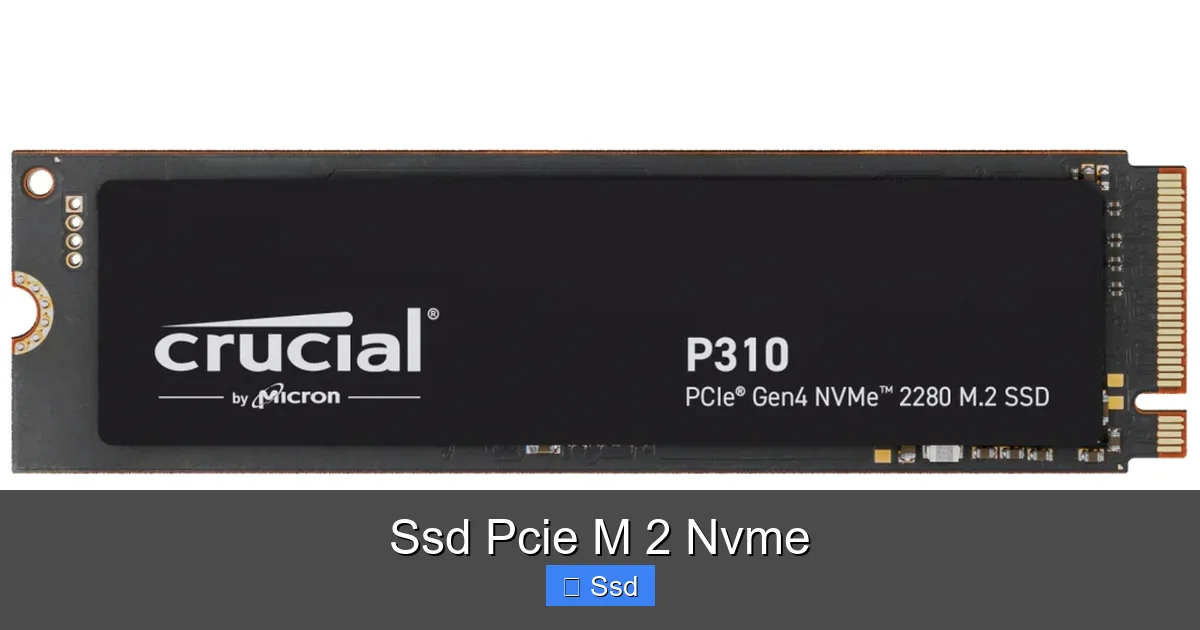
This is all about shape and size. M.2 is a specification for the physical connector and the dimensions of the card itself. It’s a small, stick-of-gum-shaped module that plugs directly into a dedicated slot on your motherboard. This is a huge leap from the 2.5-inch SATA SSDs that look like small laptop hard drives and require a power cable and data cable. The M.2 form factor saves enormous amounts of space inside a desktop case and is the standard for modern laptops. It’s sleek, clean, and installs in seconds with a tiny screw. But here’s the crucial part: an M.2 slot can support different *types* of drives. It can be for a slower SATA-based M.2 SSD or the much faster NVMe type. You have to check your motherboard’s manual to see what your specific M.2 slot supports.
PCIe: The Superhighway
This is the communication pathway. PCIe (Peripheral Component Interconnect Express) is the high-speed bus that connects all your fast components—your graphics card, your fast SSD—directly to your CPU. Think of it as a multi-lane superhighway. SATA, the interface for older SSDs, is like a single-lane country road. PCIe has multiple lanes (x1, x4, x8, x16) that can be stacked for massive bandwidth. An NVMe SSD typically uses PCIe x4, meaning four lanes of traffic going both ways simultaneously. This is why the potential speed is so astronomical compared to SATA.
NVMe: The Smart Driver
This is the secret sauce. NVMe (Non-Volatile Memory Express) is not a physical connector; it’s a communication *protocol* or set of rules, specifically designed for flash storage. The older SATA protocol was designed for spinning hard drives and has a lot of built-in inefficiencies. NVMe is lean, mean, and built from the ground up for SSDs. It allows for much higher queue depths (handling way more commands at once) and lower latency (faster response times). It’s the reason an NVMe drive can saturate the PCIe bandwidth. When you buy an “SSD PCIe M.2 NVMe,” you’re getting a gumstick-sized drive (M.2) that talks to your computer over the ultra-fast PCIe highway using the optimized NVMe language.
So, putting it all together: An SSD PCIe M.2 NVMe is a small, fast solid-state storage drive that plugs into an M.2 slot on your motherboard and communicates via the PCIe bus using the highly efficient NVMe protocol. It’s the current performance king for consumer storage.
The Real-World Speed Difference: From Numbers to Feeling
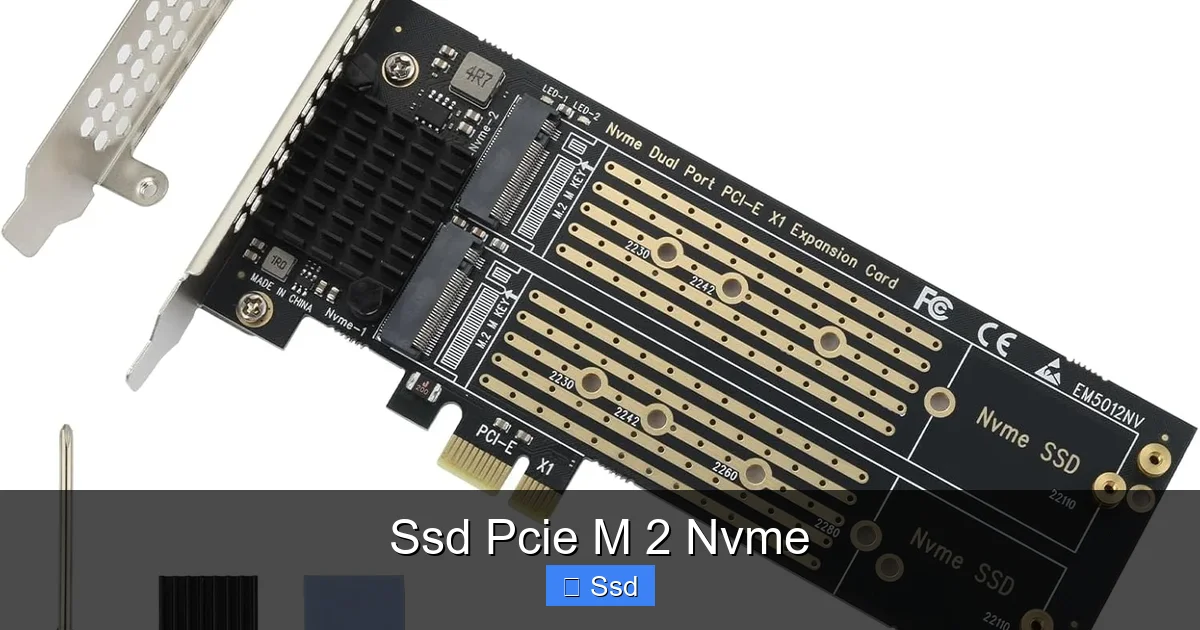
Manufacturers love to throw around sequential read/write speeds. A top-tier PCIe 4.0 NVMe drive might claim 7,000 MB/s read, while a good SATA SSD maxes out around 550 MB/s. That’s a 12x+ difference on paper! But sequential speeds (reading one huge, contiguous file like a video) aren’t the whole story. The real magic of NVMe shows in 4K random read/write speeds—the ability to access thousands of tiny files scattered all over the drive. This is what your operating system does constantly: loading small system files, game assets, application data.
Visual guide about Ssd Pcie M 2 Nvme
Image source: m.media-amazon.com
Boot Times & System Responsiveness
This is the most dramatic everyday improvement. Going from an HDD to any SSD is night and day. Going from a SATA SSD to an NVMe SSD is more subtle but still palpable. My main desktop with a PCIe 3.0 NVMe drive boots from the BIOS login screen to a fully loaded desktop in under 10 seconds. With a SATA SSD, it was maybe 12-15. The difference is in application launch times, file explorer snappiness, and how quickly large projects (like a Photoshop file with hundreds of layers) open. Everything feels more “instant.” The system never feels like it’s waiting on the storage, which reduces cognitive friction—you just *do* things.
For Gamers: Level Loads That Vanish
This is where NVMe shines for enthusiasts. In open-world games like Cyberpunk 2077, Red Dead Redemption 2, or Elden Ring, the game is constantly streaming textures, geometry, and audio from your storage. A fast NVMe drive can drastically reduce or even eliminate pop-in (objects suddenly appearing) and make texture loading seamless. Load times between levels, death screens, or fast travel are slashed. You’re not waiting for the next area to load; you’re already there. For competitive gamers, every millisecond counts, and getting into the match faster is a real advantage.
For Creators: Handling Giant Files with Ease
If you work with 4K/8K video, high-resolution photo stacks, or large 3D renders, storage speed is part of your workflow. Scrubbing through a 4K timeline in DaVinci Resolve or Adobe Premiere Pro is smoother when the footage streams quickly from the drive. Exporting a project can be slightly faster if the source and destination are on a fast NVMe drive. While the CPU and GPU do the heavy rendering, they’re often waiting on data. An NVMe drive helps keep that pipeline full. For a photographer importing 1,000 RAWs from a shoot, the difference between a SATA SSD and an NVMe SSD in total import time can be a minute or more—which adds up over a career.
Practical Example: I recently helped a friend building a budget video editing PC. We had to allocate funds between a slightly faster GPU and a faster SSD. Given his work with 1080p and some 4K, we chose a reliable PCIe 3.0 NVMe drive over a SATA SSD. The $50 difference meant his timeline scrubbing was buttery smooth from day one, and project exports felt snappier. For his use case, the storage upgrade provided more tangible daily benefit than the marginal GPU bump would have.
Installing an M.2 NVMe SSD: It’s Easier Than You Think
One of the best parts of the M.2 form factor is its simplicity. If you can screw in a light bulb, you can install this. But there are a few crucial steps to get right.
Visual guide about Ssd Pcie M 2 Nvme
Image source: m.media-amazon.com
Before You Buy: Compatibility Check
This is the most important step. Don’t just buy an M.2 drive and assume it will work. You must check two things on your motherboard’s specifications page:
- M.2 Slot Keying: M.2 slots have a key (a notch) that prevents inserting the wrong type of card. NVMe SSDs use an M key (one notch, on the right). Most modern M.2 slots are M-keyed, but double-check.
- Supported Protocols: Does the slot support NVMe (PCIe) drives, SATA drives, or both? Almost all modern boards support NVMe in their primary M.2 slots, but some cheaper or older boards might only support SATA in certain slots.
- PCIe Generation: Does it support PCIe 3.0, 4.0, or 5.0? The drive will work, but it will run at the lower speed of the slot. A PCIe 4.0 drive in a PCIe 3.0 slot will work perfectly but at PCIe 3.0 speeds.
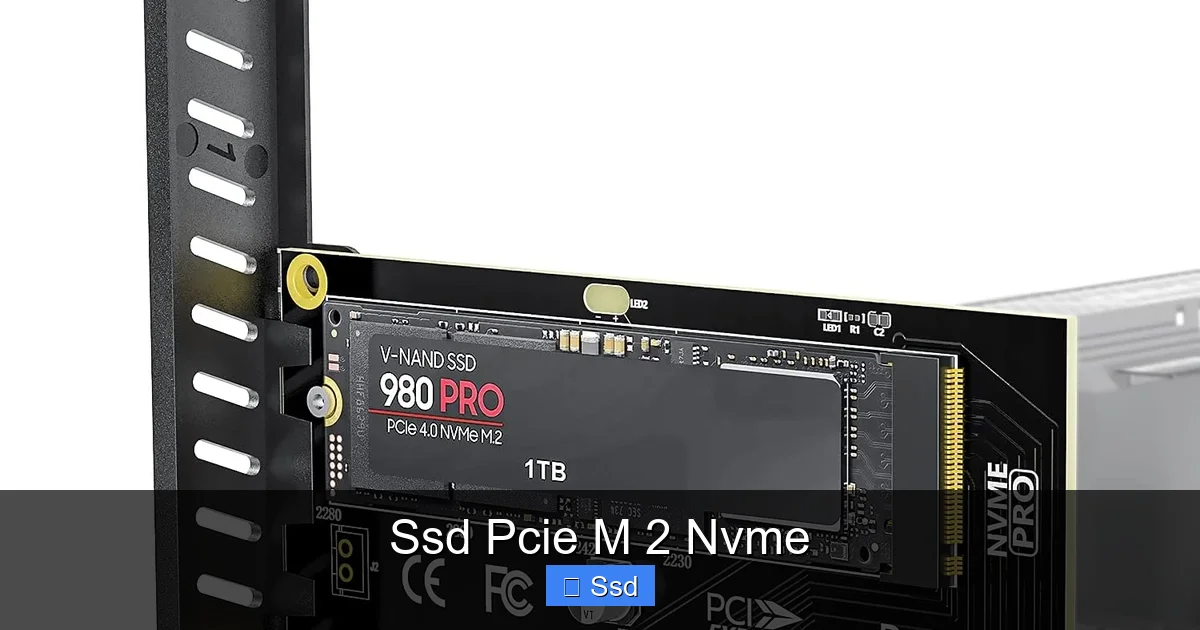
- M.2 Length: M.2 drives come in different lengths (usually 2242, 2260, 2280, 22110). 2280 (22mm wide, 80mm long) is by far the most common. Ensure your motherboard supports that length in the slot you’ll use.
The Physical Installation: A 5-MinuteJob
1. Power Down & Unplug: Shut down your PC completely and unplug the power cable. For laptops, ensure it’s off and unplugged. Ground yourself by touching the metal case or use an anti-static wrist strap.
2. Locate the Slot: Find the M.2 slot on your motherboard, usually located between the PCIe slots or near the CPU.
3. Remove the Screw: There’s a tiny standoff and screw holding the end of the M.2 slot in place. Unscrew it and set it aside.
4. Insert the Drive: Hold the drive by the edges. Align the notch on the drive’s connector with the key in the slot. Insert it at a slight angle (about 30 degrees) until it clicks into place.
5. Secure It: Gently press the drive down flat onto the motherboard standoff. Use the tiny screw you removed to secure it. Don’t overtighten—snug is enough.
6. Boot & Initialize: That’s it! Reassemble your PC, power on, and enter the BIOS/UEFI (usually by pressing Del or F2). You should see the new drive listed. In your operating system (Windows: Disk Management; macOS: Disk Utility), you’ll need to initialize and format the new drive before it shows up as usable storage.
A Critical Tip: Heatsinks Are Your Friend
High-performance NVMe drives, especially PCIe 4.0 and 5.0 models, can get *hot*. Thermal throttling is real—when the drive gets too hot, it deliberately slows down to protect itself to maintain performance. Many motherboards now include a metal heatsink that screws onto the M.2 drive. Some high-end drives come with their own heatsink pre-installed. If your motherboard doesn’t have one and you’re using a fast drive, consider buying a cheap adhesive heatsink pad or a small fan to blow air across the drive. It’s a small step that protects your investment and maintains peak speeds.
Your 2024 Buying Guide: Navigating the PCIe Generations
The market is moving fast. PCIe 5.0 drives are here, but are they worth it? Let’s cut through the marketing. Here’s a practical breakdown of what you should consider.
PCIe 3.0 (The Sweet Spot of Value)
This is the generation that made NVMe mainstream. Drives like the Samsung 970 EVO Plus, WD Black SN750, and Crucial P3 are still phenomenal. Sequential speeds top out around 3,500/3,300 MB/s. For the vast majority of users—gamers, general productivity, even most content creation—this is more than fast enough. The real-world difference between a top-tier PCIe 3.0 drive and a PCIe 4.0 drive in gaming or boot times is often measured in fractions of a second. You can find excellent 1TB PCIe 3.0 drives for $60-$80. This is the best value-for-performance choice for most builds today.
PCIe 4.0 (The Current Performance King)
Doubling the bandwidth of PCIe 3.0, these drives (like Samsung 980 Pro, WD Black SN850X, Sabrent Rocket 4 Plus) can hit up to 7,000/7,000 MB/s. Do you need this speed? For 99% of people, not really. The benefits are mostly seen in very specific professional workloads: continuous 4K/8K raw video recording directly to the SSD, moving massive files between drives constantly, or in high-end simulation and engineering software. For a gamer, the load time improvement over a good PCIe 3.0 drive is often 1-3 seconds at best. The drives are slightly more expensive and run hotter, often requiring a heatsink. They are fantastic, but not a necessity.
PCIe 5.0 (The Early Adopter Tax)
We’re talking theoretical speeds over 10,000 MB/s. Drives like the Crucial T700 or WD Black SN850X (PCIe 5.0 version) exist. The problem? They require the latest Intel 13th/14th Gen or AMD Ryzen 7000 series platforms. They are extremely hot and almost always require a massive, active (fanned) heatsink that takes up extra PCIe slot space. The real-world performance gains for consumer tasks are currently negligible. You are paying a significant premium ($200+ for 1TB) for technology that software and games haven’t even begun to leverage. It’s a solution in search of a problem for now. Wait a few years for prices to drop, heatsinks to improve, and software to catch up.
| Feature | PCIe 3.0 NVMe | PCIe 4.0 NVMe | PCIe 5.0 NVMe |
|---|---|---|---|
| Max Sequential Read | ~3,500 MB/s | ~7,000 MB/s | ~12,000+ MB/s |
| Max Sequential Write | ~3,300 MB/s | ~7,000 MB/s | ~11,000+ MB/s |
| Typical 1TB Price | $60 – $80 | $80 – $120 | $180 – $250+ |
| Key Platform Requirement | Any modern M.2 slot | Intel 10th Gen+, AMD Ryzen 3000+ | Intel 13th/14th Gen+, AMD Ryzen 7000+ |
| Heat Output | Low to Moderate | Moderate to High | Very High (Often needs active cooling) |
| Best For | Gaming, General Use, Budget Builds | Enthusiast Gaming, Prosumer Work | Future-Proofing, Extreme Pro Workloads |
Capacity, Endurance, and The “DRAM-less” Debate
Capacity is straightforward: 500GB is the absolute minimum for a Windows/gaming drive today. 1TB is the sweet spot. 2TB is great for creators or massive game libraries.
TBW (Total Bytes Written) is the endurance rating. It’s how much data you can write to the drive over its warranty period before the cells wear out. For a 1TB drive, a TBW of 600 TBW is fine for a consumer. Don’t stress too much—modern NAND is very durable.
DRAM Cache: Many NVMe drives have a small, fast DRAM chip that acts as a cache for the drive’s mapping table (the index of where everything is stored). Some budget drives are “DRAM-less” and use a portion of the main flash memory instead. For most consumer tasks, the performance difference is minimal or non-existent in real-world use. Don’t let this be your sole deciding factor. Focus on overall reviews and sustained performance.
Beyond the Hype: Practical Considerations and Limitations
It’s not all rainbows and unicorn speed. A balanced view means acknowledging where NVMe SSDs aren’t a magic bullet.
You Need a Compatible Motherboard
This is the biggest hurdle. If you have a pre-2017 desktop or an older laptop, you likely don’t have an M.2 slot that supports NVMe. Upgrading an old system might mean buying a new motherboard and CPU, which defeats the purpose of a simple storage upgrade. Always verify compatibility first.
The Bottleneck is Elsewhere
If you’re using an NVMe drive to try and fix slow performance in an old, underpowered system with 4GB of RAM and a dual-core processor, you’ll be disappointed. The storage is now the fastest part, and the CPU/RAM will be the new bottleneck. An NVMe drive makes a good system great; it can’t make a bad system good.
Heat and Throttling
We mentioned it, but it bears repeating. In a small form factor PC or a laptop with poor ventilation, a high-end NVMe drive can throttle to SATA SSD speeds under sustained heavy write loads (like video editing or large file transfers). For most users, this is a non-issue. But if you’re doing professional work, proper cooling is not optional.
Cost per Gigabyte vs. SATA
NVMe drives are still slightly more expensive per gigabyte than their SATA counterparts. For pure bulk storage—a media server, an archive drive—a large SATA SSD or even a high-capacity HDD still makes more economic sense. Use your fast NVMe drive for your operating system, applications, and active projects. Use a secondary, cheaper SATA SSD or HDD for mass storage.
Practical Example: My own desktop setup reflects this philosophy. A 1TB PCIe 4.0 NVMe drive (Samsung 980 Pro) hosts Windows, all my games, and my current video project files. A 4TB SATA SSD (Crucial MX500) holds my entire photo library, completed video projects, and media files. This gives me blistering speed where I need it and cavernous, affordable storage where I don’t. It’s the perfect hybrid approach.
The Future is Fast: Where Storage is Headed Next
We’re on the cusp of PCIe 5.0 becoming mainstream in the next couple of years, with PCIe 6.0 on the horizon. Speeds will keep climbing. But the more interesting evolution might be in the NAND technology itself. We’re seeing the rise of QLC and PLC NAND, which pack more data per cell, enabling cheaper, higher-capacity drives (like 4TB NVMe drives for $200). The trade-off is often lower endurance and slower write speeds, but for read-heavy consumer tasks, it’s a great trade-off.
Another major trend is the integration of storage and memory. Technologies like Intel’s Optane (now being phased out) and future innovations aim to blur the line between fast RAM and persistent storage. We’re also seeing more direct storage APIs (like Microsoft’s DirectStorage) that allow game engines to bypass the CPU and load assets directly from the NVMe SSD to the GPU. This is the future. Right now, an NVMe SSD loads assets faster for the CPU to process. With DirectStorage, it can send them straight to the graphics card, potentially eliminating load screens entirely. This will be the true “next-gen” benefit of these fast drives.
Conclusion: Is an SSD PCIe M.2 NVMe Right For You?
Let’s bring it home. The SSD PCIe M.2 NVMe is not a gimmick. It’s the single most impactful upgrade you can make to a modern computer that doesn’t already have one. The experience of using a system with a fast NVMe drive is one of silent, seamless fluidity. Waiting becomes a thing of the past.
You should absolutely buy an NVMe SSD if: You are building a new PC, buying a new laptop, or upgrading a system that already has a compatible M.2 slot. This is a no-brainer. For a new build, it’s standard equipment. For an upgrade, check your motherboard’s M.2 slot, and if it supports NVMe, grab a good PCIe 3.0 or 4.0 drive. The price-to-performance ratio is unbeatable.
You might want to reconsider or wait if: Your system is older than 2017 and lacks an M.2 NVMe slot. In that case, a 2.5-inch SATA SSD is still a massive, world-changing upgrade over an HDD and is far more cost-effective than a motherboard/CPU/RAM overhaul. Also, if you’re on a razor-thin budget and need maximum storage for your dollar, a large SATA SSD or HDD is still the pragmatic choice for bulk data.
My advice? For anyone building or buying a PC in 2024, make an NVMe SSD your non-negotiable starting point. Don’t overthink PCIe 4.0 vs. 5.0. Get a reliable, well-reviewed PCIe 3.0 or 4.0 drive in the 1TB-2TB range from a major brand (Samsung, WD, Crucial, Sabrent). Install it. Enjoy the silence. Enjoy the speed. And never, ever look back at the spinning hard drive era. Your future self, already loaded into the game world while your friends are still staring at loading screens, will thank you.
Frequently Asked Questions
What is an NVMe SSD and how does it use PCIe?
An NVMe (Non-Volatile Memory Express) SSD is a high-speed storage drive that connects directly to your motherboard via a PCIe (Peripheral Component Interconnect Express) lane, typically using the compact M.2 form factor. This direct connection bypasses slower older interfaces like SATA, allowing for drastically faster data transfer speeds and lower latency for your operating system and applications.
How much faster is a PCIe 4.0 NVMe SSD than a SATA SSD?
A PCIe 4.0 NVMe SSD can achieve sequential read/write speeds exceeding 7,000 MB/s, while a top-tier SATA SSD is maxed out around 550 MB/s. This means tasks like loading large games, editing 4K video, or transferring massive files can be several times quicker with an NVMe drive, though everyday tasks like web browsing may feel similar.
Is my computer compatible with an M.2 NVMe SSD?
You need a motherboard or laptop with an available M.2 slot that supports PCIe NVMe (not all M.2 slots are the same). Check your motherboard’s specifications to confirm it has an M.2 slot with PCIe support (often labeled as “M.2 PCIe” or “NVMe”) and that your CPU/chipset supports the PCIe generation (e.g., 3.0 or 4.0).
Do I need a heatsink for my PCIe NVMe SSD?
While not always necessary, a heatsink is highly recommended for high-performance PCIe 4.0 and newer NVMe SSDs. These drives can generate significant heat during sustained workloads, which can lead to thermal throttling (slowing down) to cool off. A heatsink, either a pre-installed model or an aftermarket one, helps maintain peak performance by dissipating heat more effectively.
PCIe 3.0 vs. 4.0 NVMe: Which one should I buy?
For most users, a PCIe 3.0 NVMe SSD offers excellent performance that is already far beyond SATA and feels incredibly fast for gaming, general use, and productivity. Choose PCIe 4.0 NVMe if you have a compatible motherboard and regularly work with very large files (like professional video editing) or want the absolute maximum possible speed for future-proofing.
Why is my new NVMe SSD running slower than the advertised speeds?
Advertised speeds are peak sequential speeds under ideal conditions. Your real-world speed depends on your motherboard’s PCIe generation, the type of files being transferred, and system load. Also, ensure the drive is installed in the correct primary M.2 slot (often directly connected to the CPU) and that your system’s BIOS and storage drivers are up to date.