2tb M.2 Nvme Ssd
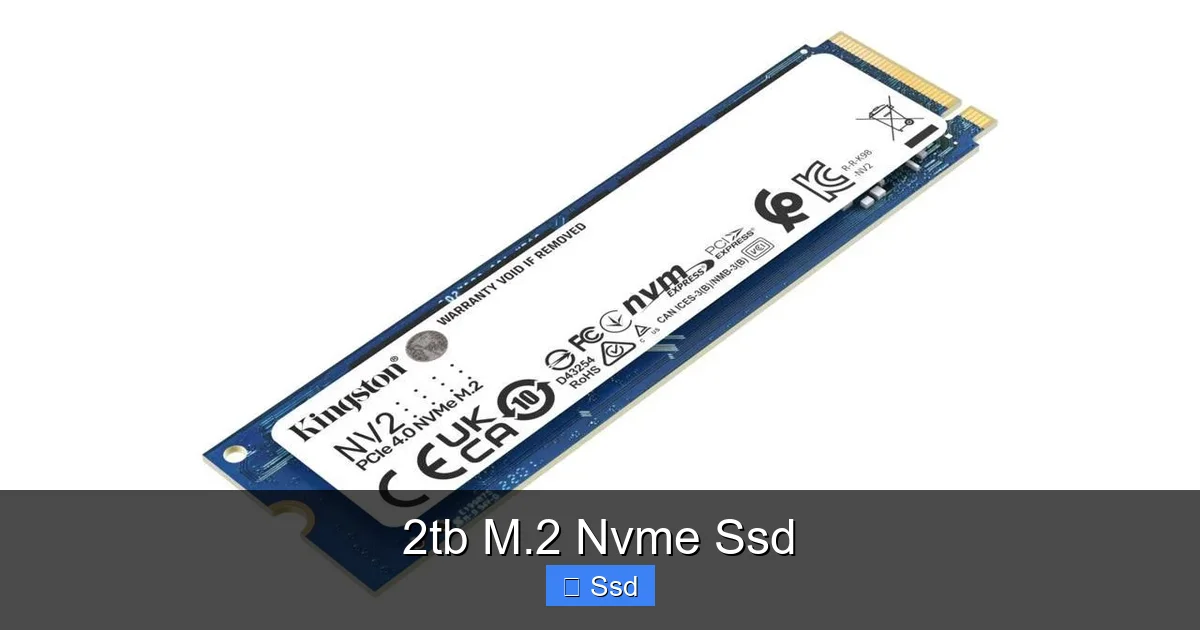
A 2TB M.2 NVMe SSD is a massive, blisteringly fast storage drive that plugs directly into your motherboard. It eliminates the bottlenecks of older hard drives and SATA SSDs, offering near-instant boot times, rapid file transfers, and seamless performance for gaming, creative work, and professional applications. This guide breaks down everything you need to know, from understanding the tech to choosing the right model and installing it yourself, ensuring you get the most from this essential upgrade.
Let’s be honest: waiting for your computer to do anything is the worst. Whether it’s the spinning wheel of death on a Mac, the endless “loading” screen in a game, or the glacial pace of copying a folder of photos, slow storage is the silent productivity killer and fun-spoiler in our digital lives. But what if we told you there’s a single, relatively simple upgrade that can make your entire machine feel like it’s been shot out of a cannon? Enter the 2TB M.2 NVMe SSD. This isn’t just another hard drive; it’s a paradigm shift in how your computer accesses what matters most: your data. In this complete guide, we’re going to rip back the tech jargon, explore what makes this drive so special, and give you the confidence to choose and install the perfect one for your needs. Get ready to say goodbye to lag forever.
Key Takeaways
- Form Factor & Interface: “M.2” is the physical stick-shaped form factor, while “NVMe” is the ultra-fast communication protocol that uses the PCIe lanes on your motherboard, making it vastly quicker than older SATA connections.
- The Sweet Spot of Capacity: 2TB offers a perfect balance for most power users and professionals—enough space for a large game library, a substantial media project, or a full OS with all applications without the premium cost of 4TB+ models.
- Real-World Speed Difference: You’ll notice NVMe speed in faster game level loads, near-instant Windows startup, seconds-long large file transfers, and smooth 4K/8K video editing timeline playback without lag.
- Compatibility is Key: Your motherboard must have a free M.2 slot that supports NVMe (PCIe). Many modern boards do, but always check your manual. Also, ensure your system’s cooling can handle the drive’s heat output.
- Not All NVMe Drives Are Equal: Look at the specific model’s sequential read/write speeds (e.g., 7,000/5,000 MB/s) and, more importantly for some tasks, its random read/write IOPS (Input/Output Operations Per Second) for snappy responsiveness.
- Installation is Simple: Upgrading often involves unscrewing one tiny standoff, sliding the drive in, securing it with one screw, and cloning or reinstalling your OS. It’s a 10-minute DIY project with big rewards.
- Future-Proof Your Build: Investing in a 2TB NVMe SSD now protects your next PC build or laptop upgrade for years, as software and games continue to grow in size and demand faster storage.
📑 Table of Contents
- What Exactly *Is* a 2TB M.2 NVMe SSD? Demystifying the Jargon
- The Tangible Benefits: How a 2TB NVMe SSD Transforms Your Daily Computing
- Choosing Your 2TB M.2 NVMe SSD: What Matters and What Doesn’t
- How to Install Your New 2TB M.2 NVMe SSD: A Simple, Step-by-Step Guide
- Performance in the Real World: Benchmarks vs. Your Experience
- Future-Proofing and the Long View: Is a 2TB NVMe SSD a Smart Investment?
- Conclusion: The 2TB M.2 NVMe SSD is No Longer a Luxury—It’s the Standard
What Exactly *Is* a 2TB M.2 NVMe SSD? Demystifying the Jargon
It sounds like a mouthful of alphabet soup, but each part of “2TB M.2 NVMe SSD” tells a crucial part of the story. Let’s break it down, piece by piece, so you know exactly what you’re buying.
The “2TB”: It’s All About Capacity
The “2TB” part is the easiest. It stands for 2 Terabytes, which is a measure of storage space. To put that in perspective, 2TB is roughly:
- Enough space for about 400 to 600 modern AAA PC games (which average 50-100GB each).
- Hundreds of hours of 4K video footage.
- Over 500,000 high-resolution photos.
- A complete operating system (like Windows 11 or macOS), every program you use daily, and a healthy buffer for future downloads.
It’s the sweet spot. It’s no longer the “luxury” size it once was, but it’s still spacious enough that you won’t be constantly juggling files or running out of room for that next big creative project. For a primary drive in a desktop or laptop, 2TB is the current recommended capacity for enthusiasts and pros.
The “M.2”: The Sleek, Modern Form Factor
Forget the bulky 2.5-inch boxes and tangled SATA cables of yesteryear. M.2 is a form factor—a shape and size standard. An M.2 drive is a thin, stick-like circuit board, usually about the size of a stick of gum (2280 is the most common size, meaning 22mm wide, 80mm long). It slots directly into a dedicated socket on your motherboard. There are no power or data cables to run. It’s clean, elegant, and saves immense amounts of space inside a case, which is why it’s the default choice for modern laptops and increasingly for desktop builds. This direct connection is the first step to achieving those mind-blowing speeds.
The “NVMe”: The Heart of the Speed Demon
This is the most important part. NVMe stands for Non-Volatile Memory Express. It’s a communication *protocol*, a set of rules for how data moves between the SSD’s storage chips and the rest of your computer. Think of it like this: SATA (the older interface) is a country road with a speed limit. NVMe is a multi-lane, no-speed-limit superhighway built directly into your CPU. It uses the PCI Express (PCIe) bus, which is the same high-bandwidth pathway used by your graphics card. This allows for exponentially higher throughput—we’re talking gigabytes per second instead of hundreds of megabytes per second. An NVMe drive isn’t just “fast”; it changes the fundamental feel of your system, making everything from booting to loading feel instantaneous.
The “SSD”: Solid State, No Moving Parts
SSD means Solid State Drive. Unlike a Hard Disk Drive (HDD), which uses a spinning magnetic platter and a mechanical arm to read data (like a record player), an SSD stores data on flash memory chips. There are no moving parts. This means it’s silent, immune to damage from bumps or drops, uses less power, and generates less heat. The “solid-state” nature is what allows the tiny M.2 form factor to exist and what enables the rapid data access that NVMe leverages.
So, a 2TB M.2 NVMe SSD is a high-capacity, stick-shaped, cable-free storage drive that communicates over the ultra-fast PCIe highway to deliver a computing experience that feels light-years ahead of traditional storage. It’s the single most impactful upgrade you can make to a modern PC or laptop.
The Tangible Benefits: How a 2TB NVMe SSD Transforms Your Daily Computing
Specs are fun, but what does this actually *do* for you? The benefits aren’t just theoretical; they’re visceral and immediate. When you replace an old HDD or even a SATA SSD with a 2TB NVMe drive, the changes are noticeable from the very first second you press the power button.
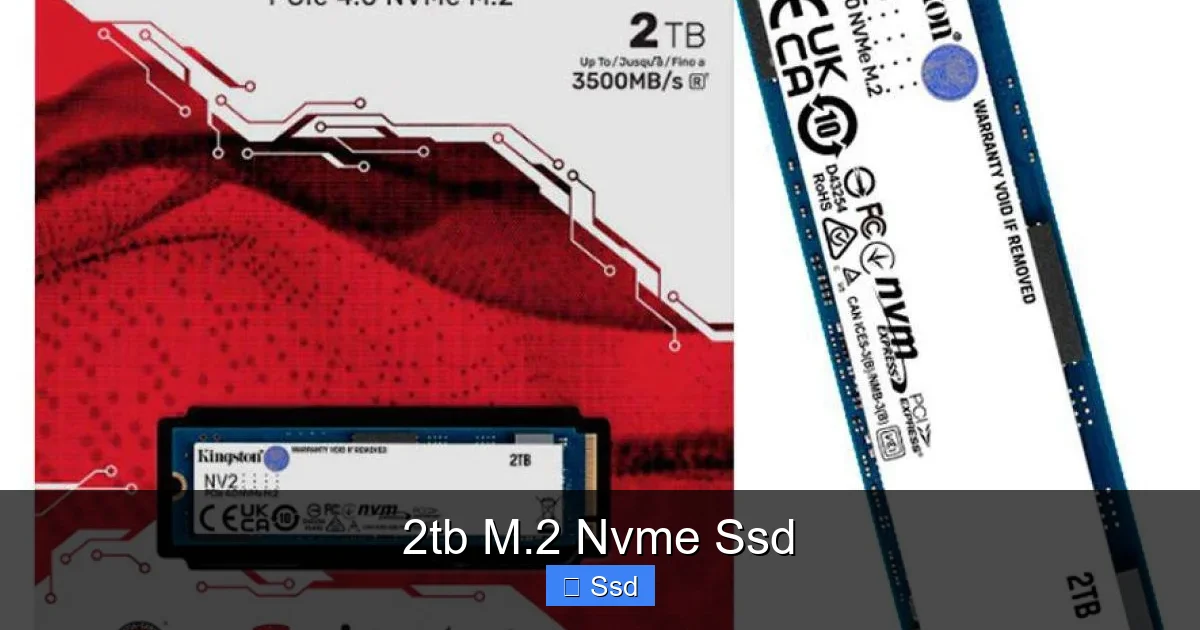
Visual guide about 2tb M.2 Nvme Ssd
Image source: image.citycenter.jo
Boot Times That Feel Like Magic
Your computer’s boot time is the first interaction you have with it each day. With a 2TB NVMe SSD, Windows 11 or macOS can go from a cold start to a usable desktop in 5 to 15 seconds, depending on your system. Compare that to the 30-60 seconds (or more) of an HDD or the 15-25 seconds of a SATA SSD. It’s not just about saving time; it’s about eliminating that frustrating pause where you stare at a logo, waiting. You press the button, grab your coffee, and by the time you sit down, you’re ready to work or play. That friction is gone.
Game Loading: From “Let’s Get a Snack” to “Oh, We’re Already Here?”
This is where gamers feel the most joy. Modern open-world games like *Cyberpunk 2077*, *Red Dead Redemption 2*, or *Starfield* have massive, detailed worlds that need to stream in as you move. An NVMe SSD doesn’t just make the initial load faster; it continuously feeds data to the game engine, reducing pop-in, speeding up fast travel, and making respawns almost instantaneous. Level load times that took 45 seconds on an HDD can drop to 5-10 seconds on a good NVMe drive. That’s the difference between a frustrating wait and maintaining immersion. For competitive multiplayer games, getting into the match faster means you’re ready before the other team.
Professional Workflows That Actually Flow
If you work with large files—video editors, 3D artists, photographers, music producers—the 2TB NVMe SSD is a non-negotiable tool. Editing 4K or even 8K video directly from the drive becomes smooth. Scrolling through a timeline in Adobe Premiere or DaVinci Resolve doesn’t stutter. Rendering times drop because the CPU and GPU can access source files and write output without I/O bottlenecks. For software developers, compiling massive codebases is drastically faster. For data analysts, loading large datasets happens in a blink. The 2TB capacity means your entire current project, plus all your applications and OS, can live on one blisteringly fast drive, eliminating the need to juggle project files between slower external or secondary storage.
File Transfers That Don’t Test Your Patience
Moving a 50GB folder of raw camera footage or a large game install from one drive to another used to be a “go for a walk” task. With a PCIe 4.0 NVMe SSD (the current mainstream standard), you can see sustained write speeds of 5,000 MB/s. That same 50GB folder—that’s 50,000 MB—could theoretically transfer in about 10 seconds. In the real world, with overhead, you’re looking at 15-25 seconds. It transforms a chore into a non-event. Backing up your system, updating a game, or copying that huge project for a client becomes painless.
The “Everything Just Works” Feeling
Perhaps the most underrated benefit is the overall system responsiveness. Opening applications, switching between dozens of browser tabs (each with heavy web apps), launching large documents—all of these actions feel snappier. The system never feels like it’s “thinking” because the storage subsystem is no longer the weakest link. It creates a cohesive, fluid experience where the technology fades into the background, and you can just focus on your work or your game. This is the true value of the 2TB NVMe SSD: it removes a major point of friction from your digital life.
Choosing Your 2TB M.2 NVMe SSD: What Matters and What Doesn’t
Not all 2TB M.2 NVMe SSDs are created equal. The market is crowded, and specs can be confusing. But you don’t need a PhD to pick a great one. Here’s exactly what to focus on and what you can safely ignore.
Visual guide about 2tb M.2 Nvme Ssd
Image source: m.media-amazon.com
PCIe Generation: The Speed Highway
This is the single most important spec for raw performance. PCIe has generations, and each one doubles the bandwidth of the previous one.
- PCIe 3.0: The previous generation. Still perfectly fast for most users, with speeds up to ~3,500 MB/s. Found on older platforms (Intel 10th/11th Gen, AMD Ryzen 2000/3000). Great value if your motherboard only supports 3.0.
- PCIe 4.0: The current mainstream standard. Speeds double to ~7,000 MB/s read and ~5,000-7,000 MB/s write. Supported by Intel 11th/12th/13th/14th Gen and AMD Ryzen 3000 and newer (with compatible motherboard). This is the sweet spot for new builds.
- PCIe 5.0: The bleeding edge. Theoretical speeds double again to ~14,000 MB/s. Currently, only the latest Intel 13th/14th Gen and AMD Ryzen 7000 series platforms support it. Drives are more expensive and often run very hot, requiring substantial heatsinks. For 99% of users, the real-world benefit over a good PCIe 4.0 drive is minimal right now, but it’s the path to the future.
Practical Tip: Match your drive to your motherboard’s capability. Buying a PCIe 4.0 drive for a PCIe 3.0-only motherboard is fine—it will just run at 3.0 speeds. But buying a PCIe 5.0 drive for a 4.0 motherboard is a waste of money. Check your motherboard’s spec sheet.
DRAM vs. DRAMless: The Cache Conundrum
High-performance SSDs use a small, fast type of memory called DRAM as a cache—a super-fast temporary holding area for the drive’s map of where all your data is stored. This dramatically improves performance, especially with random reads/writes (the kind of access that makes your OS feel responsive). Many modern, good-quality PCIe 4.0 drives use a technology called HMB (Host Memory Buffer). This clever trick allows the drive to use a tiny slice of your computer’s RAM (about 64MB) as a pseudo-cache, making a dedicated DRAM chip less critical. For a primary 2TB OS and game drive, a drive with proper DRAM or a well-implemented HMB is ideal for consistent performance. Don’t stress too much—many top-tier DRAMless drives perform excellently for general use and gaming.
Endurance (TBW) and Warranty: Longevity Matters
SSDs have a finite lifespan based on how much data you write to them. This is measured in TBW (Terabytes Written). A 2TB consumer NVMe SSD from a reputable brand will typically have a TBW rating between 1,200 TBW and 2,400 TBW (or more). What does that mean? If the warranty is for 5 years and the TBW is 1,200, you’d have to write 240GB of data to the drive, every single day, for 5 years straight, to hit that limit. For a typical power user or gamer, you will likely never reach the TBW limit. The drive will become obsolete from a capacity/speed perspective long before it wears out. Still, a higher TBW and a longer warranty (5+ years) are signs of a robust, high-quality drive with better-quality NAND flash memory chips.
Heat and the Heatsink Question
NVMe SSDs, especially high-speed PCIe 4.0 and 5.0 models, can get hot under sustained workloads. Thermal throttling occurs when the drive’s controller gets too hot and deliberately slows down to protect itself, killing performance. Many modern motherboards come with built-in M.2 heatsinks (a metal plate that sits on top of the drive). Some drives, particularly PCIe 5.0 ones, come with their own massive, integrated heatsinks. Check your case’s airflow and your motherboard’s M.2 slot location. If the slot is sandwiched between a hot GPU and the backplane, a heatsink is a very good idea, even for PCIe 4.0. For most builds with decent airflow, a PCIe 4.0 drive will be fine without an extra heatsink, but a cheap, passive one never hurts.
Brands and Models to Trust
Stick with major, reputable brands that have their own NAND and controller technology or strong partnerships. The performance and reliability differences between the top contenders are often small, so price and specific features (like a strong warranty or included cloning software) can be deciding factors. Consistently top-rated series include:
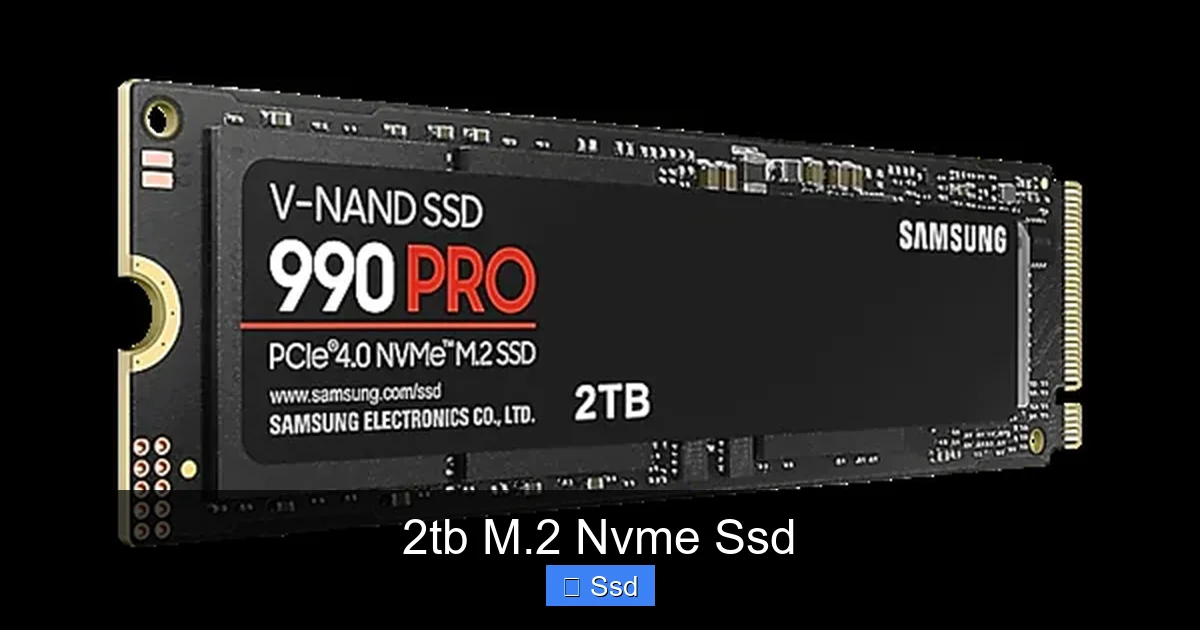
- Samsung 980 Pro / 990 Pro: The perennial performance kings, often with excellent Magician software.
- WD Black SN850X / SN850: Samsung’s closest rival, often offering great value and performance.
- Crucial P5 Plus / T500: Micron’s consumer arm, known for excellent reliability and competitive pricing.
- SK hynix Platinum P41 / Gold P31: The company that makes much of the memory for others, with fantastic in-house drives.
- Solidigm P44 Pro / P41 Plus (formerly Intel): A powerhouse in the NVMe space with great endurance.
- Sabrent Rocket 4 Plus: Often a great value pick with strong performance and optional heatsinks.
Read recent professional and user reviews for the specific 2TB model you’re eyeing. Look for consistent performance in both sequential (large file) and random (OS/app) workloads, and check for any reported firmware or heat issues.
How to Install Your New 2TB M.2 NVMe SSD: A Simple, Step-by-Step Guide
One of the best parts of the M.2 form factor is how easy it is to install. You don’t need to be a tech wizard. If you can use a screwdriver, you can do this. Here’s a safe, foolproof guide.
Visual guide about 2tb M.2 Nvme Ssd
Image source: chs.hu
Before You Start: The Golden Rules
First, disconnect the PC from all power sources. Turn off the PSU switch and unplug the cable. Second, ground yourself to prevent static electricity. Touch the metal case of your PC or use an anti-static wrist strap. Finally, read your motherboard manual. It will show you exactly which M.2 slot to use (some share bandwidth with SATA ports or other PCIe slots) and any specific installation quirks.
Step 1: Locate and Prepare the M.2 Slot
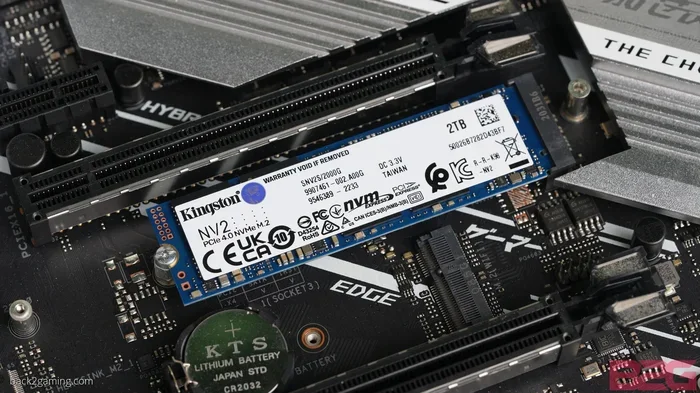
Find the M.2 slot on your motherboard. It’s a short, horizontal slot, often with a tiny screw hole at one end. If there’s a pre-installed heatsink or a standoff (a little threaded pillar), you may need to remove it. Use the correct screwdriver (usually a tiny Phillips #0 or #1). Gently remove the existing screw and any standoff.
Step 2: Insert the Drive
Hold the 2TB M.2 SSD by the edges. Locate the notch on the gold connector pins. This notch aligns with a key in the M.2 slot. It only fits one way. At a 30-degree angle, gently but firmly insert the drive into the slot. You should feel it seat properly. Then, press it down flat against the motherboard standoff or the slot’s mounting point.
Step 3: Secure the Drive
Place the tiny screw (usually provided with your motherboard or the drive) through the hole in the SSD’s label and into the threaded standoff. Do not overtighten! Snug it down firmly so the drive is secure and doesn’t wiggle, but don’t force it. Overtightening can damage the drive or motherboard.
Step 4: First Boot and Setup
Reconnect your power, monitor, keyboard, etc., and power on. Your system will likely not boot to your old OS because the boot order has changed. You’ll need to enter the BIOS/UEFI (usually by pressing Del or F2 during startup). In the BIOS, you need to do two things: 1) Ensure the new 2TB NVMe SSD is detected. 2) Set it as the primary boot drive if you plan to install the OS on it. You have two main options from here:
- Clean Install: The best practice. Use a USB installer for Windows/macOS and do a fresh install on the new 2TB drive. This gives you a pristine, fast system. You’ll need to reinstall all your programs and copy your data from the old drive.
- Clone Your Old Drive: If you want an exact copy of your old system, use cloning software (like Samsung Data Migration, Acronis True Image, or the free Macrium Reflect). You connect your old drive (or have it still in the PC), run the software, and copy everything to the new 2TB NVMe SSD. Then, you swap the old drive out. This is faster but can sometimes bring over old system clutter.
For a brand-new build, a clean install is always the way to go. For an upgrade, cloning is a huge convenience. After setup, go to your OS’s disk management tool to initialize and format the new drive if it doesn’t do it automatically.
Performance in the Real World: Benchmarks vs. Your Experience
You’ll see reviews filled with charts showing 7,000 MB/s read and 5,000 MB/s write speeds. These are sequential speeds—how fast the drive can read or write one huge, contiguous file. While impressive, these numbers are less impactful for daily use than random read/write speeds, measured in IOPS (Input/Output Operations Per Second). These determine how quickly the drive can find and access the thousands of small files that make up your operating system, applications, and game assets. A drive with high random performance feels faster in everyday tasks.
Gaming: The Ultimate Test
Look for reviews that test game load times specifically. The difference between a good and a mediocre NVMe drive here can be a few seconds. Also, check for performance in “open world streaming” tests, where the drive is constantly fed data. Some drives maintain high speeds better than others under this sustained load. For 95% of gamers, any modern PCIe 4.0 2TB drive will provide a phenomenal experience. You won’t go wrong.
Creative Workloads: Sustained Write is Key
If you’re a video editor rendering to the same drive you’re editing from, or a data scientist writing massive logs, you care about sustained write performance. Some drives, especially those with smaller, faster SLC caches, will write at their maximum speed for a while, then slow down dramatically as the cache fills and the drive has to write to its slower, main TLC or QLC memory. For heavy write workloads, look for reviews that show a sustained write graph. Drives with larger caches or more advanced controllers (like those with a DRAM cache) maintain high speeds longer. The 2TB capacity gives you more room for that cache, which is a benefit.
Understanding the SLC Cache
To achieve those sky-high benchmark numbers, NVMe SSDs use a portion of their TLC or QLC NAND (the main storage type) in a faster, single-bit-per-cell SLC mode as a temporary cache. When you write a large file, it goes here first at top speed. Once that cache is full (which can happen in seconds with a huge file copy), the write speed drops to the native speed of the main NAND. This is normal. For everyday use and gaming, you rarely write long enough to exhaust the cache. For professional video capture directly to the SSD, you might. A larger drive (2TB vs. 1TB) often has a larger SLC cache, which is a subtle advantage.
Future-Proofing and the Long View: Is a 2TB NVMe SSD a Smart Investment?
Technology moves fast. Is buying a 2TB NVMe SSD today a good idea, or will it be obsolete in two years? The answer is a resounding yes, it’s a smart investment. Here’s why.
Capacity is the New Speed
We are in an era where software and media are ballooning in size. Modern AAA games regularly exceed 100GB. High-resolution photo and video formats (8K video, 100MP raw photos) are becoming common. Operating system updates are getting larger. Having a fast 1TB drive fills up alarmingly quickly. A 2TB drive gives you the breathing room to install your entire essential software suite, a healthy library of games, and your current projects without constant storage management. That capacity, combined with NVMe speed, is a combination that will feel relevant for a long time.
The Platform Lifecycle
If you’re buying a 2TB NVMe SSD for a new PC build with a modern motherboard (Intel 12th Gen or newer, AMD Ryzen 5000 or newer), you’re likely on a platform that will be supported for several more years. That means future CPU and GPU upgrades won’t necessitate a storage upgrade. Your fast storage is already there, ready. Even if you move this drive to a future PC, its speed will still be a massive upgrade over any HDD and will compete well with next-gen mainstream SSDs. It’s a highly portable, long-lasting component.
When Would You Need More Than 2TB?
You’d start looking at 4TB or 8TB drives if you are a professional with massive, active project libraries (e.g., a video editor with multiple 4K/8K projects, a 3D artist with huge asset libraries), a data hoarder with massive media collections, or a server builder. For a primary drive in a consumer or prosumer desktop/laptop, 2TB is the most practical and cost-effective high-capacity point. You can always add a secondary, larger, slightly slower SSD or a high-capacity HDD for bulk storage later, keeping your OS and active projects on the fast 2TB NVMe drive.
The Price per Gigabyte is Stabilizing
The cost of NAND flash memory fluctuates, but the price per gigabyte for 2TB NVMe SSDs has settled into a very reasonable range. You are paying a premium over a 1TB drive, but you’re getting double the space for less than double the price. It’s a good value proposition. Waiting for a major price drop is often a fool’s errand; you’re better off enjoying the years of time saved by having the storage you need now.
Conclusion: The 2TB M.2 NVMe SSD is No Longer a Luxury—It’s the Standard
The computing landscape has changed. The hard drive’s reign is over. For any new desktop PC, high-performance laptop, or meaningful upgrade to an existing system, a 2TB M.2 NVMe SSD should be the default, non-negotiable starting point for your primary storage. It delivers a transformative, daily-use improvement that you will feel immediately and appreciate for years. The combination of ample 2TB capacity and the breathtaking speed of the NVMe protocol eliminates the storage bottleneck that has plagued PCs for decades. It’s the cornerstone of a truly responsive, modern computing experience.
Choosing one is straightforward: match the PCIe generation to your motherboard, pick a reputable brand with a good warranty, consider cooling if your setup runs hot, and enjoy the ride. The installation is a simple DIY project with an enormous payoff. Whether you’re a gamer tired of loading screens, a creative professional battling laggy timelines, or just someone who wants their computer to feel as fast as the rest of the internet, the 2TB M.2 NVMe SSD is the answer. It’s not the most expensive part of your build, but it’s arguably the most impactful. Make the switch, and you’ll wonder how you ever tolerated anything slower.
Frequently Asked Questions
Can I use a 2TB M.2 NVMe SSD in my old laptop or desktop?
Possibly, but you must check for two things: 1) Does your device have an available M.2 slot? Many older laptops and desktops do not. 2) Does that slot support the NVMe (PCIe) protocol? Some older M.2 slots only support the slower SATA protocol. Consult your device’s manual or specifications online. If it has a free M.2 PCIe slot, you’re good to go.
Is a 2TB NVMe SSD worth it over a 1TB or a SATA SSD?
For a primary drive, absolutely. The 2TB capacity provides crucial long-term space for games, software, and projects, avoiding constant storage management. The speed jump from a SATA SSD to an NVMe SSD is significant for OS boot, game loads, and large file transfers. The price premium for 2TB over 1TB is often justified by the utility of the extra space.
Will my 2TB NVMe SSD wear out quickly?
No. Modern NAND flash memory is incredibly durable. A typical 2TB consumer NVMe SSD has a rated endurance (TBW) of 1,200+ TBW. You would need to write hundreds of gigabytes of data every single day for over 5 years to reach that limit. Normal use, even heavy gaming and creative work, will not come close to exhausting its lifespan.
Do I need to buy a separate heatsink for my 2TB NVMe SSD?
It depends on your system. Many modern motherboards include an M.2 heatsink. If yours doesn’t, and you have a PCIe 4.0 or 5.0 drive, a small passive heatsink is a cheap and effective insurance policy against thermal throttling during long, sustained writes (like video rendering or huge file copies). For general gaming and use in a well-ventilated case, it’s often not strictly necessary.
My motherboard only has PCIe 3.0 slots. Should I still get an NVMe SSD?
Yes. A PCIe 3.0 NVMe SSD is still dramatically faster than any SATA SSD or hard drive (typically 3,500 MB/s vs. 550 MB/s). You’ll get massive benefits in boot times, game loads, and file transfers. Just ensure you buy a PCIe 3.0 drive, as they are often cheaper than their PCIe 4.0 counterparts and will work perfectly in your slot.
After installing, why is my 2TB NVMe SSD showing less than 2TB of available space?
This is completely normal. Drive manufacturers and operating systems calculate capacity differently. Manufacturers use 1 terabyte = 1,000 gigabytes, while Windows/macOS use 1 terabyte = 1,024 gibibytes. This mathematical difference means a “2TB” drive will show approximately 1.82 TB (1,800+ GB) of usable space in your OS. The rest is reserved for system and formatting overhead.