32gb Ram 1tb Ssd Laptop
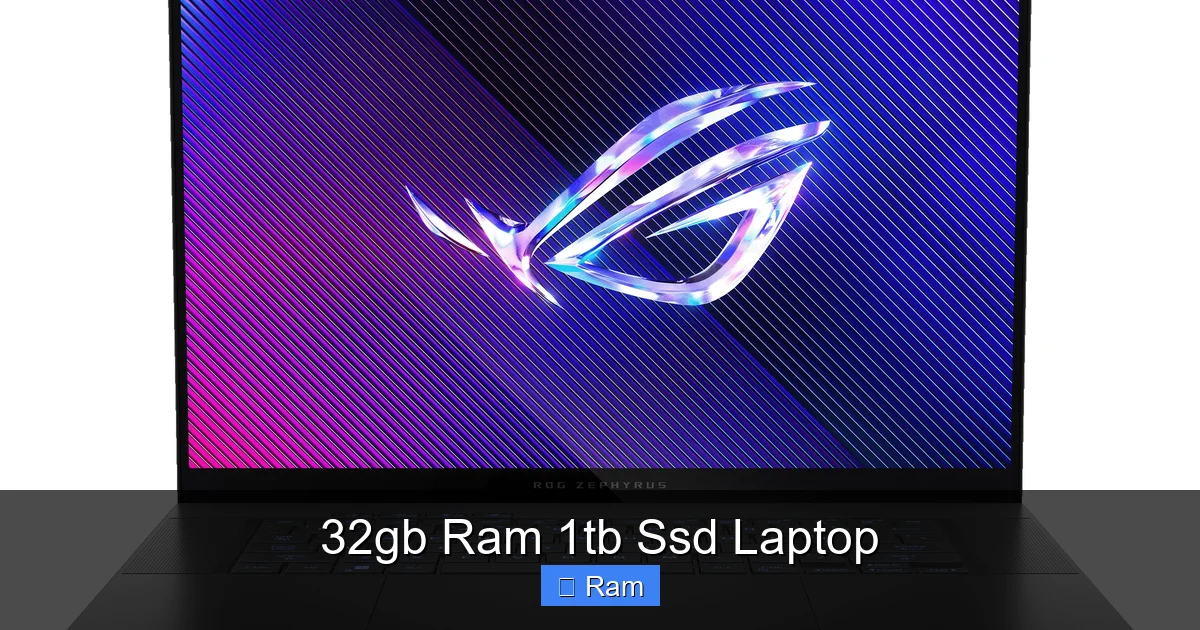
A 32GB RAM 1TB SSD laptop represents the sweet spot for high-end professional and enthusiast computing. This powerful combination eliminates bottlenecks in demanding tasks like 4K video editing, 3D rendering, and running virtual machines. The generous 1TB SSD ensures near-instant boot times, rapid application launches, and ample fast storage for large projects, while 32GB of RAM provides seamless multitasking and future-proofs your investment against increasingly memory-hungry software.
Key Takeaways
- Target User: This configuration is for professionals (creatives, engineers, data scientists) and serious enthusiasts, not the average user.
- Performance Sweet Spot: 32GB RAM handles today’s most demanding applications and multitasking scenarios without slowdowns.
- Speed & Capacity: A 1TB SSD offers the ideal balance of fast performance and usable space for large files and a full software library.
- Future-Proofing: This spec provides a significant buffer for 3-5 years, delaying the need for an upgrade as software requirements grow.
- Cost Consideration: It commands a premium price; ensure your specific workflow genuinely benefits from these specs to justify the cost.
📑 Table of Contents
- Introduction: More Than Just Big Numbers
- Demystifying the Specs: RAM vs. SSD Explained
- Who Actually Needs a 32GB RAM 1TB SSD Laptop?
- Choosing Your 32GB RAM 1TB SSD Laptop: Critical Factors
- Top Contenders: Where to Find Your 32GB/1TB Beast
- Optimizing Your 32GB RAM 1TB SSD Laptop: Pro Tips
- The Price of Power: Is It Worth the Investment?
- Conclusion: Finding Your Perfect Match
Introduction: More Than Just Big Numbers
When you’re shopping for a new laptop, the spec sheet can look like alphabet soup. But if you’ve zeroed in on a 32GB RAM 1TB SSD laptop, you’re already looking at the upper tier of mobile computing power. This isn’t just about having “a lot” of memory and storage; it’s about creating a seamless, frustration-free environment for work and play that pushes the boundaries of what a portable machine can do.
For the uninitiated, 32GB of RAM (Random Access Memory) is your laptop’s short-term working memory. Think of it like a huge, clear desk where you can spread out all your current projects—multiple browser tabs, a giant Photoshop file, a coding environment, and a music playlist—without anything getting buried or slowing down. The 1TB SSD (Solid State Drive) is your ultra-fast, permanent filing cabinet. It stores your operating system, all your programs, and your personal files, retrieving them at lightning speed. Together, they form a foundation for a laptop that feels effortlessly fast and responsive, even under extreme loads.
This guide will walk you through everything you need to know about this powerful combination. We’ll break down what these specs actually mean for real-world use, who truly needs them, how to choose the right model, and how to get the most out of your investment. By the end, you’ll know exactly if a 32GB RAM 1TB SSD laptop is the right tool for you and how to find the perfect one.
Demystifying the Specs: RAM vs. SSD Explained
The Role of RAM: Your Laptop’s Active Workspace
RAM is where your laptop holds the data it’s actively using. When you open a program, its core files are loaded from your SSD into RAM because accessing RAM is thousands of times faster than even the quickest SSD. The more RAM you have, the more applications and larger files you can keep “open” and instantly accessible.
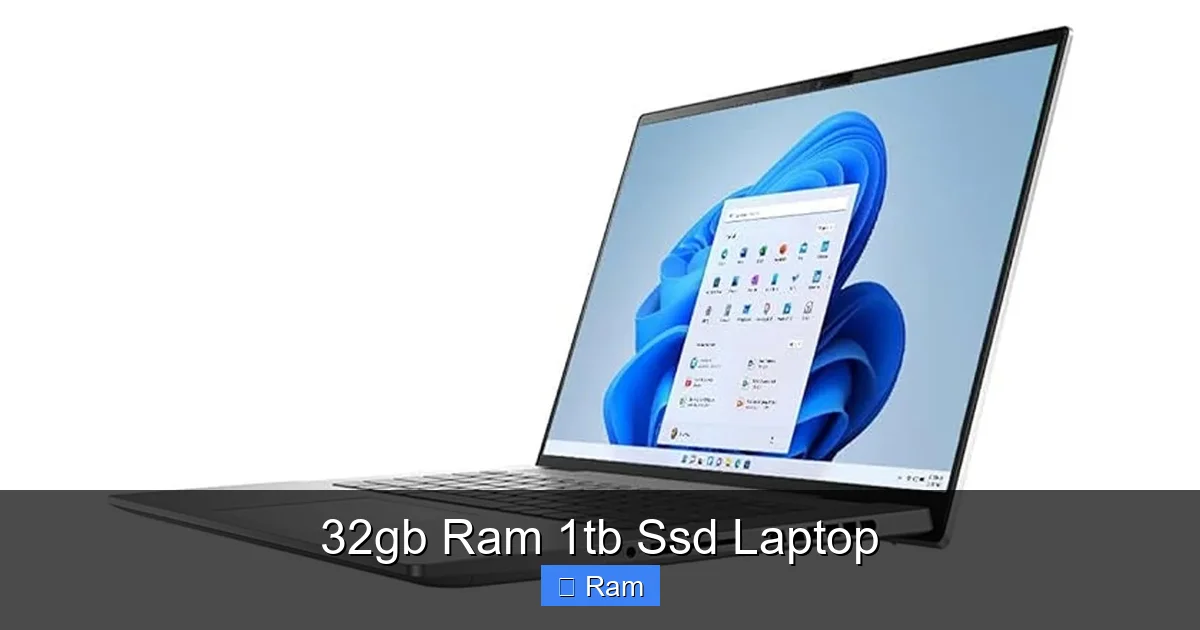
Visual guide about 32gb Ram 1tb Ssd Laptop
Image source: cdnp3.stackassets.com
- 8GB RAM: The basic minimum for modern OS and light web browsing. Struggles with heavy multitasking.
- 16GB RAM: The current mainstream sweet spot for gaming, general productivity, and moderate creative work.
- 32GB RAM: The professional/enthusiast tier. Essential for heavy creative suites, virtualization, scientific computing, and keeping dozens of browser tabs plus major apps open simultaneously.
- 64GB+ RAM: For extreme, specialized workloads like massive database management, 8K video editing, or complex simulation work.
Real-World Impact: With 32GB, you can have 50+ Chrome tabs open, run a virtual machine for software testing, edit a high-resolution photo in Lightroom, and listen to Spotify—all without the system stuttering, throttling, or needing to swap data back to the slower SSD. That swap process, called “paging,” is a primary cause of lag in systems with insufficient RAM.
The Power of the SSD: Your Laptop’s Instant-Access Storage
The SSD replaced the old, mechanical hard drive (HDD) and revolutionized laptop speed. It stores all your data on flash memory chips with no moving parts. This means:
- Blazing Boot Times: Windows or macOS can load in 5-15 seconds.
- Instant App Launches: Programs like Adobe Premiere or Visual Studio open almost immediately.
- Silent & Shock-Resistant: No spinning platters means no noise and better durability for a portable device.
Capacity is measured in gigabytes (GB) or terabytes (TB). 1TB (1000GB) is the practical sweet spot for a high-performance laptop. Why not 512GB? While 512GB is fine for many, a professional using large media files, a game library, and a full OS will fill 512GB surprisingly fast, leading to constant storage management and potential slowdowns as the drive nears capacity. A 1TB drive provides comfortable breathing room.
NVMe vs. SATA: Ensure the 1TB drive is an NVMe PCIe SSD, not an older SATA SSD. NVMe drives are 3-7 times faster, leveraging the laptop’s high-speed motherboard lanes. This is non-negotiable for a performance machine of this caliber.
Who Actually Needs a 32GB RAM 1TB SSD Laptop?
This is the most critical question. Buying this spec without a clear need is overkill and wasted money. Here’s a breakdown of the ideal user profiles.
Visual guide about 32gb Ram 1tb Ssd Laptop
Image source: tech.co.za
1. Creative Professionals: Video Editors, Photographers, Designers
This is the classic use case. Modern creative applications are memory hogs.
- 4K/8K Video Editing: Software like Adobe Premiere Pro, DaVinci Resolve, and Final Cut Pro uses RAM to cache previews, effects, and multiple video streams. 32GB allows for smooth scrubbing and real-time effects on high-resolution footage without rendering.
- Graphic Design & Photography: Working with massive, multi-layered Photoshop (PSB) files or complex Illustrator documents with hundreds of vectors eats RAM. 32GB lets you work on several large files at once.
- 3D Modeling & Animation: Blender, Maya, and Cinema 4D use RAM for scene geometry, textures, and simulation data. Complex scenes can easily consume 16GB+.
Example: A video editor working on a documentary with 4K footage from three cameras, dozens of audio tracks, color grades, and titles will see their 16GB system chugging. The 32GB/1TB combo handles this project fluidly and leaves room for the OS and other apps.
2. Developers, Engineers, and Data Scientists
Coding and engineering software often involves running resource-intensive environments.
- Software Development: Running a local web server, a database (like PostgreSQL), a container (Docker), an IDE (like Visual Studio or IntelliJ), and dozens of browser tabs for documentation can easily hit 20GB+ of RAM usage.
- Virtualization: Running virtual machines (VMs) for testing different OS environments or software configurations is RAM-intensive. A single Windows VM can allocate 4-8GB. With 32GB, you can run multiple VMs smoothly alongside your host OS.
- Data Analysis & Machine Learning: While heavy training runs need powerful GPUs, data wrangling in Python (Pandas), R, or MATLAB with large datasets benefits enormously from ample RAM to keep everything in memory.
3. Serious Gamers & Streamers
Modern AAA games are using more RAM (12-16GB is common now). But the real need for 32GB comes from multitasking while gaming.
- Game + Stream: Running a game at high settings while streaming via OBS, capturing video, and having Discord, Spotify, and a browser open for guides or wiki is a RAM-heavy task. 16GB can lead to frame drops; 32GB provides a clean, high-frame-rate experience.
- Game Development/Moddding: Using engines like Unity or Unreal Engine while also playing games for testing.
4. Power Users & “Taboholics”
This is the user who never closes anything. They have:
- 100+ browser tabs open (research, work, shopping, articles to read later).
- Multiple large Office documents and PDFs.
- Communication apps (Slack, Teams, Zoom).
- Background music or podcast apps.
- Occasional photo or video editing.
- CPU (Intel & AMD): Look for current or last-generation H-series or HX-series processors (e.g., Intel Core i7/i9-13xxxH/HX, AMD Ryzen 7/9 7xxxH/HS/HX). These are 45W+ performance chips, not the 15W U-series found in thin-and-lights. For heavy creative/engineering work, the 8-core/16-thread and above CPUs are ideal.
- GPU (Graphics):
- Integrated Graphics (Intel Iris Xe, AMD Radeon): Only suitable if your work is purely CPU-based (coding, data analysis, light photo editing). Avoid for gaming, video editing, or 3D work.
- Discrete NVIDIA/AMD GPU: Essential for gaming, video editing, 3D modeling, and GPU computing. Look for NVIDIA RTX 3050/3060/4050 and up, or AMD Radeon RX 6600M and up. The GPU’s VRAM (6GB+) is also critical for high-res textures in games and projects.
- Resolution & Panel: A 1080p (FHD) display is the minimum. For creative work, a 1440p (QHD) or 4K OLED/mini-LED panel with 100% DCI-P3 color gamut and factory calibration is worth the investment. For gaming, prioritize high refresh rates (144Hz, 240Hz) and low response times.
- Build Quality: Performance laptops often run hot and have robust cooling. Look for premium materials (aluminum, magnesium alloy) that can handle the thermal load. A sturdy keyboard and good trackpad are essential for productivity.
- Portability vs. Power: True performance laptops are thicker and heavier (4.5 – 6+ lbs) to accommodate cooling and larger batteries. “Thin-and-light” performance models exist but may have thermal throttling under sustained loads. Know your mobility needs.
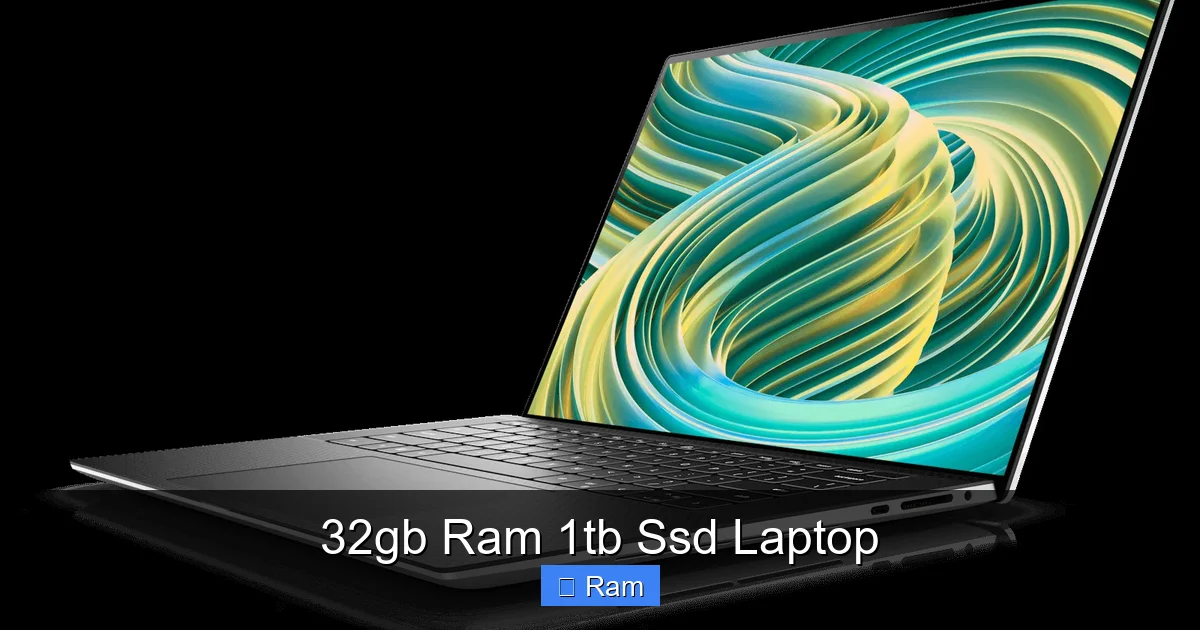
- Dell XPS 15/17: Premium build, stunning displays (3.5K OLED), powerful Intel CPUs and NVIDIA RTX GPUs. Often configurable to 32GB/1TB.
- Lenovo ThinkPad P Series: The ultimate mobile workstations with professional NVIDIA RTX A-series GPUs, legendary keyboards, and superb upgradeability.
- HP ZBook Studio/Fury: HP’s powerhouse workstation line, built for engineering and creative pros.
- Apple MacBook Pro 14″/16″ (M3 Pro/Max): A different architecture. The M3 Pro chip with 18-core CPU/14-core GPU starts at 18GB unified memory, but the M3 Max configs offer 36GB or 48GB. Their unified memory architecture means RAM and GPU memory share the same pool, making 32GB+ a huge advantage for pro apps. Storage is always fast NVMe, with 1TB as a common starting point for these models.
- Uninstall any trial antivirus (use Windows Defender or a lightweight paid option), unnecessary games, and manufacturer “helper” apps you won’t use.
- Use the pre-installed disk cleanup tool or a trusted app like CCleaner (carefully) to remove temporary files.
- Check your startup tab in Task Manager (Ctrl+Shift+Esc) and disable non-essential programs that launch with Windows. This gets you to a clean desktop faster.
- Keep 10-15% Free Space: SSDs slow down as they fill up because there’s less empty NAND cell space for the controller to write to efficiently. Keep at least 100-150GB free for optimal performance and to allow Windows updates.
- Store Large, Static Files on a Secondary Drive: If your laptop has a second M.2 slot, consider adding a 2TB or 4TB SSD for your media archive (old photos, videos, completed projects). Keep your active project files on the primary 1TB drive for speed.
- Use Storage Sense: Enable Windows’ Storage Sense (Settings > Storage) to automatically clean temporary files and empty the recycle bin.
- Mind the Page File: With 32GB of RAM, you can safely reduce the size of the Windows page file (virtual memory) or even move it to a secondary drive. This saves precious primary SSD space. Research the optimal setting for your specific use case.
- Use a Cooling Pad: An inexpensive but effective way to provide additional airflow, especially for lap use.
- Adjust Power Plans: In Windows Power Options, use the “High Performance” or “Best Performance” plan when doing demanding work. The “Balanced” plan is fine for general use and saves battery.
- Clean the Vents: Periodically use compressed air to blow out dust from the intake and exhaust vents. Dust buildup is the #1 cause of thermal throttling over time.
- Undervolting (Advanced): For the tech-savvy, using tools like ThrottleStop (Intel) or AMD Ryzen Master can slightly reduce the voltage to the CPU/GPU, lowering temperatures and often allowing for higher sustained boost clocks with no performance loss. Research your specific model first.
- Your primary tasks are web browsing, office documents (Word, Excel, PowerPoint), video streaming, and casual gaming.
- You play esports titles (CS:GO, Valorant, League of Legends) at 1080p, which are more CPU/GPU dependent than RAM-dependent beyond 16GB.
- You are on a strict budget and would be better served allocating more of your budget to a better GPU or CPU within a 16GB/1TB configuration.
- You are a student whose needs are met by a mid-range ultrabook (unless in engineering, architecture, or video production).
For this user, 16GB is the absolute minimum and will often lead to slowdowns. 32GB is the upgrade that brings back that “new laptop” feeling of instant responsiveness, no matter how many things they have open.
Choosing Your 32GB RAM 1TB SSD Laptop: Critical Factors
Not all laptops with these specs are created equal. The other components determine if you have a true powerhouse or a mismatched machine.
Visual guide about 32gb Ram 1tb Ssd Laptop
Image source: m.media-amazon.com
The Heart of the Matter: CPU & GPU Synergy
A 32GB/1TB spec paired with a weak processor (CPU) or graphics chip (GPU) is a severe bottleneck. You must ensure the rest of the system can keep up.
Rule of Thumb: If your workload is CPU-heavy (coding, virtualization, some photo editing), prioritize a top-tier CPU. If it’s GPU-heavy (gaming, video editing, 3D rendering), prioritize a strong discrete GPU. Balance is key for mixed workloads.
Display, Build, and Portability
You’ll be staring at this screen for hours. Don’t compromise.
Upgradeability and Long-Term Value
Check if the RAM is soldered or has an available slot. For a 32GB configuration, it’s often soldered (to save space and allow for higher speeds). However, some business-class laptops (Dell Latitude, Lenovo ThinkPad) still offer SODIMM slots. Soldered RAM cannot be upgraded later. If you buy a 16GB soldered model hoping to add more later, you’re out of luck.
The 1TB SSD is more likely to be replaceable. Many laptops have a second M.2 slot or an accessible bay. Buying a model with a 1TB drive pre-installed is convenient, but you could save money by buying a 512GB model and upgrading the SSD yourself if you’re comfortable doing it. Always verify upgrade paths in the specific model’s service manual.
Top Contenders: Where to Find Your 32GB/1TB Beast
Several laptop categories and brands consistently offer excellent 32GB RAM/1TB SSD configurations.
Performance Gaming Laptops
These are the most common place to find this spec. Brands like ASUS ROG (Zephyrus, Strix), Lenovo Legion (Pro, 5i), MSI (GE, GP, Stealth), and Dell Alienware (m15, x15) offer models with 32GB RAM and 1TB+ NVMe SSDs, paired with top-tier GPUs (RTX 4070 and above). They offer the best gaming performance but can be bulky and have shorter battery life when gaming.
Mobile Workstations & Creator Laptops
Designed for professionals with color-accurate displays and ISV certifications (software vendor certifications for stability). Look at:
Performance Ultrabooks & Thin-and-Lights
These sacrifice some peak cooling for portability. Models like the ASUS ROG Zephyrus G14, Razer Blade 14, and Lenovo Yoga Pro 9i pack 32GB RAM and 1TB SSDs into much slimmer chassis. They are perfect for creators and gamers who travel frequently and don’t need the absolute last drop of performance from a larger laptop. Thermals are good but not as robust as a 17″ machine.
Optimizing Your 32GB RAM 1TB SSD Laptop: Pro Tips
Getting the hardware is just step one. Here’s how to maximize it.
Initial Setup & Bloatware Removal
Out of the box, even a premium laptop comes with trial software and manufacturer utilities you may not need.
Managing Your 1TB SSD for Peak Performance
While SSDs don’t need “defragmentation” like old HDDs, they do benefit from good housekeeping.
Power & Thermal Management for Sustained Performance
Performance laptops throttle (reduce speed) to manage heat. You can fight this.
The Price of Power: Is It Worth the Investment?
A laptop with 32GB RAM and a 1TB SSD typically starts around $1,500-$1,800 for a decent configuration and can soar to $3,000+ for top-tier models with the best displays and GPUs.
The Value Proposition: Future-Proofing and Time Savings
The true cost isn’t just the purchase price; it’s the cost of your time. For a professional, a system that doesn’t lag, crash, or force constant storage management saves countless hours of frustration and lost productivity. The 3-5 year lifespan of this machine means you won’t be forced into an upgrade cycle in 2 years because your 16GB system is now struggling with new software versions.
Consider the alternative: Buying a 16GB/512GB laptop for $1,200 now, and then in 2 years needing to buy another new laptop because your workflow has outgrown it. The total cost over 4 years may exceed the one-time purchase of the more powerful machine.
When to Skip It and Save
You should not buy this spec if:
The Middle Path: For many, a 16GB RAM / 1TB SSD laptop is the absolute perfect sweet spot. It handles 95% of modern gaming, all but the most extreme creative work, and excellent multitasking. Only step up to 32GB if you have a documented, specific need from the user profiles above.
Conclusion: Finding Your Perfect Match
A 32GB RAM 1TB SSD laptop is a statement piece. It says you demand uncompromising performance for your most demanding tasks. It’s a tool for creators who work with massive files, developers who run complex local environments, engineers who simulate designs, and gamers who stream without compromise. It’s for the user who values their time and wants a machine that feels fast today and will still feel capable three years from now.
The key is honest self-assessment. Map your daily software usage. Open Task Manager (or Activity Monitor) while you work. How much RAM is actually in use? If you’re consistently hitting 12-16GB, 32GB is a smart upgrade. If you’re rarely above 8GB, you’re throwing money away.
When you do decide to take the plunge, balance that powerful core (RAM/SSD) with a commensurate CPU and GPU. Prioritize a great display if you’re a creative, and a robust cooling solution if you’re a power user. Research specific models, read professional and user reviews focusing on thermals and sustained performance, and you will find a laptop that isn’t just a spec sheet, but a true productivity and entertainment powerhouse that will serve you brilliantly for years.
Frequently Asked Questions
Is 32GB of RAM overkill for most people?
Yes, for general web browsing, office work, and casual gaming, 16GB is more than sufficient. 32GB is targeted at professionals and enthusiasts running memory-intensive applications like video editing, 3D rendering, virtual machines, or massive datasets.
Should I choose a larger SSD over more RAM, or vice versa?
This depends entirely on your bottleneck. If you constantly run out of storage space or your programs load slowly from a nearly full drive, a larger SSD (2TB) is the priority. If your system slows to a crawl when you have many apps open or work with large files, more RAM (32GB+) is the fix. For most power users, the 32GB/1TB combo is the balanced starting point.
Can I upgrade the RAM and SSD in these laptops later?
It varies wildly by model. Many modern thin-and-light laptops have soldered RAM, making it impossible to upgrade. The SSD is more commonly upgradeable, often in a user-accessible slot. Always check the specific model’s technical specifications or service manual for upgradeability before purchasing. Business-class laptops (ThinkPad, Latitude, EliteBook) are generally more upgradeable than consumer models.
Will a 32GB/1TB laptop have poor battery life?
Generally, yes, compared to a low-power ultrabook. The high-performance CPU/GPU and faster components consume more power. However, many modern performance laptops have large batteries and power management features that can provide 5-8 hours of real-world use for productivity tasks (browsing, documents). Expect significantly less (2-4 hours) during gaming or rendering.
What’s the difference between a gaming laptop and a creator laptop with the same specs?
The primary differences are in display (color accuracy vs. high refresh rate), design (often more aggressive on gaming models), and software/driver optimizations. Creator laptops focus on color-accurate, high-resolution displays and may have ISV certifications for professional software stability. Gaming laptops prioritize high refresh rates (144Hz+) for smooth motion. Both can have identical internal specs (RAM, SSD, CPU, GPU).
Is a MacBook with 32GB unified memory comparable to a Windows PC with 32GB RAM?
In many pro apps optimized for Apple Silicon (Final Cut Pro, Logic Pro, some Adobe apps), the unified memory architecture allows the 32GB to be used extremely efficiently by both the CPU and GPU, often outperforming a Windows PC with a discrete GPU and 32GB system RAM in those specific tasks. However, for general x86 software or some games via emulation, the comparison is less direct. It’s a different but highly effective design for its target creative workflows.