Can I Upgrade My Laptop Ram from 4gb to 16gb

Yes, you can upgrade your laptop RAM from 4GB to 16GB in most cases, but it depends on your laptop’s motherboard and available slots. This upgrade can dramatically improve multitasking, speed, and overall performance. Before buying new RAM, you need to check compatibility, maximum supported capacity, and whether your laptop allows user upgrades.
Key Takeaways
- Most laptops support RAM upgrades: The majority of laptops manufactured in the last decade allow users to upgrade RAM, though some ultrabooks and MacBooks have soldered memory that cannot be changed.
- Check compatibility first: You need to verify the RAM type (DDR3, DDR4, or DDR5), speed, and maximum capacity your laptop’s motherboard supports before purchasing new modules.
- 4GB to 16GB is a significant jump: This upgrade will transform your laptop’s performance, allowing smooth multitasking, faster application loading, and better handling of memory-intensive programs.
- Dual-channel configuration matters: Using two matching RAM sticks (8GB + 8GB) instead of a single 16GB stick enables dual-channel mode, which provides better performance.
- Installation is straightforward: Most laptops have an accessible RAM compartment on the bottom panel, and the entire process typically takes 10-20 minutes with basic tools.
- Cost-effective upgrade: RAM upgrades are one of the most affordable ways to breathe new life into an aging laptop, often costing between $30-$80 for a 16GB kit.
- Some laptops have limitations: Certain budget laptops and ultrabooks may have only one RAM slot or soldered memory, making upgrades impossible or limited.
📑 Table of Contents
- Can I Upgrade My Laptop RAM from 4GB to 16GB?
- Understanding Laptop RAM and Why It Matters
- How to Check If Your Laptop RAM Is Upgradeable
- What You Need to Know Before Upgrading to 16GB
- Step-by-Step Guide to Upgrading Your Laptop RAM
- Performance Benefits of Upgrading from 4GB to 16GB
- Cost Considerations and Is It Worth It?
- Common Mistakes to Avoid When Upgrading Laptop RAM
- Frequently Asked Questions About Laptop RAM Upgrades
- Conclusion
Can I Upgrade My Laptop RAM from 4GB to 16GB?
If you have been struggling with a slow laptop that freezes every time you open more than two tabs in your browser, you are not alone. One of the most common questions laptop owners ask is, “Can I upgrade my laptop RAM from 4GB to 16GB?” The short answer is yes, in most cases, you absolutely can. But there are several important factors you need to consider before spending money on new memory modules.
Upgrading your laptop RAM from 4GB to 16GB is one of the most impactful improvements you can make to your computer’s performance. Whether you use your laptop for work, gaming, content creation, or everyday browsing, more RAM means smoother operation and the ability to handle more tasks simultaneously. In this comprehensive guide, we will walk you through everything you need to know about upgrading your laptop RAM from 4GB to 16GB, including compatibility checks, installation steps, costs, and what kind of performance improvements you can expect.
Before you start shopping for new RAM sticks, it is essential to understand that not every laptop can be upgraded. Some modern ultrabooks and thin-and-light laptops come with RAM that is soldered directly onto the motherboard, making upgrades impossible. However, the good news is that most standard laptops, gaming laptops, and business notebooks do allow RAM upgrades. Let us dive into the details so you can determine whether your specific laptop is upgradeable and how to go about it.
Understanding Laptop RAM and Why It Matters
What Is RAM and How Does It Work?
RAM stands for Random Access Memory. It is your computer’s short-term memory where data from active applications and processes is stored for quick access. Think of it like a desk where you spread out your work materials. The bigger the desk, the more projects you can work on at the same time without having to constantly shuffle papers in and out of drawers.
When you open a program, load a webpage, or work on a document, your computer pulls that data from the storage drive (HDD or SSD) and places it in RAM for fast access. With only 4GB of RAM, your laptop has a very small “desk,” which means it can only handle a limited number of tasks before it starts slowing down. Upgrading to 16GB gives you a much larger workspace, allowing you to run more applications simultaneously without performance degradation.
Why 4GB Is No Longer Enough
A few years ago, 4GB of RAM was considered sufficient for basic computing tasks. But today, modern operating systems, web browsers, and applications are far more demanding. Windows 10 and Windows 11 alone can use 2-4GB of RAM just idling on the desktop. Open a few Chrome tabs, and you can easily consume another 2-3GB. Add a word processor, a music streaming app, and a video call, and your 4GB is completely maxed out.
When your laptop runs out of RAM, it starts using a portion of your hard drive or SSD as virtual memory, which is significantly slower. This causes the frustrating lag, freezing, and slow application switching that many 4GB laptop owners experience daily. Upgrading to 16GB eliminates this bottleneck and provides a noticeably smoother computing experience.
How to Check If Your Laptop RAM Is Upgradeable
Check Your Laptop’s Specifications
The first step in determining whether you can upgrade your laptop RAM from 4GB to 16GB is to check your laptop’s specifications. You can find this information in several ways. The easiest method is to look up your laptop model on the manufacturer’s website. Companies like Dell, HP, Lenovo, and ASUS provide detailed specifications for each model, including the maximum supported RAM capacity and the number of RAM slots available.
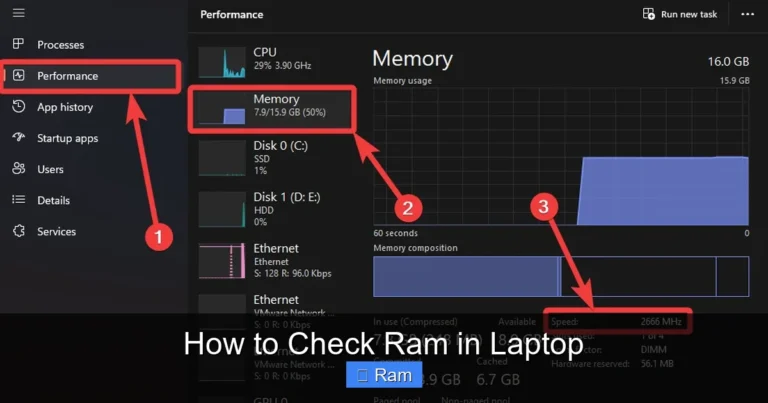
You can also check your current RAM configuration directly from your operating system. On Windows, open Task Manager (Ctrl + Shift + Esc), go to the Performance tab, and click on Memory. This will show you how much RAM you currently have, how many slots are in use, and the speed of your installed memory. On Mac, click the Apple menu, select “About This Mac,” and look at the Memory section.
Determine the RAM Type and Speed
Laptops use different types of RAM, and using the wrong type can prevent your laptop from working properly. The most common types you will encounter are DDR3, DDR4, and the newer DDR5. Each type has a different physical design and is not interchangeable. You need to know which type your laptop uses before purchasing an upgrade.
In addition to the type, you also need to consider the speed of the RAM, measured in MHz. Common speeds include 2133MHz, 2400MHz, 2666MHz, 3200MHz, and higher. While you can typically install RAM with a higher speed than what your laptop currently uses, it will only run at the maximum speed your motherboard supports. For a detailed guide on checking your current RAM specifications, check out our article on how to check RAM of a laptop.
Soldered vs. Socketed RAM
This is perhaps the most critical factor to determine. Some laptops, particularly ultrabooks like the MacBook Air, Dell XPS 13, and many thin-and-light models, have RAM that is soldered directly onto the motherboard. This means the memory chips are permanently attached and cannot be removed or replaced. If your laptop has soldered RAM, unfortunately, you cannot upgrade it.
On the other hand, socketed RAM uses small sticks (called SO-DIMMs for laptops) that plug into slots on the motherboard. These can be removed and replaced. Most standard laptops, gaming laptops, and business-class notebooks use socketed RAM. To find out which type your laptop has, consult the service manual for your specific model, which is usually available on the manufacturer’s support website.
What You Need to Know Before Upgrading to 16GB
Maximum Supported RAM Capacity
Every laptop motherboard has a maximum RAM capacity it is designed to support. While many modern laptops support up to 32GB or even 64GB, some older or budget models may only support a maximum of 8GB or 12GB. You need to verify that your laptop can actually handle 16GB before making a purchase.
For example, many laptops from 2015-2018 with Intel 6th or 7th generation processors typically support up to 32GB of RAM, making a 16GB upgrade perfectly fine. However, some budget models from the same era may be limited to 8GB. Always check the manufacturer’s specifications to be sure.
Number of RAM Slots
Most laptops have either one or two RAM slots. If your laptop has two slots and currently has one 4GB stick installed, you can either add another 4GB stick for a total of 8GB, or replace the existing stick with a single 16GB module. For the best performance with 16GB, we recommend using two 8GB sticks in a dual-channel configuration.
Dual-channel mode essentially doubles the communication pathway between the RAM and the memory controller, resulting in better performance. In real-world use, dual-channel 16GB (8GB + 8GB) can be 10-20% faster than single-channel 16GB (16GB single stick) in memory-intensive tasks. If your laptop only has one slot, you will need to use a single 16GB stick, which is still a massive improvement over 4GB.
Choosing the Right RAM
When shopping for laptop RAM, you need to pay attention to several specifications. First, make sure you are buying SO-DIMM modules, which are the smaller form factor designed for laptops (as opposed to full-size DIMMs for desktop computers). Second, match the DDR generation to what your laptop supports. Third, consider the speed and latency.
Popular and reliable RAM brands for laptop upgrades include Corsair, Crucial, Kingston, G.Skill, and Samsung. Crucial also offers a useful compatibility tool on their website where you can enter your laptop model and it will recommend compatible RAM modules. For most users upgrading from 4GB to 16GB, a 16GB DDR4 kit (2 x 8GB) running at 2666MHz or 3200MHz offers the best balance of performance and value.
Step-by-Step Guide to Upgrading Your Laptop RAM
Gathering Your Tools and Materials
Before you begin the physical installation, make sure you have everything you need. You will require a small Phillips-head screwdriver (usually #0 or #00), your new RAM modules, and optionally an anti-static wrist strap to prevent electrostatic discharge that could damage your components. A clean, well-lit workspace is also important.
It is also a good idea to back up your important data before opening up your laptop, just as a precaution. While upgrading RAM is generally safe and should not affect your data, it is always better to be safe than sorry. Make sure your laptop is completely powered down and unplugged from the charger before you start.
Accessing the RAM Compartment
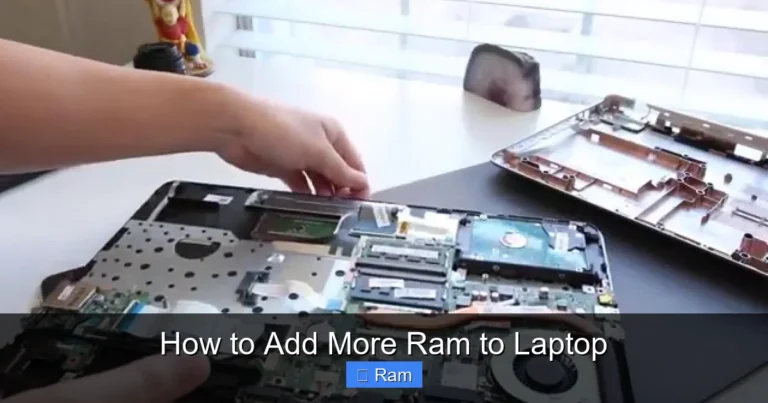
On most laptops, the RAM is accessible through a dedicated panel on the bottom of the chassis. This panel is usually secured with one or more screws. Remove the screws and carefully pry off the panel using a plastic spudger or your fingernail. Some laptops may require you to remove the entire bottom cover to access the RAM slots.
Once you have the panel off, you should see the RAM slots. If there is existing RAM installed, you will need to remove it first. To remove a RAM stick, gently push the retention clips on either side outward. The RAM stick will pop up at an angle, and you can then slide it out of the slot.
Installing the New RAM
To install the new RAM, align the notch on the bottom edge of the SO-DIMM module with the key in the RAM slot. Insert the stick at approximately a 30-degree angle, then press down firmly until the retention clips snap into place on their own. You should hear a soft click when the RAM is properly seated.
If you are installing two sticks for dual-channel configuration, make sure they are placed in the correct slots. On most laptops with two slots, you simply fill both slots. However, some laptops with four slots (rare) may require specific slot pairing for dual-channel mode. Consult your laptop’s manual if you are unsure.
For a more detailed walkthrough with photos and video references, our guide on how to install RAM into a laptop provides additional step-by-step instructions that can help you through the process.
Verifying the Upgrade
After installing the new RAM, replace the bottom panel and screw it back into place. Power on your laptop and check if the system recognizes the new memory. On Windows, open Task Manager, go to the Performance tab, and click Memory. You should see the new total amount of RAM listed (approximately 15.9GB for a 16GB installation, as some memory is reserved for hardware).
If your laptop does not boot or shows the wrong amount of RAM, power it off and reseat the modules. Make sure they are fully inserted and the retention clips are engaged. In rare cases, you may need to update your laptop’s BIOS to support the new memory configuration.
Performance Benefits of Upgrading from 4GB to 16GB
Multitasking and Productivity
The most immediately noticeable benefit of upgrading from 4GB to 16GB is the ability to multitask without slowdowns. With 16GB, you can comfortably run a web browser with dozens of tabs, a word processor, a spreadsheet application, a music player, and a video conferencing tool all at the same time. Your laptop will no longer freeze or stutter when switching between applications.

Visual guide about Can I Upgrade My Laptop Ram from 4gb to 16gb
Image source: hnau.imgix.net
For professionals who work with large datasets, multiple browser-based tools, or creative applications, the jump from 4GB to 16GB can be transformative. Tasks that previously took minutes of waiting can be completed almost instantly. If you are considering a laptop with higher RAM for professional use, you might also want to explore options like a 16GB RAM 1TB SSD laptop for even better overall performance.
Gaming Performance
While RAM is not the primary factor in gaming performance (that would be the graphics card), having sufficient RAM is essential for a smooth gaming experience. Many modern games recommend at least 8GB of RAM, and some newer titles benefit from 16GB. With only 4GB, you would likely experience stuttering, long loading times, and crashes in most games released after 2018.
Upgrading to 16GB will not magically turn your laptop into a gaming powerhouse, but it will eliminate RAM as a bottleneck. Combined with a decent graphics card and an SSD, 16GB of RAM can make a significant difference in frame rates and overall gaming smoothness.
Content Creation and Heavy Applications
If you use your laptop for video editing, photo editing, 3D modeling, or software development, upgrading to 16GB is practically essential. Applications like Adobe Premiere Pro, Photoshop, Blender, and Visual Studio are memory-hungry and can easily consume 8-12GB of RAM during normal use. With only 4GB, these applications would be virtually unusable.
With 16GB, you can edit 1080p video smoothly, work with large Photoshop files, compile code faster, and run virtual machines without your system grinding to a halt. For content creators, this upgrade can save hours of frustration and significantly improve workflow efficiency.
Cost Considerations and Is It Worth It?
How Much Does a 16GB RAM Upgrade Cost?
One of the best things about upgrading your laptop RAM from 4GB to 16GB is the relatively low cost compared to buying a new laptop. As of 2024, a 16GB DDR4 SO-DIMM kit (2 x 8GB) from a reputable brand typically costs between $35 and $70, depending on the speed and brand. DDR5 kits are slightly more expensive, ranging from $50 to $100.

Visual guide about Can I Upgrade My Laptop Ram from 4gb to 16gb
Image source: as2.ftcdn.net
Compared to the cost of a new laptop with 16GB of RAM (which would typically run $400-$800 or more), upgrading your existing laptop is an incredibly cost-effective solution. For less than $70, you can potentially add several more years of useful life to your current machine.
When Upgrading Makes Sense
Upgrading your RAM makes the most sense when your laptop is otherwise meeting your needs. If your processor is still capable, your screen is good, and the battery life is acceptable, but you are frustrated by slow performance, a RAM upgrade is the perfect solution. It is especially worthwhile for laptops that are 2-5 years old with modern processors that are being held back by insufficient memory.
However, if your laptop is very old (more than 7-8 years), has a slow processor, or has other failing components, investing in a new laptop might be a better use of your money. In that case, you could look at options like an Intel i7 16GB RAM laptop for a complete performance upgrade.
When You Should Not Upgrade
There are a few scenarios where upgrading your laptop RAM may not be the best choice. If your laptop has soldered RAM that cannot be replaced, an upgrade is simply not possible. If your laptop’s maximum supported RAM is less than 16GB, you will need to settle for a smaller upgrade. Additionally, if your laptop is already very old and slow due to an outdated processor, adding more RAM will not fix the fundamental performance limitations.
In these cases, it might be more practical to put the money toward a new laptop. Modern laptops with 16GB of RAM, fast SSDs, and current-generation processors offer dramatically better performance than even a fully upgraded older machine.
Common Mistakes to Avoid When Upgrading Laptop RAM
Buying the Wrong Type of RAM
The most common mistake people make when upgrading their laptop RAM is purchasing incompatible memory. This includes buying the wrong DDR generation (DDR3 vs DDR4 vs DDR5), the wrong form factor (DIMM instead of SO-DIMM), or RAM with specifications that exceed what your laptop supports. Always double-check your laptop’s specifications before making a purchase.
Ignoring Dual-Channel Configuration
Another common mistake is using mismatched RAM sticks or installing a single stick when two are available. For optimal performance, you should use two identical RAM sticks of the same capacity, speed, and ideally the same brand and model. This enables dual-channel mode, which provides a meaningful performance boost over single-channel operation.
Forgetting to Ground Yourself
Static electricity can damage sensitive computer components, including RAM modules. Before handling your new RAM or working inside your laptop, touch a grounded metal object or wear an anti-static wrist strap to discharge any static electricity from your body. This simple precaution can prevent costly damage.
Not Testing After Installation
After installing new RAM, always boot up your laptop and verify that the system recognizes the full amount of memory. Run a memory diagnostic tool (Windows has a built-in Memory Diagnostic tool) to ensure the new RAM is functioning correctly. If you encounter any issues, reseat the modules and try again.
Frequently Asked Questions About Laptop RAM Upgrades
Will upgrading my RAM void my laptop warranty?
In most cases, upgrading your laptop RAM will not void your warranty. In the United States, the Magnuson-Moss Warranty Act protects consumers’ rights to modify their own devices. However, if you damage something during the installation process, that specific damage may not be covered. Check your laptop’s warranty terms to be sure.
Can I mix different brands of RAM?
While it is technically possible to mix different brands of RAM, it is not recommended. Different brands may use different memory chips, timings, and speeds, which can cause instability or prevent dual-channel mode from working. For the best results, use a matched kit from a single manufacturer.
How much of a performance improvement will I see?
The performance improvement depends on how you use your laptop. If you currently experience slowdowns, freezing, or excessive loading times due to insufficient RAM, the improvement will be dramatic and immediately noticeable. If your current 4GB is sufficient for your tasks, you may not notice a significant difference in everyday use, but you will have more headroom for demanding applications.
Conclusion
Upgrading your laptop RAM from 4GB to 16GB is one of the smartest and most cost-effective improvements you can make to your computer. In most cases, the answer to “Can I upgrade my laptop RAM from 4GB to 16GB?” is a resounding yes. The process is straightforward, the cost is low, and the performance benefits are substantial.
Before you start, make sure to check your laptop’s compatibility, verify the type and speed of RAM you need, and confirm that your laptop has accessible, upgradeable RAM slots. Once you have the right modules, the installation process is simple and can be completed in under 20 minutes with basic tools.
Whether you are a student, professional, gamer, or casual user, moving from 4GB to 16GB of RAM will transform your laptop experience. You will enjoy faster application loading, smoother multitasking, better gaming performance, and the ability to run demanding software without frustration. If your laptop is otherwise in good shape, this upgrade can extend its useful life by years and save you the expense of buying a new machine. So go ahead, check your laptop’s specifications, order the right RAM, and give your laptop the memory boost it deserves.
Frequently Asked Questions
Can I upgrade my laptop RAM from 4GB to 16GB?
Yes, in most cases you can upgrade your laptop RAM from 4GB to 16GB, provided your laptop has accessible RAM slots and supports 16GB of memory. You need to check your laptop’s specifications to confirm the maximum supported RAM capacity and the type of memory it uses before purchasing new modules.
How do I know if my laptop RAM is upgradeable?
To determine if your laptop RAM is upgradeable, check your laptop’s service manual or manufacturer’s website for information about RAM slots and maximum capacity. You can also open the bottom panel of your laptop to see if there are accessible SO-DIMM slots, or use system information tools to check your current RAM configuration.
What type of RAM does my laptop need?
Your laptop likely uses DDR3, DDR4, or DDR5 SO-DIMM memory modules. You can find out which type your laptop requires by checking the manufacturer’s specifications, using system information software like CPU-Z, or looking at the label on your existing RAM sticks if you open the laptop.
Is it better to use one 16GB stick or two 8GB sticks?
Two 8GB sticks are generally better than one 16GB stick because they enable dual-channel mode, which improves memory performance by up to 20%. However, if your laptop only has one RAM slot, a single 16GB stick is your only option and will still provide a massive improvement over 4GB.
How much does it cost to upgrade laptop RAM from 4GB to 16GB?
A 16GB DDR4 SO-DIMM kit (2 x 8GB) typically costs between $35 and $70 from reputable brands like Corsair, Crucial, or Kingston. DDR5 kits are slightly more expensive, ranging from $50 to $100. This is significantly cheaper than buying a new laptop with 16GB of RAM.
Will upgrading RAM from 4GB to 16GB make my laptop faster?
Yes, upgrading from 4GB to 16GB will make your laptop significantly faster if you currently experience slowdowns due to insufficient memory. You will notice faster application loading, smoother multitasking, reduced freezing, and better performance in memory-intensive tasks like gaming, video editing, and running multiple programs simultaneously.