Installing Ram in a Laptop
Installing RAM in a laptop is one of the easiest and most affordable ways to boost your computer’s speed and multitasking ability. This guide walks you through every step, from picking the right memory module to safely completing the upgrade yourself. You do not need to be a tech expert — just follow our simple instructions and your laptop will feel like new.
Is your laptop running slow? Do you find yourself waiting forever for apps to open or tabs to load? The answer might be simpler than you think. Installing RAM in a laptop can transform a sluggish machine into a fast, responsive powerhouse. And the best part? You do not need to visit a repair shop or spend hundreds of dollars. With a few basic tools and this step-by-step guide, you can upgrade your laptop memory right at home.
RAM, or Random Access Memory, is the short-term memory your laptop uses to handle everyday tasks. More RAM means your computer can juggle more apps, browser tabs, and programs without breaking a sweat. Whether you are a student, a remote worker, or a casual user, learning how to install RAM in a laptop is a skill that pays off for years. Let us walk you through the entire process, from understanding what you need to finishing the upgrade with confidence.
Key Takeaways
- Installing RAM in a laptop is a simple DIY task that anyone can do with basic tools.
- Choosing the right type of memory, such as DDR4 or DDR5, is essential for compatibility and performance.
- You can significantly improve multitasking, boot times, and overall speed by adding more laptop memory.
- Always check your laptop’s maximum RAM capacity and available slots before purchasing new modules.
- Safety first — use an anti-static wrist strap and handle memory gently to avoid damage.
- Upgrading RAM is far cheaper than buying a new laptop and delivers noticeable results immediately.
📑 Table of Contents
Why Installing RAM in a Laptop Makes a Big Difference
Before you dive into the installation process, it helps to understand why RAM matters so much. Think of RAM as your laptop’s workspace. The more space you have, the more tasks your laptop can handle at once. When your workspace runs out, your laptop starts slowing down. It starts swapping data to your hard drive, which is much slower. Adding memory eliminates this bottleneck.
Here are some real-world benefits you will notice after upgrading your laptop RAM:
- Faster multitasking. Run multiple apps, browser tabs, and programs without lag.
- Quicker boot times. Your laptop starts up faster and responds more instantly.
- Smoother gaming and video editing. Memory-heavy tasks become much more manageable.
- Better overall performance. Everyday tasks feel snappier and more fluid.
- Longer laptop lifespan. A RAM upgrade can breathe new life into an older machine.
Many people assume they need a brand-new laptop when their current one feels slow. In most cases, a simple memory upgrade does the trick. It is one of the most cost-effective upgrades you can make. And unlike replacing a hard drive with an SSD, adding RAM is straightforward and reversible.
How Much RAM Do You Actually Need?
The right amount of memory depends on what you use your laptop for. Here is a quick breakdown:
- 4GB: Basic tasks like web browsing and word processing. This is the bare minimum today.
- 8GB: The sweet spot for most users. Handles multitasking and light gaming well.
- 16GB: Ideal for professionals, gamers, and anyone running heavy applications.
- 32GB or more: Best for video editors, 3D designers, and power users.
If you are unsure about your current setup, you can always check the RAM of your laptop before making a purchase. Knowing your current memory helps you decide exactly how much to add.
What You Need Before You Start
Preparation is the key to a smooth installation. Gathering everything beforehand saves time and prevents frustration. Here is your checklist.
Tools and Materials
- New RAM module(s). Make sure they match your laptop’s specifications. Check the type (DDR4, DDR5), speed, and size.
- Small Phillips-head screwdriver. Most laptop screws are tiny, so a precision set helps.
- Anti-static wrist strap. This protects your components from static electricity damage. It is cheap and essential.
- Soft, clean workspace. A flat, well-lit surface with plenty of room works best.
- Microfiber cloth. Use this to gently clean the RAM slot and surrounding area.
Check Your Laptop’s Compatibility
Not all RAM works with all laptops. Before buying anything, verify a few details:
- Maximum RAM capacity. Check your laptop’s manual or the manufacturer’s website. Some older models cap at 8GB or 16GB.
- Number of RAM slots. Some laptops have one slot, others have two. This determines whether you replace existing memory or add a second module.
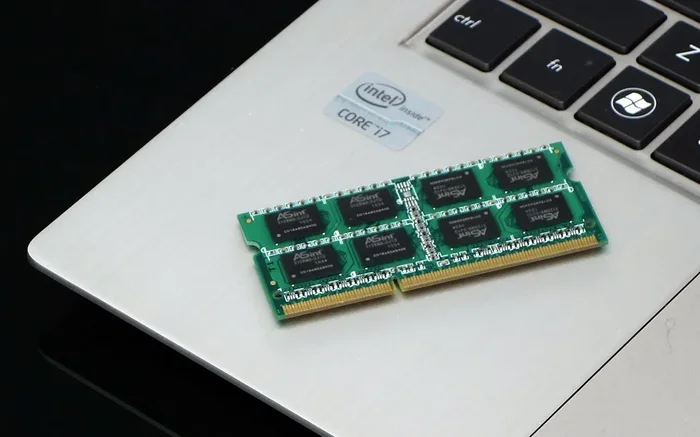
- RAM type. Laptops use SO-DIMM modules, which are smaller than desktop RAM. Make sure you buy the correct form factor.
- Speed and frequency. Matching your existing RAM speed ensures the best performance. Mixing different speeds can work but may limit performance.
If you are not sure what your laptop supports, a quick online search with your laptop model number will give you all the answers. You can also learn what good RAM looks like for your laptop before making a purchase.
Step-by-Step Guide to Installing RAM in a Laptop
Now for the fun part. Follow these steps carefully, and you will have your new memory installed in under 30 minutes.
Step 1: Power Down and Unplug Everything
Turn off your laptop completely. Do not just put it to sleep — shut it down fully. Unplug the power cable and remove any connected peripherals. This includes USB drives, external monitors, and headphones. If your laptop has a removable battery, take it out. This eliminates any risk of electrical damage during the process.
Step 2: Ground Yourself
Static electricity can damage sensitive components. Put on your anti-static wrist strap and clip it to a metal part of the laptop chassis. If you do not have a wrist strap, touch a metal surface before handling any internal parts. Work on a hard floor rather than a carpeted surface. These simple precautions protect your laptop memory and other components.
Step 3: Open the Laptop Back Panel
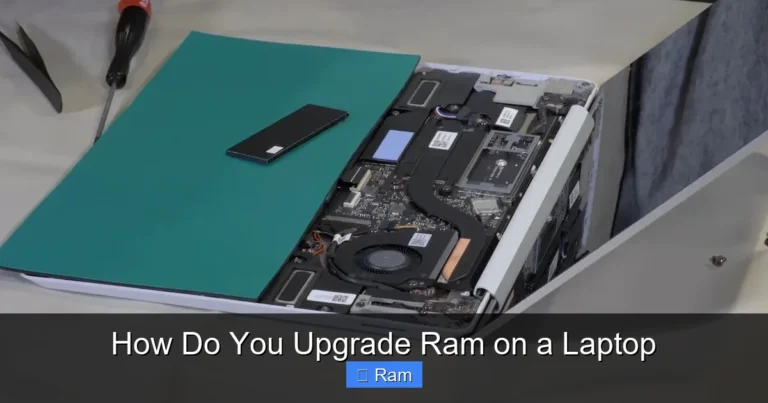
Flip your laptop over and locate the screws on the bottom panel. Use your screwdriver to carefully remove them. Keep the screws in a small container so they do not get lost. Gently pry off the back panel using a plastic spudger or your fingernail. Avoid using metal tools, as they can scratch or damage the casing.
Step 4: Locate the RAM Slots
Once the back panel is off, you will see the internal components. The RAM slots are usually easy to spot — they are long, thin slots with small clips on each end. Your existing memory modules will be sitting in these slots if your laptop already has RAM installed. Take a moment to look at how the current modules are seated before you remove them.
If your laptop has a protective cover over the RAM slots, gently remove it now. Some laptops also have the RAM located under the keyboard, which requires a few extra steps. In that case, consult your laptop’s specific service manual for guidance.
Step 5: Remove the Old RAM (If Necessary)
If you are replacing existing RAM, you need to remove it first. Push the small clips on either side of the module outward. The RAM module will pop up at an angle. Gently pull it straight out of the slot. Do not force it. If it does not come out easily, double-check that the clips are fully released.
Step 6: Install the New RAM
Take your new memory module out of its anti-static packaging. Hold it by the edges — avoid touching the gold contacts on the bottom. Align the notch on the module with the ridge inside the RAM slot. This ensures proper orientation. Insert the module at a 30- to 45-degree angle and press it down firmly until the clips on both sides snap into place. You should hear a click when it is fully seated.
If you are adding a second module, repeat this process for the other slot. Make sure both modules are firmly seated and the clips are locked. Putting RAM in a laptop follows the same basic process regardless of the brand or model.
Step 7: Reassemble and Test
Replace the back panel and screw it back in. Reconnect the battery if you removed it. Plug in your power cable and turn on the laptop. Once it boots up, check that the new RAM is recognized. You can do this by right-clicking on “This PC” or “My Computer” and selecting “Properties.” The total installed memory should reflect your new modules.
If your laptop does not recognize the new RAM, do not panic. Try these quick troubleshooting steps:
- Power off and remove the new module. Reinsert it firmly.
- Check that the module is the correct type for your laptop.
- Try the module in a different slot if your laptop has multiple slots.
- Update your laptop’s BIOS to the latest version.
Common Mistakes to Avoid When Installing RAM
Even with a straightforward process like this, mistakes can happen. Here are the most common errors and how to avoid them.
- Buying the wrong RAM type. DDR4 and DDR5 are not interchangeable. Always double-check your laptop’s specifications before purchasing.
- Forcing the module into the slot. RAM should slide in smoothly with firm, even pressure. If it resists, check the alignment.
- Skipping the anti-static precautions. Static discharge can damage RAM and other components. Always ground yourself before touching internal parts.
- Mixing incompatible speeds. While it sometimes works, mixing RAM with different speeds can cause instability. Try to match your existing modules.
- Forgetting to reseat the back panel. A loose panel can cause rattling and even short circuits. Make sure all screws are tight before powering on.
Most of these mistakes are easily avoidable with a little patience and attention to detail. Take your time, follow the steps, and you will be fine.
When to Consider a Professional for RAM Installation
While installing RAM in a laptop is manageable for most people, there are situations where professional help makes sense. If your laptop’s RAM is soldered to the motherboard, you cannot upgrade it yourself. Some ultra-thin laptops and certain models from specific manufacturers have soldered memory. In these cases, a memory upgrade is simply not possible.
Additionally, if you feel uncomfortable opening your laptop or if you have a warranty that could be voided by self-repair, it is perfectly fine to seek professional help. Many electronics repair shops offer affordable RAM installation services. You can also check whether your laptop manufacturer offers official upgrade services.
For most standard laptops, however, the process is straightforward and low-risk. Once you have done it once, you will feel confident doing it again. It is a great way to learn more about your laptop’s hardware and save money at the same time.
How to Maximize the Benefits of Your New RAM
After you finish installing RAM in a laptop, you can take a few extra steps to get the most out of your upgrade:
- Restart your laptop after installation. This ensures the system fully recognizes the new memory.
- Update your operating system. Sometimes, OS updates improve how the system manages memory allocation.
- Close unnecessary startup programs. Free up your new RAM for the tasks that matter most.
- Monitor your RAM usage. Use built-in tools like Task Manager (Windows) or Activity Monitor (Mac) to see how your memory is being used.
- Consider pairing your RAM upgrade with other improvements. An SSD upgrade combined with more RAM can make an older laptop feel brand new.
These small steps go a long way in ensuring your laptop runs at its best. You invested time and money into the upgrade — make sure you get every bit of benefit from it.
Final Thoughts
Installing RAM in a laptop is one of the simplest and most rewarding upgrades you can do. It costs a fraction of what a new laptop would, takes less than an hour, and delivers immediate, noticeable improvements. Whether you are a student juggling multiple apps, a professional running demanding software, or a casual user who wants a faster experience, extra RAM makes a real difference.
Remember to choose the right type of memory for your laptop, follow each step carefully, and take safety precautions. If something does not work the first time, do not get discouraged. Troubleshooting is part of the process, and every attempt builds your confidence and skills.
Your laptop is an investment, and keeping it running well is worth the effort. A RAM upgrade is one of the best ways to extend its life and get more value out of it. So grab your screwdriver, pick up your new memory module, and give your laptop the speed boost it deserves.
Frequently Asked Questions
Can I install RAM in a laptop by myself?
Yes, absolutely. Installing RAM in a laptop is one of the simplest hardware upgrades you can do. All you need is a screwdriver, an anti-static wrist strap, and the right memory module. Most laptops have an accessible RAM compartment on the bottom, making the process quick and straightforward for beginners.
How do I know which RAM is compatible with my laptop?
Check your laptop’s manual or the manufacturer’s website for the supported RAM type, maximum capacity, and number of slots. Most modern laptops use DDR4 or DDR5 SO-DIMM modules. You can also use system information tools or check the existing RAM specifications to find the right match.
Will adding more RAM speed up my laptop?
Yes, adding RAM can significantly speed up your laptop, especially if you currently have less than 8GB. More memory allows your laptop to handle multiple tasks simultaneously without slowing down. However, if your laptop already has enough RAM for your usage, adding more may not produce a noticeable difference.
How much does it cost to install RAM in a laptop?
The RAM module itself typically costs between $20 and $80 depending on the type and capacity. If you hire a professional to install it, you may pay an additional $30 to $60 for labor. However, doing it yourself costs only the price of the RAM, making it one of the most affordable upgrades available.
Can I mix different brands of RAM in my laptop?
You can mix RAM brands, but it is best to use matching modules for optimal performance. Modules with different speeds, sizes, or timings may work together but could run at the slowest module’s speed. For the best results, purchase a matching pair or use the same specifications as your existing RAM.
What happens if I install the wrong type of RAM?
If you install incompatible RAM, your laptop may not boot at all, or it may only recognize part of the memory. The system might display error beeps or fail to start properly. Always verify compatibility before purchasing to avoid this issue. If it happens, simply remove the wrong module and replace it with the correct one.