What Does the Ram Do in a Laptop
The RAM in your laptop handles short-term memory tasks that keep everything running smoothly. It stores data your laptop needs right now, so you can open apps, browse the web, and switch between tasks without lag. Understanding what the RAM does in a laptop helps you choose the right amount and get the most from your device.
Your laptop works hard every day. It runs apps, opens browser tabs, plays videos, and handles all the things you throw at it. But have you ever wondered what makes it all possible behind the scenes? The answer is what the RAM does in a laptop. Random Access Memory, or RAM, is one of the most important parts of any laptop. Without it, your computer would crawl. Programs would take forever to open. And switching between tasks would feel impossible. In this guide, we will break down exactly what RAM does, why it matters, and how to make sure your laptop has enough of it.
Whether you are a student, a professional, or just someone who likes to binge-watch shows, RAM plays a huge role in your daily experience. Think of RAM as your laptop’s short-term memory. It keeps the information your laptop needs right now, so it can access everything quickly. Let us dive deeper into how this works and why it affects your day-to-day use.
Key Takeaways
- RAM acts as short-term memory: It holds data your laptop needs right now for quick access.
- More RAM means better multitasking: You can run more apps at once without slowdowns.
- RAM speed and type matter: DDR4 and DDR5 offer different performance levels.
- Knowing how much RAM you need saves money: Not everyone needs 16 GB or more.
- You can check and upgrade RAM easily: Most laptops allow simple memory upgrades.
- Low RAM causes noticeable problems: Slow performance, app crashes, and freezing are common signs.
📑 Table of Contents
What Is RAM and Why Does It Matter?
RAM stands for Random Access Memory. It is a type of laptop memory that stores data temporarily. When you open an app or a file, your laptop pulls it from your hard drive and puts it into RAM. This lets the processor access the data almost instantly. Without RAM, your laptop would have to fetch everything from the storage drive every single time. That would make everything painfully slow.
Here is a simple way to think about it. Imagine your desk is the RAM. The bigger your desk, the more papers you can spread out and work on at the same time. A small desk means you constantly have to shuffle papers in and out of a filing cabinet. A bigger desk lets you keep everything you need right in front of you. That is exactly how RAM and system performance are connected.
The more RAM your laptop has, the more tasks it can handle at once. This is why RAM speed and capacity are so important when buying or upgrading a laptop. RAM is also volatile memory, which means it clears everything when you turn off the laptop. Your files stay safe on the hard drive, but the active data disappears.
How RAM Differs from Storage
People often confuse RAM with storage. They are not the same thing. Your hard drive or SSD stores your files, apps, and operating system long-term. RAM only holds data that is actively being used. When you close a program, it leaves the RAM. When you turn off the laptop, RAM clears completely.
Here is a quick comparison:
- Storage (SSD/HDD): Keeps your files, apps, and operating system permanently.
- RAM: Holds active data for quick, temporary access.
- Speed: RAM is hundreds of times faster than storage.
- Capacity: Storage is measured in hundreds of gigabytes or terabytes. RAM is usually 4 GB to 64 GB.
Understanding this difference is key to understanding what the RAM does in a laptop. Storage is for keeping things. RAM is for using things right now.
How RAM Works Inside Your Laptop
Now that you know what RAM is, let us look at how it actually works. Every time you open a program, your laptop loads that program from storage into RAM. The processor then reads the data from RAM because RAM is so much faster than a hard drive. When you close the program, the data leaves RAM and makes room for something else.
This whole process happens in milliseconds. You barely notice it. But if your laptop does not have enough RAM, this process slows down. Your laptop starts using something called virtual memory or swap space. This means it borrows space from your storage drive to act like RAM. Because storage is much slower, everything drags.
The Role of RAM in Multitasking
Multitasking is where RAM really shines. When you have multiple apps open at the same time, each one uses a chunk of RAM. Your browser alone can use several gigabytes if you have many tabs open. Add a music app, a Word document, and a video call, and your RAM usage climbs fast.
If your laptop has enough RAM, it handles all of this with ease. If it does not, you will notice slowdowns. Apps might stop responding. Your laptop might freeze. This is why RAM capacity is so important for anyone who likes to keep many things open at once.
Here are some real-world examples of how RAM affects daily tasks:
- Web browsing: Each open tab uses RAM. Too many tabs on low RAM slows everything down.
- Video editing: Editing software needs large amounts of RAM to preview and render clips smoothly.
- Gaming: Modern games store textures and assets in RAM for fast loading.
- Office work: Even basic tasks like spreadsheets and presentations use more RAM than you might think.
All of these tasks rely on memory management by your laptop. The operating system decides what stays in RAM and what gets moved out. When RAM is full, the system has to constantly swap data back and forth. This creates bottlenecks and slows everything down.
How Much RAM Do You Really Need?
This is one of the most common questions people ask. The answer depends on what you use your laptop for. Not everyone needs the same amount of RAM. Here is a breakdown of what different RAM sizes are good for.
| RAM Amount | Best For | Performance Level |
|---|---|---|
| 4 GB | Basic browsing, word processing | Minimum for light use |
| 8 GB | Everyday tasks, light multitasking | Good for most users |
| 16 GB | Gaming, video editing, heavy multitasking | Great for power users |
| 32 GB+ | Professional workstations, 4K editing | Overkill for most people |
For most people, 8 GB of RAM hits the sweet spot. It handles everyday tasks without any issues. If you are a student who writes papers and browses the web, 8 GB is plenty. If you edit videos or play demanding games, you will want to look at 16 GB or more.
If you are unsure about your needs, check out our guide on how much RAM you need on a laptop. It covers different use cases in detail.
Can You Have Too Much RAM?
Technically, yes. But it is rare for most users. If you are not running memory-heavy applications, extra RAM just sits there doing nothing. Your laptop will not run faster just because it has more RAM than it needs. However, if you plan ahead for future use or run professional software, extra RAM can be a smart investment.
Signs Your Laptop Needs More RAM
How do you know if your laptop is running low on RAM? There are several clear signs. If your laptop shows any of these symptoms, it might be time to consider an upgrade.
- Slow performance: Apps take a long time to open or respond.
- Frequent freezing: Your laptop locks up, especially when you open multiple programs.
- High memory usage: Your task manager shows RAM usage near 100 percent.
- App crashes: Programs close unexpectedly or show error messages.
- Slow browser tabs: Web pages take forever to load or reload.
- Stuttering during video playback: Videos lag or stutter even on simple content.
If you notice these issues, your laptop might not have enough memory for your workload. Before you panic, you can always check your current RAM usage. We will cover how to do that in the next section.
How to Check Your Current RAM
Checking how much RAM your laptop has is simple. You do not need any special tools. Both Windows and Mac laptops have built-in ways to view your memory details.
On Windows, press Ctrl + Shift + Esc to open Task Manager. Click the Performance tab and look for Memory. You will see how much RAM you have installed and how much you are currently using. On a Mac, click the Apple menu, choose About This Mac, and look at the Memory section.
If you want a deeper look at your laptop’s memory, you can also read our guide on how to check the RAM of a laptop. It walks you through several methods step by step.
Knowing your current RAM helps you decide whether an upgrade makes sense. If you have 4 GB and your laptop is slow, adding more memory can make a huge difference. If you already have 16 GB and your laptop runs fine, you probably do not need to upgrade.
RAM Upgrade Tips and Best Practices
If you have decided that your laptop needs more RAM, you are in luck. Upgrading RAM is one of the easiest and most affordable ways to boost performance. Here are some tips to help you do it right.
Check Compatibility First
Not all RAM works with all laptops. You need to check what type of RAM your laptop supports. Look for details like DDR4 or DDR5, the maximum capacity, and the number of RAM slots. Your laptop’s manual or the manufacturer’s website will have this information.
Buy the Right Modules
When shopping for RAM, match the specifications. If your laptop uses DDR4 RAM, do not buy DDR5. If it supports a maximum of 16 GB per slot, do not buy 32 GB modules. Matching the right specs ensures everything works smoothly.
Install Carefully
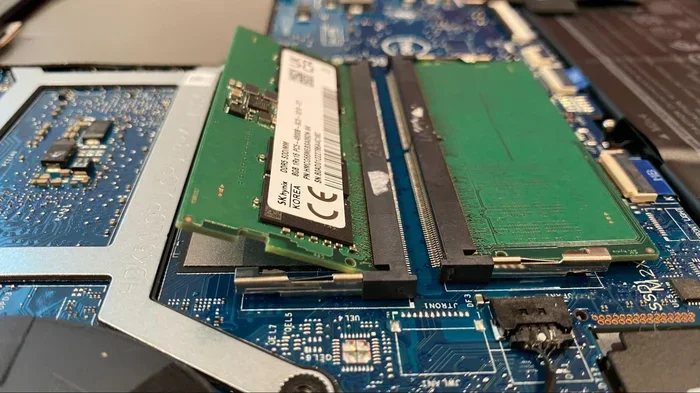
Installing RAM is straightforward, but you need to be gentle. Power off your laptop, unplug it, and ground yourself to avoid static damage. Open the back panel, locate the RAM slots, and press the new modules in at an angle until they click into place. For a full walkthrough, check out our guide on how to upgrade RAM in a laptop.
Test After Upgrading
Once you have installed the new RAM, boot up your laptop and check that everything is recognized. Use the same Task Manager or About This Mac method to confirm the new total. You should notice faster app launches and smoother multitasking right away.
Common RAM Mistakes to Avoid
Even with the best intentions, people sometimes make mistakes when it comes to laptop memory. Here are a few to watch out for.
- Buying the wrong type: Mixing DDR4 and DDR5 or mismatching speeds can cause problems.
- Ignoring RAM speed: Faster RAM can improve performance, especially for gaming and creative work.
- Overlooking dual-channel setup: Using two matching RAM sticks instead of one can boost performance.
- Thinking more RAM always means a faster laptop: RAM is only one part of the puzzle. Your processor and storage matter too.
Avoiding these mistakes saves you time, money, and frustration. Take your time and research before you buy.
Final Thoughts
So, what does the RAM do in a laptop? It handles short-term data storage and retrieval, keeping everything fast and responsive. From opening apps to multitasking between programs, RAM is the behind-the-scenes hero that makes your laptop work smoothly. Without enough of it, even the best laptop will feel sluggish and frustrating.
Understanding what the RAM does in a laptop gives you the power to make smart decisions. You can choose the right amount of RAM when buying a laptop. You can diagnose slowdowns and fix them with an upgrade. And you can get the most out of your device every single day.
If you found this guide helpful, share it with someone who is struggling with a slow laptop. And if you are ready to upgrade, check out our resources on what RAM is good for in a laptop to learn more about making the best choice for your needs.
Frequently Asked Questions
What happens when your laptop runs out of RAM?
When your laptop runs out of RAM, it starts using virtual memory from your storage drive. This is much slower than actual RAM, so your laptop will slow down significantly. Apps may crash, freeze, or take a very long time to respond. Closing unused programs can free up RAM and help restore performance.
Is 8 GB of RAM enough for a laptop in 2024?
For most everyday users, 8 GB of RAM is still a solid choice in 2024. It handles web browsing, office work, and light multitasking very well. However, if you game, edit video, or run demanding software, you will benefit from 16 GB or more.
Can I add more RAM to my laptop if it is soldered?
Some modern laptops have RAM that is soldered directly to the motherboard. This means you cannot upgrade it after purchase. Before buying a laptop, check whether the RAM is upgradeable so you can plan for your future needs.
Does RAM speed really matter for laptop performance?
RAM speed can make a difference, especially in tasks that require a lot of data processing like gaming and video editing. For everyday use, the difference is less noticeable. If you are choosing between more RAM or faster RAM, more capacity usually gives the bigger boost for most users.
How do I know if my laptop RAM is defective?
Signs of defective RAM include frequent blue screens, random crashes, and file corruption. Windows has a built-in tool called Windows Memory Diagnostic that can test your RAM for errors. You can also use third-party tools like MemTest86 for a more thorough check.
Should I upgrade RAM or buy a new laptop?
If your laptop supports RAM upgrades and the rest of the hardware is still decent, upgrading RAM is a cost-effective way to breathe new life into it. But if your laptop is old and has other hardware limitations, a new laptop might be the better long-term investment.