Upgrading Ram in a Laptop
Upgrading ram in a laptop is one of the easiest and most affordable ways to breathe new life into an aging computer. Whether you use your laptop for work, gaming, or everyday browsing, adding more memory can dramatically improve speed and multitasking. This guide walks you through everything from checking your current RAM to choosing the right upgrade and installing it yourself.
Is your laptop running slow? Do you find yourself waiting forever for apps to open or tabs to load? You are not alone. Many laptop users deal with sluggish performance every single day. The good news is that you do not need to buy a brand-new computer to fix the problem. Upgrading ram in a laptop is one of the simplest and most cost-effective upgrades you can make.
RAM, or random access memory, is the short-term memory your laptop uses to handle everyday tasks. When you open multiple browser tabs, run software, or play games, your laptop relies on RAM to keep everything running smoothly. If your current RAM is not enough, your laptop slows down and struggles to keep up. The great part? Adding more memory can make an old laptop feel like new again.
In this guide, we will walk you through everything you need to know about upgrading ram in a laptop. We will cover how to check your current memory, what type of RAM to buy, how to install it, and common mistakes to avoid. Whether you are a beginner or a bit tech-savvy, this guide has you covered.
Key Takeaways
- Faster Performance: Upgrading your RAM helps your laptop run smoother and handle more tasks at once.
- Easy Process: Most laptops allow RAM upgrades with just a screwdriver and a few simple steps.
- Cost-Effective: A RAM upgrade costs far less than buying a new laptop.
- Check Compatibility First: Not all RAM works with every laptop, so verify your specs before buying.
- Know Your Limits: Every laptop has a maximum RAM capacity, so check yours before purchasing.
- Safety Matters: Always ground yourself and handle RAM sticks carefully to avoid damage.
📑 Table of Contents
Why Upgrading Ram in a Laptop Makes Sense
Before we dive into the how-to, let us talk about why upgrading your RAM is worth your time. Many people assume they need a new laptop when things start to slow down. But more often than not, the real issue is not enough memory. Here is why a RAM upgrade makes so much sense.
Boosts Multitasking Ability
Do you like having several apps open at the same time? Maybe you keep your email, a browser with dozens of tabs, and a Word document all running together. Without enough RAM, your laptop starts to lag and freeze. More memory means your laptop can juggle multiple tasks without breaking a sweat.
Improves Speed and Responsiveness
When your laptop has enough RAM, it does not need to rely on your hard drive for temporary storage. This means apps open faster, files load quicker, and everything just feels snappier. A memory upgrade can shave seconds off every task, which adds up over a long workday.
Extends the Life of Your Laptop
Technology changes fast, but that does not mean your old laptop has to become obsolete. A RAM upgrade can keep your laptop relevant for several more years. Instead of spending hundreds or thousands on a new machine, a small investment in memory goes a long way.
Great for Gaming and Creative Work
If you use your laptop for gaming, video editing, or graphic design, you know how demanding these tasks can be. Modern games and creative software eat up memory fast. Adding more RAM helps your laptop handle heavy workloads without stuttering or crashing.
How to Know If Your Laptop Needs More RAM
Not sure if your laptop would benefit from a memory upgrade? There are a few clear signs that your laptop is running low on RAM. Watch for these warning signals.
Common Signs You Need More RAM
- Slow startup and shutdown: Your laptop takes forever to boot up or power off.
- Frequent freezing or crashing: Apps suddenly stop responding or your whole system locks up.
- High memory usage: Your task manager shows memory is almost always near full capacity.
- Slow browser performance: Opening new tabs takes ages, especially with many tabs open.
- Delayed app loading: Programs take a long time to open or switch between.
- Stuttering during multitasking: Switching between apps causes noticeable lag.
How to Check Your Current RAM
You can check how much memory your laptop currently has in just a few steps. On Windows, press Ctrl + Shift + Esc to open the Task Manager. Click the Performance tab and look for Memory. It will show you how much RAM you have and how much you are using.
On a Mac, click the Apple menu and choose About This Mac. You will see your total memory listed right there. If your laptop has 4GB or 8GB and you use it for anything beyond basic browsing, it is probably time for an upgrade. Check out our guide on how much RAM you actually need to find the right amount for your needs.
What You Need Before Upgrading RAM
Before you rush out to buy RAM, there are a few things you need to know. Not all memory is the same, and not every laptop can accept any type of RAM. Taking a few minutes to research upfront will save you time and money.
Check Your Laptop’s Maximum RAM Capacity
Every laptop has a maximum amount of RAM it can support. Some older laptops max out at 8GB, while newer ones can handle 32GB or more. You can usually find this information in your laptop’s manual or on the manufacturer’s website. Searching your laptop model number online also works well.
Know Your RAM Type
Laptops use a special type of memory module called SODIMM. Within that category, there are different generations. The most common types you will encounter are DDR4 and DDR5. DDR4 has been the standard for several years, but DDR5 is becoming more popular in newer laptops. You need to match the RAM type to what your laptop supports.
Also pay attention to RAM speed, measured in megahertz (MHz). Higher speed numbers generally mean faster performance, but your laptop can only use the speed it supports. Mixing different speeds can cause the faster stick to run at the slower speed.
Check Your Available Memory Slots
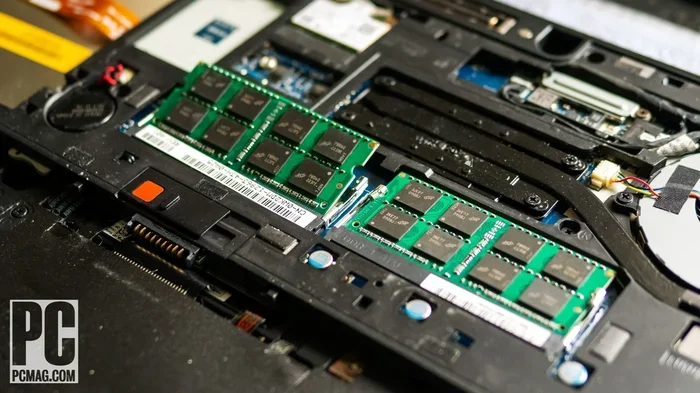
Laptops come with a certain number of RAM slots. Some have one slot, others have two. If your laptop already has a stick installed and has only one slot, you will need to replace the existing RAM rather than add a second stick. If there are two empty slots, you can simply add new memory. Learn more about how much RAM your laptop can hold before making a purchase.
Gather Your Tools
The good news is that upgrading RAM requires very few tools. You will need a small Phillips-head screwdriver, an anti-static wrist strap (optional but recommended), and a clean, flat workspace. That is it. No special equipment or technical skills required.
Step-by-Step Guide to Upgrading RAM in Your Laptop
Now for the fun part. Installing RAM in a laptop is straightforward and most people can do it in under 30 minutes. Follow these steps carefully and you will have your new memory up and running in no time.
Step 1: Back Up Your Data
Before you open up your laptop, make sure your important files are backed up. While upgrading RAM is very safe and should not affect your data, it is always better to be safe than sorry. Use an external hard drive or a cloud service to save anything important.
Step 2: Power Down and Unplug
Turn off your laptop completely. Unplug the power cable and remove any external devices like USB drives or mice. If your laptop has a removable battery, take it out. This ensures there is no power flowing through the system while you work.
Step 3: Ground Yourself
Static electricity can damage sensitive electronic components. Touch a metal surface, like a doorknob or the metal part of your laptop casing, to discharge any static. For extra protection, wear an anti-static wrist strap connected to a grounded surface.
Step 4: Open the Laptop Back Panel
Flip your laptop over and locate the screws holding the back panel in place. Use your screwdriver to carefully remove them. Keep the screws in a safe spot so you do not lose them. Gently pry off the back panel using a plastic spudger or your fingernail.
Step 5: Locate the RAM Slots
Once the back panel is off, you should see the RAM slots. They are long, thin slots with small clips on either side. Your existing RAM stick(s) will be sitting in these slots if you already have memory installed.
Step 6: Remove the Old RAM (If Needed)
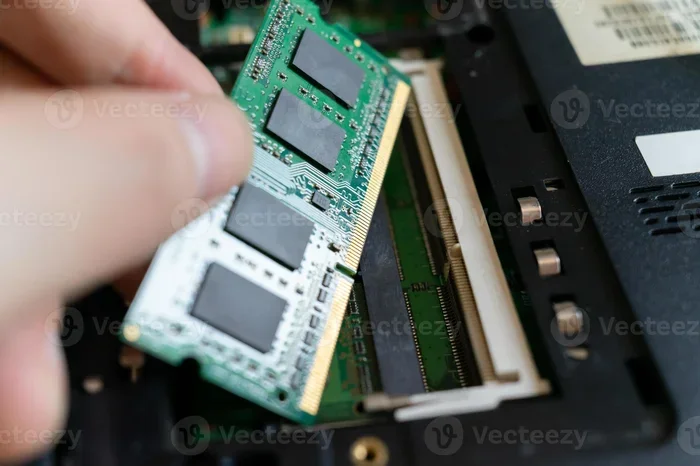
If you need to replace existing RAM, gently push the clips on either side of the stick outward. The RAM will pop up at an angle. Carefully pull it straight out of the slot. Handle the RAM by the edges and avoid touching the gold contacts on the bottom.
Step 7: Insert the New RAM
Take your new RAM stick and align the notch on the bottom with the ridge in the slot. Push the RAM firmly and evenly into the slot at a 45-degree angle. You will feel it click into place when it is seated correctly. Then gently push the stick down flat until the side clips snap back into place.
Step 8: Close Up and Test
Replace the back panel and screw it back in. Reconnect the battery if you removed it. Plug in your power cable and turn on the laptop. Once it boots up, check your RAM again in the Task Manager or About This Mac screen. It should now show the new total amount of memory.
If you run into any issues, try reseating the RAM or checking that it is fully clicked in. Our detailed guide on putting RAM in a laptop offers additional tips for a smooth installation.
Common Mistakes to Avoid When Upgrading RAM
Even though upgrading RAM is relatively simple, there are a few mistakes that can cause problems. Here is what to watch out for.
Buying the Wrong RAM Type
This is the most common mistake. Not all RAM works with all laptops. Make sure you know whether your laptop needs DDR4 or DDR5, and check the form factor (SODIMM for laptops). Buying the wrong type means the RAM simply will not fit or work.
Ignoring Maximum Capacity
Your laptop can only support a certain amount of RAM. Buying a 32GB stick when your laptop only supports 16GB is a waste of money. Always check your laptop’s maximum capacity before purchasing.
Not Seating the RAM Properly
If the RAM is not fully clicked into place, your laptop may not recognize it or may run into errors. Always listen for the click and make sure the side clips are securely locked.
Forgetting to Ground Yourself
Static discharge can fry your RAM or other components. Always ground yourself before touching any internal parts. It takes five seconds and could save you a lot of trouble.
Mixing Incompatible RAM Sticks
While it is possible to use two different RAM sticks, they should ideally match in type, speed, and size. Mixing mismatched RAM can lead to instability and performance issues. When possible, use identical sticks for the best results.
How Much Does It Cost to Upgrade RAM?
One of the best things about upgrading RAM is how affordable it is. You do not need to break the bank to get a noticeable performance boost. Here is a rough idea of what to expect.
An 8GB DDR4 SODIMM stick typically costs between $20 and $40. A 16GB stick usually runs $40 to $70. If your laptop supports dual-channel memory, buying a matched pair of 8GB sticks can give you a small performance edge over a single 16GB stick.
Compare that to the cost of a new laptop, which can easily run $500 or more. A RAM upgrade delivers excellent value for the price. Your old laptop will feel faster and more capable, and you saved hundreds of dollars in the process.
When Upgrading RAM Is Not Enough
While upgrading RAM solves many performance issues, it is not a magic fix for every problem. If your laptop still feels slow after adding more memory, the bottleneck might be elsewhere. A slow hard drive, an outdated processor, or too many background programs can all cause sluggish performance.
In these cases, consider other upgrades like switching to a solid-state drive (SSD) or closing unnecessary startup programs. Sometimes a combination of upgrades works best. But for most users, adding RAM makes a huge and immediate difference.
Final Thoughts
Upgrading ram in a laptop is one of the best investments you can make for your computer. It is affordable, straightforward, and delivers real results. Whether you are struggling with slow performance, frequent freezing, or simply want to get more out of your machine, a RAM upgrade can transform your experience.
Take the time to check your laptop’s specs, buy the right type of memory, and follow the installation steps carefully. You do not need to be a tech expert to do this. With a screwdriver and about 30 minutes, you can give your laptop a second life.
So go ahead and give it a try. Your laptop will thank you for it, and you will wonder why you did not do it sooner.
Frequently Asked Questions
Can I upgrade the RAM in any laptop?
Not all laptops allow RAM upgrades. Some ultrabooks and thin laptops have soldered memory that cannot be replaced. Check your laptop’s manual or look up your model online to confirm whether your RAM is upgradeable.
How do I know which RAM to buy for my laptop?
Check your laptop’s specifications for the RAM type (DDR4 or DDR5), form factor (SODIMM), and maximum capacity. You can also use free tools like Crucial’s System Scanner to find compatible RAM for your specific model.
Will upgrading RAM void my laptop warranty?
This depends on your manufacturer and warranty terms. Some warranties cover user-installed parts, while others do not. Check your warranty documentation or contact the manufacturer before opening your laptop.
How long does it take to upgrade RAM in a laptop?
Most people complete a RAM upgrade in 15 to 30 minutes. The actual installation is quick, though you may spend extra time researching compatibility or backing up your data beforehand.
Is 8GB of RAM enough for everyday use?
8GB works well for basic tasks like web browsing, email, and document editing. However, if you multitask frequently or use demanding applications, 16GB or more will provide a much smoother experience.
Can I mix old and new RAM sticks in my laptop?
Yes, you can mix RAM sticks, but they should ideally match in type, speed, and size. Mismatched RAM can still work, but it may run at the slower stick’s speed or cause minor compatibility issues in some cases.