How to Increase My Laptop Ram
Want to know how to increase my laptop ram? This guide walks you through everything from checking your current RAM to buying the right upgrade and installing it yourself. You will learn the simple steps to boost your laptop speed, avoid common mistakes, and get the most out of your machine without spending a fortune.
Is your laptop running slow? Do you find yourself waiting forever for apps to open or tabs to load? The answer might be simpler than you think. How to increase my laptop ram is one of the easiest and most affordable ways to breathe new life into an aging machine. RAM, or random access memory, is the short-term memory your laptop uses to handle everything you do. More RAM means smoother multitasking, faster app launches, and fewer frustrating freezes.
Whether you use your laptop for work, school, gaming, or just browsing the web, upgrading your RAM can make a noticeable difference. In this guide, we will walk you through every step of the process. You will learn how to check your current memory, find compatible upgrades, and install them yourself. No tech degree required. Let us get started.
Key Takeaways
- Check compatibility first: Not all laptops allow RAM upgrades. Confirm your model supports expandable memory before buying anything.
- Know your current RAM: Use built-in Windows tools or software to see how much RAM you have and what type it is.
- Buy the right RAM type: DDR4 and DDR5 are the most common types. Match the speed and form factor to your laptop.
- Installation is simpler than you think: With a screwdriver and a little patience, you can upgrade RAM at home in under 30 minutes.
- Avoid common mistakes: Do not mix different RAM speeds, and always ground yourself to prevent static damage.
- More RAM means better multitasking: Upgrading RAM can dramatically improve performance for work, gaming, and creative tasks.
📑 Table of Contents
- Why Increasing Laptop RAM Matters
- How to Check Your Current RAM
- Can Your Laptop Be Upgraded?
- How to Choose the Right RAM for Your Laptop
- Step-by-Step Guide to Increasing Your Laptop RAM
- How Much Does It Cost to Upgrade Laptop RAM?
- Common Mistakes to Avoid When Upgrading Laptop RAM
- The Benefits of Upgrading Your Laptop RAM
- When to Consider Other Upgrades Instead
- Conclusion
Why Increasing Laptop RAM Matters
Before you dive into the how-to, it helps to understand why RAM matters so much. Think of RAM as your laptop’s short-term workbench. When you open a program, a browser with multiple tabs, or a game, your laptop pulls data from your storage drive and places it on this workbench for quick access. The more space you have on that workbench, the more things you can handle at once without slowdowns.
When your RAM fills up, your laptop starts swapping data back to the storage drive, which is much slower. This causes the lag, stuttering, and freezing you experience. Upgrading your RAM gives you a bigger workbench, so everything runs smoother. If your laptop feels sluggish, increasing your RAM is often the single best fix.
Signs Your Laptop Needs More RAM
Not sure if your laptop is running low on memory? Watch for these telltale signs:
- Apps take a long time to open or respond.
- Your browser slows down with more than a few tabs open.
- Your laptop freezes or crashes when you switch between programs.
- You hear the hard drive working constantly even when you are not doing anything heavy.
- Video playback stutters or skips.
- Your system uses a high percentage of memory even at idle.
If you notice these issues, it is worth checking your current RAM and considering an upgrade. You can check your laptop RAM using built-in Windows tools or third-party software before making any purchase decisions.
How to Check Your Current RAM
Before you buy any new memory, you need to know what you currently have. This tells you how much room you have to grow and what type of RAM your laptop uses.
Using Windows Task Manager
The easiest way to check your RAM on a Windows laptop is through Task Manager:
- Press Ctrl + Shift + Esc to open Task Manager.
- Click on the Performance tab.
- Select Memory from the left sidebar.
- Look at the total amount of RAM listed and the type (DDR4, DDR5, etc.).
This gives you a quick snapshot of your current memory. You will also see how many RAM slots are in use and how many are free. If all slots are occupied, you will need to replace existing modules rather than add new ones.
Using System Information
For more detailed specs, you can also check your system information:
- Press the Windows key and type “System Information.”
- Open the app and look for “Installed Physical Memory (RAM).”
- This shows the total amount of RAM installed on your laptop.
Knowing your current setup helps you decide whether a full replacement or a simple addition makes sense. If you want a deeper look at your memory specs, you can also check my laptop ram using dedicated diagnostic tools that give you speed, timings, and slot information.
Can Your Laptop Be Upgraded?
Not every laptop allows RAM upgrades. Many modern ultrabooks and thin laptops have soldered RAM that cannot be replaced. Before you spend money, confirm that your laptop supports expandable memory.
How to Find Out If Your Laptop Supports RAM Upgrades
Here are a few ways to check:
- Check the manufacturer’s website: Look up your laptop model and check the specifications. The specs will list whether RAM is user-upgradeable.
- Check how many RAM slots are available: If your laptop has a second free slot, you can add more memory easily.
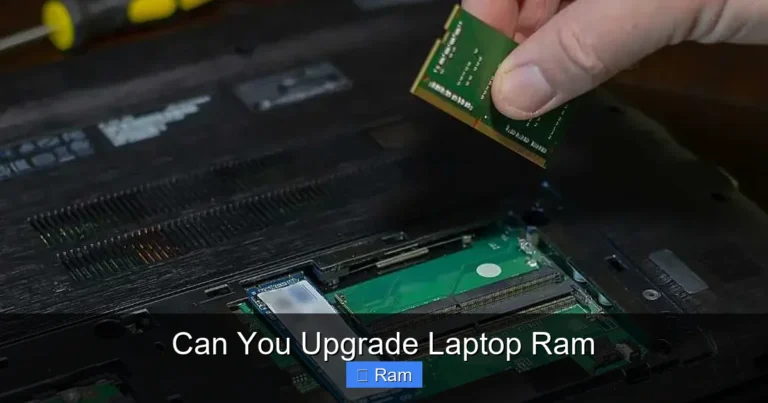
- Open the back panel: If you are comfortable doing so, remove the bottom cover and visually inspect the RAM slots. You can see if there is an empty slot or if the existing modules can be swapped out for higher-capacity ones.
- Use a system scanner tool: Tools like Crucial’s System Scanner or Kingston’s memory guide can automatically detect your laptop model and recommend compatible upgrades.
If your laptop has soldered RAM, unfortunately, you cannot upgrade it. In that case, you may want to explore other performance boosters like switching to an SSD or optimizing your software. But for most standard laptops, upgrading RAM is absolutely possible and highly rewarding.
How to Choose the Right RAM for Your Laptop
Once you confirm your laptop supports upgrades, the next step is buying the right memory. This is where many people get confused, so let us break it down simply.
Understanding RAM Types
Laptops use a specific type of memory called SO-DIMM (Small Outline Dual In-Line Memory Module). The two most common types you will encounter are:
- DDR4 RAM: The current standard for most laptops released in the last several years. It offers a great balance of speed and affordability.
- DDR5 RAM: The newer standard that is starting to appear in premium laptops. It is faster but also more expensive.
Make sure you buy the correct type. DDR4 and DDR5 are not interchangeable. Check your laptop’s manual or use a compatibility tool to confirm which type you need.
How Much RAM Do You Actually Need?
The right amount of RAM depends on how you use your laptop:
- 4GB: Basic tasks like web browsing and document editing. This is the bare minimum and often feels limiting.
- 8GB: The sweet spot for everyday use, including light multitasking and casual gaming.
- 16GB: Ideal for heavy multitasking, video editing, programming, and modern gaming.
- 32GB or more: Best for professional creative work, heavy data processing, and demanding applications.
If you are unsure, finding the right RAM amount for your usage is a great first step. Most users will see a huge improvement by going from 4GB or 8GB to 16GB.
Matching RAM Speed and CAS Latency
RAM speed is measured in megahertz (MHz), and lower CAS latency is generally better. When upgrading, try to match the speed of your existing RAM if you are adding to it. Mixing different speeds can cause both modules to run at the slower speed. If you are replacing all your RAM, feel free to choose the fastest option your laptop supports.
Step-by-Step Guide to Increasing Your Laptop RAM
Now for the part you have been waiting for. Here is how to actually install new RAM in your laptop. Do not worry. It is much easier than it sounds.
What You Will Need
- A small Phillips-head screwdriver.
- The new RAM module(s) compatible with your laptop.
- A clean, flat workspace.
- An anti-static wrist strap (optional but recommended).
Step 1: Power Down and Unplug
Turn off your laptop completely. Unplug the power adapter and disconnect any external devices. Remove the battery if your laptop has a removable one. This ensures safety while you work inside the machine.
Step 2: Open the Back Panel
Flip your laptop over and locate the screws holding the bottom panel. Use your screwdriver to carefully remove them. Keep the screws in a safe place. Gently pry off the panel using a plastic spudger or your fingernail. Avoid using metal tools that could scratch the chassis.
Step 3: Locate the RAM Slots
Once the panel is off, you will see the internal components. The RAM slots are long, thin slots near the center of the motherboard. They are held in place by small clips on each end.
Step 4: Remove Old RAM (If Necessary)
If you need to replace existing RAM, gently push the clips on both sides of the module outward. The RAM stick will pop up at an angle. Carefully pull it straight out of the slot.
Step 5: Install the New RAM
Align the notch on the new RAM module with the ridge in the slot. Insert the module at a 30-degree angle and press it down firmly until the clips on both sides snap into place. You should hear a click when it is fully seated.
If you are adding RAM to an empty slot, the process is the same. Just make sure the module is firmly seated and the clips are locked.
For a brand-specific walkthrough, you can follow our detailed guide on how to install RAM in an HP laptop if you have an HP model.
Step 6: Close Up and Test
Replace the bottom panel and screw it back in. Reconnect the battery and power adapter. Turn on your laptop. Once it boots up, check Task Manager or System Information to confirm the new RAM is recognized. Your laptop should now feel noticeably faster.
Quick Tips for a Smooth Installation
- Ground yourself by touching a metal surface before handling RAM to prevent static damage.
- Handle RAM modules by the edges, not the gold contacts.
- Do not force the module into the slot. If it does not fit, double-check the alignment.
- Take photos before disassembling so you can remember how everything goes back together.
How Much Does It Cost to Upgrade Laptop RAM?
One of the best things about upgrading RAM is how affordable it is compared to buying a new laptop. The cost depends on the type and amount of RAM you need.
| RAM Type | Capacity | Approximate Cost (USD) |
|---|---|---|
| DDR4 SO-DIMM | 8GB | $15 – $25 |
| DDR4 SO-DIMM | 16GB | $25 – $45 |
| DDR4 SO-DIMM | 32GB | $50 – $80 |
| DDR5 SO-DIMM | 16GB | $40 – $60 |
| DDR5 SO-DIMM | 32GB | $70 – $110 |
As you can see, a basic 8GB or 16GB upgrade costs very little. For most users, adding a single 16GB DDR4 module for under $40 can transform the experience of using their laptop. Compare that to the hundreds or thousands you would spend on a new machine. Upgrading your laptop RAM is one of the best value upgrades you can make.
If you are considering a specific upgrade path like moving from 4GB to 16GB, you can check compatibility and options for that scenario at can i upgrade my laptop ram from 4gb to 16gb.
Common Mistakes to Avoid When Upgrading Laptop RAM
Upgrading RAM is straightforward, but a few common mistakes can cause problems. Here is what to watch out for:
- Buying the wrong RAM type: DDR3, DDR4, and DDR5 are not compatible with each other. Always double-check your laptop’s requirements before purchasing.
- Mixing RAM speeds: If you already have RAM installed, adding a module with a different speed will cause both to run at the slower speed. Try to match the existing RAM for best results.
- Forcing the module: RAM should slide in smoothly with moderate pressure. If it does not fit, do not force it. Realign and try again.
- Forgetting to reseat the panel: Make sure the bottom cover is securely fastened before powering on. A loose panel can cause rattling or even damage.
- Skipping the grounding step: Static electricity can damage sensitive components. Always touch a grounded metal surface before handling RAM modules.
Avoiding these simple mistakes ensures your upgrade goes smoothly and your new RAM performs as expected.
The Benefits of Upgrading Your Laptop RAM
Once you complete your RAM upgrade, you will likely notice an immediate improvement in daily use. Here are some of the key benefits:
- Faster multitasking: Switch between apps, browser tabs, and windows without lag.
- Smoother gaming: Many games require at least 16GB of RAM to run well. An upgrade can mean the difference between playable and frustrating.
- Better video editing and rendering: Creative workloads demand a lot of memory. More RAM means faster exports and smoother playback.
- Longer laptop lifespan: Instead of replacing an old laptop, a RAM upgrade can extend its useful life by several years.
- Improved battery efficiency: When your laptop does not struggle to handle tasks, it uses less processing power, which can translate to better battery life.
Upgrading RAM is a quick, affordable fix that delivers real, tangible results. If your laptop has been feeling slow, this is one of the first things you should try.
When to Consider Other Upgrades Instead
While RAM upgrades are excellent, they are not the only way to speed up a laptop. If your RAM is already sufficient (16GB or more) but your laptop is still slow, consider these alternatives:
- Upgrading to an SSD: If you are still using a traditional hard drive, switching to a solid-state drive is the single biggest speed boost you can give your laptop.
- Cleaning up software: Uninstall unused programs, disable startup apps, and clear temporary files to free up system resources.
- Replacing thermal paste: Over time, thermal paste dries out, causing your laptop to overheat and throttle performance. A fresh application can cool things down.
- Checking for malware: Malicious software can consume massive amounts of memory and CPU in the background.
Sometimes the slowdown is not about RAM at all. Running a diagnostic can help you pinpoint the real cause of performance issues.
Conclusion
Learning how to increase my laptop ram is one of the most rewarding DIY tech projects you can tackle. It costs very little, takes less than 30 minutes, and delivers an immediate performance boost. Whether you are a student, a professional, or a casual user, extra RAM makes your laptop feel faster and more responsive.
Start by checking your current memory and confirming your laptop supports upgrades. Then, buy the right type and amount of RAM, follow our simple installation steps, and enjoy the results. With just a small investment, you can extend the life of your laptop and skip the expense of buying a new one.
Do not let a slow laptop hold you back. Take action today and give your machine the memory boost it deserves. Your future self will thank you every time you open your laptop and everything just works.
Frequently Asked Questions
Can I upgrade my laptop RAM myself?
Yes, upgrading laptop RAM is one of the simplest DIY tech tasks. You only need a small screwdriver and about 15 to 30 minutes. Just make sure you buy the right type of RAM for your laptop model, open the back panel, and carefully install the new module. Most laptops make the RAM slots easily accessible.
How do I know if my laptop RAM is upgradeable?
Check your laptop manufacturer’s website for your specific model’s specifications. Look for information about RAM slots, maximum supported capacity, and whether the RAM is soldered or removable. You can also open the back panel and visually inspect the motherboard to see if there is an empty slot or room for a replacement module.
What happens if I install the wrong type of RAM?
If you install RAM that is not compatible with your laptop, it simply will not work. The laptop may not boot, or the system will not recognize the new module. Always verify the RAM type (DDR4 or DDR5), form factor (SO-DIMM), speed, and maximum supported capacity before making a purchase.
Does adding more RAM make a laptop faster?
Yes, adding more RAM can significantly speed up your laptop, especially if you are currently running low on memory. More RAM allows your laptop to handle more tasks simultaneously without slowing down. However, if your RAM is already sufficient, adding more may not produce a noticeable difference.
Is it better to add RAM or replace it entirely?
If your laptop has free RAM slots, adding new modules is the easiest option. If all slots are filled, you will need to replace the existing modules with higher-capacity ones. Replacing all RAM at once also lets you switch to a faster generation if your laptop supports it.
How much RAM do most laptops need in 2024?
For most users in 2024, 16GB of RAM is the recommended sweet spot. It handles everyday tasks, multitasking, light gaming, and creative work with ease. Power users and gamers may benefit from 32GB, while casual users can get by with 8GB for basic browsing and office tasks.