How to Increase My Ram on My Laptop

Learning how to increase my RAM on my laptop is one of the easiest ways to boost system performance and multitasking ability. Whether your laptop feels slow or you simply need more memory for demanding tasks, adding RAM can make a noticeable difference. This guide covers everything from checking your current memory to choosing the right upgrade and installing it yourself. You will learn practical steps, common mistakes to avoid, and when to seek professional help.
Your laptop deserves to run faster and smoother. If you have ever noticed your computer lagging while you have several tabs open or you are trying to run a heavy application, the answer might be simple. Learning how to increase my RAM on my laptop can transform your daily computing experience. More memory means your system can handle more tasks at once without slowing down. This guide walks you through every step of the process in plain, easy-to-follow language.
Whether you are a student, a professional, or someone who just wants a better-performing machine, increasing your laptop RAM is one of the most effective upgrades you can make. The process is simpler than most people think, and the results are immediate. You will discover how to check your current memory, choose the right upgrade, and install it yourself. Let us get started.
Before diving into the steps, it helps to understand what RAM does and why it matters so much for your laptop. Random Access Memory, or RAM, is the short-term memory your computer uses to handle active tasks. When you open a program, browse the web, or edit a document, your laptop pulls data into RAM for quick access. The more RAM you have, the more tasks your laptop can manage at the same time without slowing down. Think of it as your computer’s workspace. The bigger the workspace, the more projects you can spread out and work on at once. When your RAM fills up, your laptop starts using your hard drive as a temporary substitute, which is much slower. This is why your computer feels sluggish when you have too many programs open.
Key Takeaways
- Check your current RAM first: Knowing your existing memory helps you decide how much more you need.
- Physical RAM upgrades deliver the best results: Adding DDR4 or DDR5 modules gives your laptop a real speed boost.
- Virtual memory can help temporarily: Using your hard drive as extra memory is useful when you cannot add physical RAM.
- Compatibility matters: Always verify your laptop model supports the RAM type and capacity you want.
- Professional help is available: If you are not comfortable opening your laptop, a technician can handle the upgrade for you.
- More RAM improves multitasking: Running multiple apps at once becomes smoother with increased memory.
📑 Table of Contents
Understanding RAM and Why You Need More
RAM plays a critical role in how fast your laptop performs. Every time you click on an app, open a file, or load a webpage, your laptop uses RAM to store that data temporarily. Without enough RAM, your system has to constantly swap data back and forth between memory and storage. This process, known as virtual memory or using a swap file, can dramatically slow down your laptop. Adding more RAM reduces the need for this swapping and keeps everything running smoothly.
Modern laptops typically come with 4GB, 8GB, or 16GB of RAM. If your laptop has 4GB, you will likely notice performance issues with today’s software demands. For most users, 8GB is the minimum for comfortable use, and 16GB or more is ideal for gaming, video editing, or running multiple applications at once. The RAM speed and RAM capacity of your modules also affect how quickly your laptop can access and process data. Faster RAM modules, such as DDR4 and DDR5, provide better laptop performance and smoother system performance during demanding tasks.
What Does RAM Do for Your Laptop?
Every time you click on an app, open a file, or load a webpage, your laptop uses RAM to store that data temporarily. Without enough RAM, your system has to constantly swap data back and forth between memory and storage. This process, known as virtual memory or using a swap file, can dramatically slow down your laptop. Adding more RAM reduces the need for this swapping and keeps everything running smoothly.
Modern laptops typically come with 4GB, 8GB, or 16GB of RAM. If your laptop has 4GB, you will likely notice performance issues with today’s software demands. For most users, 8GB is the minimum for comfortable use, and 16GB or more is ideal for gaming, video editing, or running multiple applications at once. The RAM speed and RAM capacity of your modules also affect how quickly your laptop can access and process data. Faster RAM modules, such as DDR4 and DDR5, provide better laptop performance and smoother system performance during demanding tasks.
How Much RAM Do You Really Need?
The right amount of RAM depends on how you use your laptop. For basic tasks like web browsing, email, and document editing, 8GB is usually enough. If you work with photo editing software, light video editing, or multiple browser tabs, 16GB will give you a much better experience. For heavy tasks like 3D rendering, gaming, or running virtual machines, 32GB or more may be necessary.
If you are not sure what your needs are, you can check out our guide on how much RAM do I need to find the right amount for your usage. Understanding your needs helps you avoid overspending on memory you do not need or underinvesting in RAM that will leave you frustrated.
How to Check Your Current RAM
Before you buy or install any new memory, you need to know what you currently have. Checking your existing RAM is quick and easy, and it helps you understand exactly how much more you need to add. Knowing your current setup also prevents you from buying RAM that is incompatible with your system.
Checking RAM on Windows
On a Windows laptop, you can check your RAM in just a few clicks. Right-click on the taskbar and select Task Manager. Click on the Performance tab, and then select Memory. You will see your total RAM, how much is currently in use, and how many RAM slots are available on your system. Another way is to go to Settings, then System, and select About. This will show you the installed RAM and your processor type.
Knowing this information is essential before you purchase any upgrade. You can also learn how to check the RAM on my laptop using dedicated tools that give you detailed information about your current memory configuration. These tools show you the RAM type, speed, and how many slots are free and ready for an upgrade.
Checking RAM on macOS
For Mac users, checking RAM is equally simple. Click the Apple menu and select About This Mac. A window will appear showing your total memory, the type of RAM installed, and the speed. If you need more detailed information, you can use built-in tools like System Information or third-party apps designed for Mac memory analysis. Understanding your current setup ensures you choose the right upgrade path.
Ways to Increase RAM on Your Laptop
There are two main approaches to increasing your laptop RAM. The first involves adding physical memory modules, and the second uses software-based methods. Each approach has its benefits, and the best choice depends on your laptop model, budget, and needs.
Option 1: Upgrade Physical RAM
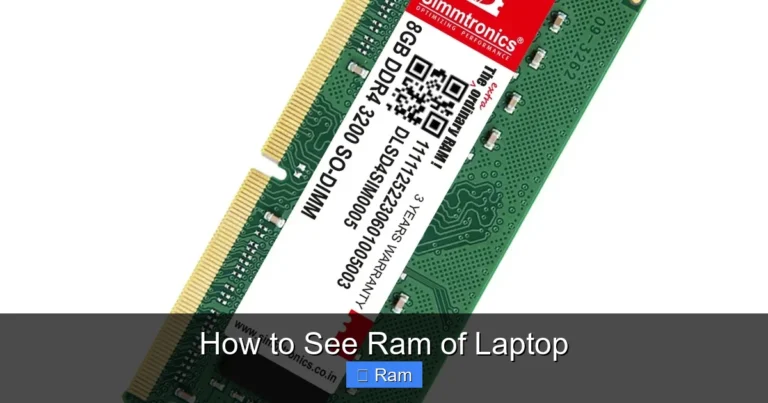
The most effective way to boost your laptop memory is to add physical RAM modules. This is what people usually mean when they talk about a laptop memory upgrade or RAM upgrade. You purchase compatible memory sticks and install them into the available RAM slots on your laptop’s motherboard. Physical RAM upgrades offer the best performance gains. Unlike virtual memory, which relies on your slower hard drive, physical RAM provides fast, direct access to data. If you want the fastest and most reliable improvement in performance, this is the route to take.
Before buying any RAM, you need to verify a few things. Check your laptop manual or the manufacturer’s website to find out what type of RAM your laptop supports. Look for details like DDR4 or DDR5, the maximum capacity per slot, and how many free slots you have. You can also find this information using system tools or by running a diagnostic check. If you are looking for a reliable upgrade path, consider upgrading RAM on a laptop with compatible DDR4 or DDR5 modules from reputable brands. This ensures you get the best performance and longevity from your investment.
When shopping for RAM, pay attention to the compatible RAM for your specific laptop model. Not all RAM sticks work with all laptops. Check the form factor, such as SO-DIMM for most laptops, and verify the voltage requirements. The maximum RAM your laptop can support is also listed in the manufacturer’s specifications. Staying within these limits ensures a smooth and stable upgrade.
Option 2: Use Virtual Memory
If your laptop does not have any free RAM slots or you cannot afford a physical upgrade right now, you can use virtual memory as a temporary solution. Virtual memory uses a portion of your hard drive or SSD to simulate additional RAM. While it is much slower than physical RAM, it can help prevent crashes and slowdowns when your memory is full.
On Windows, you can adjust virtual memory settings by going to Settings, then System, then About, and clicking on Advanced System Settings. Under the Performance section, click Settings, then go to the Advanced tab and adjust the virtual memory size. On macOS, virtual memory is managed automatically through a feature called swap, but you can free up disk space to improve its effectiveness.
Keep in mind that virtual memory should be a backup plan, not a permanent solution. It cannot match the speed of physical RAM, and relying too heavily on it can wear out your storage drive over time. For a more permanent fix, consider adding more RAM on your laptop whenever possible. Physical RAM will always outperform virtual memory in speed and reliability.
Step-by-Step Guide to Adding RAM
If you have decided to upgrade your physical RAM, here is a step-by-step guide to help you through the process. Do not worry if you have never opened a laptop before. With the right tools and a little patience, most people can complete this upgrade in under 30 minutes.
Step 1: Gather Your Tools
You will need a small Phillips-head screwdriver, an anti-static wrist strap (optional but recommended), and your new RAM modules. Make sure the RAM you purchased matches your laptop’s specifications, including the type, speed, and capacity. Having everything ready before you start will make the process smooth and stress-free.
Step 2: Power Down and Unplug
Shut down your laptop completely and unplug it from the power source. Remove the battery if your laptop has a removable one. This is important for safety and to prevent any damage to your components. Working on a powered-off laptop eliminates the risk of electric shock or short circuits.
Step 3: Open the Laptop Back Panel
Locate the screws on the bottom of your laptop and carefully remove them. Keep the screws in a safe place, ideally in a small container. Gently pry off the back panel using a plastic prying tool or your fingernail. Avoid using metal tools, as they can scratch or damage the laptop casing.
Step 4: Locate the RAM Slots
Once the back panel is off, you should see the RAM slots. They are long, thin slots with small clips on each end. If your laptop has existing RAM sticks, they will be seated in these slots. Identify which slots are free and ready for new modules. Some laptops have all slots occupied, while others have one or two free slots available for expansion.
Step 5: Install the New RAM
Align the notch on the new RAM stick with the ridge in the slot. Gently push the RAM into the slot at a 30-degree angle until you hear a click. The clips on each end should snap inward to secure the module. Repeat this process for any additional RAM sticks. Do not force the RAM. If it does not fit, double-check the alignment and try again.
Step 6: Close Up and Test
Replace the back panel and screw it back in. Reconnect the battery and power on your laptop. Once it boots up, check your RAM to confirm the new memory is recognized. On Windows, you can go back to Task Manager or Settings to see the updated total. Your laptop should now run faster and handle more tasks with ease. This is one of the most satisfying upgrades you can do on your own.
Common Mistakes to Avoid When Upgrading RAM
While upgrading RAM is straightforward, there are a few common mistakes that can cause problems. Avoiding these pitfalls will save you time, money, and frustration.
- Buying incompatible RAM: Not all RAM works with all laptops. Always double-check the type, speed, and maximum capacity supported by your model before purchasing.
- Forgetting to ground yourself: Static electricity can damage sensitive components. Use an anti-static wrist strap or touch a metal surface before handling RAM modules.
- Forcing the RAM into the slot: RAM should slide in with gentle, steady pressure. If it does not fit, double-check the alignment and try again.
- Ignoring existing RAM: Some laptops have RAM soldered to the motherboard and cannot be upgraded. Check your laptop specifications before buying new memory.
- Mixing different RAM types: Avoid combining DDR4 and DDR5 RAM or RAM with different speeds. Use matching modules for the best performance and stability.
These mistakes are easy to avoid with a little research and care. Taking the time to verify compatibility and handle components properly will ensure a smooth and successful upgrade. The memory upgrade benefits are well worth the effort, giving you a faster and more responsive laptop for years to come.
When to Consider Professional Help
While many laptop users can upgrade their RAM on their own, there are situations where professional help makes sense. If your laptop has a sealed or non-removable back panel, opening it may void your warranty. Some modern laptops are designed to be difficult to disassemble, with small screws and fragile connectors that require expertise.
If you are not comfortable working with internal computer components, there is no shame in seeking help. Many electronics repair shops and authorized service centers offer RAM upgrade services for a reasonable fee. The cost is typically much lower than the price of the RAM itself, and you gain peace of mind knowing the job is done correctly.
Additionally, if you are unsure about which RAM to buy, a professional can help you choose the right module for your specific laptop model. They can also test your system after the upgrade to make sure everything is working properly. This is especially helpful if you want to ensure you are getting the full memory upgrade benefits from your new RAM.
Conclusion
Increasing the RAM on your laptop is one of the most impactful upgrades you can make. It is affordable, relatively simple, and delivers immediate improvements in speed and multitasking ability. Whether you choose to upgrade physical RAM or use virtual memory as a temporary solution, the key is to take action based on your specific needs.
Start by checking your current memory, then determine how much more you need. Choose compatible RAM, follow the installation steps carefully, and avoid common mistakes. If you are not comfortable doing it yourself, professional help is always available. With more RAM, your laptop will feel faster, more responsive, and ready to handle whatever tasks you throw at it. Learning how to increase my RAM on my laptop is a skill that pays off every single day you use your computer.
Do not let a slow laptop hold you back. Take control of your system’s performance today and enjoy the difference that increased memory makes. Your laptop will thank you with smoother operation, faster load times, and the ability to handle even the most demanding workloads without breaking a sweat.
Frequently Asked Questions
Can I increase my RAM without buying new modules?
Yes, you can use virtual memory as a temporary solution. This uses a portion of your hard drive to simulate extra RAM. However, it is much slower than physical RAM and should only be used as a stopgap until you can install actual memory modules.
How do I know if my laptop RAM is upgradeable?
Check your laptop manual or the manufacturer’s website for specifications. Look for information about RAM slots, maximum capacity, and whether the RAM is soldered or removable. You can also use system tools to see how many free slots are available for an upgrade.
What happens if I install the wrong type of RAM?
Installing incompatible RAM can cause your laptop to fail to boot or run unstable. Always verify the RAM type, speed, voltage, and form factor before purchasing. If you are unsure, consult your laptop’s specifications or seek professional advice.
Is it better to upgrade RAM or buy a new laptop?
For most laptops that are a few years old, upgrading RAM is a cost-effective way to breathe new life into your machine. A RAM upgrade is significantly cheaper than buying a new laptop and can deliver noticeable performance improvements for everyday tasks.
How long does a RAM upgrade take?
A RAM upgrade typically takes between 15 and 30 minutes if you are comfortable working with your laptop’s internals. The process involves opening the back panel, inserting the new modules, and closing everything back up. Even beginners can complete it with a little patience.
Will more RAM improve my laptop’s battery life?
More RAM can indirectly improve battery life by reducing the need for your laptop to use virtual memory, which puts extra load on your storage drive. However, the primary benefit of more RAM is faster performance and smoother multitasking rather than extended battery life.