Adding Extra Ram to Laptop
Adding extra RAM to your laptop is one of the easiest and most affordable ways to speed up your computer. Whether you are running slow apps or juggling too many tabs, a memory upgrade can make a huge difference. This guide walks you through everything you need to know, from checking your current RAM to choosing the right modules and installing them safely.
Is your laptop running slow? Do you find yourself waiting forever for apps to open or tabs to load? You are not alone. Many people deal with sluggish computers every day. The good news is that you do not need to buy a brand new machine. Sometimes, all you need is a simple adding extra RAM to laptop upgrade. It costs very little, takes just a few minutes, and can breathe new life into an old device.
RAM stands for Random Access Memory. Think of it as your laptop’s short-term memory. When you open programs, browse the web, or edit files, your computer uses RAM to handle all those tasks. If your RAM is full, your laptop starts using your hard drive as a backup. This makes everything slower. By adding extra RAM, you give your computer more space to work with. The result? Faster speeds, smoother multitasking, and a much better experience overall.
In this guide, we will walk you through every step of the process. You will learn how to check your current memory, choose the right RAM for your laptop, and install it yourself. Whether you are a student, a professional, or just someone who wants a faster computer, this guide has you covered.
Key Takeaways
- More RAM means smoother multitasking: Adding memory lets you run more apps at once without slowdowns.
- Check compatibility first: Not every laptop supports RAM upgrades, so verify your model and specs before buying.
- DDR4 and DDR5 are the current standards: Make sure you buy the right type for your laptop.
- Installation is simple: Most laptops let you add or swap RAM in under 30 minutes with basic tools.
- You can also check RAM using built-in tools: Windows and Mac both offer easy ways to view your current memory.
- Adding RAM is cost-effective: It is often cheaper than buying a new laptop and delivers immediate performance gains.
📑 Table of Contents
- Why Adding Extra RAM to Your Laptop Makes a Big Difference
- How to Check Your Current Laptop RAM
- How to Choose the Right RAM for Your Laptop
- Step-by-Step: How to Add Extra RAM to Your Laptop
- Common Mistakes to Avoid When Adding RAM
- When Adding RAM Is Not Enough
- Expert Tips for Getting the Most from Your New RAM
- How Much Does It Cost to Add RAM to a Laptop?
- Final Thoughts on Adding Extra RAM to Your Laptop
Why Adding Extra RAM to Your Laptop Makes a Big Difference
Many people underestimate how much RAM affects daily computer use. Your laptop’s processor does the heavy lifting, but RAM is what keeps everything running smoothly in the background. Without enough memory, even the best processor will struggle.
Here are some real-world benefits of upgrading your memory:
- Faster app launches: Programs open almost instantly instead of hanging or freezing.
- Better multitasking: You can switch between browsers, spreadsheets, and video calls without lag.
- Smoother gaming and video editing: Memory-heavy tasks become much more manageable.
- Longer laptop lifespan: Instead of replacing your laptop, a simple upgrade keeps it useful for years.
- Lower frustration: No more waiting for your computer to catch up with you.
How Much RAM Do You Actually Need?
The right amount of RAM depends on how you use your laptop. Here is a quick breakdown:
- 4GB: Basic web browsing and word processing only. This is the bare minimum today.
- 8GB: Good for most users. Handles multitasking, light photo editing, and casual gaming.
- 16GB: Ideal for professionals, gamers, and anyone running heavy software.
- 32GB or more: Best for video editors, 3D designers, and developers working with large files.
If your current setup feels slow, you are probably below your sweet spot. Adding extra RAM can close that gap fast. For many users, going from 4GB to 8GB or from 8GB to 16GB makes the biggest difference.
How to Check Your Current Laptop RAM
Before you buy anything, you need to know what you currently have. Checking your RAM is quick and easy. You do not need any special software.
Check RAM on Windows
On a Windows laptop, press Ctrl + Shift + Esc to open Task Manager. Click on the Performance tab, then select Memory. You will see your total RAM, how much is in use, and the speed of your modules. Another easy way is to right-click the Start button and choose System. This shows your installed memory right on the main screen.
You can also use the built-in search bar to find tools that show detailed memory info. Simply type “RAM” in the search box and explore the options. If you want a deeper look, the command prompt can give you exact specs too.
Check RAM on Mac
Mac users have it just as easy. Click the Apple menu, then About This Mac. A window pops up showing your memory details. You will see the total amount, the speed, and whether your Mac uses single or dual channels.
Knowing your current setup helps you decide how much extra memory to add. It also tells you what type of RAM your laptop needs. For example, older Macs use different standards than newer ones. The same goes for Windows laptops across different brands.
How to Choose the Right RAM for Your Laptop
Not all RAM is the same. Buying the wrong type can cause problems or simply not work at all. Here is what you need to look for before making a purchase.
Understand RAM Types: DDR4 vs DDR5
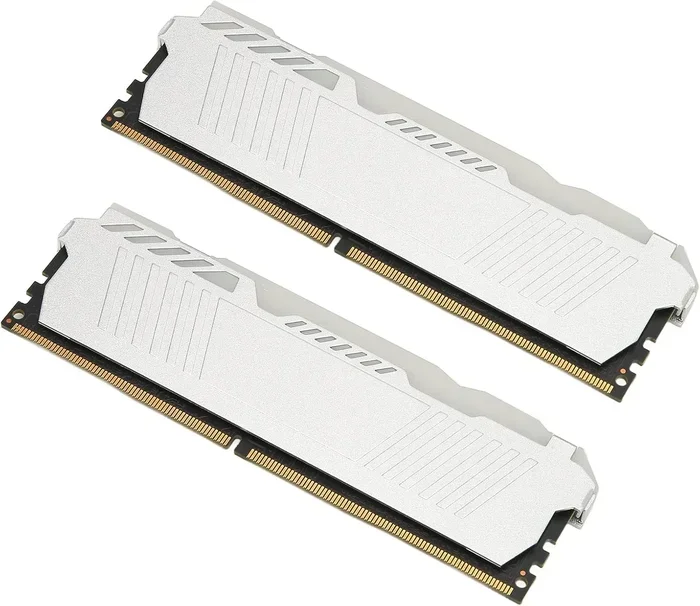
The two most common types today are DDR4 and DDR5. DDR4 has been the standard for several years and is still widely used. DDR5 is newer and faster, but not all laptops support it yet. Check your laptop manual or the manufacturer’s website to confirm which type your machine needs.
Check RAM Speed and Frequency
RAM speed is measured in megahertz (MHz). Higher numbers usually mean better performance. Most laptops use RAM between 2400MHz and 3200MHz. While speed matters, capacity often makes a bigger difference in everyday use. If you are upgrading for general speed, prioritize getting more gigabytes over faster speeds.
Match RAM Stick Configurations
Laptops can have single-channel or dual-channel memory setups. Dual-channel means two sticks work together for better performance. If your laptop has one slot filled, you can add a matching stick to enable dual-channel mode. This simple change can boost memory bandwidth and improve overall speed. Always try to match the brand, size, and speed of your existing RAM when adding a second stick.
Verify Maximum RAM Capacity
Every laptop has a maximum memory limit. Some older models only support up to 8GB total. Newer ones can handle 16GB, 32GB, or even more. Check your laptop’s specifications before buying RAM. Installing more than the maximum will not work and wastes money.
For a detailed guide on upgrading memory limits, check out our article on Can I Upgrade My Laptop RAM From 4GB to 16GB. It covers common limits across popular laptop brands.
Step-by-Step: How to Add Extra RAM to Your Laptop
Now comes the fun part. Installing RAM is easier than most people think. You do not need to be a tech expert. With a few simple tools and a little patience, you can upgrade your memory in no time.
What You Will Need
- A Phillips-head screwdriver
- Your new RAM module (matching your laptop’s specs)
- A clean, flat workspace
- An anti-static wrist strap (optional but recommended)
- Your laptop’s user manual or a quick online search for your model
Step 1: Power Down and Unplug
Turn off your laptop completely. Unplug the power cable and remove any connected devices. If your laptop has a battery, take it out if possible. This prevents electrical damage and keeps you safe during the process.
Step 2: Find the RAM Access Panel
Flip your laptop over and look for a small panel on the bottom. It is usually marked with a memory icon or labeled “RAM.” Some laptops require you to remove the entire back cover, but many have a dedicated small panel just for memory access.
Step 3: Open the Panel
Use your screwdriver to remove the screws holding the panel in place. Keep the screws somewhere safe. Gently lift the panel off and set it aside.
Step 4: Install the New RAM
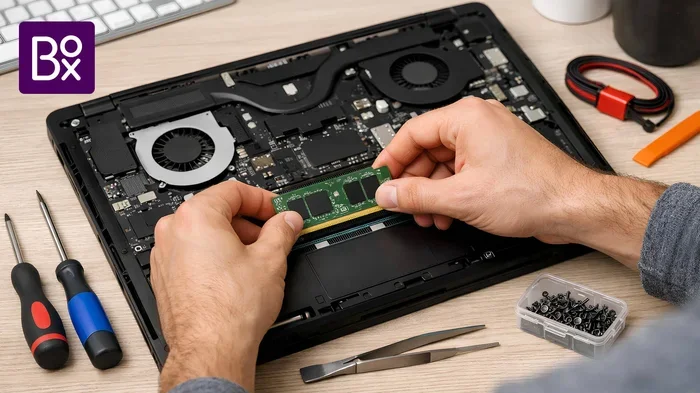
You will see the RAM slots inside. If there is an existing stick, gently push the metal clips on either side outward. The RAM stick will pop up at an angle. Carefully remove it. To insert the new stick, align the notch on the bottom of the RAM with the ridge in the slot. Press the stick down firmly until the metal clips click into place on both sides.
If you are adding a second stick, repeat the same process in the empty slot. Make sure the RAM is fully seated and secure before moving on.
Step 5: Close Up and Test
Replace the access panel and screw it back in. Reinsert the battery if you removed it. Plug in your laptop and power it on. Once it boots up, check your RAM using the steps we covered earlier. Your laptop should now recognize the new memory. If it does, you are all set! Enjoy the faster performance.
Not comfortable doing this yourself? No worries. Many electronics stores offer installation services. You can also refer to our guide on How to Install Extra RAM in Laptop for more detailed visuals and tips.
Common Mistakes to Avoid When Adding RAM
Even though the process is simple, mistakes can happen. Here are the most common errors and how to avoid them.
- Buying the wrong RAM type: Always double-check DDR4 vs DDR5 and the form factor (SODIMM for laptops). Mixing types will not work.
- Forcing the RAM stick: RAM should slide in smoothly with firm, even pressure. If it resists, stop and check the alignment.
- Skipping the anti-static precaution: Static electricity can damage sensitive components. Touch a metal surface before handling RAM.
- Ignoring maximum capacity limits: Your laptop may not support the amount of RAM you want to install. Check the specs first.
- Not testing after installation: Always verify that your laptop recognizes the new RAM. Use built-in tools or restart and check the BIOS.
Avoiding these simple mistakes saves time, money, and frustration. A careful approach ensures a smooth and successful upgrade every time.
When Adding RAM Is Not Enough
While upgrading memory helps a lot, it is not a magic fix for every problem. Sometimes, a slow laptop has other issues that RAM alone cannot solve.
If your laptop still feels sluggish after adding extra memory, consider these other upgrades:
- Switch to an SSD: Replacing an old hard drive with a solid-state drive is one of the best upgrades you can make.
- Clean up your software: Uninstall unused programs and disable startup apps that eat up resources.
- Update your operating system: Outdated software can cause performance issues and security risks.
- Check for malware: Viruses and background processes can slow down your system significantly.
For a broader look at improving overall laptop performance, explore our article on How to Upgrade RAM on a Laptop. It covers additional tips beyond just memory upgrades.
Also, if you are curious about using external options, you might wonder how to get extra RAM on a laptop with USB. While USB-based solutions exist, they are not as effective as a proper internal RAM upgrade. Internal memory always delivers better speed and responsiveness.
Expert Tips for Getting the Most from Your New RAM
You have added your extra memory. Now what? Here are a few tips to make sure you get the full benefit of your upgrade.
- Restart your laptop after installation: This ensures the system fully recognizes and initializes the new memory modules.
- Monitor your usage: Use Task Manager or Activity Monitor to see how your memory usage changes. You should notice more headroom for apps.
- Keep your system updated: Software updates often include performance improvements that take advantage of newer hardware.
- Consider dual-channel setup: If your laptop supports it, matching RAM sticks in pairs can improve memory bandwidth.
- Do not overbuy: Buy only what you need. Extra RAM beyond your laptop’s maximum or your actual usage will not help.
These small steps make a big impact over time. They help you squeeze every bit of performance from your upgraded system.
How Much Does It Cost to Add RAM to a Laptop?
One of the best things about upgrading RAM is how affordable it is. A typical 8GB DDR4 laptop RAM stick costs between $20 and $50, depending on the brand and speed. A 16GB module usually runs between $40 and $80. Compare that to the cost of a new laptop, and the value is clear.
For most users, spending $30 to $60 on a RAM upgrade delivers a noticeable improvement. It is one of the highest-return upgrades you can make for any laptop. The process takes less than 30 minutes, and the results last for years.
If you are unsure about what to buy or how much to spend, start by checking what your laptop currently has. Then decide how much more you need based on your daily usage. Our guide on how to check the RAM on my laptop can help you figure out your starting point quickly.
Final Thoughts on Adding Extra RAM to Your Laptop
Adding extra RAM to your laptop is one of the simplest and most rewarding upgrades you can do. It costs very little, takes just minutes, and transforms how your computer feels. Whether you are tired of waiting for apps to load or you need more power for work and play, a memory upgrade delivers real results.
Remember to check your laptop’s compatibility first. Choose the right type and amount of RAM. Follow the installation steps carefully. And avoid the common mistakes we covered. With these tips, you will have a faster, more responsive laptop in no time.
Do not let a slow computer hold you back. Take action today and give your laptop the boost it deserves. Your future self will thank you every time you open your computer.
Frequently Asked Questions
Can I add extra RAM to any laptop?
Not all laptops allow RAM upgrades. Some models have soldered memory that cannot be changed. Check your laptop’s manual or the manufacturer’s website to confirm whether your specific model supports removable RAM. Most traditional laptops from brands like HP, Dell, and Lenovo do allow upgrades.
How do I know which RAM my laptop needs?
Check your laptop’s specifications online or in the user manual. Look for the RAM type (DDR4 or DDR5), the maximum supported capacity, and the form factor (SODIMM for laptops). Matching these specs when buying new RAM ensures compatibility and a smooth installation.
Is it better to replace RAM or add a second stick?
If your laptop has an empty RAM slot, adding a second stick is usually the best option. It lets you keep your existing memory while boosting total capacity. If all slots are filled, you will need to replace the existing sticks with higher-capacity ones. Dual-channel setups with matching sticks also offer better performance.
How long does it take to add RAM to a laptop?
The entire process typically takes 15 to 30 minutes. Opening the panel, installing the stick, and closing everything up is quick. The most time-consuming part is usually researching compatibility and ordering the right RAM module.
Will adding RAM make my laptop faster?
Yes, adding RAM can significantly improve speed, especially if your current memory is low. You will notice faster app launches, smoother multitasking, and fewer slowdowns when running multiple programs. However, RAM is just one part of the equation. An SSD and a good processor also play important roles.
Can I mix different brands of RAM in my laptop?
You can mix RAM brands, but it is best to match the type, speed, and size for optimal performance. Mismatched RAM may still work, but it could run in single-channel mode or at the speed of the slower module. For the best results, buy a matching pair when possible.