Can I Use Laptop Ram in Desktop
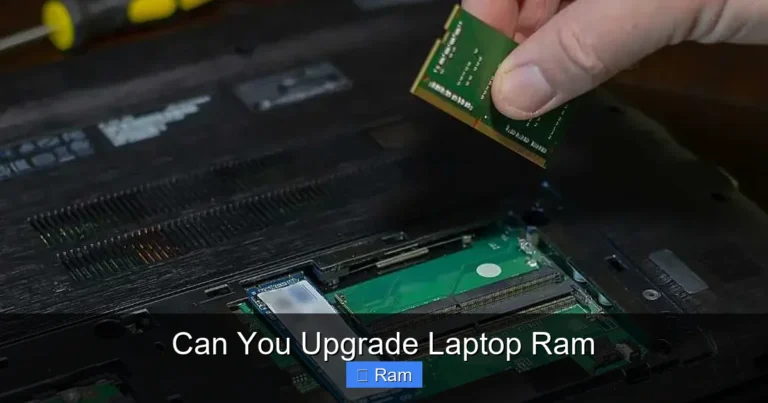
Using laptop RAM in a desktop is generally not possible due to different form factors and pin configurations. Laptop RAM uses SO-DIMM modules, while desktops require full-size DIMMs. However, understanding the key differences helps you make the right upgrade choice for your system.
Can you use laptop RAM in a desktop? The short answer is no. But the full story is more interesting than a simple yes or no. Many people wonder about this because laptop RAM is often cheaper and easier to find. In this guide, we break down everything you need to know. You will learn why these two types of memory are different, what happens if you try to mix them, and how to choose the right RAM for your desktop.
Upgrading your computer’s memory is one of the best ways to speed things up. Whether you are a gamer, a content creator, or just someone who multitasks with many browser tabs open, more RAM helps. But before you buy anything, you need to know what kind of memory your desktop actually uses. Let us dive into the details.
Key Takeaways
- Different Form Factors: Laptop RAM (SO-DIMM) and desktop RAM (DIMM) have different sizes and pin layouts, making them incompatible.
- Physical Incompatibility: You cannot physically insert a laptop RAM stick into a desktop motherboard slot.
- Speed and Voltage Differences: Laptop RAM often runs at lower voltages and different speeds compared to desktop RAM.
- Check Before Buying: Always verify your motherboard’s RAM type and specifications before purchasing any memory.
- Upgrade Path Matters: If you need more RAM, buying the correct desktop RAM is the safest and most effective route.
- Consult Your Manual: Your PC or motherboard manual lists the exact RAM types and capacities supported.
📑 Table of Contents
- What Is the Difference Between Laptop RAM and Desktop RAM?
- Why Can’t You Swap Laptop RAM Into a Desktop?
- Can You Ever Use Laptop RAM in a Desktop?
- How to Choose the Right RAM for Your Desktop
- What Happens If You Try to Force Laptop RAM Into a Desktop?
- How to Upgrade Desktop RAM the Right Way
- Common Mistakes to Avoid When Buying RAM
- Expert Insight: When Size and Compatibility Really Matter
- Final Thoughts
What Is the Difference Between Laptop RAM and Desktop RAM?
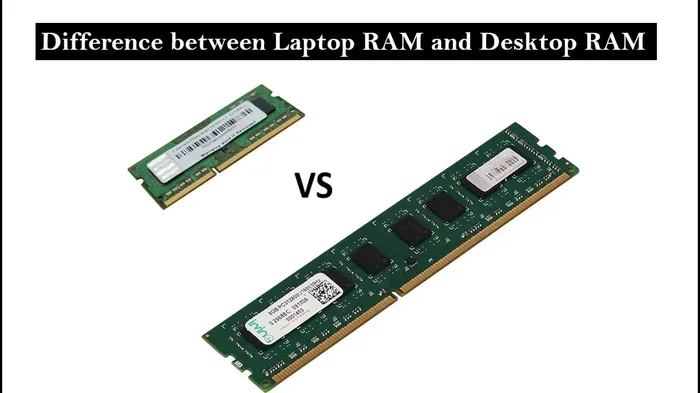
The main difference comes down to size and design. Laptop RAM is called SO-DIMM, which stands for Small Outline Dual In-Line Memory Module. Desktop RAM is called DIMM, which stands for Dual In-Line Memory Module. The names tell you everything you need to know. One is small, and the other is full-sized.
SO-DIMM modules are roughly half the length of standard DIMMs. They also have fewer pins. Laptop RAM typically has 260 pins, while desktop DDR4 DIMMs have 288 pins. DDR5 desktop RAM has 288 pins as well, but the layout differs from DDR5 SO-DIMMs. These physical differences mean the two types cannot fit into each other’s slots.
Form Factor and Size
A standard desktop DIMM is about 133 millimeters long. A laptop SO-DIMM is only about 67.6 millimeters long. That is a huge difference. The smaller size of laptop RAM is designed to fit inside compact laptops where space is limited. Desktop motherboards have much larger slots built for full-size modules.
Pin Configuration
The pin layout is another key difference. Each RAM module has gold contacts on the bottom edge. These pins connect to the motherboard. Laptop RAM and desktop RAM have different pin counts and different arrangements. Even if the pins matched, the physical slot shapes are different. Your laptop RAM simply will not slide into a desktop RAM slot.
Why Can’t You Swap Laptop RAM Into a Desktop?
It is not just about size. The motherboard dictates what type of RAM it can accept. Desktop motherboards have DIMM slots designed for full-size modules. They use different signaling, different voltages, and different physical connectors. Even if you forced a laptop SO-DIMM into a desktop slot, it would not work.
Think of it like trying to plug a USB-C cable into a USB-A port. The shapes just do not match. The same principle applies here. The connectors, the slot design, and the electrical signals are all built for specific module types.
Voltage and Power Differences
Laptop RAM often runs at lower voltages to conserve battery life. Desktop RAM uses slightly higher voltages for performance. Mixing these can cause instability or even damage. Your desktop motherboard is designed to deliver the correct voltage for desktop DIMMs only.
Speed and Timing Differences
Desktop RAM modules often support higher speeds than laptop RAM. This is because desktops have better cooling and more power delivery headroom. While some laptop RAM modules run at speeds close to desktop RAM, the form factor barrier remains the same. Speed alone does not make them interchangeable.
Can You Ever Use Laptop RAM in a Desktop?
In very rare cases, some mini-PCs and small form factor builds use SO-DIMM slots even though they are technically desktops. These systems are designed with laptop-style memory slots to save space. If you own one of these compact machines, you can use laptop RAM. But for a standard desktop tower, the answer remains no.
Some people wonder if adapters exist. Technically, SO-DIMM to DIMM adapters are available. However, these adapters are unreliable and often cause performance issues. They add resistance to the signal path and can lead to system crashes. We strongly recommend avoiding them.
Mini PCs and Small Form Factor Builds
Brands like Intel NUC, Dell Mini, and Lenovo Tiny use SO-DIMM slots. If you own one of these, laptop RAM is perfectly fine. Always check your system’s manual or specs page to confirm the RAM type before purchasing.
How to Choose the Right RAM for Your Desktop
Now that you know laptop RAM will not work in a standard desktop, let us talk about how to pick the right desktop RAM. Choosing the correct memory ensures your system runs smoothly and gets the full benefit of an upgrade.
First, check what type of RAM your desktop supports. Most modern desktops use DDR4 or DDR5 RAM. Older systems may use DDR3. You can find this information in your motherboard manual or by using a system scanning tool. Checking your current RAM on a similar system can also give you helpful clues about what to look for.
Check Your Motherboard Manual
Your motherboard manual lists every supported RAM type, speed, and capacity. It also tells you how many slots your board has and what configurations work best. For example, some motherboards perform best with two sticks instead of one. Always refer to the manual before buying.
Match the Speed and CAS Latency
RAM speed is measured in megahertz (MHz). Higher numbers mean faster data transfer. CAS Latency (CL) measures the delay between a command and the response. For best results, buy RAM that matches or slightly exceeds the speed your motherboard supports. Understanding what RAM does in any system helps you appreciate why matching speeds matters.
Capacity Needs
How much RAM you need depends on your usage. For basic tasks like browsing and office work, 8 GB is enough. For gaming and creative work, 16 GB is the sweet spot. Heavy video editing or 3D rendering may require 32 GB or more. Figuring out how much RAM you need follows similar logic for both laptops and desktops.
What Happens If You Try to Force Laptop RAM Into a Desktop?
Some curious users try to make it work anyway. The result is almost always the same. The module simply does not fit. The slot and the module have different shapes and pin counts. You cannot force it without risking damage to both the RAM and the motherboard.
Even if you use an adapter, problems persist. The system may fail to boot. You might experience random crashes, blue screens, or data corruption. These issues happen because the adapter cannot properly maintain the electrical signal integrity that desktop RAM requires.
Save yourself the trouble. Do not try to force incompatible RAM into your desktop. Buy the right type of memory from the start. It is cheaper and far less frustrating.
How to Upgrade Desktop RAM the Right Way
Upgrading your desktop RAM is straightforward when you have the right module. Here is a simple step-by-step process to follow.
Step 1: Turn off your PC and unplug it. Safety first. Always disconnect the power cable before opening your case.
Step 2: Open the side panel. Most desktop cases have screws or latches holding the panel in place. Remove them carefully.
Step 3: Locate the RAM slots. These are long slots near the CPU. They may already have RAM sticks installed.
Step 4: Remove old RAM if needed. Push the clips on both sides of the stick outward. The module will pop up at an angle. Pull it out gently.
Step 5: Insert the new RAM. Align the notch on the RAM stick with the slot. Press down firmly until the clips click into place.
Step 6: Close the case and power on. Your system should recognize the new memory automatically. You can verify this in your system settings or BIOS.
If you are new to this process, watching a quick video tutorial can help. The physical steps are simple and take only a few minutes.
Common Mistakes to Avoid When Buying RAM
Buying the wrong RAM is a common and frustrating mistake. Here are some pitfalls to watch out for.
- Buying the wrong DDR generation: DDR4 and DDR5 slots are not interchangeable. Always double-check your motherboard’s supported generation.
- Ignoring speed compatibility: A motherboard may support DDR5-4800 but not DDR5-6000. Check the maximum supported speed.
- Mismatching RAM kits: Using two different RAM sticks can cause issues. Buy a matched kit for best results.
- Forgetting about BIOS updates: Some motherboards need a BIOS update to support newer RAM speeds. Check before you buy.
- Mixing laptop and desktop RAM: Never attempt this. It will not work and can cause damage.
Expert Insight: When Size and Compatibility Really Matter
Memory compatibility is one of the most overlooked aspects of PC building and upgrading. Many people focus on the CPU and GPU but forget that RAM needs to match the motherboard perfectly. A mismatch in form factor, generation, or speed can turn a simple upgrade into a headache.
If you are unsure about your system’s RAM requirements, consult the motherboard manufacturer’s website. They list qualified memory modules and supported configurations. This is the most reliable way to ensure a smooth upgrade.
Final Thoughts
So, can you use laptop RAM in a desktop? The answer is a clear no for standard desktop towers. The form factors are different, the pin configurations do not match, and the electrical specifications vary. Laptop RAM and desktop RAM are designed for their respective systems and cannot be swapped.
However, mini PCs and small form factor desktops may use SO-DIMM laptop RAM. Always check your system’s specifications before buying memory. When in doubt, refer to your motherboard manual or contact the manufacturer.
Upgrading your desktop RAM is one of the easiest and most cost-effective ways to boost performance. Just make sure you buy the right type. With the correct DDR4 or DDR5 DIMM modules, your desktop will run faster and smoother in no time. Take the time to do your research, pick the right memory, and enjoy the results.
Frequently Asked Questions
Can I physically put laptop RAM into a desktop motherboard?
No. Laptop RAM uses SO-DIMM modules that are physically smaller and have a different pin layout than desktop DIMM slots. The module will not fit into the slot, and forcing it can damage both the RAM and the motherboard.
Are there any desktops that accept laptop RAM?
Yes, some mini PCs and small form factor desktops use SO-DIMM slots instead of full-size DIMM slots. These systems are designed to be compact, so they use laptop-style memory. Always check your specific model’s specifications to confirm.
What is the main difference between SO-DIMM and DIMM?
SO-DIMM stands for Small Outline Dual In-Line Memory Module, and DIMM stands for Dual In-Line Memory Module. SO-DIMMs are shorter and have fewer pins, making them suitable for laptops and compact systems. DIMMs are full-sized and designed for standard desktop motherboards.
Can I use an adapter to fit laptop RAM into a desktop?
Adapters exist, but they are not recommended. They can cause signal integrity issues, system instability, and crashes. It is much better to simply purchase the correct desktop RAM module for your system.
How do I know what type of RAM my desktop needs?
Check your motherboard manual or visit the manufacturer’s website. The manual lists the supported RAM type, speed, and maximum capacity. You can also use system information tools to check your current RAM specifications.
Is laptop RAM cheaper than desktop RAM?
Laptop RAM can sometimes be cheaper because it is used more widely in older laptops and refurbishment markets. However, buying the correct desktop RAM ensures compatibility and reliability, which is worth any small price difference.