Can Laptop Ram Be Used in Desktop
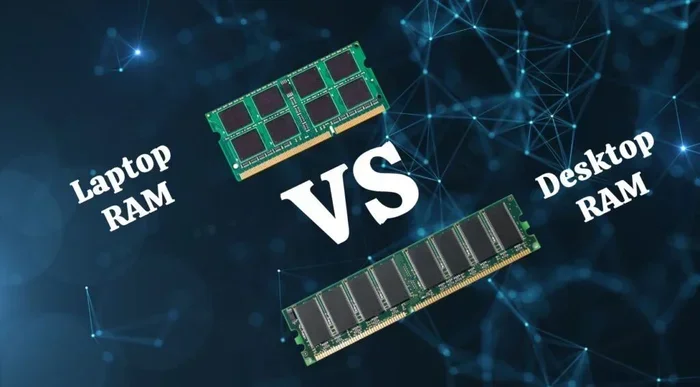
Laptop RAM and desktop RAM are not interchangeable due to physical and technical differences. Laptop RAM uses a smaller form factor called SODIMM, while desktop RAM uses DIMM modules. Always check your system specs before buying or swapping RAM to avoid wasted money and frustration.
Key Takeaways
- Different Form Factors: Laptop RAM (SODIMM) and desktop RAM (DIMM) have different sizes and pin configurations, making them physically incompatible.
- Speed and Voltage Differences: Laptop RAM often runs at lower voltages and different speeds compared to desktop RAM modules.
- Motherboard Compatibility Matters: Your motherboard dictates which type of RAM it supports, regardless of the device type.
- Upgrading Desktop RAM Is Easy: Desktop RAM upgrades are straightforward and offer more flexibility than laptop upgrades.
- Check Before You Buy: Always verify your system specifications and RAM type before purchasing any memory modules.
- Used RAM Can Work: Compatible used RAM can save money, but ensure it matches your system requirements.
- Performance Depends on Matching Specs: Mixing RAM types or speeds can cause performance issues or prevent the system from booting.
📑 Table of Contents
- Can Laptop Ram Be Used in Desktop
- Why Laptop RAM and Desktop RAM Are Not the Same
- What Happens If You Try to Force Laptop RAM Into a Desktop
- How to Choose the Right RAM for Your Desktop
- Benefits of Upgrading Desktop RAM
- How to Install RAM in Your Desktop
- Common Mistakes When Buying RAM
- Can You Use Desktop RAM in a Laptop
- How to Check What RAM Your Desktop Currently Has
- Expert Insights on RAM Compatibility
- Key Takeaways
- Conclusion
Can Laptop Ram Be Used in Desktop
You might be staring at a pile of old laptop RAM sticks and thinking, “Can I just pop these into my desktop and call it a day?” It is a fair question. After all, RAM is RAM, right? Well, not exactly. The short answer is no, you cannot use laptop RAM in a desktop computer. But the full story is more interesting than a simple yes or no.
Laptop RAM and desktop RAM look similar at a glance, but they are built very differently. The physical size, the number of pins, the voltage, and even the way they connect to the motherboard are all different. Understanding these differences can save you time, money, and a lot of headaches.
In this guide, we will walk through everything you need to know about laptop RAM vs desktop RAM. We will cover form factors, compatibility, performance, and what you should do if you want to upgrade your desktop memory. By the end, you will know exactly what to buy and what to avoid.
Why Laptop RAM and Desktop RAM Are Not the Same
The biggest reason laptop RAM cannot fit into a desktop is the physical size. Laptop RAM uses a format called SODIMM, which stands for Small Outline Dual In-Line Memory Module. Desktop RAM uses a standard DIMM, which is much larger. Think of it like trying to fit a small suitcase into a large trunk. The shapes just do not match.
Form Factor Differences
A laptop SODIMM is roughly half the size of a desktop DIMM. A standard desktop DIMM measures about 133 millimeters long, while a laptop SODIMM is around 67 millimeters. That is a huge difference. You simply cannot seat a SODIMM into a DIMM slot on a desktop motherboard. The connectors and pins are also arranged differently, so even if you forced it, nothing would work.
Here is a quick comparison of the two types:
- Laptop RAM (SODIMM): Smaller, fewer pins, lower voltage, designed for compact devices.
- Desktop RAM (DIMM): Larger, more pins, higher voltage, designed for full-size towers.
Pin Configuration
The pin count is another major difference. Most modern laptop SODIMMs have 262 pins, while desktop DIMMs typically have 288 pins. These pins carry data, power, and signals between the RAM and the motherboard. Because the pin layouts are different, plugging a laptop stick into a desktop slot is physically impossible without an adapter, and adapters like that are rare and unreliable.
Voltage and Power Requirements
Laptop RAM is designed to run on lower voltage to conserve battery life. Most laptop RAM operates at 1.2 volts or even lower. Desktop RAM usually runs at 1.2 volts for DDR4 but can go higher for faster modules. While the voltage difference alone might not destroy anything, the physical incompatibility makes this a moot point.
What Happens If You Try to Force Laptop RAM Into a Desktop
Some people wonder if they can modify a SODIMM to fit a DIMM slot. Please do not try this. The physical size is fundamentally different, and forcing anything can damage both the RAM stick and the motherboard slot. You could end up with broken hardware and no easy fix.
Even if you somehow managed to make it fit, the motherboard would not recognize the module. The BIOS looks for specific memory profiles and timings that match the installed RAM type. A laptop SODIMM would not match any desktop memory profile, so your system would either fail to boot or ignore the module entirely.
How to Choose the Right RAM for Your Desktop
Now that you know laptop RAM will not work in a desktop, let us talk about how to pick the right RAM for your desktop setup. Choosing the correct desktop RAM is simpler than you might think.
Step 1: Check Your Motherboard Manual
Every desktop motherboard supports specific types of RAM. Look up your motherboard model online or check the manual that came with your PC. You need to know the supported RAM type (DDR4 or DDR5), the maximum capacity, and the supported speed. This information is essential before you buy anything.
Step 2: Know Your RAM Type
Most modern desktops use DDR4 RAM, but newer systems are starting to adopt DDR5. These two types are not interchangeable. A DDR4 stick will not fit into a DDR5 slot and vice versa. Always double-check which type your motherboard supports before purchasing.
Step 3: Match the Speed and Timings
RAM speed is measured in megahertz (MHz). A higher number means faster data transfer. For best performance, try to match the speed of all your RAM sticks. If you mix a 3200 MHz stick with a 3600 MHz stick, the system will run both at the slower speed. This is called downclocking, and it can affect your system performance.
Step 4: Check the Number of Slots
Most desktop motherboards have four RAM slots. Some have two. Count your available slots before buying new memory. If all four slots are occupied, you may need to remove existing RAM to install new modules, or you can replace old sticks with higher-capacity ones.
Benefits of Upgrading Desktop RAM
Upgrading your desktop RAM is one of the easiest and most affordable ways to boost performance. Whether you are a student, a gamer, or a professional, more memory can make a noticeable difference in your daily tasks.
Faster Multitasking
More RAM means your computer can handle more open applications at once without slowing down. If you regularly have dozens of browser tabs open while running other software, a memory upgrade can feel like a speed boost.
Better Gaming Performance
Games use a lot of memory, especially at higher settings. If your desktop RAM is running low, your game might stutter or freeze. Adding more RAM can smooth out gameplay and reduce loading times.
Improved Video Editing and Rendering
Video editing software like Adobe Premiere Pro or DaVinci Resolve eats up memory fast. Having enough RAM ensures your editing timeline runs smoothly without crashes or lag. This is especially true when working with 4K footage.
How to Install RAM in Your Desktop
Installing RAM in a desktop is one of the simplest upgrades you can do. You do not need to be a tech expert. Here is a quick guide to get you started.
What You Will Need
- A compatible desktop RAM stick (DIMM)
- A Phillips head screwdriver
- An anti-static wrist strap (optional but recommended)
Installation Steps
- Power off your desktop and unplug it from the wall.
- Open the case by removing the side panel with your screwdriver.
- Locate the RAM slots on your motherboard. They are long, thin slots near the CPU.
- Press the clips on either side of the slot to release any existing RAM.
- Align the new RAM stick with the slot. Look for the notch on the bottom of the module and match it to the ridge in the slot.
- Push the RAM firmly into the slot at a 45-degree angle until the clips click into place.
- Close the case and plug your computer back in.
- Power on and check if the system recognizes the new memory.
If you want a more detailed walkthrough, check out our guide on How To Install Ram In Laptop for a similar process adapted for laptops. The general steps are the same, but the modules are different sizes.
Common Mistakes When Buying RAM
Buying RAM seems simple, but mistakes happen. Here are some common pitfalls to avoid.
- Buying the wrong RAM type: DDR3, DDR4, and DDR5 are all different. Make sure you buy the type your motherboard supports.
- Ignoring compatibility: Not all RAM works with all motherboards. Check the QVL (Qualified Vendor List) on your motherboard manufacturer’s website.
- Mixing brands and speeds: While it is sometimes possible, mixing RAM sticks can cause instability. Try to buy matching kits.
- Overbuying: More RAM is not always better. If your motherboard only supports 32 GB total, buying 64 GB will waste your money.
- Forgetting to check used RAM: Used RAM can be a great deal, but make sure it is tested and compatible with your system. Check out our guide on Used 32Gb Laptop Ram 5600Mhz for tips on evaluating used memory.
Can You Use Desktop RAM in a Laptop
The reverse question comes up often. Can you put desktop RAM into a laptop? The answer is also no. Desktop DIMMs are too large to fit into a laptop’s SODIMM slot. Laptops have very limited internal space, and their memory slots are specifically designed for the smaller SODIMM form factor.
Some people try to use external solutions like docking stations or adapters, but these are not practical for most users. If you need more memory in your laptop, your best bet is to upgrade the existing SODIMM or replace it with a higher-capacity module. You can learn more about this in our article on Can You Upgrade Laptop Ram.
How to Check What RAM Your Desktop Currently Has
Before buying new RAM, you should know what your desktop currently has installed. There are a few easy ways to check this.
Using Task Manager
On Windows, right-click the taskbar and select Task Manager. Click on the Performance tab and then select Memory. You will see how much RAM is installed, the speed, the form factor, and the number of slots being used. This is the fastest way to get basic info.
Using Third-Party Software
Tools like CPU-Z or Speccy give you detailed information about your RAM, including the exact model, timings, and manufacturer. These are free and very helpful when you are shopping for upgrades.
Checking the Manual
Your desktop or motherboard manual will list the maximum supported RAM, the number of slots, and the types of memory that work. This is the most reliable source of information.
If you need help finding your current RAM details, our guide on How To Check Ram In Laptop covers similar steps that apply to desktops as well.
Expert Insights on RAM Compatibility
Memory compatibility can be tricky, especially with older systems or unusual configurations. Here are a few expert tips to keep in mind.
- Always buy RAM in matched pairs: If your motherboard has four slots, install two matching sticks for dual-channel mode. This doubles the data bandwidth and improves performance significantly.
- Check the QVL: The Qualified Vendor List on your motherboard manufacturer’s website lists RAM modules that have been tested and confirmed to work with your board.
- Do not mix DDR generations: DDR3 and DDR4 are not compatible. They have different notch positions and voltage requirements.
- XMP profiles matter: If your RAM supports XMP (Extreme Memory Profile), make sure to enable it in your BIOS for the rated speed. Without XMP, your RAM will run at a slower default speed.
Key Takeaways
- Laptop RAM and desktop RAM are physically different: SODIMM vs DIMM means they cannot be swapped between devices.
- Pin count and size prevent cross-compatibility: Laptop SODIMMs have fewer pins and are much smaller than desktop DIMMs.
- Voltage differences exist: Laptop RAM runs at lower voltages to save battery power.
- Always match RAM type to your motherboard: DDR4, DDR5, and DDR3 are not interchangeable.
- Desktop upgrades are straightforward: Desktop cases offer easy access to RAM slots, making upgrades simple and cost-effective.
- Check before you buy: Verify your motherboard specs, slot count, and supported speed before purchasing any RAM.
- Matching RAM sticks improve performance: Using matched pairs in dual-channel mode gives you the best results.
Conclusion
So, can laptop RAM be used in a desktop? The answer is a clear no. The physical size, pin configuration, and design differences make them incompatible with each other. Laptop RAM uses SODIMM modules, while desktops require DIMM modules. Trying to swap them will not work and could damage your hardware.
The good news is that upgrading desktop RAM is easy, affordable, and one of the best ways to improve your computer’s performance. Whether you are adding more memory for gaming, video editing, or everyday multitasking, the right desktop RAM can make a real difference.
Take the time to check your motherboard specifications, choose the right type and speed of RAM, and follow the installation steps carefully. With the right desktop RAM, you can breathe new life into your computer without spending a fortune. Happy upgrading!
Frequently Asked Questions
Can I use laptop RAM in a desktop with an adapter?
While adapters exist in theory, they are rare, unreliable, and not recommended. The physical and electrical differences between SODIMM and DIMM are too significant for an adapter to work properly. It is much better to simply buy the correct desktop RAM for your system.
What is the difference between SODIMM and DIMM?
SODIMM stands for Small Outline Dual In-Line Memory Module and is used in laptops and compact devices. DIMM stands for Dual In-Line Memory Module and is used in desktop computers. SODIMMs are roughly half the size of DIMMs and have fewer pins.
How do I know what type of RAM my desktop needs?
Check your motherboard manual or look up your motherboard model online. You need to know the supported RAM type (DDR4 or DDR5), the maximum capacity, and the supported speed. You can also use tools like CPU-Z or check Task Manager for basic info.
Can mixing different RAM brands cause problems?
Mixing RAM brands is sometimes possible but not ideal. Different brands may have different timings, voltages, and speeds. If the RAM does not match, your system may run unstable or fail to boot. Buying a matched kit is always the safest choice.
Is it better to have two RAM sticks or four?
Two matching RAM sticks in dual-channel mode offer great performance for most users. Four sticks can provide even more capacity, but they may run at slightly slower speeds depending on the motherboard. Check your motherboard manual for the optimal configuration.
Does RAM speed really matter for everyday use?
For everyday tasks like browsing and office work, RAM speed has a minimal impact. However, for gaming, video editing, and other memory-intensive tasks, faster RAM can provide a noticeable performance boost. Focus on capacity first, then speed.