Ram for a Hp Laptop
Choosing the right RAM for your HP laptop can transform its speed and multitasking ability. Whether you own an HP Pavilion, HP Omen, or a basic HP notebook, understanding RAM types, sizes, and upgrade options is essential. This guide covers everything you need to know about RAM for an HP laptop, from checking your current memory to making a smooth upgrade.
If you own an HP laptop, you have probably wondered whether your machine could run faster. The answer often comes down to one small but powerful component: RAM for an HP laptop. Random Access Memory is the short-term memory your laptop uses to handle tasks. More RAM means smoother multitasking, faster app switching, and a generally better experience.
Whether you use your HP laptop for work, school, gaming, or casual browsing, getting the right amount and type of memory makes a huge difference. In this guide, we will walk you through everything you need to know about RAM for HP laptops. We will cover what RAM does, how much you need, how to check your current setup, and how to upgrade it yourself.
By the end of this article, you will feel confident choosing the right laptop memory for your HP device. No guesswork, no confusion, just clear and practical advice you can use right away.
Key Takeaways
- RAM type matters: Most modern HP laptops use DDR4 RAM, while older models may need DDR3.
- 8GB is the sweet spot: For everyday tasks, 8GB of RAM delivers solid performance for most users.
- Upgrade capacity varies: Check your specific HP model to confirm maximum RAM support and available slots.
- Speed and timing count: Matching RAM speed to your laptop’s specifications ensures optimal performance.
- Self-upgrades are easy: With basic tools and a little patience, you can upgrade your HP laptop RAM at home.
- Check before you buy: Use built-in tools or software to verify your current RAM and free slots before purchasing.
📑 Table of Contents
- What Is RAM and Why Does It Matter for Your HP Laptop?
- Types of RAM Compatible with HP Laptops
- How Much RAM Do You Need for an HP Laptop?
- How to Check Your Current RAM on an HP Laptop
- How to Upgrade RAM on Your HP Laptop
- Best RAM Upgrades for Popular HP Laptop Models
- Common Mistakes People Make With HP Laptop RAM
- Final Thoughts on RAM for Your HP Laptop
What Is RAM and Why Does It Matter for Your HP Laptop?
RAM stands for Random Access Memory. Think of it as your laptop’s short-term workspace. When you open a browser, a game, or a spreadsheet, the data lives in RAM while you work on it. Once you close the program, that data moves on.
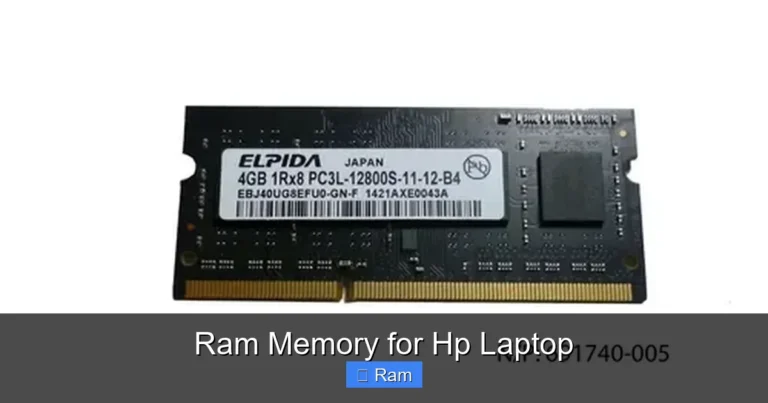
Unlike your hard drive or SSD, which stores data permanently, RAM is temporary. It is fast, volatile, and essential for day-to-day performance. RAM for a laptop directly affects how many programs you can run at once without slowdowns.
For HP laptop users, understanding RAM helps you make smart buying and upgrading decisions. An older HP Pavilion with 4GB of RAM will struggle with modern apps. A newer HP Omen with 16GB of RAM handles heavy tasks with ease. The type of RAM you choose determines how well your laptop performs in real-world use.
How RAM Affects Everyday Performance
When you have enough RAM, your HP laptop feels snappy and responsive. Your browser tabs load quickly, your apps switch without lag, and your system stays stable. When RAM is low, your laptop slows down, freezes, or crashes.
Here is what RAM impacts in daily use:
- Multitasking: Running multiple apps at once without slowdowns.
- Browser performance: Keeping many tabs open smoothly.
- Gaming: Loading games faster and maintaining steady frame rates.
- Video editing: Rendering and previewing content without stuttering.
- System boot time: Faster startup and overall responsiveness.
If your HP laptop feels slow, low RAM is often the first thing to check. Before spending money on a new device, consider upgrading your HP laptop RAM instead.
Types of RAM Compatible with HP Laptops
Not all RAM is the same. HP laptops use specific types of memory, and choosing the right one is critical. The two main factors to consider are RAM type and RAM speed.
DDR3 vs DDR4 vs DDR5 RAM
Most HP laptops manufactured in the last several years use DDR4 RAM. Older models may use DDR3, and the newest high-end machines are starting to support DDR5. Here is a quick comparison:
- DDR3 RAM: Found in older HP laptops from around 2010-2015. Slower but still functional for basic tasks.
- DDR4 RAM: The most common type in modern HP laptops. Offers a great balance of speed and affordability.
- DDR5 RAM: The newest standard. Found in premium HP Omen and Spectre models. Delivers the fastest performance available.
Always check your HP laptop’s manual or specifications before buying RAM. Using the wrong type will not work, even if it physically fits. Matching the correct DDR generation is the first step in any RAM upgrade.
RAM Speed and Its Impact
RAM speed is measured in megahertz (MHz). Common speeds for laptop RAM include 2400MHz, 2666MHz, 3200MHz, and 4800MHz. Higher MHz numbers mean faster data transfer, but the difference is noticeable mainly in demanding tasks like gaming or video editing.
For most HP laptop users, 2666MHz or 3200MHz DDR4 RAM provides excellent performance. If your HP model supports faster speeds, you can take advantage of that boost. Just make sure your laptop’s motherboard can handle the speed you choose.
How Much RAM Do You Need for an HP Laptop?
The amount of RAM you need depends entirely on what you do with your HP laptop. There is no one-size-fits-all answer, but general guidelines can help you decide.
4GB of RAM
4GB is the minimum for basic use. It works for web browsing, email, and light document editing. However, modern operating systems and apps demand more. If your HP laptop has only 4GB, you will likely notice slowdowns when running multiple programs.
For most users, 4GB is simply not enough anymore. If you are stuck with 4GB, consider closing unused apps and browser tabs to free up memory.
8GB of RAM
8GB is the sweet spot for most HP laptop users. It handles everyday tasks, moderate multitasking, and casual gaming with ease. Whether you use your HP laptop for schoolwork, office tasks, or streaming, 8GB delivers a smooth experience.
Most budget and mid-range HP laptops come with 8GB of RAM. This amount strikes the best balance between cost and performance. For the average user, 8GB is more than sufficient.
16GB of RAM
16GB is ideal for power users. If you edit photos, work with spreadsheets, or play modern games, 16GB gives you plenty of headroom. High-end HP Omen and HP Spectre laptops often come with 16GB as standard.
Professionals who run virtual machines, video editing software, or 3D modeling tools will benefit greatly from 16GB. It is also a great choice if you plan to keep your HP laptop for several years.
32GB of RAM
32GB is overkill for most users but essential for heavy workloads. Video editors, 3D animators, and software developers who run complex projects will appreciate the extra memory. Only a few HP laptop models support 32GB, so check compatibility first.
How to Check Your Current RAM on an HP Laptop
Before buying or upgrading RAM, you need to know what your HP laptop currently has. Checking your RAM is simple and takes just a few minutes.
Using Windows Task Manager
Open Task Manager by pressing Ctrl + Shift + Esc. Click on the Performance tab and select Memory. You will see your total RAM, speed, and how many slots are in use.
This method gives you a quick overview. You can see how much RAM is installed, how much is available, and whether you have free slots for an upgrade.
Using System Information
Press the Windows key and type “System Information.” Open the app and look for “Installed Physical Memory (RAM).” This shows your total RAM in a clear format.
For more detailed specs, you can also use third-party tools like CPU-Z or Speccy. These programs give you exact details about your RAM type, speed, and timings.
Checking HP Support Tools
HP laptops come with HP Support Assistant, a built-in tool that provides detailed hardware information. Open it and navigate to the diagnostics section. You can find your RAM specifications and compatible upgrade options there.
Knowing your current RAM setup helps you make informed decisions. It prevents you from buying incompatible memory and saves you time and money.
How to Upgrade RAM on Your HP Laptop
Upgrading RAM on an HP laptop is one of the easiest and most affordable improvements you can make. Most HP laptops allow user-accessible RAM upgrades, but the process varies by model.
Before You Start
Gather these tools before beginning:
- A small Phillips-head screwdriver
- An anti-static wrist strap (optional but recommended)
- Your new RAM module (compatible with your HP model)
- A clean, flat workspace
Make sure you purchase the right RAM for your specific HP laptop model. Check the HP website or your laptop’s manual for compatible specifications. Using the wrong RAM can damage your laptop or fail to work.
Step-by-Step Upgrade Process
Follow these steps to upgrade your HP laptop RAM safely:
- Power off your laptop and unplug all cables.
- Remove the battery if it is removable. For built-in batteries, disconnect the power connector inside the laptop.
- Locate the RAM access panel on the bottom of your laptop. It is usually marked with a small memory icon.
- Remove the screws securing the panel and gently lift it off.
- Remove existing RAM by pushing the side clips outward. The module will pop up at an angle.
- Insert the new RAM at a 45-degree angle. Press it down firmly until the clips snap into place.
- Replace the access panel and screw it back on.
- Reconnect the battery and power on your laptop.
If you are not comfortable doing this yourself, visit an HP service center or a local repair shop. Most technicians can upgrade your RAM for a small fee.
Common Mistakes to Avoid
Here are some common errors people make when upgrading HP laptop RAM:
- Buying RAM that is incompatible with their HP model.
- Forgetting to ground themselves, which can damage components with static electricity.
- Forcing the RAM module in at the wrong angle.
- Not checking if all RAM slots are already occupied.
- Mixing different RAM speeds or brands, which can cause instability.
Avoiding these mistakes ensures a smooth and successful upgrade. Take your time, follow the steps carefully, and your HP laptop will thank you.
Best RAM Upgrades for Popular HP Laptop Models
Different HP laptop models have different RAM requirements and upgrade paths. Here are some popular HP laptops and their ideal RAM configurations.
HP Pavilion Series
The HP Pavilion is one of the most popular consumer laptop lines. Most Pavilion models support up to 16GB of RAM with two SODIMM slots. For general use, 8GB is perfect. For heavier workloads, upgrading to 16GB makes a noticeable difference.
HP Omen Series
HP Omen laptops are designed for gaming and creative work. They benefit greatly from 16GB or more of RAM. Many Omen models support up to 32GB and feature dual-channel RAM configurations for maximum performance.
If you own an Omen laptop, consider an HP Omen laptop RAM upgrade to unlock its full potential. Pairing 16GB of fast DDR4 RAM with a dedicated graphics card delivers excellent gaming and rendering performance.
HP Notebook and Stream Series
Budget HP notebooks and Stream models often come with 4GB of RAM soldered to the motherboard. These models usually do not allow RAM upgrades. If you are buying a new budget HP notebook, look for one with at least 8GB of RAM.
HP EliteBook and ProBook Series
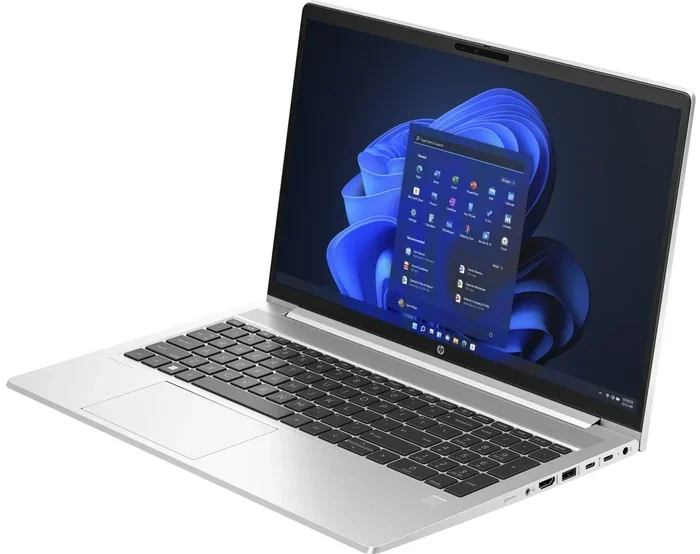
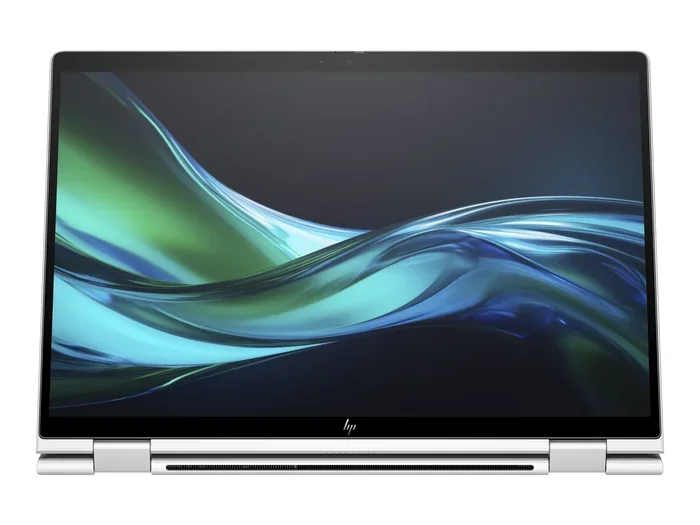
HP’s business laptop lines offer excellent upgradeability. Most EliteBook and ProBook models have accessible RAM slots and support up to 32GB or more. These laptops are ideal for professionals who need reliable performance and the ability to upgrade over time.
Common Mistakes People Make With HP Laptop RAM
Even with good intentions, people make mistakes when dealing with laptop RAM. Here are the most common ones and how to avoid them.
Buying the Wrong RAM Type
The biggest mistake is purchasing RAM that does not match your HP laptop’s specifications. DDR4 RAM will not work in a DDR3 slot, and vice versa. Always double-check your laptop model’s RAM requirements before buying.
Ignoring Maximum Capacity
Every HP laptop has a maximum RAM capacity. Some older models max out at 8GB, while newer ones support 16GB or 32GB. Buying RAM beyond your laptop’s limit is a waste of money.
Mixing RAM Sticks Carelessly
While it is possible to use different RAM sticks together, mixing brands, speeds, or capacities can cause compatibility issues. For best results, buy a matched pair of RAM modules.
Skipping the Grounding Step
Static electricity can damage sensitive components like RAM. Always ground yourself before touching internal laptop parts. Touch a metal surface or wear an anti-static wrist strap.
Final Thoughts on RAM for Your HP Laptop
Upgrading or choosing the right RAM for an HP laptop is one of the simplest ways to breathe new life into your device. Whether you are buying a new HP laptop or upgrading an existing one, understanding your RAM options puts you in control.
Start by checking your current RAM and identifying what your usage demands. For most users, 8GB provides a great experience. Power users and gamers will appreciate 16GB or more. And always make sure your RAM is compatible with your specific HP model.
If you are unsure about the upgrade process, refer to your HP laptop’s manual or visit the HP support website. You can also consult a professional technician for help. With the right RAM, your HP laptop will run faster, smoother, and more efficiently for years to come.
Take the time to understand your options, make informed choices, and enjoy the performance boost that comes with the right RAM for your HP laptop. Your laptop deserves it, and so do you.
Frequently Asked Questions
Can I upgrade the RAM on any HP laptop?
Not all HP laptops allow RAM upgrades. Some budget models like the HP Stream have soldered RAM that cannot be changed. Before upgrading, check your specific HP model’s specifications to confirm whether it has accessible RAM slots.
What is the best RAM for an HP laptop?
The best RAM for your HP laptop depends on your model and usage needs. Most modern HP laptops use DDR4 RAM. For everyday tasks, 8GB is ideal. For gaming and creative work, 16GB or more delivers the best performance.
How do I know if my HP laptop RAM is upgradeable?
Check your HP laptop’s manual or visit the HP support website. You can also open your laptop and look for RAM slots on the motherboard. If you see empty slots or removable modules, your laptop supports RAM upgrades.
Is 8GB of RAM enough for an HP laptop?
Yes, 8GB of RAM is enough for most users. It handles web browsing, office work, streaming, and casual gaming with ease. If you do heavy video editing or run multiple demanding applications, consider upgrading to 16GB.
How much does it cost to add RAM to an HP laptop?
RAM prices vary by type and capacity. An 8GB DDR4 SODIMM typically costs between $30 and $50. A 16GB kit usually ranges from $60 to $100. Upgrading RAM yourself saves money compared to professional installation services.
Will adding more RAM speed up my HP laptop?
Yes, adding more RAM can significantly speed up your HP laptop, especially if you currently have low memory. More RAM allows your laptop to handle more tasks simultaneously without slowing down. However, if your laptop already has enough RAM for your needs, adding more may not produce a noticeable improvement.