8 Gig Ram Hp Laptop
An 8 gig RAM HP laptop delivers solid everyday performance for browsing, office work, and light multitasking. Most modern HP laptops come with 8 GB of memory, making them a great choice for students and professionals. This guide covers specs, upgrades, and tips to get the most from your HP laptop with 8 GB RAM.
Key Takeaways
- Solid Performance: An 8 gig RAM HP laptop handles daily tasks like a champ.
- Upgrade Friendly: Most HP laptops let you add more RAM easily.
- Great for Students: 8 GB RAM is enough for schoolwork and light gaming.
- Windows 11 Ready: 8 GB RAM meets the minimum requirements for Windows 11.
- Budget Friendly: HP laptops with 8 GB RAM offer great value for money.
- Know Your Specs: Understanding RAM type and speed helps you make smart choices.
📑 Table of Contents
- Why an 8 Gig RAM HP Laptop Is a Smart Pick
- Top HP Laptop Models With 8 GB RAM
- 8 GB RAM vs. 16 GB RAM: What Is the Difference?
- How to Upgrade RAM on Your HP Laptop
- Is 8 GB RAM Enough for Windows 11?
- Common Mistakes to Avoid with 8 GB RAM Laptops
- Expert Tips to Get the Most from Your 8 GB RAM HP Laptop
- Final Thoughts
Why an 8 Gig RAM HP Laptop Is a Smart Pick
An 8 gig RAM HP laptop hits the sweet spot between price and performance. You get enough memory to run multiple apps without slowdowns. Whether you are a student, a remote worker, or just browsing the web, 8 GB of RAM gets the job done.
HP has been putting 8 GB RAM into many of their laptops for years now. Brands like HP Pavilion, HP Envy, and even some HP Omen models come with 8 GB out of the box. This makes them a popular choice for people who want a reliable machine without spending a fortune.
The 8 gig RAM HP laptop is not just about having enough memory. It is also about balance. You get a machine that runs smoothly for everyday tasks and still has room to grow. In this guide, we will walk you through everything you need to know about these laptops.
What Does 8 GB RAM Actually Do?
RAM stands for Random Access Memory. Think of it as your laptop’s short-term memory. When you open a browser, a Word document, or a video, your laptop uses RAM to keep things running fast. More RAM means your laptop can juggle more tasks at once.
With 8 GB of RAM, you can comfortably:
- Browse the web with 10 to 15 tabs open
- Run Microsoft Office apps like Word and Excel
- Stream videos on Netflix or YouTube
- Join video calls on Zoom or Teams
- Do light photo editing
- Play casual and mid-level games
But if you try to run heavy software like video editing tools or 3D modeling programs, 8 GB might feel tight. That is where knowing your options comes in handy.
Top HP Laptop Models With 8 GB RAM
HP offers a wide range of laptops, and many of them ship with 8 GB of RAM. Let us look at some of the most popular models you will find on the market today.
HP Pavilion 15
The HP Pavilion 15 is one of the most well-known budget-friendly laptops. It often comes with 8 GB of RAM and an Intel Core i5 processor. This combo handles everyday tasks with ease. The Pavilion line is great for students and families who need a dependable machine.
Many people choose the Pavilion 15 because it balances price and performance. You get a full HD screen, decent speakers, and a solid keyboard. It is not a gaming powerhouse, but it handles light gaming just fine.
HP 15z Series
The HP 15z series is another strong contender in the 8 GB RAM space. These laptops are slim, lightweight, and affordable. They are perfect for people who carry their laptop around campus or to the office every day.
The 15z models often come with AMD processors, which gives you great value. The 8 GB RAM in these machines handles multitasking well. You can have a spreadsheet open, a browser with many tabs, and a music player all running at the same time.
HP Envy x360
The HP Envy x360 is a 2-in-1 laptop that comes with 8 GB RAM in many configurations. It has a touchscreen, a convertible design, and a premium feel. This is a great pick for creatives who want a flexible machine.
With 8 GB of RAM, the Envy x360 handles creative tasks like photo editing and light drawing with ease. It is not meant for heavy video production, but for most everyday creative work, it is more than enough.
8 GB RAM vs. 16 GB RAM: What Is the Difference?
One question we hear all the time is whether 8 GB is enough or if you should go for 16 GB. The answer depends on what you do with your laptop.
When 8 GB Is Enough
If your daily routine involves web browsing, email, office work, and streaming, 8 GB RAM is more than enough. You will not notice any slowdowns during normal use. An 8 gig RAM HP laptop will feel fast and responsive for these tasks.
Students who write papers, do research, and watch lectures will find 8 GB perfectly fine. Office workers who use email, spreadsheets, and presentation software will also be happy with 8 GB.
When You Need 16 GB
On the other hand, if you do video editing, 3D rendering, or heavy gaming, 16 GB makes a big difference. These tasks eat up memory fast. With only 8 GB, you might experience lag or crashes when running demanding software.
For those users, looking at a HP laptop 16 GB RAM model is a smarter long-term investment. The extra memory gives you headroom as software becomes more demanding over time.
| Feature | 8 GB RAM | 16 GB RAM |
|---|---|---|
| Web Browsing | Great | Excellent |
| Office Work | Great | Excellent |
| Video Streaming | Great | Excellent |
| Light Gaming | Good | Great |
| Video Editing | Limited | Great |
| Price Range | Budget-Friendly | Mid-Range |
| Future-Proofing | Moderate | High |
How to Upgrade RAM on Your HP Laptop
One of the best things about HP laptops is that many of them allow you to upgrade the RAM yourself. If your 8 gig RAM HP laptop feels slow, adding more memory can give it new life.
Check If Your Laptop Supports Upgrades
Before you buy new RAM, check if your HP laptop has an upgradeable design. Some slim laptops have soldered RAM that cannot be changed. But many HP Pavilion and HP Envy models have open slots for easy upgrades.
You can check your laptop’s specs on the HP Support website. Enter your model number and look for memory upgrade options. This tells you what type of RAM your laptop takes and how much it can hold.
Steps to Upgrade Your RAM
Upgrading RAM on an HP laptop is simpler than you might think. Here is a quick overview of the process:
- Turn off your laptop and unplug it from the power source
- Remove the battery if it is removable
- Find the RAM access panel on the bottom of the laptop
- Use a screwdriver to remove the panel screws
- Carefully remove the old RAM stick by pressing the side clips
- Align the new RAM stick with the slot and press it in firmly
- Replace the access panel and screw it back in
- Power on your laptop and check the new RAM in System Settings
If you are not comfortable doing this yourself, you can visit a local repair shop. Many tech stores offer RAM upgrade services for a small fee. You can also read our detailed guide on how to upgrade RAM on HP laptop for step-by-step instructions.
Where to Buy RAM for Your HP Laptop
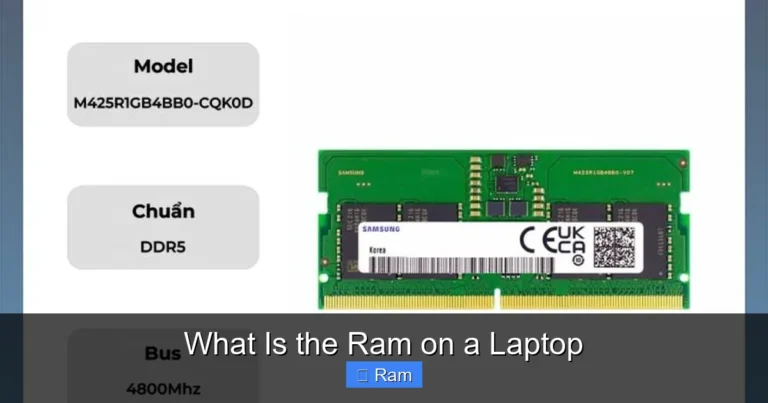
You can find RAM sticks for HP laptops at most electronics stores. Online retailers like Amazon and Newegg also carry a wide selection. Make sure you buy the right type of RAM for your laptop model. Most HP laptops use DDR4 RAM, but newer models may use DDR5.
For specific guidance on finding the right memory, check out our article on RAM memory for HP laptop. It helps you match the right RAM to your specific HP model.
Is 8 GB RAM Enough for Windows 11?
Windows 11 has become the standard operating system for most new HP laptops. But does 8 GB RAM run Windows 11 well? The short answer is yes.
Microsoft lists 4 GB of RAM as the minimum requirement for Windows 11. So 8 GB gives you double that minimum. An 8 gig RAM HP laptop running Windows 11 will feel smooth for everyday use. You can open apps quickly, switch between tasks, and browse the web without issues.
However, Windows 11 does use more memory than older versions. If you have many apps open at once, you might notice some slowdowns. That is normal and expected with 8 GB of memory. For most users, this level of performance is perfectly acceptable.
If you want a smoother experience with Windows 11, consider an HP laptop Windows 11 8 GB RAM model that also has an SSD. The combination of 8 GB RAM and a fast SSD makes Windows 11 feel snappy and responsive.
Common Mistakes to Avoid with 8 GB RAM Laptops
Even though 8 GB RAM is plenty for most people, there are some common mistakes that can slow your laptop down. Here is what to watch out for.
Running Too Many Heavy Apps at Once
With 8 GB of RAM, you need to be mindful of how many heavy apps you run at the same time. Opening a video editor, a web browser with 20 tabs, and a game all at once will push your laptop to its limits. Try closing apps you are not actively using.
Ignoring Background Processes
Many programs run background processes that eat up RAM even when you are not using them. Things like cloud storage sync, antivirus scans, and auto-updates can slow your laptop. Check your Task Manager to see what is using memory and close what you do not need.
Not Keeping Your System Updated
Windows updates and driver updates often include performance improvements. Skipping updates can leave your laptop running slower than it should. Keep your system up to date for the best experience with your 8 gig RAM HP laptop.
Using a Mechanical Hard Drive
If your HP laptop has a traditional hard drive instead of an SSD, 8 GB of RAM will not feel as fast. The hard drive becomes a bottleneck. Upgrading to an SSD is one of the best things you can do for overall performance.
Expert Tips to Get the Most from Your 8 GB RAM HP Laptop
Want to squeeze every bit of performance out of your 8 gig RAM HP laptop? Here are some expert tips that really work.
- Use Lightweight Browsers: Browsers like Brave or Opera use less RAM than Chrome. This frees up memory for other tasks.
- Disable Startup Programs: Go to Task Manager and turn off apps that start when you boot up. This speeds up your launch time.
- Keep Your Disk Clean: A full hard drive slows down your laptop. Aim to keep at least 15% of your storage free.
- Use ReadyBoost: If you have a USB flash drive, Windows can use it to boost performance. It is not as good as more RAM, but it helps.
- Adjust Visual Effects: Windows 11 has fancy animations that use RAM. Turn them off in Settings for a speed boost.
- Restart Regularly: Restarting your laptop clears out temporary files and frees up memory. Make it a habit to restart at least once a week.
These small changes can make a big difference. Your 8 gig RAM HP laptop will feel faster and more responsive with just a few simple tweaks.
Final Thoughts
The 8 gig RAM HP laptop remains one of the best choices for everyday computing. It offers a great balance of performance, price, and reliability. Whether you are a student, a professional, or a casual user, 8 GB of RAM handles your daily tasks with ease.
If you find that 8 GB is not enough for your needs, remember that most HP laptops allow you to upgrade. Adding more RAM is one of the easiest and most affordable ways to boost performance. You can start with 8 GB and upgrade to 16 GB or even 32 GB as your needs grow.
For more information on HP laptop memory and upgrades, check out our guides on 8 GB RAM for laptop and 8 GB RAM in laptop. These resources will help you make informed decisions about your memory needs.
Invest in an 8 gig RAM HP laptop today and enjoy a smooth, reliable computing experience. It is a smart choice that delivers real value for your money.
Frequently Asked Questions
Can I upgrade the RAM in my 8 gig RAM HP laptop?
Yes, most HP laptops with 8 GB RAM can be upgraded. Check your specific model to see if it has accessible RAM slots. Many HP Pavilion and HP Envy models make it easy to add more memory yourself.
Is 8 GB RAM enough for gaming on an HP laptop?
8 GB RAM is enough for casual and mid-level gaming. You can play popular titles like Minecraft, Fortnite, and GTA V on lower settings. For heavy gaming, 16 GB RAM will give you a smoother experience.
How do I check how much RAM my HP laptop has?
Right-click on your Start menu and select Task Manager. Go to the Performance tab and click on Memory. This shows you exactly how much RAM your HP laptop has installed and how it is being used.
What type of RAM do HP laptops use?
Most HP laptops use DDR4 RAM, while newer models may use DDR5. Check your laptop’s specifications on the HP Support website to find the exact RAM type and speed your model requires.
Will adding more RAM speed up my HP laptop?
Yes, adding more RAM can significantly speed up your laptop, especially if you currently have 8 GB and run many apps at once. Upgrading to 16 GB is one of the most cost-effective ways to improve performance.
Can I use 8 GB RAM for video editing?
You can do basic video editing with 8 GB RAM, but it will be slow with large files or complex projects. For serious video editing, 16 GB or more is recommended for a smoother workflow.