Can a Laptop Ram Be Upgraded
Yes, most laptops can have their RAM upgraded, but it depends on your model, design, and whether the RAM is soldered or removable. Upgrading your laptop RAM is one of the easiest and most affordable ways to improve performance, speed up multitasking, and breathe new life into an older machine. In this guide, we walk you through everything you need to know, from checking compatibility to installing new memory modules.
Can a laptop ram be upgraded? The short answer is yes, in most cases. But the full answer depends on your laptop’s design, age, and model. Some machines make it super easy to swap out memory, while others have the RAM permanently attached to the motherboard. This guide covers everything you need to know about upgrading laptop RAM, from figuring out if your laptop supports it to actually doing the upgrade yourself.
If you have been wondering whether a laptop memory upgrade is worth your time and money, you are in the right place. We will break down the types of RAM, how to check compatibility, and what to expect after the upgrade. By the end, you will know exactly whether your laptop can handle more memory and how to get it done.
Key Takeaways
- Most laptops support RAM upgrades: Many models have accessible slots that let you add or replace memory easily.
- Some laptops have soldered RAM: Ultrabooks and thin designs often cannot be upgraded, so check before buying.
- DDR4 and DDR5 are the most common types: Make sure your new RAM matches your laptop’s generation and speed.
- Upgrading RAM is affordable: A memory upgrade can cost as little as $20 to $60 for a noticeable performance boost.
- Check your laptop’s maximum RAM capacity: Every model has a limit, and exceeding it wastes money.
- Upgrading RAM won’t fix everything: If your laptop has other bottlenecks, a RAM upgrade alone may not solve all performance issues.
📑 Table of Contents
- Can a Laptop Ram Be Upgraded? The Short Answer
- How to Check if Your Laptop RAM Is Upgradeable
- Types of RAM Used in Laptops
- Step-by-Step Guide to Upgrading Laptop RAM
- How Much RAM Can a Laptop Have?
- When Upgrading RAM Won’t Help
- How Much Does a Laptop RAM Upgrade Cost?
- Common Mistakes to Avoid When Upgrading Laptop RAM
- Expert Tips for Getting the Most Out of Your RAM Upgrade
- Conclusion
Can a Laptop Ram Be Upgraded? The Short Answer
The answer is not always a simple yes or no. It really comes down to how your laptop was built. Many standard and gaming laptops come with removable RAM sticks that you can swap out or add to. These machines usually have one or two RAM slots accessible from the bottom panel.
However, some modern laptops, especially ultrabooks and thin-and-light models, use soldered RAM. This means the memory chips are permanently attached to the motherboard. You cannot remove or replace them. In these cases, the answer to “can a laptop ram be upgraded” is no.
Here are the two main scenarios:
- Removable RAM: Your laptop has open slots where you can insert new RAM sticks. This is upgradeable.
- Soldered RAM: The memory is fixed to the motherboard. This is not upgradeable.
The good news is that the majority of mainstream laptops still use removable memory. Even many budget and mid-range models give you room to expand. If you are unsure, the next section will show you exactly how to check.
How to Check if Your Laptop RAM Is Upgradeable
Before you buy any new memory, you need to confirm whether your laptop supports an upgrade. Here is how to find out.
Check Your Laptop Model Specifications
Start by looking up your laptop’s model number online. Go to the manufacturer’s website and search for your specific model. Look for details about maximum RAM capacity, number of memory slots, and supported RAM types. This information is usually listed in the technical specifications section.
You can also check user forums and service manuals. Many communities share detailed breakdowns of what upgrades are possible for specific models.
Use a System Information Tool
On Windows, you can use built-in tools to check your current RAM setup. Open the Task Manager by pressing Ctrl + Shift + Esc, then click on the Performance tab and select Memory. This shows you how many slots are in use and the type of RAM installed.
On macOS, click the Apple menu, select About This Mac, and look at the Memory section. It will tell you the type and amount of RAM your Mac has.
If you want a deeper look, free tools like CPU-Z or Crucial System Scanner can detect your laptop’s memory details and even recommend compatible upgrades. These tools are a great starting point if you are planning a laptop RAM upgrade.
Physically Open the Laptop
If you are comfortable doing so, you can also open the bottom panel of your laptop. Look for the RAM slots. Most laptops have one or two slots covered by a small metal or plastic cover. If you see empty slots, you can add more memory. If both slots are filled, you may need to replace existing modules with higher-capacity ones.
Just remember to power off your laptop and disconnect the battery before opening anything. Safety first!
Types of RAM Used in Laptops
Understanding the different types of RAM helps you choose the right upgrade. Not all memory is the same, and mixing incompatible types can cause problems.
DDR4 RAM
DDR4 is the most common type of RAM found in modern laptops. It has been the standard since around 2014 and is still widely used today. DDR4 RAM comes in various speeds, typically ranging from 2400 MHz to 3200 MHz. Most laptop RAM upgrades in recent years involve DDR4 modules.
DDR4 is reliable, affordable, and offers solid performance for everyday tasks, office work, and moderate gaming. If your laptop was built in the last 6-7 years, it almost certainly uses DDR4.
DDR5 RAM
DDR5 is the newest generation of laptop memory. It offers higher speeds and better efficiency than DDR4. Some newer high-performance laptops and workstations now support DDR5 RAM. However, DDR5 modules are still more expensive and less widely available.
If you are upgrading a newer laptop, check whether it supports DDR5 before purchasing memory. Using DDR4 in a DDR5 slot (or vice versa) will not work.
LPDDR4 and LPDDR5
Some ultra-thin laptops use LPDDR (Low Power DDR) memory. This type of RAM is soldered directly to the motherboard to save space and power. LPDDR4 and LPDDR5 are common in premium ultrabooks and thin-and-light laptops. Unfortunately, these cannot be upgraded because they are not removable.
This is an important distinction. When shopping for a laptop, always check whether it uses standard DDR RAM or LPDDR. If you plan to upgrade later, choose a model with standard, removable memory.
Step-by-Step Guide to Upgrading Laptop RAM
If your laptop supports RAM upgrades, the process is easier than you might think. Here is a simple walkthrough.
Step 1: Gather Your Tools
You will need very few tools for a RAM upgrade:
- A small Phillips-head screwdriver
- An anti-static wrist strap (optional but recommended)
- Your new RAM module(s)
- A clean, flat workspace
That is it! No special equipment is required. A laptop RAM upgrade is one of the simplest DIY computer projects you can do.
Step 2: Back Up Your Data
Before opening your laptop, back up any important files. While upgrading RAM rarely causes data loss, it is always better to be safe. A quick backup to an external drive or cloud storage takes just a few minutes.
Step 3: Power Down and Disconnect
Shut down your laptop completely. Unplug the power adapter and remove the battery if possible. Some laptops have sealed batteries, in which case you can simply unplug and hold the power button for 15 seconds to discharge any remaining electricity.
Step 4: Open the Bottom Panel
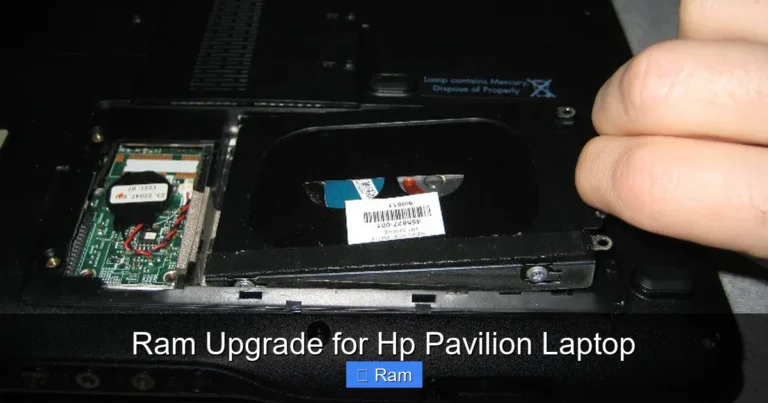
Use your screwdriver to remove the screws on the bottom panel. Carefully lift the panel off. You should see the internal components, including the hard drive, battery, and RAM slots.
Take a photo of the inside before you start. This helps you remember how everything is connected when it is time to reassemble.
Step 5: Remove or Insert RAM
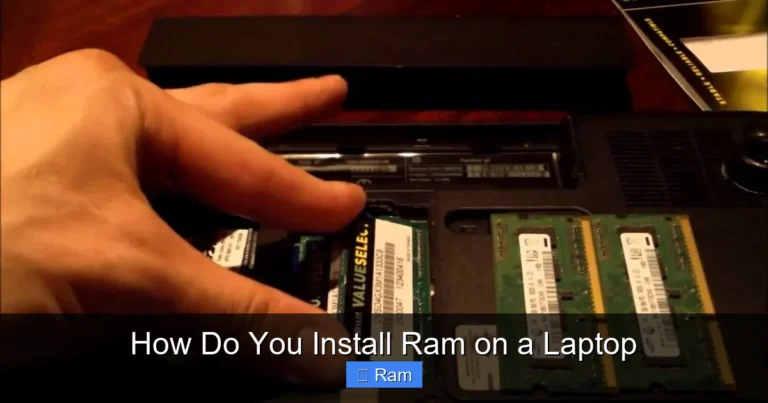
If you are replacing existing RAM, gently push the clips on either side of the RAM stick outward. The module will pop up at an angle. Slide it out carefully.
If you are adding new RAM, align the notch on the module with the slot. Press the module firmly into the slot at an angle, then push it down until it clicks into place. The side clips should lock automatically.
Step 6: Close Up and Test
Replace the bottom panel and screw it back in. Reconnect the battery and power adapter. Turn on your laptop and check the Task Manager or System Information to confirm the new RAM is recognized.
If the full capacity shows up, congratulations, you have successfully upgraded your laptop memory! If not, try reseating the module or checking for compatibility.
How Much RAM Can a Laptop Have?
Every laptop has a maximum RAM capacity. This limit is set by the motherboard and the operating system. Knowing this limit helps you avoid wasting money on memory your laptop cannot use.
Most modern laptops support up to 16 GB or 32 GB of RAM. Some high-end workstations can handle 64 GB or more. But older or budget models may be limited to 8 GB or 12 GB.
Here is a quick comparison of common scenarios:
- 4 GB maximum: Older budget laptops. Upgrading to 8 GB makes a huge difference.
- 8 GB maximum: Common in older mid-range laptops. Upgrading to 16 GB is a great boost.
- 16 GB maximum: Most modern laptops. Upgrading to 32 GB is ideal for heavy multitasking or creative work.
- 32 GB or more: Workstation-class laptops. These are typically for professionals who need serious memory.
If you want to know the specific limit for your machine, search online for your laptop model followed by “maximum RAM.” You can also check the manufacturer’s website or use the Crucial System Scanner tool.
When Upgrading RAM Won’t Help
While a laptop RAM upgrade can significantly improve performance, it is not a magic fix for every problem. Here are situations where adding more memory will not make a big difference:
- Your laptop has a slow hard drive: If you are still using an HDD, upgrading to an SSD will give you a much bigger performance boost than adding RAM.
- Your CPU is outdated: An old processor will bottleneck your system no matter how much memory you add.
- You already have enough RAM: If your laptop already has 16 GB or more and you are not running memory-heavy applications, extra RAM will go unused.
- Your software does not need more RAM: Basic tasks like web browsing and word processing do not require large amounts of memory.
Before spending money on an upgrade, identify what is actually slowing your laptop down. Sometimes a simple cleanup, a new SSD, or a software update solves the problem without any hardware changes at all.
How Much Does a Laptop RAM Upgrade Cost?
One of the best things about upgrading laptop RAM is the price. Memory modules are very affordable compared to other computer components.
A standard 8 GB DDR4 laptop RAM stick typically costs between $15 and $30. A 16 GB module ranges from $30 to $60. If you need two sticks for dual-channel performance, you might spend $40 to $100 total.
Compare this to the cost of buying a new laptop, and the value of a RAM upgrade becomes obvious. For a small investment, you can make an older laptop feel brand new. Many users report faster boot times, smoother multitasking, and better overall responsiveness after adding memory.
If you are unsure which RAM to buy, online retailers like Amazon or Newegg often have compatibility tools. You enter your laptop model, and they recommend the right modules. Some brands like Crucial and Kingston also offer guaranteed compatibility lists on their websites.
Common Mistakes to Avoid When Upgrading Laptop RAM
Even though upgrading RAM is straightforward, people still make mistakes. Here are some common pitfalls to watch out for:
- Buying the wrong RAM type: DDR3 will not work in a DDR4 slot. Always double-check your laptop’s RAM generation before purchasing.
- Ignoring speed ratings: Mixing RAM with different speeds can cause compatibility issues. Try to match the speed of your existing modules.
- Not enabling dual-channel mode: If your laptop has two slots, using matched pairs of RAM sticks can improve performance over using a single stick.
- Forcing the RAM into the slot: RAM should slide in with firm, even pressure. If it does not fit, check the alignment. Forcing it can damage the module or the slot.
- Skipping the BIOS update: Some laptops need a BIOS update to recognize new, higher-capacity RAM modules. Check your manufacturer’s website for updates before upgrading.
Taking a few extra minutes to research and prepare can save you a lot of frustration. A little planning goes a long way toward a successful laptop memory upgrade.
Expert Tips for Getting the Most Out of Your RAM Upgrade
Once you have upgraded your laptop RAM, there are a few things you can do to maximize the benefits:
- Close unused programs: Even with more RAM, running too many applications at once can slow things down. Be mindful of what you have open.
- Check for memory-hungry background apps: Some programs use a lot of memory even when you are not actively using them. Use Task Manager to identify and close them.
- Keep your operating system updated: OS updates often include memory management improvements that help your laptop run more efficiently.
- Pair your RAM upgrade with an SSD: If you have not already, upgrading from an HDD to an SSD alongside a RAM boost gives you the best overall performance improvement.
These simple tips help ensure that your new memory is put to good use and that you get the full performance benefit of your upgrade.
Conclusion
So, can a laptop ram be upgraded? In most cases, yes. The vast majority of laptops with removable RAM slots can benefit from a memory upgrade. It is one of the simplest, most affordable ways to improve your laptop’s speed and multitasking ability. Whether you are a student, a professional, or a casual user, adding more RAM can make a noticeable difference in your daily computing experience.
Just remember to check your laptop’s compatibility first. Confirm the RAM type, speed, and maximum capacity your machine supports. Avoid the common mistakes outlined above, and follow the step-by-step guide for a smooth installation. With the right laptop RAM upgrade, you can extend the life of your laptop and get better performance without spending hundreds of dollars on a new machine.
Take the time to research your specific model, grab the right memory, and enjoy a faster, more responsive laptop. A small upgrade today can save you from buying a new computer tomorrow.
Frequently Asked Questions
Can I upgrade the RAM on any laptop?
No, not all laptops support RAM upgrades. Some models, especially ultrabooks and thin designs, use soldered memory that cannot be replaced or added to. Always check your laptop’s specifications before assuming an upgrade is possible.
How do I know if my laptop RAM is upgradeable?
Check your laptop’s model specifications online or use a tool like CPU-Z to see how many RAM slots are available. If your laptop has open slots or removable modules, you can upgrade. If the RAM is soldered to the motherboard, it cannot be upgraded.
What happens if I add too much RAM to my laptop?
Your laptop will only recognize up to its maximum supported capacity. Any RAM beyond that limit will not be used. Check your laptop’s maximum RAM capacity before purchasing new modules to avoid wasting money.
Is it better to upgrade RAM or replace my laptop?
In most cases, upgrading RAM is a much more affordable option than buying a new laptop. A RAM upgrade costs $20 to $60 and can significantly improve performance. It is a great choice if your laptop is otherwise still fast and functional.
Can I mix different brands of RAM in my laptop?
Yes, you can mix RAM brands, but it is best to match the type, speed, and capacity for optimal performance. Mixing different specifications can sometimes cause compatibility issues or force the system to run at the slower speed of the slowest module.
How long does a laptop RAM upgrade take?
The actual upgrade process takes about 10 to 15 minutes. Researching compatibility and purchasing the right RAM may take a bit longer, but the installation itself is quick and straightforward for most laptops.