I7 Processor with 32gb Ram Laptop
Looking for a laptop that can juggle heavy multitasking, high‑end gaming, and demanding creative apps? An i7 processor with 32GB RAM laptop delivers that powerhouse performance in a portable package. Our guide breaks down why this combo matters, which models stand out, and how to get the most out of your machine.
Key Takeaways
- Performance edge: The i7 CPU paired with 32 GB RAM handles intensive workloads like video editing and 3D rendering without lag.
- Future‑proofing: 32 GB RAM gives you headroom for upcoming software updates and multitasking needs.
- Battery considerations: High‑end specs can drain battery faster; look for models with efficient cooling and large cells.
- Display matters: Pair the hardware with a high‑resolution, color‑accurate screen for the best creative experience.
- Port selection: Thunderbolt 4, HDMI 2.1, and USB‑C ports keep you connected to peripherals and external monitors.
- Price vs. value: Expect a premium price, but many models offer extra perks like premium build quality and warranty.
- Upgrade path: Some laptops let you add more storage or swap RAM later, extending the device’s lifespan.
📑 Table of Contents
- Why an i7 Processor with 32GB RAM Is a Game‑Changer
- Top Scenarios Where This Setup Shines
- Choosing the Right i7 + 32GB Laptop: What to Look For
- Best Models on the Market (2024‑2025)
- Practical Tips to Maximize Your i7 + 32GB Laptop
- Cost vs. Value: Is It Worth the Investment?
- Conclusion: Make an Informed Choice
Why an i7 Processor with 32GB RAM Is a Game‑Changer
When you hear “i7 processor with 32GB RAM laptop,” think of a sports car that also carries a full garage. The Intel Core i7 chip brings six to eight cores, hyper‑threading, and turbo boost speeds that sprint past everyday tasks. Add 32 GB of RAM, and you have a massive playground for apps to run side‑by‑side without fighting for memory.
For students, professionals, and gamers, this combo means:
- Lightning‑fast boot times – Windows or macOS loads in seconds.
- Smooth multitasking – Keep dozens of tabs, spreadsheets, and design tools open.
- Higher frame rates – Modern games run at 1080p or 1440p with stable FPS.
- Professional‑grade rendering – Video editors see shorter export times.
Understanding the i7 Core
The i7 belongs to Intel’s “mid‑to‑high‑end” family. Recent generations (12th, 13th, and 14th) use a hybrid architecture: performance cores (P‑cores) for heavy lifting and efficiency cores (E‑cores) for background tasks. This design balances power and battery life, a crucial factor for laptops.
What 32GB RAM Actually Does
RAM is the short‑term memory where active data lives. 32 GB lets you:
- Run virtual machines alongside your main OS.
- Edit 8K video footage without stutter.
- Keep large Photoshop files open while browsing the web.
- Play modern games while streaming and chatting.
Top Scenarios Where This Setup Shines
Not every user needs an i7 + 32 GB RAM laptop, but for specific scenarios the investment pays off.
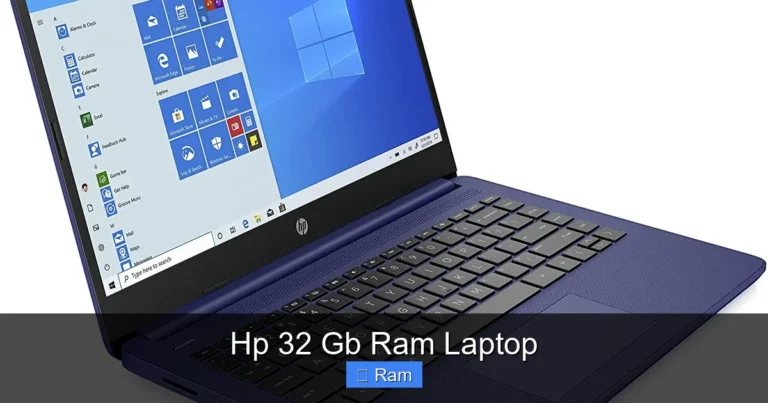
Visual guide about I7 Processor with 32gb Ram Laptop
Image source: microless.com
Creative Professionals
Graphic designers, video editors, and 3D artists rely on fast CPU cores and ample RAM to render effects, apply filters, and preview high‑resolution timelines. Programs like Adobe Premiere Pro, After Effects, and Blender use multiple cores and a lot of memory. With 32 GB RAM, you can keep a 4‑K timeline open, apply color grading, and export without the dreaded “out of memory” warnings.
Software Developers & Data Scientists
Running IDEs, Docker containers, and local databases simultaneously can eat up RAM quickly. An i7 laptop with 32 GB lets you spin up multiple virtual environments, compile large codebases, and train modest machine‑learning models locally, speeding up the development cycle.
Gaming at High Settings
While GPU is the star for gaming, CPU and RAM are the supporting actors. Modern titles like Cyberpunk 2077, Elden Ring, and Starfield benefit from a strong i7 and 32 GB RAM, especially when you enable ray tracing or play at 144 Hz. The extra RAM also helps with background streaming software and voice chat.
Power Users & Multitaskers
If you frequently switch between dozens of browser tabs, run office suites, stream music, and keep a music production DAW open, the extra RAM prevents slowdowns. The i7 ensures each app gets enough processing power, keeping the experience buttery smooth.
Choosing the Right i7 + 32GB Laptop: What to Look For
Not all laptops are created equal. Here’s a checklist to help you pick the perfect model.
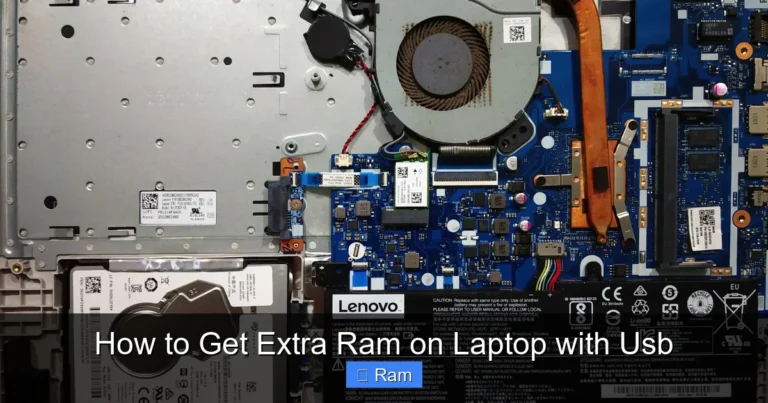
Visual guide about I7 Processor with 32gb Ram Laptop
Image source: m.media-amazon.com
Processor Generation
- 12th Gen (Alder Lake): Introduced the hybrid core design. Good balance of price and performance.
- 13th Gen (Raptor Lake): More cores, higher boost clocks, better multi‑threaded performance.
- 14th Gen (Meteor Lake): Upcoming with improved integrated graphics and efficiency.
For most buyers, a 13th‑gen i7 offers the best mix of speed and future‑proofing.
Memory Configuration
Check if the 32 GB is soldered or in dual‑channel DIMM slots. Dual‑channel (2 × 16 GB) gives better bandwidth. Some laptops allow you to upgrade to 64 GB later.
Graphics Card
Pairing matters. If gaming or GPU‑heavy work is a priority, look for RTX 30‑series or RTX 40‑series laptops. For pure productivity, a good integrated Xe‑graphics (13th gen) may suffice.
Display Quality
- Resolution: 1920×1080 is fine for office work; 2560×1440 or 3840×2160 for creative work.
- Refresh Rate: 120 Hz or higher for gaming; 60 Hz is adequate for design.
- Color Gamut: Aim for 100 % sRGB or higher (Adobe RGB, DCI‑P3) if you edit photos or video.
Battery Life & Cooling
Powerful CPUs generate heat. Look for laptops with vapor‑chamber cooling, multiple heat pipes, or even liquid metal. Larger battery cells (80 Wh or more) offset the extra draw.
Port Selection
Thunderbolt 4, USB‑C with Power Delivery, HDMI 2.1, and a full‑size SD card slot give flexibility for external monitors, fast storage, and peripherals.
Best Models on the Market (2024‑2025)
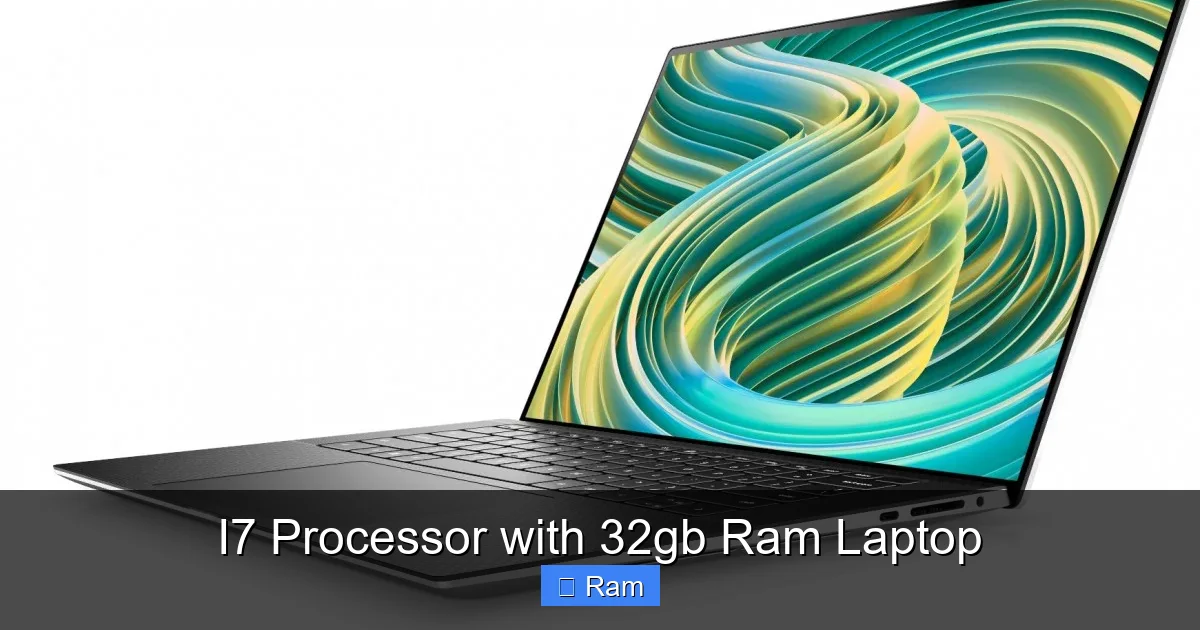
Below are five laptops that combine an i7 processor with 32 GB RAM and deliver strong overall performance.
Visual guide about I7 Processor with 32gb Ram Laptop
Image source: pctech.co.in
1. Dell XPS 15 (9520)
- CPU: 13th‑gen Intel Core i7‑1380P
- RAM: 32 GB DDR5 (2 × 16 GB)
- GPU: NVIDIA GeForce RTX 4050
- Display: 15.6″ 3.5K OLED, 100 % DCI‑P3
- Battery: 86 Wh, up to 10 hrs mixed use
- Why it shines: Premium build, excellent screen, solid thermals.
2. ASUS ROG Zephyrus G14 (2024)
- CPU: 13th‑gen Intel Core i7‑13700H
- RAM: 32 GB DDR5 (2 × 16 GB)
- GPU: NVIDIA GeForce RTX 4060
- Display: 14″ 1440p, 120 Hz, 100 % DCI‑P3
- Battery: 76 Wh, up to 9 hrs
- Why it shines: Compact size, strong gaming performance, good battery life.
3. Apple MacBook Pro 16″ (M3 Pro, 2024)
- CPU: Apple M3 Pro (8‑core CPU, 14‑core GPU)
- RAM: 32 GB unified memory
- GPU: Integrated 14‑core GPU
- Display: 16″ Liquid Retina XDR, 3456×2234, 100 % DCI‑P3
- Battery: 100 Wh, up to 14 hrs web browsing
- Why it shines: Exceptional efficiency, best‑in‑class display, macOS ecosystem.
Note: While not an Intel i7, the M3 Pro offers comparable multi‑core performance and is often listed alongside i7 laptops for its power.
4. Lenovo ThinkPad X1 Extreme Gen 5
- CPU: 13th‑gen Intel Core i7‑13800H
- RAM: 32 GB DDR5 (2 × 16 GB)
- GPU: NVIDIA RTX 4070
- Display: 16″ 4K OLED, 120 Hz
- Battery: 90 Wh, up to 11 hrs
- Why it shines: Business‑grade durability, excellent keyboard, extensive ports.
5. HP Omen 17 (2024)
- CPU: 13th‑gen Intel Core i7‑13800H
- RAM: 32 GB DDR5 (2 × 16 GB)
- GPU: NVIDIA GeForce RTX 4080
- Display: 17.3″ QHD, 165 Hz
- Battery: 94 Wh, up to 8 hrs
- Why it shines: Huge screen, top‑tier GPU for AAA gaming, good cooling.
Practical Tips to Maximize Your i7 + 32GB Laptop
Buying the right hardware is only half the battle. Follow these simple habits to keep your machine humming.
1. Optimize Power Settings
Switch to “Balanced” or “High Performance” mode only when you need extra speed. On Windows, use the “Power & battery” settings; on macOS, enable “Low Power Mode” when unplugged.
2. Keep Drivers Updated
GPU drivers (NVIDIA/AMD) and chipset drivers affect performance. Use the manufacturer’s utility (GeForce Experience, Intel Driver & Support Assistant) to stay current.
3. Manage Startup Programs
Too many apps launching at boot can eat RAM. Use Task Manager (Windows) or System Settings (macOS) to disable unnecessary startups.
4. Use an External SSD for Large Projects
Even with 32 GB RAM, reading/writing huge video files can bottleneck. A fast NVMe external drive (PCIe 4.0) speeds up file transfers and frees internal storage.
5. Clean the Cooling System Periodically
Dust buildup reduces airflow. Every 6‑12 months, clean the vents and fan blades with compressed air or have a professional service it.
6. Leverage Virtual Desktops
Windows 11’s virtual desktops let you separate workspaces (e.g., coding vs. design). This reduces visual clutter and can improve focus without taxing RAM.
Cost vs. Value: Is It Worth the Investment?
An i7 processor with 32 GB RAM laptop typically ranges from $1,800 to $3,500, depending on brand, GPU, and screen. Here’s how to decide if it’s right for you.
Calculate Your Workload
- Heavy users (video editors, 3D artists, gamers): The investment pays off in time saved.
- Moderate users (students, office workers): You might be overpaying; a i5 + 16 GB could suffice.
- Future‑proofers: Buying now avoids a costly upgrade in 2‑3 years.
Consider the Total Cost of Ownership
Higher‑end laptops often include better warranties, premium keyboards, and more durable chassis. Factor these into the price—saving on a cheap model that breaks early can cost more in the long run.
Resale Value
Brands like Apple, Dell XPS, and Lenovo ThinkPad retain value better. If you plan to sell after a few years, the depreciation will be slower.
Conclusion: Make an Informed Choice
Choosing an i7 processor with 32 GB RAM laptop means opting for power, flexibility, and a degree of future‑proofing that most mid‑range machines can’t match. Whether you’re editing 4K footage, building complex codebases, or crushing the latest AAA games, the combination delivers the speed and memory headroom you need.
Remember to match the CPU and RAM with a suitable GPU, a high‑quality display, and a robust cooling system. Use the buying checklist above, compare the top models, and follow the practical tips to keep your machine running at peak performance.
Invest wisely, maintain regularly, and you’ll enjoy a laptop that feels fast today and stays relevant for years to come.
Frequently Asked Questions
What is the advantage of 32GB RAM over 16GB?
32 GB allows more applications to run simultaneously and provides extra headroom for memory‑intensive tasks like 8K video editing, large virtual machines, and heavy multitasking without slowdown.
Can I upgrade the RAM later?
Some laptops have soldered RAM, while others use removable DIMM slots. Check the manufacturer’s specifications; models with two slots usually let you upgrade to 64 GB.
Is an i7 laptop with 32GB RAM good for gaming?
Yes. The i7 handles game logic and physics, while 32 GB ensures background apps (streaming, voice chat) don’t cause frame drops. Pair it with a modern GPU for the best experience.
How does battery life compare to lower‑spec laptops?
Powerful CPUs and more RAM consume more energy, so battery life is typically lower. Look for laptops with larger battery cells (80 Wh+) and efficient cooling to mitigate the drop.
Do I need a dedicated GPU if I have an i7 and 32GB RAM?
For creative work and gaming, a dedicated GPU dramatically improves performance. If you only do office tasks or light photo editing, the integrated graphics on newer i7 chips may be sufficient.
Which i7 generation should I buy?
The 13th‑gen (Raptor Lake) offers the best balance of core count, speed, and efficiency for most users today. The newer 14th‑gen may provide incremental gains but often comes at a premium price.