16gb Ram for Hp Laptop
16gb ram for hp laptop is one of the best upgrades you can make for smoother multitasking and faster performance. Whether you use your HP laptop for work, gaming, or creative tasks, 16GB of RAM delivers the speed and memory headroom most users need. This guide walks you through everything from compatibility checks to installation steps and costs.
Upgrading the memory in your HP laptop can feel like giving it a brand new life. If your current machine feels slow when you have multiple tabs open or you are running heavier programs, adding 16GB of RAM might be exactly what you need.
Many people wonder whether 16gb ram for hp laptop is worth the investment. The short answer is yes. Whether you are a student, a remote worker, a gamer, or someone who edits photos and videos, 16GB of RAM gives you plenty of room to work without slowdowns. In this guide, we will cover everything you need to know about choosing, buying, and installing 16GB RAM in your HP laptop.
Key Takeaways
- 16GB RAM is the sweet spot: It handles everyday tasks, light gaming, and professional workloads with ease.
- Most HP laptops support RAM upgrades: Check your model to confirm slot availability and maximum capacity.
- DDR4 is the standard: Make sure you buy the right type and speed for your specific HP laptop.
- Upgrading costs between $30 and $80: Prices vary based on brand, speed, and whether you buy a single or dual kit.
- DIY installation is straightforward: You can upgrade your RAM at home with basic tools in under 20 minutes.
- Check compatibility first: Use your HP laptop model number to find the right 16GB RAM module.
- Dual-channel setup boosts performance: Two 8GB sticks often work faster than one 16GB stick on supported models.
📑 Table of Contents
Why 16GB RAM Matters for Your HP Laptop
Random Access Memory, or RAM, is the short-term memory your laptop uses to handle active tasks. When you open a browser, a game, or a video editing app, that program lives in your RAM. The more RAM you have, the more programs you can run at the same time without your laptop slowing down.
Most budget HP laptops come with 4GB or 8GB of RAM. While 8GB works fine for basic tasks like browsing and word processing, it starts to struggle when you open several apps at once. 16GB of RAM gives you a comfortable buffer. You can stream video while working on a spreadsheet and have a dozen browser tabs open without any lag.
For hp laptop memory upgrades, 16GB hits a sweet spot. It is not overkill for most users, and it is far more affordable than 32GB options. If you are wondering whether 16GB RAM is enough for a laptop, the honest answer is that it covers the needs of the vast majority of people.
Who Benefits Most from 16GB RAM?
Different users get different value from a 16GB RAM upgrade. Here is a quick look at who benefits the most:
- Students: Running lecture recordings, research browsers, and writing tools at the same time becomes effortless.
- Remote workers: Video calls, multiple office apps, and browser tabs all run smoothly.
- Gamers: Modern games like Fortnite and Valorant run well with 16GB of RAM on HP Omen and Pavilion models.
- Content creators: Photo editing in Photoshop and light video editing in Premiere Pro perform much better with 16GB.
- Programmers: Running IDEs, local servers, and multiple terminal windows is no problem at all.
HP Laptop RAM Compatibility: What You Need to Know
Not all HP laptops use the same type of RAM. Before you buy a 16GB RAM module, you need to check a few details about your specific model. Getting the wrong type of memory can mean it simply will not work.
Check Your HP Laptop Model
Start by finding your exact HP laptop model number. You can usually find this on a sticker on the bottom of the laptop or by going to Settings > System > About on Windows. Once you know your model, you can look up which RAM type it supports.
Most modern HP laptops use DDR4 RAM, which is the current standard for hp laptop ram. Some older models may still use DDR3, and the newest HP laptops are starting to adopt DDR5. Always double-check before purchasing.
RAM Speed and Form Factor
RAM speed is measured in megahertz (MHz). A higher number means faster data transfer, but the difference is often small in everyday use. For most HP laptops, DDR4-3200MHz is a solid choice. The form factor matters too. Most HP laptops use SODIMM RAM modules, which are smaller than the desktop versions.
Also check how many RAM slots your HP laptop has. Some models have two slots, which means you can install two 8GB sticks for a 16GB total. Other models may have one slot, requiring a single 16GB module. If your laptop has one stick already, you might be able to add a second one in an empty slot.
How Much Does 16GB RAM for HP Laptop Cost?
One of the most common questions people ask before upgrading is about price. The good news is that 16GB RAM has become very affordable in recent years. You can find reliable 16GB RAM for hp laptop options in the range of $30 to $80, depending on the brand and speed.
Price Comparison: Single vs. Dual Kit
Buying a single 16GB stick is often slightly cheaper. But if your HP laptop has two slots, buying a dual 8GB kit can give you a performance boost through dual-channel mode. Dual-channel RAM allows your laptop to access memory faster, which can improve overall responsiveness.
Here is a quick price comparison of popular 16GB RAM options for HP laptops:
- Single 16GB DDR4-3200MHz SODIMM: Typically $35 to $55.
- Dual 8GB DDR4-3200MHz kit: Typically $45 to $75.
- High-speed DDR4-3600MHz options: Usually $55 to $80.
Brands like Corsair, Kingston, Crucial, and G.Skill all make reliable hp laptop compatible ram. Always check the manufacturer’s compatibility list on the RAM brand’s website before buying.
How to Upgrade RAM on Your HP Laptop
Installing 16GB RAM in an HP laptop is one of the easiest upgrades you can do yourself. You do not need to be a tech expert. With a few basic tools and about 15 to 20 minutes, you can have your new memory running.
If you prefer a visual walkthrough, check out our detailed guide on how to upgrade RAM on HP laptop for step-by-step instructions with images.
Step-by-Step Installation Process
- Power off your laptop and unplug the charger. Remove the battery if it is removable.
- Ground yourself by touching a metal surface to prevent static damage to the components.
- Locate the RAM access panel on the bottom of your HP laptop. It is usually a small rectangular cover held by one or two screws.
- Remove the access panel and carefully release the clips on the sides of the existing RAM stick. It will pop up at an angle.
- Remove the old RAM by pulling it straight out at the angle it tilted up.
- Align the new 16GB RAM stick with the slot at a 30-degree angle and press it down firmly until the clips snap into place.
- Replace the access panel, screw it back in, and reconnect the battery and charger.
- Power on your laptop and check that Windows recognizes the new memory. You can verify this by going to Settings > System > About.
Common Mistakes to Avoid During RAM Upgrade
Even though upgrading RAM is simple, a few mistakes can cause problems. Here is what to watch out for:
- Buying the wrong RAM type: DDR3 and DDR4 are not interchangeable. Make sure you know which type your HP laptop uses.
- Forcing the RAM stick: It should slide in with firm, even pressure. If it does not go in easily, check the alignment.
- Mixing RAM brands and speeds: While it often works, matching the brand, speed, and capacity of both sticks gives the best results.
- Not seating the RAM fully: If the clips do not click, the RAM is not fully inserted and your laptop may not recognize it.
HP Laptop Models That Support 16GB RAM
Most HP laptops released in the last five years support 16GB RAM. Here are some of the most popular models that work well with this upgrade:
HP Pavilion Series
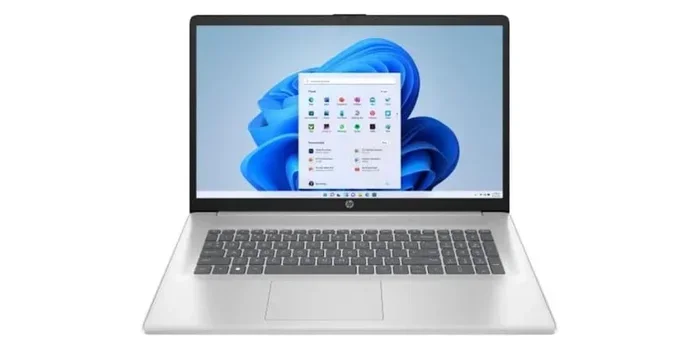
The HP Pavilion is one of the most popular consumer lines. Most Pavilion models from the Pavilion 15 and Pavilion 14 series support 16GB RAM upgrades. These laptops are great for everyday use and light creative work. If you have an older Pavilion, check the HP support page for your specific model to confirm the maximum RAM capacity.
HP Omen Series
The HP Omen line is designed for gaming and heavy workloads. Omen laptops typically come with 16GB RAM already installed, but many models allow you to upgrade to 32GB or even more. If you are looking to push your Omen to its limits, consider our guide on HP Omen laptop RAM upgrade for model-specific advice.
HP Envy Series
The HP Envy series sits between the Pavilion and Omen in terms of performance and price. Envy laptops handle creative tasks and multitasking very well with 16GB of RAM. Most Envy models from 2019 onward support RAM upgrades.
HP ProBook and EliteBook Series
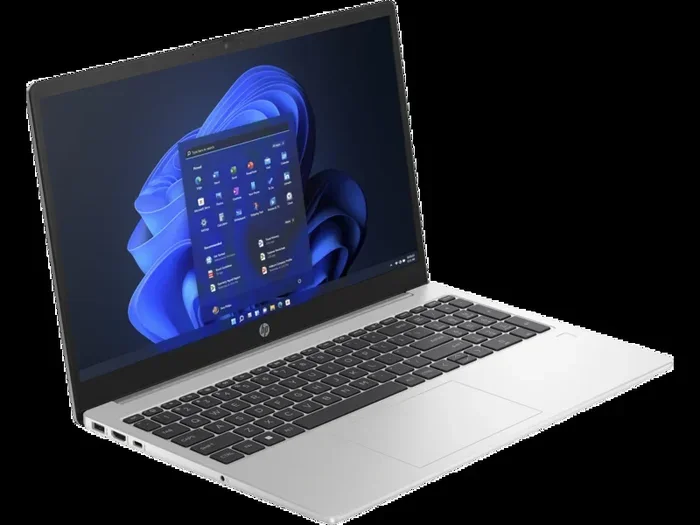
These business-oriented HP laptops are built for durability and productivity. Both the ProBook and EliteBook lines support 16GB RAM in most configurations. They are ideal for professionals who run demanding applications like spreadsheets, databases, and virtual machines throughout the day.
Is 16GB RAM Enough for Your Needs?
This is a question many people ask, and the answer depends on what you use your laptop for. For most users, 16GB RAM is enough for a laptop and provides a smooth, responsive experience across a wide range of tasks.
If you mainly browse the web, check email, use Microsoft Office, and stream videos, 8GB might still be okay. But if you multitask heavily, run creative software, or play modern games, 16GB of RAM will make a noticeable difference. You will experience fewer freezes, faster app switching, and smoother overall performance.
For power users who run virtual machines, 4K video editing, or heavy 3D rendering, 16GB is a great starting point, but you may eventually want to consider 32GB RAM. For most everyday and professional use cases though, 16GB RAM for hp laptop is more than sufficient.
Real-World Performance Boost
Users who upgrade from 8GB to 16GB RAM often report a dramatic improvement. Tasks that used to cause slowdowns, like having 20 Chrome tabs open while running a Word document and a music player, become completely seamless. Boot times stay the same, but the real difference shows up when you are working hard and pushing your laptop to its limits.
Where to Buy 16GB RAM for HP Laptop
You have many options when it comes to buying 16GB RAM for your HP laptop. Online retailers like Amazon, Newegg, and B&H Photo all carry a wide selection. You can also check the official websites of major RAM brands like Crucial, Kingston, Corsair, and G.Skill for guaranteed compatibility.
If you prefer to buy locally, electronics stores like Best Buy and Micro Center often stock 16GB RAM modules on their shelves. The advantage of buying in-store is that you can see the exact product and get help from staff if you are unsure about compatibility.
For those looking for deals on 16GB RAM laptop for sale, keep an eye out for seasonal sales and promotions. Amazon Prime Day, Black Friday, and back-to-school sales often feature significant discounts on laptop memory. Signing up for price alerts on sites like CamelCamelCamel or Honey can also help you catch the best deals.
Final Thoughts
Upgrading to 16gb ram for hp laptop is one of the most impactful and affordable improvements you can make. It breathes new life into older machines, speeds up multitasking, and makes demanding applications run much more smoothly. Whether you have an HP Pavilion, Omen, Envy, or ProBook, a 16GB RAM upgrade is almost always worth it.
Before you buy, make sure you check your laptop model, confirm the RAM type and slots, and choose a reputable brand. The installation process is simple and can be done at home in minutes. With the right 16GB RAM module, your HP laptop will feel faster and more capable than ever before.
If you are ready to upgrade, start by checking compatibility for your specific HP model today. Your laptop will thank you for it.
Frequently Asked Questions
Can I install 16GB RAM in any HP laptop?
Most HP laptops from the last five years support 16GB RAM, but you should check your specific model first. Look up your laptop model number on the HP support website to confirm the maximum RAM capacity and the type of RAM it uses. Some older or very budget models may have a lower maximum limit.
Do I need to remove the existing RAM to add 16GB?
It depends on your HP laptop’s design. If your laptop has two RAM slots and one is already occupied, you can either replace the existing stick with a 16GB module or add a second stick if there is an empty slot. If there is only one slot, you will need to remove the existing RAM and replace it with a 16GB module.
What is the difference between DDR4 and DDR5 RAM for HP laptops?
DDR5 is the newer generation of RAM and offers faster speeds and better efficiency than DDR4. However, most HP laptops still use DDR4, and DDR5 compatibility is limited to the newest models. Always check your laptop specifications before purchasing RAM to make sure you buy the correct type.
Will upgrading to 16GB RAM improve gaming performance on my HP laptop?
Yes, upgrading to 16GB RAM can improve gaming performance, especially if your laptop currently has 8GB or less. Many modern games recommend 16GB of RAM for smooth gameplay. You will likely see fewer frame drops and faster load times, particularly when running the game alongside background applications like Discord or a browser.
How long does it take to install 16GB RAM in an HP laptop?
The entire process typically takes about 15 to 20 minutes. Once you know where the RAM slots are and have the right screwdriver, the actual installation is very quick. The most time-consuming part is usually researching compatibility and ordering the right module.
Is it better to buy one 16GB stick or two 8GB sticks?
If your HP laptop has two RAM slots, buying a dual 8GB kit is often the better choice. Two sticks enable dual-channel mode, which allows your laptop to access memory faster and can improve overall performance. A single 16GB stick works perfectly fine if you only have one slot available.