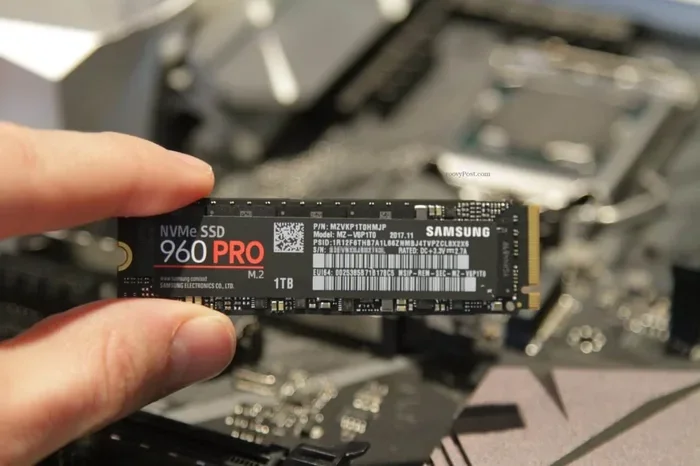
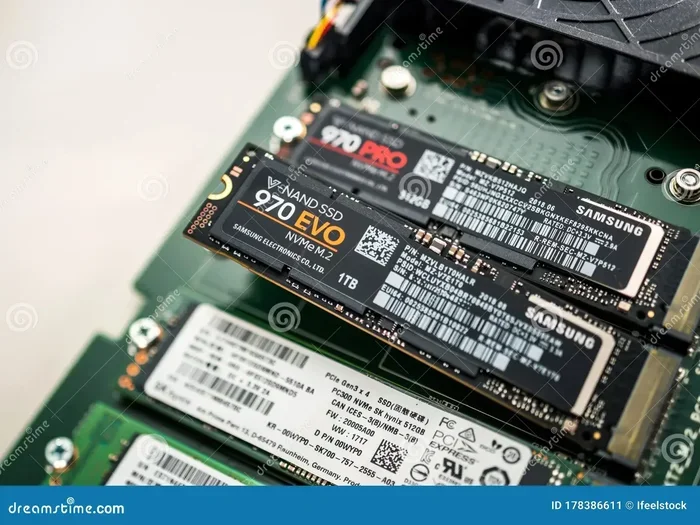
Ssd M 2 2280 Pcie 4.0 X4 Nvme

The Ssd M 2 2280 Pcie 4.0 X4 Nvme is a next-generation storage device that delivers blazing-fast speeds and reliable performance for modern PCs. This guide covers everything you need to know, from understanding the tech to choosing the right drive for your needs. You will learn about speeds, compatibility, and real-world benefits of upgrading to a PCIe 4.0 NVMe M.2 SSD.
If you are building or upgrading a PC, you have probably heard the term Ssd M 2 2280 Pcie 4.0 X4 Nvme. It sounds technical, but the concept is simple. This type of drive is one of the fastest and most efficient ways to store and access your data today.
A solid state drive like this replaces old hard drives with flash memory. No moving parts. No noise. Just incredible speed. Whether you are a gamer, a content creator, or someone who wants a faster computer, this storage format is worth understanding.
The M.2 2280 shape means the drive is 22 millimeters wide and 80 millimeters long. The PCIe 4.0 x4 interface connects it directly to the motherboard at high bandwidth. And NVMe is the protocol that lets it communicate with your system at full speed. Together, these three elements create a storage solution that is hard to beat.
Key Takeaways
- Speed Boost: PCIe 4.0 x4 NVMe drives offer sequential read speeds up to 7,000 MB/s, far faster than SATA SSDs.
- M.2 2280 Form Factor: The 2280 size is the most common and widely compatible M.2 SSD length for desktops and laptops.
- Easy Installation: M.2 NVMe SSDs slot directly into the motherboard with no cables needed.
- Great for Gaming and Workloads: These drives excel at game loading, video editing, and heavy data transfers.
- Backward Compatibility: PCIe 4.0 drives work in PCIe 3.0 and 5.0 slots, though speeds adjust to the slot generation.
📑 Table of Contents
What Is Ssd M 2 2280 Pcie 4.0 X4 Nvme?
Let us break this term down piece by piece. Each part tells you something important about the drive.
Understanding the M.2 2280 Form Factor
The M.2 format is a small, rectangular stick that plugs into a slot on your motherboard. The number 2280 tells you the size. 22 millimeters wide by 80 millimeters long. This is the most popular size for desktops and laptops alike. Other sizes exist, like 2242 or 22110, but 2280 is the standard you will see most often.
Because M.2 drives are so small, they fit in tight spaces. This makes them perfect for thin laptops and compact PC cases. Despite their size, they pack a lot of performance.
The PCIe 4.0 x4 Interface Explained
PCIe stands for Peripheral Component Interconnect Express. It is the lane your drive uses to talk to your processor. The 4.0 part means it uses the fourth generation of this standard. The x4 means it uses four lanes, which doubles the bandwidth compared to x2.
PCIe 4.0 offers about 2 GB/s per lane. With four lanes, that is roughly 8 GB/s of total bandwidth. This is a massive improvement over PCIe 3.0, which maxes out around 4 GB/s for x4. The result is faster file transfers, quicker game loads, and snappier system response.
What NVMe Means and Why It Matters
NVMe stands for Non-Volatile Memory Express. It is a communication protocol designed specifically for flash storage. Older SSDs used AHCI, which was built for spinning hard drives. NVMe was built from the ground up for modern NAND flash memory.
This means lower latency, higher queues, and better efficiency. When you pair NVMe with PCIe 4.0, you get a drive that can reach read speeds of 7,000 MB/s or more. That is several times faster than a typical SATA SSD.
Ssd M 2 2280 Pcie 4.0 X4 Nvme vs SATA SSD
Many people wonder how NVMe drives compare to traditional SATA SSDs. The difference is significant.
| Feature | NVMe PCIe 4.0 M.2 | SATA SSD |
|---|---|---|
| Max Read Speed | 7,000 MB/s | 550 MB/s |
| Max Write Speed | 5,000 MB/s | 520 MB/s |
| Interface | PCIe 4.0 x4 | SATA III |
| Protocol | NVMe | AHCI |
| Form Factor | M.2 2280 | 2.5 inch |
| Latency | Very Low | Higher |
| Cables Needed | None | SATA cable + power |
As you can see, the gap is huge. A nvme m 2 ssd simply leaves a SATA drive in the dust. If you are still using a hard drive or a SATA SSD, upgrading to a PCIe 4.0 NVMe drive will feel like a completely new computer.
Boot times drop to seconds. Large files copy in moments. Games load almost instantly. The ssd performance improvement is the single biggest upgrade you can make to an older system.
Benefits of PCIe 4.0 NVMe M.2 SSDs
Blazing Fast Speeds
The most obvious benefit is speed. With read speeds hitting 7,000 MB/s, a pcie 4.0 ssd handles heavy workloads with ease. Video editing, 3D rendering, and data analysis all benefit from this raw throughput.
Even everyday tasks feel faster. Opening apps, switching between browser tabs, and searching large file libraries all happen in a flash. The nvme protocol keeps the drive responsive even under heavy load.
No Cables, Clean Builds
M.2 drives mount directly onto the motherboard. There are no SATA cables or power connectors to manage. This makes your build cleaner and reduces airflow restrictions inside your case.
For laptop users, the compact size means more room for other components. Thermal management also becomes simpler since there are fewer cables generating heat.
Energy Efficiency
NVMe drives are designed to be power efficient. They use less energy than traditional hard drives, which can extend laptop battery life. The storage device stays cool under normal workloads, though heavy sustained tasks may generate more heat.
Future-Proof Your System
PCIe 4.0 is widely supported on modern motherboards. By choosing a gen4 nvme drive now, you ensure compatibility with current and upcoming platforms. When you upgrade your CPU or motherboard later, the drive will still work perfectly.
How to Choose the Right Ssd M 2 2280 Pcie 4.0 X4 Nvme
Not all NVMe drives are the same. Here are the key factors to consider when picking one.
Capacity Options
Most PCIe 4.0 M.2 drives come in 500 GB, 1 TB, 2 TB, and 4 TB sizes. For most users, 1 TB is the sweet spot. It gives you enough room for your operating system, games, and applications without breaking the bank.
If you work with large media files or have a growing game library, consider a 2 TB model. The 2tb ssd m 2 nvme capacity provides plenty of headroom for future needs.
Read and Write Speeds
Check the sequential read and write speeds before buying. A good PCIe 4.0 drive should offer at least 6,000 MB/s read speeds. Write speeds of 4,000 to 5,000 MB/s are typical for mainstream models.
Keep in mind that real-world speeds can vary based on the workload and the drive’s controller. The sequential read speed matters most for large file transfers, while random read/write speeds affect everyday responsiveness.
Endurance and Warranty
Look at the TBW rating, which stands for Terabytes Written. This tells you how much data you can write to the drive over its lifetime. Higher TBW means longer durability.
Most quality drives come with a 5-year warranty. The kingston 1tb m 2 nvme ssd and similar models from trusted brands offer solid endurance ratings for typical users.
Thermal Management
PCIe 4.0 drives can run warm under heavy load. Many models come with a heatsink or thermal guard built in. If your motherboard has an M.2 heatsink, you may not need a separate one.
For sustained workloads like video rendering, a drive with good thermal design will maintain its speeds longer without throttling. This is an important factor often overlooked when shopping for nvme ssd m 2 drives.
Price and Value
Prices for PCIe 4.0 NVMe drives have dropped significantly over the past couple of years. A 1 TB drive now costs around $60 to $80, making it very affordable. Compare prices across brands and look for deals during sales events.
The best value comes from balancing speed, capacity, and warranty. You do not always need the fastest drive. A reliable mid-range model will serve most users perfectly well.
Common Uses for Ssd M 2 2280 Pcie 4.0 X4 Nvme
Gaming
Gamers benefit the most from NVMe speeds. Modern games are huge, often exceeding 100 GB. Loading these games from a PCIe 4.0 drive cuts wait times dramatically. Open-world games with large environments load assets faster, reducing pop-in and stuttering.
Many game developers now optimize their titles specifically for NVMe storage. DirectStorage on Windows 11 allows games to load assets directly from the SSD into the GPU, bypassing the CPU. This technology relies on fast storage like the nvme m 2 ssd 1tb format.
Content Creation
Video editors and photographers work with massive files. A fast NVMe drive makes scrubbing through 4K footage smooth and responsive. Export times drop significantly compared to slower storage.
3D artists and engineers using CAD software also see major improvements. Large project files load quickly, and the drive can handle the constant read/write demands of rendering workflows.
General Productivity
Even if you just browse the web, write documents, and use office apps, an NVMe drive makes everything feel snappier. Your system boots in seconds. Apps open instantly. File searches are nearly instantaneous.
This is why the ssd upgrade to a PCIe 4.0 NVMe M.2 drive is one of the most impactful changes you can make to any computer.
Installation Tips for M.2 NVMe SSDs
Installing an M.2 NVMe drive is straightforward. Here is a quick guide.
- Check your motherboard for an M.2 slot that supports PCIe 4.0 x4. Look for the notch position and the slot label.
- Ground yourself to prevent static damage. Touch a metal part of the case before handling the drive.
- Insert the drive at a 30-degree angle into the M.2 slot. Gently press it down and secure it with the mounting screw.
- Enter your BIOS or UEFI to make sure the drive is detected. Set the M.2 slot to NVMe mode if needed.
- Install your operating system or format the drive through Windows Disk Management.
Most modern motherboards support M.2 NVMe out of the box. If you are unsure, check your motherboard manual for compatible slots and configurations.
Expert Insights and Common Mistakes
Quick Tips
- Always check if your CPU and motherboard support PCIe 4.0 before buying a gen4 nvme drive.
- Do not over-tighten the M.2 screw. Hand-tight plus a quarter turn is enough.
- Update your motherboard BIOS before installing a new NVMe drive for the best compatibility.
- Use the drive manufacturer’s software to monitor health and firmware updates.
Common Mistakes to Avoid
- Buying a PCIe 4.0 drive for a motherboard that only supports PCIe 3.0. The drive will work but at slower speeds.
- Ignoring thermal management. A hot drive will throttle its speeds and lose performance.
- Choosing the wrong M.2 key type. Make sure your slot uses the B+M key or M key that matches your drive.
- Forgetting to enable NVMe mode in BIOS. Some systems default to SATA mode, which disables NVMe drives.
Conclusion
The Ssd M 2 2280 Pcie 4.0 X4 Nvme represents the current standard for fast, reliable PC storage. It combines a compact form factor with cutting-edge speeds that transform how you use your computer. From gaming to content creation to everyday tasks, the benefits are clear and immediate.
Upgrading to a nvme ssd m 2 pcie drive is one of the simplest and most effective ways to breathe new life into any system. The installation is easy, the performance gains are massive, and the prices have never been more reasonable.
Whether you pick a 1 TB model for everyday use or a 2 TB drive for heavy workloads, you will notice the difference right away. Take the leap and experience what modern solid state drive technology can do for your PC.
Frequently Asked Questions
What does M.2 2280 mean?
M.2 2280 refers to the physical size of the SSD. The number 22 indicates the width in millimeters, and 80 indicates the length. This is the most common M.2 size used in desktops and laptops today.
Is PCIe 4.0 backward compatible with PCIe 3.0?
Yes, PCIe 4.0 drives work in PCIe 3.0 slots. However, the speed will be limited to PCIe 3.0 levels. The drive will still perform much better than a SATA SSD, but it will not reach its full potential in a PCIe 3.0 slot.
Do I need a heatsink for a PCIe 4.0 NVMe SSD?
It depends on your workload. For light to moderate use, most drives stay cool without a heatsink. For sustained heavy tasks like video editing or large file transfers, a heatsink helps maintain peak speeds and prevents thermal throttling.
Can I use a PCIe 4.0 NVMe SSD as a boot drive?
Absolutely. PCIe 4.0 NVMe drives make excellent boot drives. Your operating system will load in seconds, and your entire system will feel significantly faster. Most modern motherboards support NVMe boot out of the box.
How much faster is PCIe 4.0 NVMe compared to a SATA SSD?
A PCIe 4.0 NVMe drive can be up to 12 times faster than a SATA SSD in read speeds. While real-world improvements vary, you will notice the biggest difference when copying large files, loading games, and booting your system.
What should I look for when buying an NVMe M.2 SSD?
Look for PCIe 4.0 support, a 2280 form factor, sufficient capacity for your needs, good TBW ratings, and a reliable warranty. Brands like Samsung, Crucial, and Kingston offer excellent options in this category.