Do Usb Files Leave a Trace
Yes, USB files do leave traces on your computer. Every time you plug in a USB drive, your system logs connection details, file timestamps, and metadata that can reveal your activity. Understanding these traces helps you protect your privacy or investigate file history.
Have you ever plugged in a USB drive and wondered if your computer remembers what you did with it? The short answer is yes. Do USB files leave a trace? Absolutely. Every time you connect a USB device, your computer creates a record of the event. These records can include file names, timestamps, and even fragments of the files themselves.
Whether you are concerned about your privacy or curious about digital forensics, understanding USB file traces matters. Many people do not realize how much information their computer stores about USB connections. This guide breaks it all down in simple terms.
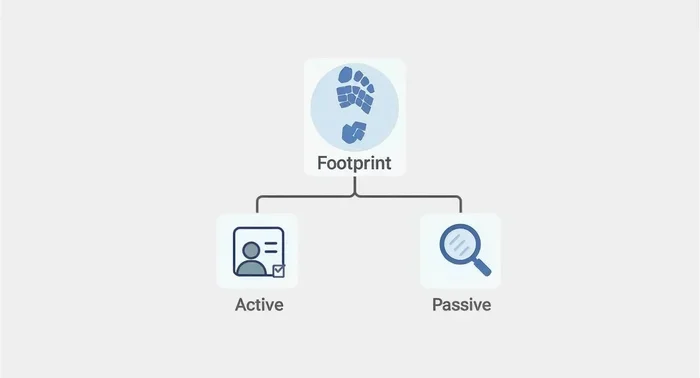
We will explore what traces USB files leave, how to find them, and what you can do to manage or remove them. By the end, you will have a clear picture of your digital footprint when using USB drives.
Key Takeaways
- USB connections are logged: Your operating system records every USB device connection with dates and times.
- File metadata persists: Even after deleting files from a USB drive, traces remain in your system.
- Multiple trace types exist: Registry entries, prefetch files, and thumbcache images all store USB data.
- You can check your history: Simple tools and built-in features let you view USB connection logs.
- Privacy is manageable: Steps like wiping traces and using encryption help protect your data.
- Forensic tools exist: Professionals use specialized software to recover USB file evidence.
📑 Table of Contents
What Happens When You Plug in a USB Drive
The moment you plug a USB drive into your computer, things start happening behind the scenes. Your operating system detects the new device and begins recording information. This process is automatic and happens in seconds.
Your computer assigns a drive letter to the USB device. It also checks the file system format, such as FAT32 or NTFS. During this process, your system logs the connection event. This log includes the date, time, and device details like the vendor ID and serial number.
Many people think that once they unplug their USB drive, everything disappears. That is not true. The traces remain stored in various locations on your hard drive. Some of these traces can last for months or even years unless you actively remove them.
Your computer also caches certain files from the USB drive. This means temporary copies of files may stay on your system even after you eject the drive. These cached files can reveal a lot about what you accessed.
How Your Operating System Tracks USB Devices
Every major operating system tracks USB connections differently. Windows uses the Registry and Event Viewer to log device connections. macOS keeps a system log that records USB events. Linux systems store this information in log files under /var/log.
Windows is particularly detailed in its tracking. The Registry stores a wealth of information about every USB device you have ever connected. This includes device names, connection dates, and even the drive letters assigned to each device.
Your computer’s memory also plays a role in USB tracking. The what does ram do in a laptop is relevant here because your system uses RAM to temporarily store USB connection data during active sessions. Having enough memory ensures your system handles USB connections smoothly without losing track of device history.
Do USB Files Leave Traces on Your Computer
The answer is a definitive yes. USB files leave multiple types of traces on your computer. These traces exist in different locations and serve different purposes. Let us break down the most common types.
When you copy files from a USB drive to your computer, your system creates temporary files. These files may persist even after you delete the originals. The recycle bin also keeps a record of deleted USB files until you empty it.
File metadata is another major trace. Every file has hidden data attached to it. This includes creation dates, modification dates, and author information. Even if you rename or move a file, the original metadata often remains intact.
Registry Entries and USB Device History
Windows Registry entries are one of the most persistent USB traces. The Registry stores a detailed history of every USB device connected to your computer. This includes device names, manufacturer information, and serial numbers.
Each Registry entry contains a mount point, which tells you the drive letter assigned to the USB device. It also records the last connection date and time. Forensic investigators use these entries to build a timeline of USB device usage.
Deleting files from your USB drive does not remove these Registry entries. They stay in your system until you manually clean them or use specialized software. This makes Registry entries a valuable source of USB activity history.
Prefetch Files and Thumbcache Images
Windows creates prefetch files to speed up application loading. These files also record which programs and files were accessed from a USB drive. Prefetch files can reveal which USB files you opened and when you opened them.
Thumbcache images are another hidden trace. When you preview images from a USB drive, Windows saves thumbnail versions to your local cache. These thumbnails remain on your hard drive even after you remove the USB device. They can reveal the content of images you viewed from the USB drive.
Both prefetch files and thumbcache images are stored in hidden system folders. Most users never see them. But forensic tools can easily extract and analyze these traces.
Types of Traces USB Files Leave Behind
Understanding the different types of traces helps you know what to look for. USB file traces fall into several categories, each with its own level of persistence and visibility.
- Connection Logs: Records of when a USB device was plugged in and unplugged. These include timestamps and device identifiers.
- File Metadata: Hidden data attached to files, including creation dates, modification dates, and author names.
- Registry Entries: System records that store USB device history, including mount points and device details.
- Prefetch Files: Temporary files that record which USB files and programs were accessed.
- Thumbcache Images: Cached thumbnails of images viewed from USB drives.
- Temporary Files: Copy files created during file transfers that may persist after the transfer completes.
- Recycle Bin Records: Entries for deleted USB files that remain until the bin is emptied.
Each trace type serves a different purpose. Connection logs tell you when a device was used. File metadata reveals what files were accessed. Registry entries provide a comprehensive history of all USB devices. Together, these traces paint a detailed picture of your USB activity.
How to Check USB File History on Your Computer
You do not need to be a forensic expert to check your USB file history. Windows provides built-in tools that let you view USB connection logs and device history. These tools are free and easy to use.
For checking connection logs, open the Event Viewer. Press Windows Key + R, type eventvwr.msc, and hit Enter. Navigate to Windows Logs > System. Look for events with the source “USBSTOR.” These events record every USB storage device connection and disconnection.
To view Registry entries, open the Registry Editor by typing regedit in the Run dialog. Navigate to HKEY_LOCAL_MACHINE\SYSTEM\CurrentControlSet\Enum\USBSTOR. This folder contains a list of every USB storage device ever connected to your computer.
For a more user-friendly approach, third-party tools can analyze your USB history. Programs like USBDeview by NirSoft display all connected USB devices in a clean interface. These tools show connection dates, device names, and serial numbers at a glance.
Keep in mind that having enough system memory helps these tools run smoothly. If your computer struggles with multiple open applications, you might consider how to add more ram to a laptop for better performance during forensic analysis or routine system checks.
Checking USB Traces on macOS and Linux
macOS users can check USB history through the Console app. Open Finder, go to Applications > Utilities > Console. Search for “USB” in the search bar to find connection logs.
Linux users can check USB history by reviewing log files. Open a terminal and type cat /var/log/syslog | grep usb. This command filters USB-related entries from your system log.
Both macOS and Linux store USB connection data differently than Windows. However, the core principle remains the same. Your operating system keeps a record of USB device activity.
How to Remove USB File Traces
If you want to remove USB file traces from your computer, several methods are available. The right approach depends on how thoroughly you want to clean your system.
The simplest method is to clear your Event Viewer logs. Open Event Viewer, right-click on Windows Logs > System, and select Clear Log. This removes all system logs, including USB connection records.
To clean Registry entries, you can delete specific USB keys in the Registry Editor. Navigate to HKEY_LOCAL_MACHINE\SYSTEM\CurrentControlSet\Enum\USBSTOR and delete the entries for the devices you want to remove. Be careful not to delete other Registry keys.
For a more thorough cleanup, use third-party privacy tools. Programs like CCleaner can wipe temporary files, prefetch data, and thumbcache images. These tools automate the cleaning process and reduce the risk of accidental deletion.
Wiping Free Space for Complete Removal
Simply deleting files does not remove them from your hard drive. Deleted files leave data remnants in the free space of your drive. To truly remove USB file traces, you need to wipe the free space.
Windows has a built-in tool for this. Open Command Prompt as Administrator and type cipher /w:C:\. This command overwrites deleted data in the C: drive free space. The process takes time but ensures traces are permanently removed.
For external USB drives, use the same method but target the correct drive letter. You can also format the USB drive with a full overwrite option for complete data removal.
Some users prefer to use dedicated secure deletion tools. These tools overwrite data multiple times to prevent recovery. The more passes a tool performs, the harder it becomes to recover the original data.
Protecting Your Privacy When Using USB Drives
Prevention is always better than cure. If you want to minimize USB file traces, take proactive steps before using your USB drive. These habits protect your privacy and reduce your digital footprint.
First, use encrypted USB drives. Encryption ensures that even if someone accesses your USB files, they cannot read the content without the password. Many modern USB drives come with built-in hardware encryption.
Second, avoid leaving USB drives plugged in when not in use. Every minute your USB drive is connected, your system may be logging new data. Unplug your drive when you are done transferring files.
Third, use portable applications from your USB drive instead of copying files to your computer. Portable apps run directly from the USB drive without leaving traces on your hard drive. This is one of the best ways to keep your USB activity private.
Consider Your USB Storage Setup
If you use external USB storage enclosures for M.2 NVMe SSD drives, be aware that these devices also leave traces. The enclosure makes your SSD appear as a standard USB drive, but your computer still logs the connection. Consider using encrypted enclosures for sensitive data.
Another tip is to create a separate user account for USB file transfers. This keeps USB traces isolated from your main user profile. When you delete the transfer account, you remove the associated USB history along with it.
Regularly clearing your system logs and temporary files should become a habit. Set a reminder to clean your USB history every few weeks. This prevents traces from building up over time.
Finally, consider using a dedicated USB forensic tool if you need to investigate traces. These tools provide detailed analysis of USB connection history and file activity. They are especially useful for IT professionals and digital forensics investigators.
Conclusion
Do USB files leave a trace? The evidence is clear. Every USB connection creates a record on your computer. From Registry entries to thumbcache images, these traces tell a detailed story of your USB activity. Understanding what traces exist and where they are stored empowers you to manage your digital privacy.
Whether you want to protect your personal data or investigate file activity, knowing about USB traces is essential. The built-in tools in Windows, macOS, and Linux make it easy to check your USB history. And with the right cleaning methods, you can remove traces when needed.
Take control of your USB file privacy today. Implement the tips in this guide and stay informed about your digital footprint. Your computer remembers more than you think, but with the right knowledge, you can manage what it remembers.
Frequently Asked Questions
Can someone see what files I accessed from a USB drive?
Yes, your computer can record which files you accessed from a USB drive. This information is stored in prefetch files, Registry entries, and temporary file logs. These traces remain on your system even after you remove the USB drive.
How long do USB file traces stay on a computer?
USB file traces can remain on your computer indefinitely. Registry entries and prefetch files persist until you manually delete them or use cleanup tools. The only way to remove them completely is through active deletion or secure wiping.
Do USB traces survive after formatting the drive?
USB traces on your computer survive even if you format the USB drive. The traces are stored on your computer’s hard drive, not on the USB device itself. Formatting the USB drive only erases data from the drive, not from your computer’s logs.
Can forensic tools recover deleted USB file traces?
Yes, forensic tools can often recover deleted USB file traces. Even after clearing logs or deleting Registry entries, specialized software can sometimes recover the data. This is why secure wiping is recommended for thorough trace removal.
Do USB traces exist on Mac computers?
Yes, Mac computers also store USB connection traces. macOS logs USB events in the system log and maintains device records. While the storage method differs from Windows, the traces are equally persistent and recoverable.
Is it legal to check someone else’s USB file traces?
The legality depends on your jurisdiction and the context. Checking USB traces on your own computer is generally legal. Accessing someone else’s computer or USB history without permission may violate privacy laws. Always ensure you have proper authorization before investigating another person’s device.