Does It Matter Which Usb Port You Use for Wifi

The USB port you choose for your WiFi adapter can genuinely impact your wireless speed and overall network performance. Not all USB ports deliver the same data transfer rates, and using the wrong one may slow down your wireless connection without you even realizing it. USB 3.0 ports offer significantly faster bandwidth than USB 2.0 ports, which matters when you are streaming, gaming, or video calling. In this guide, we break down exactly how different USB port types affect your WiFi performance and help you choose the right one for your setup.
The short answer to “Does It Matter Which USB Port You Use for WiFi?” is yes. It absolutely matters which USB port you choose for your WiFi adapter. Your choice of port can mean the difference between blazing-fast wireless speeds and frustratingly slow browsing. Many people plug in their USB WiFi adapter and never think twice about which port they are using. But that small decision can have a big impact on your daily internet experience.
Think of USB ports like highways. A USB 2.0 port is a narrow country road. A USB 3.0 port is a multi-lane highway. Your WiFi adapter is the car trying to move data back and forth. If you put a fast car on a narrow road, it will still get you somewhere, but it will not go as fast as it could. Understanding this simple idea helps you make smarter choices about your setup and get the most out of your wireless network.
In this article, we will walk through everything you need to know. We will compare different USB port types, explain how they affect WiFi performance, and give you practical tips to optimize your connection. Whether you are setting up a new laptop or troubleshooting slow speeds on your desktop, this guide has you covered.
Key Takeaways
- USB port type matters: USB 3.0 delivers much faster data rates than USB 2.0, directly affecting WiFi adapter performance.
- USB-C vs USB-A makes a difference: USB-C ports support newer standards and often provide better power delivery for WiFi adapters.
- Power delivery affects stability: Some USB ports may not supply enough power, causing your WiFi adapter to disconnect or underperform.
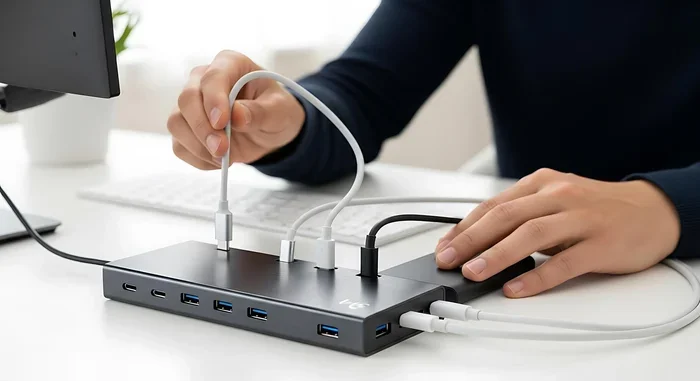
- Using a USB hub can help: A quality best USB hub can expand your port options without sacrificing speed.
- Check your adapter specs: Matching your WiFi adapter to the right USB port ensures you get the speeds you pay for.
- Wrong port choice causes real problems: Slow speeds, dropped connections, and poor signal strength often trace back to the wrong USB port.
📑 Table of Contents
- Why Your USB Port Choice Affects WiFi Speed
- USB 2.0 vs USB 3.0: How They Affect WiFi Performance
- USB-C vs USB-A: Which Port Shape Is Better for WiFi?
- Does the USB Port Supply Enough Power for Your WiFi Adapter?
- Common Problems When Using the Wrong USB Port
- How to Choose the Right USB Port for Your WiFi Adapter
- Expert Tips to Maximize Your WiFi Performance
- Conclusion
Why Your USB Port Choice Affects WiFi Speed
Your WiFi adapter talks to your computer through the USB port. The port acts as a bridge between the adapter and your system. If that bridge is too narrow, data gets backed up. This bottleneck limits the speed of your wireless network even if your internet plan is fast.
Here is a simple way to think about it. Imagine you have a 100 Mbps internet plan. Your WiFi adapter can handle that speed easily. But if you plug it into a USB 2.0 port, the maximum data transfer rate of that port is around 480 Mbps. That sounds fine, right? Well, USB 2.0 has overhead and real-world speeds are often much lower. You might only get 280 Mbps or less in practice. Now imagine your adapter could handle 5 Gbps with USB 3.0. The port becomes the limiting factor instead of your adapter.
Using the right USB port ensures your WiFi adapter can perform at its full potential. This is especially true for high-speed internet plans and modern WiFi 6 or WiFi 6E adapters. When you match the right port with the right adapter, you unlock better network performance and a smoother online experience.
USB 2.0 vs USB 3.0: How They Affect WiFi Performance
The difference between USB 2.0 and USB 3.0 is huge when it comes to WiFi performance. These two standards were built for different eras of technology, and they show it. Let us break down what each one means for your wireless connection.
Understanding USB 2.0
USB 2.0 has been around since the early 2000s. It was designed for a time when most internet connections were much slower. The maximum theoretical speed of USB 2.0 is 480 Mbps. In real-world use, you can expect around 280 to 320 Mbps.
For basic web browsing and email, USB 2.0 works fine. But if you are streaming 4K video, playing online games, or attending video calls, you will likely notice limitations. Many older laptops only have USB 2.0 ports, which can be a real problem if you want to use a modern WiFi adapter.
Here are some common scenarios where USB 2.0 holds you back:
- Streaming HD or 4K video that buffers constantly
- Video calls with frozen or pixelated video
- Online gaming with high latency and lag spikes
- Downloading large files that take forever
- Using a wireless adapter that supports speeds above 300 Mbps
Understanding USB 3.0
USB 3.0, also called USB 3.2 Gen 1, offers a massive upgrade. Its maximum theoretical speed is 5 Gbps. Real-world speeds typically reach 3.2 to 4 Gbps. That is more than ten times faster than USB 2.0.
For WiFi adapters, USB 3.0 is the sweet spot for most users. Most modern wireless adapters are designed to work best with USB 3.0 ports. They can deliver faster speeds, more stable connections, and better overall performance. If you have a USB 3.0 port available, always use it for your WiFi adapter.
Here is a quick comparison of USB standards and their speeds:
- USB 2.0: Max theoretical 480 Mbps, real-world around 280 to 320 Mbps
- USB 3.0: Max theoretical 5 Gbps, real-world around 3.2 to 4 Gbps
- USB 3.1 Gen 2: Max theoretical 10 Gbps, real-world around 7 to 9 Gbps
- USB 3.2 Gen 2×2: Max theoretical 20 Gbps, real-world around 16 to 18 Gbps
As you can see, the jump from USB 2.0 to USB 3.0 is enormous. Even if your internet plan does not exceed what USB 2.0 can handle, the better bandwidth of USB 3.0 means less strain on your connection and more headroom for smooth performance.
USB-C vs USB-A: Which Port Shape Is Better for WiFi?
Beyond the USB standard version, the physical shape of the port also matters. The two most common shapes you will encounter are USB-A and USB-C. Each has its own advantages for WiFi adapters.
USB-A Ports
USB-A is the classic rectangular port you have seen on computers for decades. Most desktop PCs and older laptops use USB-A ports. These ports come in USB 2.0 and USB 3.0 versions, so you need to check which one you have.
USB-A USB 3.0 ports work great for WiFi adapters. They provide plenty of bandwidth and are widely compatible. The main limitation is that USB-A ports on older computers may only be USB 2.0. Always check your computer specifications before buying a WiFi adapter.
USB-C Ports
USB-C is the newer, smaller, reversible connector. Modern laptops, tablets, and desktops increasingly use USB-C ports. One big advantage of USB-C is that it often supports the latest USB standards, including USB 3.2 and USB4.
USB-C ports typically offer faster data transfer rates and better power delivery. This makes them ideal for WiFi adapters. The reversible design is also a nice convenience, especially when you are plugging in your adapter in a tight space.
Here are some tips for choosing between USB-A and USB-C:
- If your computer has USB-C ports, use them for your WiFi adapter
- If you only have USB-A ports, make sure they are USB 3.0 or newer
- Consider a USB-C to USB-A adapter if you need flexibility
- Check if your WiFi adapter comes with the right cable for your port type
Does the USB Port Supply Enough Power for Your WiFi Adapter?
Power delivery is another factor that often gets overlooked. Not all USB ports deliver the same amount of power. And your WiFi adapter needs a stable power supply to work correctly.
How USB Power Delivery Works
USB 2.0 ports typically provide up to 500 mA of power. USB 3.0 ports can deliver up to 900 mA. USB-C ports with Power Delivery can supply much more, up to 100 watts in some cases. For a WiFi adapter, the power difference between USB 2.0 and USB 3.0 is usually enough to matter.
When a WiFi adapter does not receive enough power, you may experience:
- Frequent disconnections from your wireless network
- Weak signal strength even when close to the router
- Slower data speeds than expected
- The adapter not being recognized by your computer at all
Plugging your WiFi adapter into a USB 3.0 port ensures it gets the power it needs. This is especially important for larger adapters with external antennas. These adapters draw more power and rely on the port to keep them running smoothly.
If you are using a laptop, be careful about using unpowered USB hubs. A quality USB hub with its own power supply can solve this problem. It gives your WiFi adapter the dedicated power it needs without draining your laptop battery.
Common Problems When Using the Wrong USB Port
Using the wrong USB port for your WiFi adapter can cause a range of frustrating issues. Many people blame their router or internet provider when the real problem is right under their nose. Here are the most common problems you might face.
Slow Internet Speeds
If your internet feels sluggish even though you have a fast plan, the USB port might be to blame. Plugging a USB 3.0 WiFi adapter into a USB 2.0 port caps your speeds at what USB 2.0 can handle. You will never reach the speeds your adapter and internet plan are capable of delivering.
Try moving your adapter to a different USB port if you notice slow speeds. You might be surprised at how much faster your connection becomes.
Dropped Connections
Does your WiFi adapter keep disconnecting from your network? This is a classic sign of insufficient power or bandwidth from the USB port. USB 2.0 ports often struggle to maintain a stable connection with modern WiFi adapters, especially during heavy data transfer.
A stable wireless connection requires consistent data flow. When the USB port cannot keep up, your adapter drops off the network and reconnects. This causes lag, buffering, and frustration.
Poor Signal Strength
Sometimes the problem is not speed but range. If your WiFi adapter struggles to pick up signals from your router, the USB port could be interfering. Some USB 2.0 ports have poor shielding, which can introduce electrical interference that weakens your wireless signal.
USB 3.0 ports tend to have better shielding and are less likely to interfere with wireless signals. This is another reason to prefer USB 3.0 for your WiFi adapter.
How to Choose the Right USB Port for Your WiFi Adapter
Now that you understand why the USB port matters, let us talk about how to choose the right one. Following a few simple steps can save you a lot of troubleshooting time.
Step 1: Check Your Computer’s USB Ports
Before buying a WiFi adapter, check what USB ports your computer has. Look for the port shape (USB-A or USB-C) and check the color. USB 3.0 ports are often blue inside. USB 3.2 ports might be teal or red. USB 2.0 ports are usually black or white.
If you are unsure, you can check your computer specifications online or in the device manager on Windows. Knowing your port types helps you choose the right adapter.
Step 2: Match the Adapter to the Port
Buy a WiFi adapter that matches your USB port capabilities. If you have USB 3.0 ports, get a USB 3.0 adapter. If you have USB-C ports, get a USB-C adapter or use the right cable. Matching the adapter to the port ensures you get the best performance possible.
For most home users, a WiFi 6 USB adapter with USB 3.0 connectivity offers excellent value. It provides fast speeds, good range, and stable performance for streaming, gaming, and everyday browsing.
Step 3: Consider Your Usage Needs
Think about what you use your WiFi for. If you mainly browse the web and check email, USB 2.0 might be enough. But if you stream movies, play online games, or work from home with video calls, you need the bandwidth that USB 3.0 provides.
Here is a quick guide to help you decide:
- Basic browsing and email: USB 2.0 works, but USB 3.0 is better
- HD streaming and video calls: USB 3.0 recommended
- 4K streaming and online gaming: USB 3.0 or USB-C strongly recommended
- Heavy data transfer and work-from-home: USB 3.0 or USB-C with a quality router setup
Step 4: Keep Your Adapter Away From Interference
Where you place your USB adapter matters too. Avoid plugging it into ports that are crowded with other devices. Keep it away from large metal objects, monitors, and power supplies. These can all cause interference that weakens your wireless signal.
For the best results, use a front-panel USB port on a desktop or a port that has a clear line of sight to your router. This simple placement tip can improve your internet speed and connection stability significantly.
Expert Tips to Maximize Your WiFi Performance
Beyond choosing the right USB port, there are several things you can do to get the best possible WiFi performance from your setup.
Update your WiFi adapter drivers regularly. Manufacturers release driver updates that improve performance and fix bugs. Check the adapter manufacturer’s website for the latest versions. Updated drivers can sometimes make a bigger difference than hardware upgrades.
Position your router wisely. Place your router in a central location in your home. Keep it elevated and away from walls and metal objects. The better your router placement, the stronger your signal will be at the adapter end.
Use a USB extension cable if needed. If your adapter has weak signal in its current position, a short USB extension cable can help you move it to a better spot. Just make sure the cable is high quality to avoid signal loss.
Consider a dual-band or tri-band adapter. These adapters can connect to both 2.4 GHz and 5 GHz frequencies. The 5 GHz band is less crowded and faster, which is great for streaming and gaming. If your router supports it, switching to 5 GHz can dramatically improve your experience.
For those working from home, a reliable setup is essential. Pairing your WiFi adapter with the right router ensures you have the fastest and most stable connection possible. Check out our guide on best WiFi routers for your provider to find the perfect match for your new adapter.
Conclusion
Does it matter which USB port you use for WiFi? Yes, it really does. The USB port you choose affects your speed, stability, and overall wireless performance. Using a USB 3.0 or USB-C port instead of an older USB 2.0 port can make a noticeable difference in your daily internet experience.
Remember the key points from this guide. Match your WiFi adapter to the right port type. Ensure your port provides enough power. Avoid interference by placing your adapter thoughtfully. And always keep your drivers up to date. These small steps add up to a much better WiFi experience.
You do not need to be a tech expert to get this right. With the information in this guide, you can confidently set up your WiFi adapter and enjoy faster, more reliable wireless internet. The next time you plug in an adapter, take a moment to check which port you are using. Your internet speed will thank you.
Frequently Asked Questions
Can I use a USB 2.0 port for a WiFi adapter?
Yes, you can use a USB 2.0 port for a WiFi adapter, but it will limit your speeds. USB 2.0 caps data transfer at around 480 Mbps theoretically, and real-world speeds are often lower. For basic web browsing, it works fine. But for streaming, gaming, or fast internet plans, USB 3.0 is a much better choice.
What happens if I plug a USB 3.0 WiFi adapter into a USB 2.0 port?
The adapter will still work, but it will operate at USB 2.0 speeds. You will not get the full performance your adapter is capable of. This means slower downloads, buffering during streaming, and higher latency during online gaming. Always plug USB 3.0 adapters into USB 3.0 ports when possible.
Does a USB hub affect WiFi adapter performance?
Yes, it can. A cheap unpowered USB hub may not provide enough power or bandwidth for a WiFi adapter. This can lead to slow speeds and dropped connections. If you need a hub, choose a powered USB 3.0 hub to maintain performance. A quality hub ensures your adapter gets the resources it needs.
Is USB-C better than USB-A for WiFi adapters?
USB-C is generally better because it supports newer USB standards with faster speeds and better power delivery. It also has a reversible design for convenience. However, what matters most is the USB standard version, not just the shape. A USB-A 3.0 port can perform just as well as a USB-C 3.0 port.
Can the wrong USB port damage my WiFi adapter?
The wrong USB port will not physically damage your adapter in most cases. But it can cause poor performance, frequent disconnections, and weak signal strength over time. Some adapters may not work at all if the port does not provide enough power. Always match your adapter to a compatible and capable USB port.
How do I know if my USB port is 2.0 or 3.0?
USB 3.0 ports are often colored blue inside. USB 2.0 ports are usually black or white. You can also check your computer specifications online or look in the Device Manager on Windows. The port name will list the USB version. When in doubt, check the port markings or your computer manual.