Is It Better to Connect via Hdmi or Usb C
Choosing between HDMI and USB-C depends on your devices, needs, and what you want to accomplish. USB-C offers versatility with data, video, and power through one cable, while HDMI delivers reliable, high-quality audio and video for displays. Understanding the strengths of each connection helps you avoid buying the wrong cable or adapter.
When you plug in a cable, you just want things to work. Right? But if you have ever stood in front of a wall of cables at a store or scrolled through endless options online, you know the frustration is real. The debate between HDMI vs USB-C comes up more often than you might think.
Both connections serve a purpose, but they are not created equal. USB-C has taken the tech world by storm. It is small, reversible, and can do almost everything in one tiny port. HDMI, on the other hand, has been the reliable workhorse of audio and video connections for years. So which one should you use? Let us break it down in plain language.
This guide walks you through everything you need to know about HDMI and USB-C connections. We will compare speeds, compatibility, use cases, and more. By the end, you will know exactly which cable fits your setup best.
Key Takeaways
- USB-C is a universal connector: It handles video, data, and power in a single cable, making it incredibly convenient for modern laptops and devices.
- HDMI remains the go-to for displays: It offers consistent, plug-and-play performance for monitors, TVs, and projectors without extra adapters.
- Bandwidth matters: USB-C with Thunderbolt 3 or 4 can rival or exceed HDMI’s capabilities, but standard USB-C may fall short for high-resolution setups.
- Compatibility varies by device: Not every USB-C port supports video output, so always check your device specifications before purchasing a cable.
- Adapters bridge the gap: Products like an M.2 NVMe to USB-C SSD enclosure or a NVMe SSD to USB adapter show how USB-C expands connectivity options across devices.
- Your use case decides the winner: For simple display connections, HDMI wins. For all-in-one connectivity, USB-C is the clear choice.
📑 Table of Contents
What Is HDMI and What Does It Do?
HDMI stands for High-Definition Multimedia Interface. It has been around since the early 2000s and became the standard for connecting devices to screens. Whether you are hooking up a laptop to a monitor or a Blu-ray player to a TV, HDMI handles both audio and video through a single cable.
Here is what makes HDMI appealing:
- Plug-and-play simplicity: You do not need drivers or extra software. Just plug it in and your display works.
- Wide device support: Almost every TV, monitor, projector, and gaming console uses HDMI.
- Solid audio and video quality: HDMI supports high resolutions including 4K and even 8K on newer versions.
- No adapter needed in most cases: If your device has an HDMI port, you just use an HDMI cable.
One of the biggest strengths of HDMI is its consistency. You do not have to worry about whether a monitor will recognize your signal. It just works. That is why HDMI remains a favorite for home entertainment setups and office presentations.
Different Versions of HDMI
HDMI has evolved over the years. Here is a quick look at the main versions:
- HDMI 1.4: Supports 4K at 30Hz. Good for basic 4K content.
- HDMI 2.0: Supports 4K at 60Hz. Great for smooth video and gaming.
- HDMI 2.1: Supports 4K at 120Hz and even 8K. Built for next-gen gaming and high-end displays.
The version you need depends on what you plan to do. For casual movie watching, HDMI 1.4 or 2.0 works fine. For serious gaming or professional video work, HDMI 2.1 gives you the bandwidth you need.
What Is USB-C and Why Is It So Popular?
USB-C is a connector type, not a data standard. That is an important distinction. USB-C refers to the physical shape of the port and plug. It is small, oval-shaped, and reversible, which means you never have to flip it to get it right.
USB-C can carry many types of signals through a single cable:
- Data transfer: USB-C supports USB 3.0, 3.1, 3.2, and even USB4 speeds.
- Video output: Through protocols like DisplayPort Alt Mode, USB-C can send video to external displays.
- Power delivery: USB-C Power Delivery (PD) can charge devices up to 100W or more.
- Network connections: Some USB-C cables support Ethernet and Thunderbolt.
This versatility is why USB-C has become so popular. Instead of carrying three or four different cables, you can use one USB-C cable for almost everything. A USB-C enclosure or a USB 3.1 adapter shows just how flexible this port can be for storage and data tasks too.
USB-C and Thunderbolt: What Is the Difference?
Thunderbolt uses the USB-C connector but offers much faster speeds. Thunderbolt 3 supports 40Gbps bandwidth, while Thunderbolt 4 maintains that same speed with added security features. Standard USB-C without Thunderbolt is slower and may not support video output at all.
This is a common point of confusion. Not every USB-C port is created equal. Some only charge your device. Others handle data. And only Thunderbolt or DisplayPort-capable USB-C ports can output video to a display. Always check your device specs before assuming USB-C will work for your monitor or TV.
HDMI vs USB-C: Head-to-Head Comparison
Let us put the two connection types side by side. This table makes it easy to see the differences at a glance.
| Feature | HDMI | USB-C |
|---|---|---|
| Video Support | Yes, up to 8K (HDMI 2.1) | Yes, through Alt Mode or Thunderbolt |
| Audio Support | Yes, multi-channel audio | Yes, through DisplayPort Alt Mode |
| Data Transfer | No | Yes, up to 40Gbps (Thunderbolt 3/4) |
| Power Delivery | No | Yes, up to 100W+ (USB-C PD) |
| Reversible Connector | No | Yes |
| Common Use | TVs, monitors, projectors | Laptops, phones, tablets, docks |
| Adapter Needed | Rarely | Often for older displays |
| Bandwidth (Max) | 48Gbps (HDMI 2.1) | 40Gbps (Thunderbolt 3/4) |
As you can see, USB-C wins on versatility. HDMI wins on simplicity and broad display compatibility. The right choice depends on what you are connecting and what you need it to do.
When to Use HDMI
Sometimes HDMI is the better pick. Here are the situations where it makes the most sense:
- Connecting to a TV or home theater system: Most TVs only have HDMI inputs. There is no need to overcomplicate things.
- Setting up a desktop monitor: Many monitors still rely on HDMI as their primary input. It is straightforward and reliable.
- Gaming consoles: PlayStation, Xbox, and Nintendo Switch all use HDMI for video output.
- Projectors in conference rooms: HDMI is the standard for presentations and projectors in most offices.
HDMI also has the advantage of carrying uncompressed audio and video signals. This means you get the best quality without any conversion or adapters. If you just want to connect a source device to a display and walk away, HDMI is your best friend.
A Note on HDMI Adapters
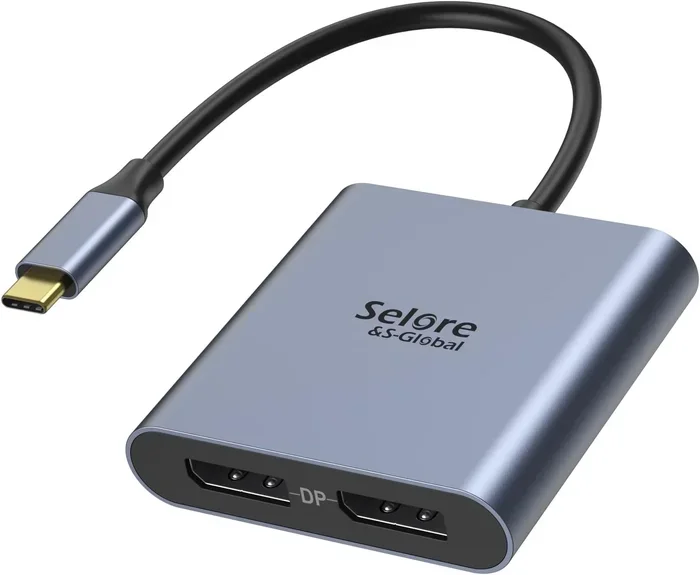
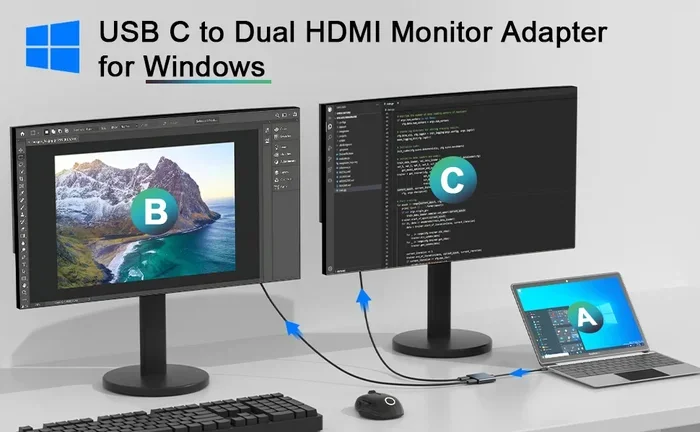
If your laptop only has USB-C ports, you can still use HDMI with a simple adapter or cable that converts USB-C to HDMI. These adapters are affordable and widely available. Just remember that the quality of the adapter matters. Cheap adapters can cause signal loss or support only lower resolutions.
When to Use USB-C
USB-C shines when you need one cable to do it all. Here is when it is the clear winner:
- Connecting modern laptops: Most new laptops, including MacBooks and many Windows machines, use USB-C as their primary port.
- Using a docking station: A USB-C dock can connect your laptop to a monitor, keyboard, mouse, and power source through a single cable.
- Charging while displaying: USB-C Power Delivery lets you charge your laptop and output video at the same time.
- Connecting mobile devices: Phones and tablets with USB-C benefit from the universal connector for data, charging, and display output.
USB-C also opens the door to external storage solutions. With a SanDisk Extreme Portable USB-C NVMe SSD, you can transfer massive files at blazing speeds while also connecting to displays when needed. The NVMe SSD to USB adapter is another great example of how USB-C expands your connectivity options beyond just displays.
Best Practices for USB-C Connections
To get the most out of your USB-C setup, keep these tips in mind:
- Check your port specifications: Look for Thunderbolt or DisplayPort support if you need video output.
- Use certified cables: Cheap, uncertified cables can cause overheating or fail to deliver full speeds.
- Match your cable to your needs: A charging-only USB-C cable will not support video or high-speed data.
- Consider a docking station: A good dock simplifies your setup and gives you multiple ports from one USB-C connection.
Can You Use Both HDMI and USB-C Together?
Absolutely. Many setups benefit from using both connection types. For example, you might connect your laptop to a monitor via USB-C for charging and display, while also using HDMI to connect a gaming console to the same TV. Both connections can coexist in the same workspace.
The key is to match the right cable to the right device. Do not force a connection that does not fit. Use adapters when needed, but always choose quality adapters that support the bandwidth and power levels your devices require.
For users who work with external storage, a SanDisk Extreme Portable USB-C NVMe SSD in black offers a sleek, compact way to store and access large files. It connects directly to your laptop’s USB-C port and delivers fast transfer speeds for creative professionals and everyday users alike.
Common Mistakes People Make When Choosing Cables
Avoid these pitfalls when deciding between HDMI and USB-C:
- Assuming all USB-C ports support video: Many USB-C ports only handle charging and data. Always verify video output capability.
- Buying the cheapest cable: Low-quality cables can damage your devices or fail to deliver promised speeds.
- Ignoring cable length: Longer cables may lose signal quality. Stick to recommended lengths for best performance.
- Not checking device compatibility: Some older devices do not support USB-C video output at all.
- Forgetting about power requirements: If your laptop needs 65W or more to charge, make sure your USB-C cable and charger support that wattage.
Taking a few minutes to verify your setup before buying cables saves time, money, and frustration. A little research goes a long way.
Final Verdict: Which Connection Is Better?
There is no single winner in the HDMI vs USB-C debate. It comes down to what you need from your connection. If you want simple, reliable display output with no fuss, HDMI is hard to beat. If you want one cable to handle data, video, and power, USB-C is the clear choice.
For most modern setups, USB-C offers the most flexibility. It is the connector of the future. But HDMI still holds strong in the world of displays, entertainment, and fixed installations. The best approach is to have both types of cables on hand and use the right one for each device.
Understanding the strengths and limitations of each connection type empowers you to make smarter purchasing decisions. You will spend less time troubleshooting and more time enjoying your devices. That is a win no matter which cable you choose.
Frequently Asked Questions
Can USB-C replace HDMI completely?
Not yet. While USB-C can carry video and audio signals, many TVs and monitors still rely on HDMI inputs. USB-C is closing the gap, but HDMI remains widely used in home entertainment and office setups. For now, both connectors serve important roles.
Do I need a special USB-C cable for video output?
Yes, not all USB-C cables support video. You need a cable that supports DisplayPort Alt Mode or Thunderbolt. Check the cable specifications before purchasing to ensure it can carry a video signal alongside data and power.
Is HDMI or USB-C better for gaming?
It depends on your setup. HDMI 2.1 is excellent for gaming consoles and high-refresh-rate monitors. USB-C with Thunderbolt 4 is also great for gaming laptops and external monitors. For most console gamers, HDMI remains the standard choice.
Can I use a USB-C to HDMI adapter for my laptop?
Yes, a USB-C to HDMI adapter lets you connect a laptop with USB-C ports to an HDMI display. Just make sure your laptop’s USB-C port supports video output. Check your device manual or look for DisplayPort Alt Mode or Thunderbolt support.
Why is USB-C more expensive than HDMI cables?
USB-C cables with advanced features like Thunderbolt or Power Delivery cost more to manufacture. They include more pins and support higher bandwidth and wattage. Basic USB-C cables are affordable, but premium cables with full feature support carry a higher price tag.
Does the length of a USB-C or HDMI cable affect performance?
Yes, cable length can affect signal quality. Longer HDMI cables may experience signal degradation beyond 15 feet. USB-C cables are generally more resilient over longer distances, but very long cables without proper shielding can still lose performance. Stick to recommended lengths for the best results.