Do You Need an Adapter for Usb C to Displayport
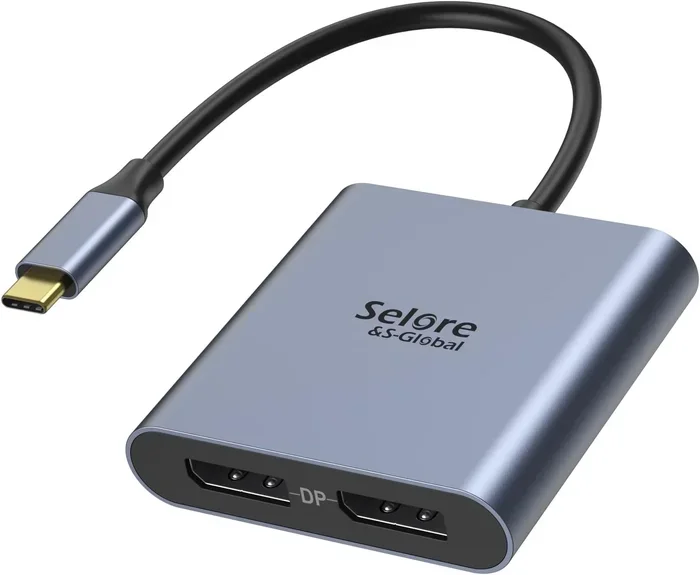
You need a USB-C to DisplayPort adapter if your laptop or device only has USB-C ports and you want to connect to a DisplayPort monitor. These small adapters unlock high-resolution video output from a single USB-C port, supporting resolutions up to 4K and beyond. Whether you are a professional, a gamer, or a casual user, understanding your adapter options saves time, money, and frustration.
So you just got a new monitor with a DisplayPort input, but your laptop only has USB-C ports. Or maybe your desktop has a USB-C port but no DisplayPort output in sight. Whatever the situation, the question is the same: do you need an adapter for USB-C to DisplayPort? The short answer is yes, in most cases. But the full answer is a bit more nuanced, and that is exactly what we are going to walk through today.
Connecting a USB-C device to a DisplayPort monitor is not always plug-and-play. There are different adapter types, compatibility considerations, and technical details that can make or break your setup. In this guide, we will break everything down in simple terms. You will learn when you need an adapter, which type to choose, and how to avoid common mistakes that waste your time and money.
Key Takeaways
- USB-C to DisplayPort adapters are essential when your device lacks a native DisplayPort output but has a USB-C port.
- Active adapters are required for most modern setups because they convert the USB-C signal to DisplayPort actively.
- Check your device’s USB-C capabilities before buying, as not all USB-C ports support video output.
- Thunderbolt 3 and USB4 ports offer the best compatibility and performance with DisplayPort adapters.
- Passive adapters work only in specific cases where the device supports DisplayPort Alt Mode natively.
- Adapter quality matters for stable connections, so invest in certified and reputable brands.
📑 Table of Contents
- What Is a USB-C to DisplayPort Adapter?
- When Do You Need a USB-C to DisplayPort Adapter?
- Active vs Passive Adapters: Which One Do You Need?
- How to Choose the Right USB-C to DisplayPort Adapter
- Common Issues and How to Fix Them
- Do You Need a USB-C to DisplayPort Adapter? Final Verdict
- Frequently Asked Questions
What Is a USB-C to DisplayPort Adapter?
A USB-C to DisplayPort adapter is a small device that lets you connect a USB-C equipped laptop, tablet, or desktop to a DisplayPort monitor or display. It takes the video signal from your USB-C port and converts it into a DisplayPort signal that your monitor can read.
Think of it like a translator between two languages. Your device speaks USB-C, and your monitor speaks DisplayPort. The adapter bridges the gap so they can communicate. Without it, you simply cannot connect the two directly in most cases.
These adapters come in different shapes and sizes. Some are small dongles that plug directly into your USB-C port. Others are cables with USB-C on one end and DisplayPort on the other. And some are part of larger USB-C docking stations that add multiple ports to your device at once.
How Does USB-C Carry Video?
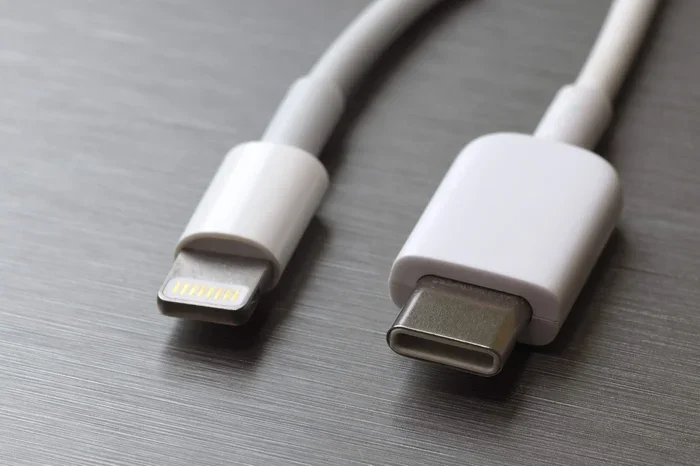
USB-C is not just a cable for charging or data transfer. Modern USB-C ports can also carry video signals. This is possible thanks to a feature called DisplayPort Alt Mode. When a USB-C port supports DisplayPort Alt Mode, it can send a video signal directly to a DisplayPort monitor without needing extra conversion hardware.
However, not all USB-C ports support this feature. Some USB-C ports are designed only for data transfer and charging. They cannot output video at all. This is why knowing your device’s capabilities is so important before buying any adapter.
Also, Thunderbolt 3 and USB4 ports always support video output. If your device has one of these ports, you have the most flexibility when choosing adapters and cables.
When Do You Need a USB-C to DisplayPort Adapter?
You need a USB-C to DisplayPort adapter whenever your source device has a USB-C port but your display only accepts DisplayPort input. This situation is very common in several scenarios.
Common Situations Where You Need This Adapter
- Your laptop has USB-C but no HDMI or DisplayPort. Many modern thin laptops, like Ultrabooks and Chromebooks, only offer USB-C ports for all connectivity. If your monitor uses DisplayPort, you need an adapter.
- You are using a USB-C docking station that does not include DisplayPort output. Some docking stations only offer HDMI. If your monitor uses DisplayPort, you need a separate adapter to bridge the gap.
- You want to connect multiple monitors. If your laptop has limited USB-C ports, you might use a docking station for one monitor and a direct adapter for a second one.
- You are upgrading to a DisplayPort 1.4 monitor. Newer monitors with higher refresh rates and resolutions often use DisplayPort. An adapter ensures you can take full advantage of these features.
If any of these situations sound familiar, you likely need a USB-C to DisplayPort adapter. The good news is that these adapters are affordable and easy to set up.
Active vs Passive Adapters: Which One Do You Need?
This is where things get a little tricky. Not all adapters are created equal. There are two main types: active adapters and passive adapters. Knowing the difference can save you from buying the wrong one.
What Is a Passive Adapter?
A passive adapter does not have any internal electronics. It simply reroutes the signal from one connector to another. Passive adapters only work when your device already supports DisplayPort Alt Mode over USB-C. In other words, the video signal is already there; the passive adapter just changes the shape of the connector.
Passive adapters are cheaper and simpler. But they only work in specific situations. If your USB-C port does not support video output, a passive adapter will not do anything.
What Is an Active Adapter?
An active adapter has built-in chips that actively convert the USB-C signal into a DisplayPort signal. This means it works with almost any USB-C port, even those that do not support DisplayPort Alt Mode. Active adapters are more versatile and reliable for most users.
The trade-off is that active adapters cost a bit more and may require external power in some cases. But for most people, an active adapter is the safest choice. If you are unsure whether your USB-C port supports video output, go with an active adapter.
Quick Comparison
| Feature | Passive Adapter | Active Adapter |
|---|---|---|
| Requires DisplayPort Alt Mode | Yes | No |
| Works with all USB-C ports | No | Yes |
| Price | Lower | Higher |
| Reliability | Depends on device | High |
| Best for | Known compatible devices | Unknown or mixed setups |
For most users, an active USB-C to DisplayPort adapter is the better choice. It removes guesswork and ensures your setup works no matter what device you are using.
How to Choose the Right USB-C to DisplayPort Adapter
Not all adapters are the same quality. Choosing the right one depends on several factors that we will break down below.
Check Your Device’s USB-C Capabilities
Before you buy anything, check what your USB-C port can do. Look at your device’s specifications or the manufacturer’s website. You want to know if it supports:
- DisplayPort Alt Mode (for passive adapters)
- Thunderbolt 3 or 4 (best for maximum compatibility)
- USB4 (the newest standard with great video support)
- USB 3.1 or USB 3.2 (data transfer speeds, not necessarily video)
If you are not sure, our guide on NVMe SSD to USB Adapter explains USB-C capabilities in more detail and can help you understand what your port supports.
Resolution and Refresh Rate Support
Different adapters support different resolutions and refresh rates. If you want to use a 4K monitor at 60Hz, make sure your adapter supports that. Cheaper adapters might only handle 1080p or 4K at 30Hz, which can feel laggy.
Look for adapters that support DisplayPort 1.4 or higher. These offer the best bandwidth for high-resolution displays. If you are into gaming or video editing, this matters a lot.
Cable vs Dongle vs Dock
You have three main form factors to choose from:
- USB-C to DisplayPort cable: A single cable with USB-C on one end and DisplayPort on the other. Simple and compact.
- USB-C to DisplayPort dongle: A small adapter that plugs into your USB-C port. Great for travel and minimal setups.
- USB-C docking station with DisplayPort: A larger hub that adds multiple ports including DisplayPort. Best for permanent desk setups.
If you also need to connect other devices like external storage, consider a USB-C hub instead of a simple adapter. Some hubs include DisplayPort output along with USB-A ports, SD card readers, and Ethernet.
For users who need both storage connectivity and video output, you might also explore options like the M.2 NVMe to USB C SSD Enclosure for connecting external drives alongside your display setup.
Brand and Certification Matters
Not all adapters are created equal. Cheap, uncertified adapters can cause flickering, resolution drops, or no signal at all. Look for adapters from reputable brands and those that carry DisplayPort certification. A certified adapter has been tested to work reliably with DisplayPort devices.
Investing a little more in a quality adapter saves you from headaches down the road. Your adapter is the bridge between your device and your monitor, so it deserves to be reliable.
Common Issues and How to Fix Them
Even with the right adapter, you might run into problems. Here are the most common issues and their solutions.
No Signal on the Monitor
If your monitor shows no signal after connecting the adapter, try these steps:
- Check that the adapter is fully plugged into the USB-C port.
- Make sure the DisplayPort cable is securely connected to the monitor.
- Try a different USB-C port on your device if available.
- Restart your device and check the display settings.
- If using an active adapter, make sure it is powered if required.
Low Resolution or Flickering Screen
If your display works but looks blurry or flickers, the adapter might not support your monitor’s resolution or refresh rate. Try lowering the resolution in your display settings first. If that does not help, the adapter may be incompatible or low quality.
For users dealing with storage connectivity alongside display setups, understanding adapter compatibility across different USB standards is important. You can learn more about USB adapter options in our article on M.2 NVMe SSD to USB 3.1 Adapter.
Adapter Not Recognized by the Device
Sometimes your device simply does not recognize the adapter. This can happen if the USB-C port does not support video output. Check your device specifications to confirm. If your port only supports data and charging, you will need an active adapter with its own processing chip.
Do You Need a USB-C to DisplayPort Adapter? Final Verdict
The answer depends on your setup. If your device has a USB-C port and your monitor has a DisplayPort input, then yes, you need an adapter. It is that simple.
For most users, an active USB-C to DisplayPort adapter is the best choice. It works with virtually any USB-C port and gives you a reliable connection to your DisplayPort monitor. If you know your device supports DisplayPort Alt Mode, a passive adapter can save you a few dollars.
Either way, having the right adapter means you can connect your device to any display, anywhere, without worrying about port compatibility. It is a small investment that makes a big difference.
And if you are curious about other adapter options for your USB-C setup, check out our guide on NVMe M.2 SSD to SATA Adapter for more insights on how adapters work across different connection types.
Frequently Asked Questions
Can I use a USB-C to HDMI adapter instead of DisplayPort?
Yes, you can use a USB-C to HDMI adapter if your monitor has an HDMI input. However, DisplayPort offers better support for high refresh rates and resolutions. If you have a choice, DisplayPort is often the better option for gaming and creative work.
Does a USB-C to DisplayPort adapter work with all laptops?
Most modern laptops with USB-C ports will work with a USB-C to DisplayPort adapter. However, some budget laptops have USB-C ports that only support charging and data transfer, not video output. Always check your laptop specifications before purchasing an adapter.
Can I daisy-chain multiple monitors with a USB-C to DisplayPort adapter?
Daisy-chaining monitors requires a DisplayPort connection that supports MST (Multi-Stream Transport). Most standard USB-C to DisplayPort adapters do not support daisy-chaining. You would need a docking station or adapter specifically designed for MST support.
Is Thunderbolt 3 better than standard USB-C for DisplayPort adapters?
Yes, Thunderbolt 3 offers better bandwidth and more reliable video output compared to standard USB-C. If your device has a Thunderbolt 3 port, you will get the best performance with any DisplayPort adapter or cable.
How much does a good USB-C to DisplayPort adapter cost?
A quality USB-C to DisplayPort adapter typically costs between $15 and $50. Passive adapters are cheaper, while active adapters with better chipsets cost more. Investing in a certified adapter from a reputable brand ensures reliable performance and longevity.
Can I use a USB-C to DisplayPort adapter for gaming?
Yes, you can use a USB-C to DisplayPort adapter for gaming as long as the adapter supports your monitor’s resolution and refresh rate. For the best gaming experience, look for adapters that support DisplayPort 1.4 and high refresh rates like 144Hz or higher at your target resolution.