Do I Have Usb 1 or 2

Wondering “Do I Have USB 1 or 2”? You can easily check your USB version by looking at your device manager, checking the port markings, or testing transfer speeds. USB 2.0 is significantly faster than USB 1.1, and knowing which one you have helps you get the most out of your devices.
Have you ever plugged in a USB drive and thought, “Why is this taking forever to copy?” You are not alone. Many people use their computers every day without ever checking their USB version. The truth is, knowing whether you have USB 1 or USB 2 can make a huge difference in how fast your files move around.
Older computers often came with USB 1.1 ports. These ports are really slow by today’s standards. If you have a newer machine, chances are it has USB 2.0 or even USB 3.0. But how do you know for sure? This guide walks you through everything you need to figure out your USB port version and get the most from your gear.
We will cover simple ways to check your ports, compare the two versions side by side, and show you how to fix common problems. By the end, you will know exactly what kind of USB interface your computer uses. Let us get started.
Key Takeaways
- Check Your Device Manager: Windows and Mac both let you view your USB version in system settings.
- Look for Port Markings: Many USB ports have the version number printed right on them.
- USB 2.0 Is Much Faster: USB 2.0 offers up to 480 Mbps, while USB 1.1 maxes out at 12 Mbps.
- Backward Compatibility Matters: USB 2.0 devices work in USB 1.1 ports, but at slower speeds.
- Easy Upgrade Paths Exist: You can use a USB 3.0 adapter to get faster speeds if your system is older.
- Speed Tests Help Confirm: A simple file transfer test can reveal your actual USB version.
📑 Table of Contents
How to Check if You Have USB 1 or USB 2
Figuring out your USB version is easier than most people think. You do not need to be a tech expert. There are a few simple methods that work on both Windows and Mac computers.
Check Your Device Manager on Windows
On a Windows PC, the Device Manager is your best friend. Here is how to use it:
- Right-click the Start button.
- Click on “Device Manager.”
- Expand the “Universal Serial Bus controllers” section.
- Look for entries that say “USB 2.0” or “USB 1.1.”
If you see “USB 2.0 Enhanced Host Controller,” you have USB 2.0. If you only see “USB Host Controller” without the “2.0” label, you might be running USB 1.1. This is the quickest way to check your USB port version on any Windows machine.
Check USB Version on a Mac
Mac users have a slightly different path:
- Click the Apple menu.
- Choose “About This Mac.”
- Click “System Report.”
- Select “USB” from the left sidebar.
Your Mac will list all connected USB devices along with their speed and version. Look for “USB 2.0” or “USB 1.x” in the list. This gives you a clear picture of what your USB device supports.
Look at the Port Itself
Sometimes the easiest check is right in front of you. Many computers print the USB version directly on the port. Look for small text near the port that says “USB 2.0” or “USB 1.1.”
USB 2.0 ports are often black inside. USB 1.1 ports are usually white. This is not a universal rule, but it works on many computers. If your port has no markings, do not worry. The software methods above will still work.
Run a Speed Test
A data transfer speed test can also tell you what you are working with. Here is a simple way to do it:
- Plug in a USB flash drive.
- Copy a large file (at least 500 MB).
- Time how long it takes.
If the transfer takes more than a minute or two, you are likely on USB 1.1. If it finishes in seconds, you probably have USB 2.0 or better. This method gives you real-world proof of your USB bandwidth.
USB 1 vs USB 2: Key Differences
Now that you know how to check your version, let us compare the two. Understanding the differences helps you see why upgrading matters.
Speed Comparison
The biggest difference between USB 1 and USB 2 is speed. Here is a simple table:
- USB 1.1: Maximum speed of 12 Mbps (megabits per second).
- USB 2.0: Maximum speed of 480 Mbps (megabits per second).
That means USB 2.0 is about 40 times faster than USB 1.1. In real life, a file that takes 10 minutes on USB 1 might take just 15 seconds on USB 2. The USB standard improvement is massive.
Power Output
USB 2.0 also delivers more power than USB 1.1. USB 2.0 provides up to 500 mA of power, while USB 1.1 gives you 500 mA as well. However, USB 2.0 handles power delivery more efficiently. This means your USB devices charge faster and work more reliably on USB 2.0 ports.
Cable and Connector Types
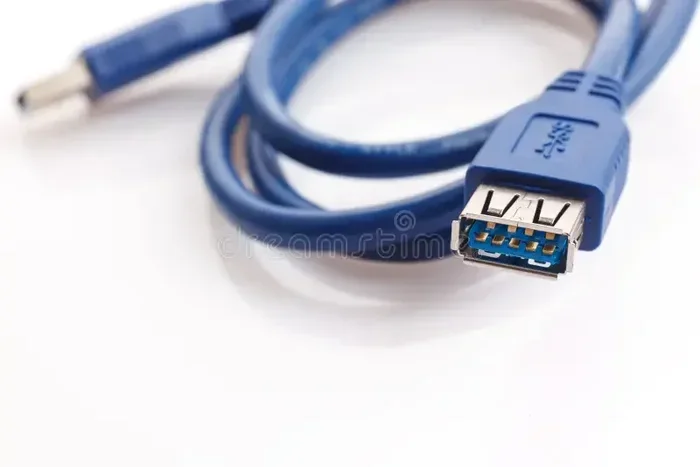
Both versions use the same USB Type-A and USB Type-B connectors. You cannot tell them apart just by looking at the cable shape. The difference is inside the wiring and the USB host controller on your computer.
Here are some quick tips to remember:
- USB 1.1 cables work in USB 2.0 ports without any problem.
- USB 2.0 cables work in USB 1.1 ports too, but at slower speeds.
- The cable itself is not always the bottleneck. The port version matters most.
What USB Devices Do You Own
Knowing your USB version helps you understand what your devices can do. Different gadgets need different speeds to work well.
Devices That Work Fine on USB 1.1
Some devices do not need much speed. These work just fine on USB 1.1:
- Keyboards and mice
- Webcams with basic resolution
- USB microphones
- Simple flash drives for small files
If you only use your USB device for these tasks, a USB 1.1 port might not bother you. But the moment you try to transfer large files, you will feel the slowdown.
Devices That Need USB 2.0 or Better
Other devices really need the boost of USB 2.0 or higher:
- External hard drives
- Large video files and photo backups
- Printers with high-resolution output
- Portable SSDs
If you use an external drive, you know how painful slow transfers can be. Many people solve this by using an M 2 Nvme Ssd To Usb 3 1 Adapter or an M 2 Nvme Ssd Enclosure Adapter Usb 3 1 to get much faster speeds from their internal SSD. But first, you need to know what your base USB port version supports.
Can You Upgrade from USB 1 to USB 2
The good news is that you can often upgrade without buying a new computer. There are simple and affordable ways to get faster USB speeds.
Use a USB 2.0 PCI Card
If your desktop has a free expansion slot, you can add a USB 2.0 PCI card. These cards cost under $20 and instantly give you USB 2.0 ports. Just pop it in, install the driver, and you are good to go.
Use a USB Hub
A USB hub with USB 2.0 support can add more ports and faster speeds. Plug the hub into your existing port, and connect your devices to the hub. This works well if your computer has only one or two ports.
Try a USB 3.0 Adapter
For even better performance, consider a M 2 Nvme To Usb C Ssd Enclosure or a M 2 Nvme Ssd Usb adapter. These let you connect modern M.2 NVMe SSDs through a USB port. They bypass your old USB 1.1 or USB 2.0 limits entirely and give you blazing fast transfer speeds.
These adapters are great for anyone who wants to breathe new life into an older computer. They turn slow setups into fast ones with very little effort.
Common USB Problems and How to Fix Them
Even with the right USB version, you might run into issues. Here are some common problems and their fixes.
Device Not Recognized
If your computer does not see your USB device, try these steps:
- Unplug the device and wait 10 seconds.
- Plug it back into a different port.
- Check Device Manager for any yellow warning signs.
- Update your USB host controller drivers.
Slow Transfer Speeds
Slow speeds do not always mean you have USB 1.1. Other causes include:
- A damaged USB cable
- A full flash drive or hard drive
- Running too many programs at once
- Using a USB hub that limits bandwidth
Try a different cable first. If that does not work, test the device on another port. This helps you isolate whether the problem is with the USB port version or something else.
Intermittent Disconnections
If your device keeps disconnecting, the USB interface might be loose. Try cleaning the port with compressed air. Also, make sure your cable is firmly plugged in. Loose connections are one of the most common causes of dropouts.
Why Knowing Your USB Version Matters
Understanding your USB version saves you time and money. It helps you choose the right cables, hubs, and adapters. It also prevents frustration when a device does not perform as expected.
For example, if you buy a fast external SSD but plug it into a USB 1.1 port, it will crawl. You would think the drive is broken when really it is the port holding you back. Knowing your USB port version helps you avoid this mistake.
It also helps when shopping for new gear. If you see a product that requires USB 2.0 or higher, you can check your computer first. This saves you from buying something that will not work well.
Many people upgrade their entire setup when a simple adapter would do the trick. Before you spend money, figure out what you already have. The USB standard on your computer might be all you need to fix the problem.
Final Thoughts
So, do I have USB 1 or 2? Now you know exactly how to find out. Whether you use Device Manager, port markings, or a simple speed test, the answer is just a few minutes away.
Remember that USB 2.0 is the sweet spot for most everyday tasks. It is fast enough for file transfers, backups, and peripheral devices. If you still have USB 1.1, consider a low-cost upgrade like a PCI card or a M 2 Nvme Ssd To Usb 3 1 Adapter to modernize your setup.
Your USB connection affects almost everything you do with external devices. Take a few minutes today to check your version. You might be surprised at how much faster things can be with just a small change.
Share this guide with friends who are still wondering about their USB port version. A little knowledge goes a long way in getting the most out of your tech.
Frequently Asked Questions
How do I know if I have USB 1 or USB 2?
You can check your Device Manager on Windows or System Report on a Mac. Look for “USB 2.0” or “USB 1.1” in the list of controllers. You can also look for version markings on the port itself or run a simple file transfer speed test.
Can I use a USB 2.0 device in a USB 1.1 port?
Yes, USB 2.0 devices are backward compatible with USB 1.1 ports. However, the device will work at the slower USB 1.1 speed. You will not get the full benefit of the faster USB 2.0 standard.
Is USB 1.1 still used today?
It is rare, but some very old computers and embedded systems still use USB 1.1. Most modern devices have moved on to USB 2.0 or higher. If you are using a computer made after 2005, you almost certainly have USB 2.0 or better.
What is the maximum speed of USB 2.0?
USB 2.0 supports a maximum data transfer speed of 480 Mbps. In real-world use, you can expect speeds around 25 to 35 Mbps depending on the device and cable quality.
Do I need a special cable for USB 2.0?
No, you do not need a special cable. Standard USB cables work with both USB 1.1 and USB 2.0. The speed is determined by the port and controller on your computer, not the cable itself.
Can I upgrade my USB 1.1 port to USB 2.0?
Yes, you can. You can install a USB 2.0 PCI card in a desktop computer or use a USB 2.0 hub. These are affordable and easy to set up. They give you faster speeds without replacing your whole computer.
=== CONCLUSION ===
Finding out whether you have USB 1 or USB 2 is quick and easy. Use Device Manager, check your port markings, or run a speed test. Once you know your USB version, you can make smart decisions about cables, devices, and upgrades.
Do not let an old USB port version hold you back. A simple upgrade can transform how fast your files move and how smoothly your devices work. Take action today and enjoy the difference that a faster USB connection makes.