Is Usb C 3 2 Gen 1 the Same as Thunderbolt
USB C 3.2 Gen 1 and Thunderbolt are not the same. While both use the USB C connector, Thunderbolt offers much faster speeds and extra features. USB C 3.2 Gen 1 maxes out at 5 Gbps, while Thunderbolt 3 and 4 deliver 40 Gbps. Understanding this difference helps you pick the right cables and devices for your setup.
This is a comprehensive guide about Is Usb C 3 2 Gen 1 The Same As Thunderbolt.
Key Takeaways
- Different protocols: USB C 3.2 Gen 1 and Thunderbolt share a connector but use entirely different protocols and capabilities.
- Speed gap is huge: Thunderbolt delivers up to 40 Gbps, while USB C 3.2 Gen 1 tops out at 5 Gbps.
- Backward compatibility works both ways: Thunderbolt ports accept USB C cables, but USB C ports cannot handle Thunderbolt devices at full speed.
- Look for the lightning bolt icon: This is the easiest way to tell if a port supports Thunderbolt.
- Price difference matters: Thunderbolt cables and devices cost more due to advanced technology.
- Choose based on your needs: Most everyday tasks work fine with USB C 3.2 Gen 1, but creative pros need Thunderbolt.
[FEATURED_IMAGE_PLACEHOLDER]
Understanding USB C 3.2 Gen 1
USB C 3.2 Gen 1 is a data transfer standard that runs over the USB C connector. It is one of the most common connection types you will find on laptops, phones, and external drives today. But what does it actually mean for your daily use?
The USB C connector itself is just a shape. It is a small, reversible plug that fits into a port regardless of which way you flip it. USB C 3.2 Gen 1 refers to the data protocol running through that connector. This protocol supports speeds up to 5 Gbps, which stands for 5 gigabits per second.
To put that in perspective, 5 Gbps lets you transfer a 1 GB file in about 2 seconds. That is fast enough for most everyday tasks. You can move photos, documents, and even HD video files without waiting long. Many external SSDs and portable drives use this standard because it offers a great balance of speed and cost.
Here are some key features of USB C 3.2 Gen 1:
- Maximum data transfer speed: 5 Gbps
- Connector type: USB C (reversible)
- Power delivery: Up to 100W with USB PD
- Common devices: Laptops, phones, tablets, external hard drives
- Cost: Affordable and widely available
One thing that confuses many people is the naming. USB C 3.2 Gen 1 was previously called USB 3.1 Gen 1. The standards body renamed it, but the technology stayed the same. So if you see either name, they refer to the same 5 Gbps speed.
What Can USB C 3.2 Gen 1 Do?
This standard handles a lot of everyday tasks with ease. You can connect an external monitor, charge your laptop, and transfer files all at the same time using a single cable. Many docking stations rely on USB C 3.2 Gen 1 because it provides enough bandwidth for multi-monitor setups and peripheral connections.
For storage, a USB C 3.2 Gen 1 connection works well with most NVMe M.2 SSD enclosures. These enclosures let you turn a bare internal SSD into a portable drive. The 5 Gbps speed is more than enough for typical file transfers, backups, and media editing workflows.
What Is Thunderbolt?
Thunderbolt is a completely different protocol that also uses the USB C connector. It was developed by Intel in collaboration with Apple and first appeared in 2011. Over the years, it has evolved into Thunderbolt 3 and Thunderbolt 4, both of which use the USB C form factor.
What makes Thunderbolt special is that it combines multiple protocols into one cable. Thunderbolt supports data transfer, video output, and power delivery all through a single USB C port. This makes it incredibly versatile for professionals who need a single connection to do it all.
Here are the key Thunderbolt versions and their specs:
- Thunderbolt 3: 40 Gbps data transfer, supports two 4K displays or one 8K display
- Thunderbolt 4: 40 Gbps data transfer, improved security and docking features
- Thunderbolt 5: 80 Gbps data transfer, the latest and fastest standard
Thunderbolt 3 and 4 cables can carry the PCIe protocol, which is the same protocol used by internal NVMe SSDs. This means you can connect an external NVMe SSD enclosure to a Thunderbolt port and get speeds close to what you would see inside a desktop computer. A Thunderbolt certified M.2 NVMe SSD enclosure can deliver read speeds of up to 3000 MB/s or more.
The Sabrent Thunderbolt 3 Certified M.2 NVMe SSD is a great example of how Thunderbolt unlocks full SSD potential. When you pair a fast NVMe drive with a Thunderbolt connection, you get speeds that USB C 3.2 Gen 1 simply cannot match.
Key Differences Between USB C 3.2 Gen 1 and Thunderbolt
Now that you understand what each technology does, let us look at the real differences. These are the details that matter when you are buying cables, enclosures, or laptops.
Speed Comparison
The most obvious difference is speed. USB C 3.2 Gen 1 runs at 5 Gbps, while Thunderbolt 3 and 4 run at 40 Gbps. That means Thunderbolt is 8 times faster than USB C 3.2 Gen 1 in terms of raw data transfer.
For a practical comparison, transferring a 50 GB 4K video file would take about 80 seconds on USB C 3.2 Gen 1. On a Thunderbolt connection, the same file takes roughly 10 seconds. That is a massive difference for anyone who works with large media files.
Protocol and Technology
USB C 3.2 Gen 1 uses the USB protocol. Thunderbolt uses a combination of PCIe and DisplayPort protocols layered on top of the USB C physical connection. This is why Thunderbolt can do things USB C cannot, like daisy-chaining multiple devices or driving high-resolution displays.
With a Thunderbolt port, you can connect up to six devices in a chain using a single port. This is incredibly useful for professional workstations where you need to connect an external SSD, a monitor, a docking station, and more, all in a daisy chain.
Video Output Capabilities
USB C 3.2 Gen 1 supports video output through Alt Mode, but it is limited. Thunderbolt, on the other hand, can drive multiple high-resolution displays natively. Thunderbolt 4 can support two 4K displays at 60 Hz or one 8K display.
If you are a video editor or graphic designer who needs reliable multi-monitor support, Thunderbolt is the clear winner. USB C 3.2 Gen 1 might handle one external monitor, but pushing multiple high-refresh-rate displays is where it falls short.
Power Delivery
Both standards support USB Power Delivery up to 100W. So for charging your laptop, both USB C 3.2 Gen 1 and Thunderbolt work equally well. The power delivery capability is independent of the data protocol, so you get the same charging speeds on either connection.
Cost and Availability
Thunderbolt cables and devices generally cost more than their USB C 3.2 Gen 1 counterparts. A Thunderbolt 4 cable can cost two to three times more than a standard USB C cable. This price difference comes from the advanced chipset and certification required for Thunderbolt devices.
However, prices have been coming down. More manufacturers are now producing Thunderbolt-compatible products, making them more accessible to regular consumers. If you are shopping for an M.2 NVMe SSD enclosure, you will find both USB C and Thunderbolt options at various price points.
Can You Use USB C 3.2 Gen 1 Cables with Thunderbolt Devices?
Yes, you can. Thunderbolt is backward compatible with USB C devices. This means you can plug a standard USB C cable into a Thunderbolt port, and it will work. However, you will only get USB C speeds, not Thunderbolt speeds.
Think of it like a highway. A Thunderbolt port is a multi-lane highway that allows both fast and slow traffic. A USB C 3.2 Gen 1 cable is like a slow lane. It will work, but you will not get the full speed benefits of the highway.
On the flip side, you cannot plug a Thunderbolt cable into a USB C 3.2 Gen 1 port and expect Thunderbolt speeds. The port simply does not support the Thunderbolt protocol. The connection will work at USB C speeds, but that is all.
Here is a quick compatibility guide:
- Thunderbolt cable in Thunderbolt port: Full Thunderbolt speeds
- USB C cable in Thunderbolt port: USB C speeds only
- Thunderbolt cable in USB C port: USB C speeds only
- USB C cable in USB C port: USB C speeds only
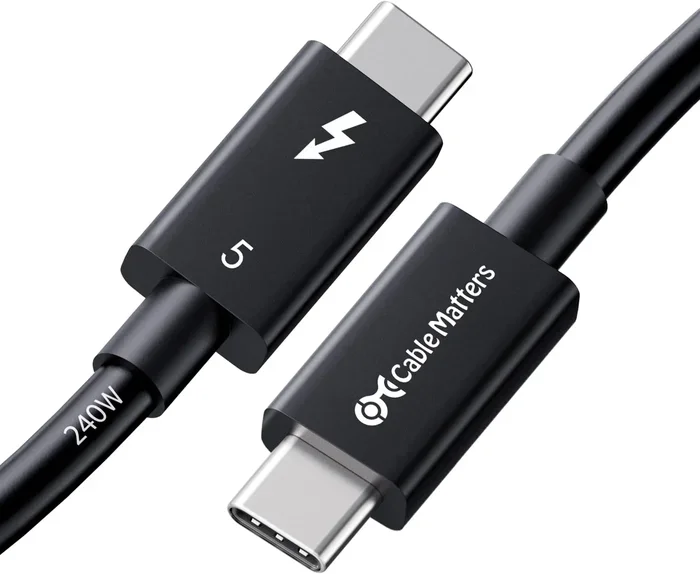
If you want to make sure you are getting Thunderbolt speeds, always check the port and cable for the lightning bolt symbol. This tiny icon is the universal indicator of Thunderbolt support.
How to Identify Which Port or Cable You Have
Figuring out whether you have a USB C 3.2 Gen 1 port or a Thunderbolt port is simpler than you might think. There are a few reliable ways to check.
First, look for the lightning bolt icon next to the port. If you see it, you have a Thunderbolt port. If you do not see the icon, it is likely a standard USB C port that supports USB 3.2 Gen 1 or another USB standard.
Second, check your device specifications. Most laptop manufacturers list the port type in the product details. Look for terms like “Thunderbolt 4,” “USB 3.2 Gen 1,” or “USB 3.1 Gen 1.” These names tell you exactly what protocol the port supports.
Third, use your operating system’s device manager. On Windows, open Device Manager and look at your USB controllers. Thunderbolt devices will show up as “Thunderbolt” controllers. On macOS, go to System Information and look under USB or Thunderbolt sections.
For cables, the same lightning bolt symbol applies. Thunderbolt cables will have the icon printed on the connector or the cable itself. Standard USB C cables will not have any special marking beyond the USB trident logo.
Which One Should You Choose?
The right choice depends on what you plan to do. For most casual users, USB C 3.2 Gen 1 is more than enough. You can transfer files, charge devices, and connect peripherals without any issues.
However, if you work with large video files, run multiple external monitors, or need to daisy-chain several devices, Thunderbolt is worth the investment. The speed and versatility make a real difference in professional workflows.
Here is a simple decision guide:
- Choose USB C 3.2 Gen 1 if: You mostly transfer documents, photos, and standard video files. You need a simple, affordable connection for everyday tasks.
- Choose Thunderbolt if: You work with large media files, need multi-monitor setups, or want the fastest possible external storage speeds.
For storage enthusiasts, an M.2 NVMe SSD enclosure connected via Thunderbolt can deliver near-internal drive speeds. Check out the M.2 NVMe to USB C SSD enclosure options if you want a portable high-speed solution.
Similarly, if you are looking for a Thunderbolt-compatible enclosure, the Acasis 80Gbps M.2 NVMe SSD enclosure is an excellent choice that takes full advantage of the latest Thunderbolt speeds.
Common Mistakes People Make
One of the biggest mistakes is assuming all USB C ports are Thunderbolt ports. This is simply not true. Many laptops have USB C ports that only support USB 3.2 Gen 1 or even USB 2.0. Always verify the port type before buying a Thunderbolt device or cable.
Another mistake is using a cheap USB C cable with a Thunderbolt device. Not all cables are created equal. A low-quality cable may not support the full bandwidth of Thunderbolt, leading to slower speeds or connection drops. Always use cables that are certified for the speed you need.
Some users also assume that a Thunderbolt cable will charge their device faster. While Thunderbolt cables can carry more power, the charging speed depends on the device’s power delivery implementation, not just the cable. Both USB C and Thunderbolt support up to 100W charging.
Expert Insights
According to industry experts, the gap between USB C and Thunderbolt will continue to narrow as USB standards evolve. The upcoming USB4 protocol, which is based on the Thunderbolt 3 protocol, promises 40 Gbps speeds over standard USB C connectors. This means future devices may blur the line between the two even further.
For now, Thunderbolt remains the gold standard for professionals who need maximum bandwidth. USB C 3.2 Gen 1 is the reliable workhorse for everyday users. Understanding the difference helps you make informed decisions and avoid overspending on features you do not need.
Conclusion
So, is USB C 3.2 Gen 1 the same as Thunderbolt? The short answer is no. They share the same physical connector, but they use different protocols, deliver different speeds, and serve different purposes. USB C 3.2 Gen 1 is perfect for everyday connectivity, while Thunderbolt is built for professionals who demand the fastest speeds and most versatile connections.
Knowing the difference empowers you to choose the right cables, enclosures, and devices for your needs. Whether you are plugging in a simple external drive or building a high-performance workstation, the right connection makes all the difference.
Take a moment to check your current devices and cables. Identify which ports you have and what they support. This small step can save you money, prevent compatibility headaches, and help you get the most out of your technology setup.
Frequently Asked Questions
Is USB C the same as Thunderbolt 3?
No, USB C and Thunderbolt 3 are not the same. USB C is a connector shape, while Thunderbolt 3 is a protocol that uses the USB C connector. Thunderbolt 3 is much faster and offers more features than standard USB C 3.2 Gen 1.
Can I use a regular USB C cable with a Thunderbolt device?
Yes, you can use a regular USB C cable with a Thunderbolt port. However, the connection will only work at USB C speeds, not Thunderbolt speeds. You will not get the full 40 Gbps benefit unless you use a certified Thunderbolt cable.
How can I tell if my laptop has Thunderbolt ports?
Look for the lightning bolt icon next to the port. You can also check your laptop specifications in the product manual or on the manufacturer’s website. The port will be clearly labeled as Thunderbolt 3 or Thunderbolt 4.
Do I need Thunderbolt for external SSDs?
You do not need Thunderbolt for most external SSDs. USB C 3.2 Gen 1 is fast enough for everyday use. However, if you work with very large files or need the fastest possible transfer speeds, a Thunderbolt connection with an NVMe enclosure will give you much better performance.
Is Thunderbolt 4 backward compatible with Thunderbolt 3?
Yes, Thunderbolt 4 is fully backward compatible with Thunderbolt 3 devices and cables. You can use Thunderbolt 3 cables with Thunderbolt 4 ports and vice versa. Both will operate at Thunderbolt 3 speeds when connected together.
What is the biggest advantage of Thunderbolt over USB C 3.2 Gen 1?
The biggest advantage is speed. Thunderbolt delivers 40 Gbps compared to the 5 Gbps of USB C 3.2 Gen 1. Thunderbolt also supports daisy-chaining multiple devices and driving multiple high-resolution displays, which standard USB C cannot do as effectively.