Why Is My Gpu Utilization Low While Gaming
Low GPU utilization while gaming is a common frustration that wastes your graphics card’s potential. It usually happens due to CPU bottlenecks, outdated drivers, or in-game settings that limit your GPU. This guide walks you through the real causes and proven fixes to get your GPU working at full capacity.
You fire up your favorite game, ready for smooth gameplay and stunning visuals. But when you check your GPU utilization, it’s sitting at 30 or 40 percent. Meanwhile, your frame rates are meh and your experience feels underwhelming. What gives?
Why is my GPU utilization low while gaming? This is one of the most common questions PC gamers ask. The good news is that the answer is almost always fixable. Whether you are using a high-end card or a budget-friendly option, low GPU usage during gaming usually points to a specific bottleneck or misconfiguration. In this guide, we break down every possible cause and give you real, actionable fixes you can apply right now.
Your graphics card is designed to work hard. When it isn’t, something is getting in the way. Let’s find out what that is.
Key Takeaways
- Bottlenecks are the #1 cause: A weak CPU can hold back your GPU and keep utilization low.
- Driver updates matter a lot: Outdated graphics drivers often cause poor GPU performance in games.
- In-game settings can limit your GPU: Features like VSync and frame limiters can artificially reduce GPU usage.
- Background apps steal resources: Unnecessary programs running in the background eat up CPU and RAM.
- Hardware upgrades help: Sometimes your GPU just needs a better matching CPU or more RAM to perform well.
- What Does GPU Utilization Mean While Gaming?
- Top Reasons Why Your GPU Utilization Stays Low While Gaming
- How to Check Your GPU Utilization Properly
- How to Fix Low GPU Utilization While Gaming
- When Should You Consider Upgrading Your Hardware?
- Expert Tips to Maximize GPU Performance
- Common Mistakes That Cause Low GPU Usage
- Final Thoughts
- Your GPU usage stays below 50 percent during gameplay.
- Your CPU usage is near 100 percent while your GPU idles.
- Frame rates are inconsistent, even in less demanding games.
- Open your GPU manufacturer’s control panel (NVIDIA GeForce Experience or AMD Adrenalin).
- Check for driver updates and install the latest version.
- If problems persist, do a clean reinstall of your drivers.
- VSync (Vertical Sync): This feature caps your frame rate to match your monitor’s refresh rate. It limits how hard your GPU works.
- Frame Rate Limiters: Setting a cap in-game or through your GPU control panel restricts GPU usage.
- Low Resolution: Running at 720p or 1080p on a high-end GPU means less work for your card.
- Low Graphics Presets: Turning down shadows, textures, and effects reduces the GPU load significantly.
- Close unnecessary browser tabs and applications.
- Disable startup programs you do not need.
- Use Task Manager to check which apps are using the most CPU and close them.
- Turn off hardware acceleration in apps like Spotify or Discord.
- Go to Control Panel and select High Performance power plan.
- In NVIDIA Control Panel, set the power management mode to Prefer Maximum Performance.
- In AMD settings, adjust the GPU clock speed and power limit to maximum.
- Go to your GPU control panel and set your dedicated GPU as the preferred graphics processor.
- On laptops, check your BIOS settings for graphics configuration.
- Make sure your game is launching with the correct GPU selected.
- Task Manager: Press Ctrl + Shift + Esc and go to the Performance tab. Select your GPU to see live utilization.
- NVIDIA GeForce Experience: Use the in-game overlay to monitor GPU usage while you play.
- AMD Radeon Software: The performance tab shows detailed GPU metrics during gameplay.
- MSI Afterburner: A popular third-party tool that displays GPU usage, temperature, and frame rates on screen.
- Update your graphics drivers. This is the first and most important step. New drivers often include game-specific optimizations.
- Check for CPU bottlenecks. Use a bottleneck calculator to see if your CPU is holding back your GPU.
- Adjust in-game settings. Turn off VSync, remove frame rate caps, and increase graphical quality.
- Close background applications. Free up CPU and RAM resources before gaming.
- Change your power plan to High Performance. This removes artificial limits on your GPU.
- Verify your dedicated GPU is active. Make sure the game is using your discrete graphics card.
- Reinstall the game. Corrupted game files can cause performance issues that mimic low GPU usage.
- Your CPU is several generations old and cannot keep up with modern GPUs.
- Your GPU is powerful, but your system only has 8GB of RAM or less.
- Your monitor has a low refresh rate, which limits the benefit of a high-end GPU.
- Monitor your GPU temperature. Overheating can cause thermal throttling, which reduces GPU performance. Keep your card cool with good airflow or aftermarket cooling.
- Enable hardware acceleration in your browser and other apps to offload work from your CPU to your GPU.
- Use the right game mode. Windows Game Mode and your GPU’s gaming preset optimize system resources for gaming.
- Keep your GPU clean. Dust buildup on fans and heatsinks reduces cooling efficiency and can throttle performance.
- Match your monitor’s refresh rate. A high-refresh-rate monitor lets your GPU showcase its full potential.
- Leaving VSync on by default. This is one of the most common reasons for low GPU utilization in games.
- Running games on low settings without checking why. Low settings reduce GPU load and hide the real issue.
- Ignoring driver updates. Old drivers mean missed performance optimizations for new games.
- Not checking which GPU is active. Your game might be silently using integrated graphics instead of your dedicated card.
- Overlooking background processes. Even a single heavy app can tank your GPU usage during gaming.
📑 Table of Contents
What Does GPU Utilization Mean While Gaming?
GPU utilization refers to how hard your graphics card is working at any given moment. When you are gaming, you want your GPU running near 90 to 100 percent. That means it is pushing every ounce of power to render frames, handle lighting, and process textures.
If your GPU usage percentage is consistently below 70 percent during gameplay, that is a red flag. It means your graphics card has idle capacity it is not using. This often leads to lower frame rates than your hardware should be capable of delivering.
Think of it like a car engine stuck in second gear. The engine can rev higher, but something is preventing it from reaching full power. The same principle applies to your graphics card.
Top Reasons Why Your GPU Utilization Stays Low While Gaming
1. CPU Bottleneck: The Most Common Culprit
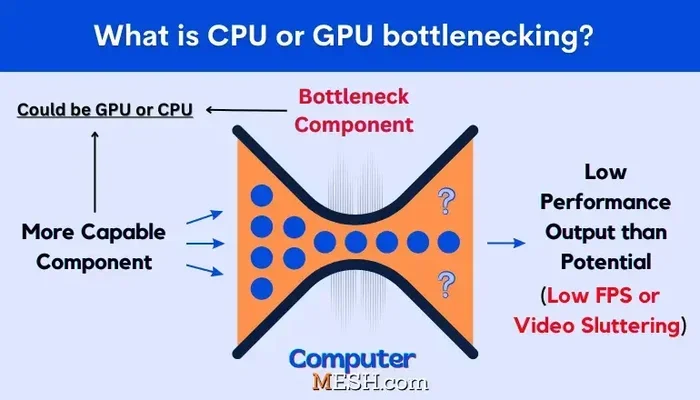
A CPU bottleneck happens when your processor cannot keep up with your graphics card. Your GPU sits there waiting for the CPU to feed it data. The result? Low GPU usage and stuttering gameplay.
This is especially common when you pair a powerful graphics card with an older or budget CPU. For example, if you are running a high-end GPU with an older processor, the CPU simply cannot process game physics, AI, and draw calls fast enough.
Here are signs of a CPU bottleneck:
If you suspect a bottleneck, check whether your CPU and GPU are well-matched. Sometimes upgrading one component makes a huge difference.
2. Outdated or Corrupted Graphics Drivers
Your graphics drivers are the bridge between your operating system and your GPU. When they are outdated, corrupted, or incompatible with a new game, your graphics card may not perform properly.
Low GPU utilization is one of the first symptoms of driver issues. The game might not send the right instructions to your GPU, causing it to sit idle while your CPU does all the heavy lifting.
To fix this:
Regularly updating your drivers is one of the simplest ways to keep your GPU running at full capacity.
3. In-Game Settings That Limit GPU Work
Not all game settings are created equal when it comes to GPU load. Some settings actually reduce the work your GPU needs to do, which can lower utilization unexpectedly.
Here are the main offenders:
If you want to test your GPU’s true potential, try turning off VSync, removing frame rate limits, and increasing your resolution or graphical settings.
4. Background Applications Eating Up Resources
Your PC runs many programs in the background, even when you are gaming. Browser tabs, Discord overlays, RGB software, and system updaters all consume CPU and RAM resources. This leaves fewer resources for your GPU and CPU to use for gaming.
When background apps hog your CPU, your GPU utilization drops because the CPU cannot feed data to the GPU fast enough.
Before you start a gaming session, do this:
These small steps can free up significant resources and improve GPU performance while gaming.
5. Power Settings and GPU Scaling
Your PC’s power plan can seriously affect GPU utilization. If your system is set to power-saving mode, it limits how much energy your GPU can draw. This directly reduces performance and keeps utilization low.
Similarly, GPU scaling settings can impact how your graphics card processes display output. Incorrect scaling can create a bottleneck that reduces your card’s effectiveness.
To optimize your power settings:
These changes tell your system to prioritize performance over energy savings.
6. Integrated Graphics Instead of Dedicated GPU
Some PCs use integrated graphics instead of a dedicated GPU. Integrated graphics share system RAM with your CPU and are far less powerful. If your game is accidentally using your integrated graphics, your GPU utilization will be near zero.
This often happens on laptops with switchable graphics or desktops where the dedicated GPU is not set as the default.
To fix this:
If you want to learn more about how integrated graphics compare to dedicated options, check out our guide on is 1GB dedicated graphics good for gaming.
How to Check Your GPU Utilization Properly
Before you can fix low GPU usage, you need to measure it accurately. Here are the best tools for monitoring your GPU utilization percentage in real time:
Make sure you are checking GPU usage during actual gameplay, not on the desktop or main menu. The main menu often shows low GPU usage because the game is not rendering complex scenes yet.
For more on understanding GPU behavior, you might also want to read about why does my GPU spike to 100 to understand what normal GPU usage patterns look like.
How to Fix Low GPU Utilization While Gaming
Now that you know the causes, here is a step-by-step troubleshooting guide to get your GPU working at full capacity:
Follow these steps in order. Most users find that one or two of these fixes resolve the issue completely.
When Should You Consider Upgrading Your Hardware?
Sometimes low GPU utilization is not a software issue. It is a hardware mismatch. If you have tried all the fixes above and your GPU usage is still low, it might be time to consider an upgrade.
Here are some scenarios where upgrading makes sense:
If you are unsure whether to upgrade your CPU or GPU first, our article on should I upgrade my CPU or GPU can help you make the right decision.
Also, keep in mind that some games are more CPU-intensive than others. If you are curious whether a specific game relies more on your GPU or CPU, check out our breakdown of is Fortnite a CPU or GPU game.
Expert Tips to Maximize GPU Performance
Want to squeeze every bit of performance from your graphics card? Here are some expert-level tips:
These small adjustments can make a noticeable difference in your gaming GPU performance over time.
Common Mistakes That Cause Low GPU Usage
Many gamers accidentally sabotage their own GPU performance. Here are the mistakes to avoid:
Avoiding these mistakes keeps your GPU running at the levels it was designed for.
Final Thoughts
Why is my GPU utilization low while gaming? The answer usually comes down to a CPU bottleneck, outdated drivers, restrictive in-game settings, or background applications. By working through the fixes outlined in this guide, you can unlock your graphics card’s full potential and enjoy smoother, more responsive gameplay.
Start with the simplest fixes like driver updates and closing background apps. Then move on to more advanced steps like adjusting power settings and verifying your GPU configuration. Most of the time, these steps are all you need.
Remember, your GPU is an investment. Treat it right, keep it updated, and it will reward you with excellent gaming performance for years to come. Do not let low utilization hold you back from the experience your hardware was built to deliver.
Frequently Asked Questions
Why is my GPU only using 30 percent while gaming?
A GPU usage of 30 percent usually indicates a CPU bottleneck or a restrictive setting like VSync. Check if your processor is maxing out while your GPU sits idle. Updating drivers and adjusting in-game settings often resolves this.
Is low GPU usage bad for my graphics card?
Low GPU usage itself does not damage your card. However, it means you are not getting the performance you paid for. It also signals an underlying issue like a bottleneck or misconfiguration that should be addressed.
How do I know if my GPU is being used while gaming?
Open Task Manager or use MSI Afterburner to monitor GPU utilization in real time. Make sure you are checking usage during actual gameplay, not on the main menu, for accurate readings.
Can a bad power supply cause low GPU utilization?
Yes, a weak or failing power supply can limit the power delivered to your GPU. This causes the card to underperform and keep utilization low. Make sure your PSU meets the recommended wattage for your graphics card.
Why does my GPU utilization drop when I open Discord?
Discord and other overlay apps use hardware acceleration, which can steal GPU resources. Try disabling hardware acceleration in Discord or closing it while gaming to see if your GPU utilization improves.
Will lowering my resolution increase GPU utilization?
Yes, running at a higher resolution forces your GPU to do more work, which increases utilization. If your GPU usage is low, try increasing your in-game resolution or disabling frame rate limits to push your card harder.