How to Screen Share to Xbox Party on Pc
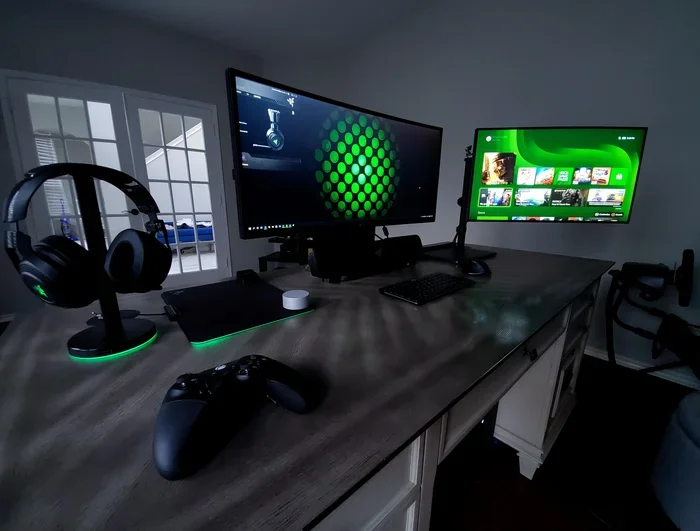
Screen sharing to an Xbox Party from your PC is easier than you think. With the right setup, you can stream your gameplay, chat with friends, and enjoy a seamless gaming experience. This guide walks you through every step, from initial setup to troubleshooting common problems, so you can start sharing your screen in minutes.
Screen sharing has become one of the most popular features in modern gaming. Whether you want to show off a cool play, help a friend with a tough level, or just hang out while gaming, sharing your screen to an Xbox Party from your PC feels natural and fun. In this guide, we will walk you through everything you need to know about how to screen share to Xbox Party on PC. You will learn the setup process, find tips for better quality, and discover how to fix the most common problems. Let us get started.
Before diving into the steps, it helps to understand what screen sharing to Xbox Party actually means. When you screen share, your PC sends a live video feed of your display to other members of your Xbox Party. They can watch your gameplay in real time while you talk through Xbox Party Chat. This feature works best when your PC and Xbox console are on the same network, though remote sharing is also possible. The process is straightforward once you know where to look and what settings to adjust.
Key Takeaways
- Xbox Party screen sharing lets you stream your PC gameplay directly to friends on your party.
- The Xbox app for Windows is the primary tool you need to set up screen sharing.
- A stable internet connection and enough RAM are essential for smooth streaming.
- Xbox Game Bar offers a quick alternative for capturing and sharing your screen.
- Common issues like lag and audio sync problems can be fixed with simple adjustments.
- Keeping your PC optimized helps maintain high-quality screen sharing performance.
📑 Table of Contents
- What Is Xbox Party Screen Sharing?
- How to Set Up Screen Sharing to Xbox Party on PC
- Using Xbox Game Bar for Quick Screen Sharing
- Optimizing Your PC for Smooth Screen Sharing
- Troubleshooting Common Screen Sharing Issues
- Tips for Better Screen Sharing Quality
- Why Screen Sharing to Xbox Party Is Great for Gamers
- Final Thoughts
What Is Xbox Party Screen Sharing?
Xbox Party screen sharing is a built-in feature that allows you to broadcast your PC screen to other players in your party. It is different from full game streaming because it focuses on the party chat experience. You can share your entire desktop or a specific application window. This makes it great for showing gameplay, sharing videos, or even walking someone through a software tutorial.
The feature relies on the Xbox app for Windows and your Xbox Live account. When you join an Xbox Party, you gain access to the share option. From there, you can start sending your screen to party members instantly. Screen sharing to Xbox Party on PC works on Windows 10 and Windows 11, and it does not require any extra hardware in most cases.
How to Set Up Screen Sharing to Xbox Party on PC
Setting up screen sharing is a simple process. Follow these steps carefully, and you will be sharing your screen in no time. Before you begin, make sure your PC is connected to the internet and you have the Xbox app installed.
Step 1: Open the Xbox App
Launch the Xbox app on your Windows PC. If you do not have it yet, you can download it from the Microsoft Store. Sign in with your Xbox Live account. This account is the same one you use on your Xbox console. The app connects your PC to the Xbox network, which is essential for party features.
Step 2: Join or Create an Xbox Party
Go to the Party section in the Xbox app. You can either join an existing party or create a new one. To create a party, click the “Start a party” button and invite your friends. Once everyone is in the party, you will see the party chat interface on the right side of your screen.
Step 3: Start Screen Sharing
Look for the screen share icon in the party chat window. It usually looks like a monitor with a broadcast symbol. Click on it, and you will see options to share your entire screen or a specific app window. Choose what you want to share and confirm. Your party members will now see your screen in real time.
Step 4: Adjust Sharing Settings
You can adjust the quality and resolution of your stream in the settings menu. Higher quality requires more bandwidth and a stronger internet connection. If you notice lag, lowering the resolution can help a lot. You can also toggle audio sharing on or off depending on your preference.
Using Xbox Game Bar for Quick Screen Sharing
Another great way to share your screen is through Xbox Game Bar. This built-in Windows tool lets you capture and share your gameplay quickly. It is especially useful when you want to share a specific game without switching between apps.
To use Xbox Game Bar, press Windows Key + G while in a game. A small overlay will appear at the top of your screen. Click the “Capture” widget, and you will see options to record, take screenshots, or share your screen. You can also open the Xbox Game Bar settings to fine-tune your capture preferences. For best results, make sure your PC has enough RAM to handle both the game and the screen sharing process at the same time. If your system feels slow, you might want to increase the RAM on your laptop for a smoother experience.
Xbox Game Bar also works well with the Xbox app for party chat. You can run both simultaneously and switch between capturing gameplay and sharing your full desktop. This flexibility makes it a favorite among casual streamers and gaming friends alike.
Optimizing Your PC for Smooth Screen Sharing
Screen sharing can put a real strain on your computer. To get the best experience, you need to keep your PC running smoothly. A clean system with enough storage and memory makes a huge difference. Here are some quick tips to help you optimize your setup.
Clear Junk Files Before Streaming
Over time, your PC accumulates temporary files, cache data, and other junk that slows things down. Before a screen sharing session, take a few minutes to clean up your system. Removing unnecessary files frees up disk space and can improve overall performance. If you are not sure how to do this, there are simple guides that walk you through the process step by step.
Ensure You Have Enough Storage
Screen sharing and recording gameplay can take up a lot of space on your drive. Make sure you have enough free storage before you start streaming. If your current drive is running low, consider upgrading to a faster SSD. Adding an M.2 NVMe SSD can dramatically improve your system speed and give you plenty of room for game recordings and clips.
Check Your Internet Connection
A stable and fast internet connection is the backbone of good screen sharing. Use a wired Ethernet connection whenever possible, as it is more reliable than Wi-Fi. If you must use Wi-Fi, make sure you are close to your router and that no other devices are hogging the bandwidth. A connection speed of at least 10 Mbps upload is recommended for smooth streaming.
Troubleshooting Common Screen Sharing Issues
Even with a great setup, you might run into problems from time to time. Screen sharing to Xbox Party on PC is generally reliable, but occasional glitches can happen. Here are the most common issues and how to fix them.
Screen Sharing Not Working
If your screen will not share, first check that the Xbox app is up to date. Outdated software often causes compatibility problems. Restart the app and try again. You should also make sure your Xbox Live account is signed in and that your internet connection is stable. Sometimes simply signing out and back in fixes the issue.
Lag and Stuttering During Streams
Lag during screen sharing usually comes from a slow internet connection or an overloaded PC. Close any unnecessary background programs before you start streaming. You can also lower the stream resolution in the Xbox app settings. If your PC is older or has limited memory, upgrading your RAM can significantly reduce lag and stuttering during gameplay and screen sharing sessions.
Audio and Video Sync Problems
If your party members see your video but the audio is out of sync, check your audio settings in the Xbox app. Make sure your default playback device is set correctly. Also, ensure that no other app is using your microphone or speakers at the same time. Restarting the Xbox app and your PC can often resolve sync issues.
Poor Video Quality
Blurry or pixelated video usually means your internet upload speed is too low. Try reducing the stream quality in the settings. Also, check that no one else on your network is downloading large files or streaming video at the same time. A wired connection almost always delivers better quality than Wi-Fi.
Tips for Better Screen Sharing Quality
Want to take your screen sharing to the next level? Here are some practical tips that can make a big difference in the quality of your streams.
- Use a wired connection. Ethernet cables provide a more stable and faster connection than Wi-Fi, reducing lag and dropped frames.
- Close background apps. Programs running in the background use up CPU and memory. Close everything you do not need before you start sharing your screen.
- Adjust stream settings. Lower the resolution and frame rate if you experience performance issues. You can always increase them when your connection is strong.
- Keep your drivers updated. Outdated graphics drivers can cause display issues during screen sharing. Check for updates regularly.
- Use a dedicated streaming account. If you share your PC with others, consider setting up a separate account for gaming and streaming to avoid conflicts.
- Monitor your PC temperature. Screen sharing and gaming together can heat up your system. Make sure your fans are working and your PC has good airflow.
Following these tips will help you maintain a high-quality stream and keep your party members happy. Screen sharing to Xbox Party on PC works best when your system is well-maintained and your settings are properly configured.
Why Screen Sharing to Xbox Party Is Great for Gamers
Screen sharing to Xbox Party on PC offers several benefits that make it a must-have feature for any gamer. First, it lets you connect with friends in a more personal way. Instead of just talking through voice chat, you can actually show what is happening on your screen. This is incredibly useful for co-op gaming, where players need to coordinate their actions in real time.
Second, it serves as a quick and easy way to share highlights. Caught an amazing kill or completed a tricky puzzle? Share it instantly with your party without needing a separate streaming platform. Third, it helps with troubleshooting. If a friend is stuck on a level, you can show them exactly what to do by sharing your screen. This makes gaming more collaborative and enjoyable for everyone involved.
The feature also works well alongside other Xbox ecosystem tools. You can use Xbox Game Pass, Xbox Live achievements, and party chat all at the same time. This integration creates a seamless experience that keeps you connected to your gaming community wherever you are.
Final Thoughts
Learning how to screen share to Xbox Party on PC opens up a world of possibilities for gamers. Whether you are showing off gameplay, helping a friend, or just hanging out, the feature is simple to set up and easy to use. Start with the Xbox app, follow the steps in this guide, and you will be sharing your screen in minutes. Remember to keep your PC optimized, use a stable internet connection, and adjust your settings for the best quality. With a little practice, screen sharing will become a natural part of your gaming routine. So gather your friends, start a party, and share the fun.
Frequently Asked Questions
Can I screen share to Xbox Party on PC without an Xbox console?
Yes, you can. The Xbox app for Windows connects your PC directly to the Xbox network. You do not need an Xbox console to join a party or share your screen. All you need is a Windows PC, the Xbox app, and an Xbox Live account.
Why is my screen share lagging when I use Xbox Party on PC?
Lag usually happens when your internet connection is slow or your PC is running too many background programs. Try closing unnecessary apps, lowering the stream resolution, and using a wired Ethernet connection. These steps can significantly reduce lag and improve your streaming experience.
Can I share a specific app window instead of my entire screen?
Yes, you can. When you start screen sharing in the Xbox app, you will see an option to choose between sharing your full desktop or a specific app window. This is great for sharing only your gameplay without showing other open programs.
Do I need a capture card to screen share to Xbox Party on PC?
No, you do not need a capture card for basic screen sharing. The Xbox app and Xbox Game Bar handle screen sharing directly through software. A capture card is only necessary if you want to stream to external platforms like Twitch or YouTube at a higher quality.
Is screen sharing to Xbox Party free?
Yes, it is completely free. You only need the Xbox app, which is free to download from the Microsoft Store, and an Xbox Live account. There are no extra fees or subscriptions required for party screen sharing.
What internet speed do I need for smooth screen sharing?
For smooth screen sharing, you should have at least 10 Mbps of upload speed. A wired connection is always better than Wi-Fi for stability. If you have a slower connection, try lowering the stream quality in the Xbox app settings to reduce buffering and lag.