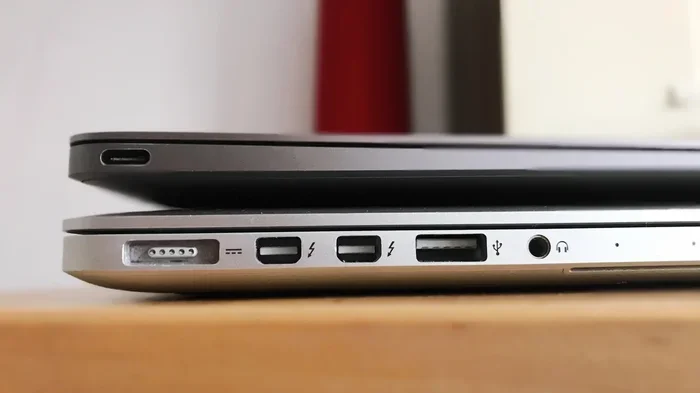
Is Thunderbolt3 the Same as Usb C
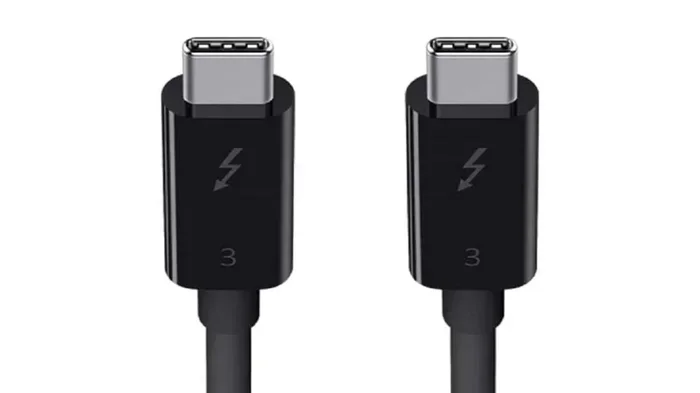
Thunderbolt 3 and USB-C look identical but are not the same thing. Thunderbolt 3 uses the USB-C connector but offers much faster speeds, video output, and device chaining. USB-C is just a connector shape, while Thunderbolt 3 is a full protocol that delivers incredible performance. This guide breaks down everything you need to know.
If you have ever looked at a laptop or a dock and wondered whether your Thunderbolt 3 USB-C port is the same as a regular USB-C port, you are not alone. The shapes look identical. The cables look the same. But under the hood, they are very different creatures.
This confusion is completely understandable. Even tech-savvy people mix these up all the time. The good news is that once you understand the basics, it becomes really simple. In this guide, we will walk through everything you need to know about Thunderbolt 3 vs USB-C. We will cover speeds, compatibility, real-world uses, and how to tell them apart.
By the end of this article, you will never second-guess which port you are looking at again. Let us dive right in.
Key Takeaways
- Thunderbolt 3 uses the USB-C connector shape but is a much more powerful technology
- USB-C is just a physical port design — it does not guarantee high speeds or advanced features
- Thunderbolt 3 offers 40Gbps data transfer, while standard USB-C typically maxes out at 10Gbps
- Not all USB-C ports support Thunderbolt 3, so always check your device specs
- A Thunderbolt 3 cable works with USB-C devices, but a USB-C cable may not support Thunderbolt 3 features
- Thunderbolt 3 supports daisy-chaining multiple devices and external displays
- USB-C is universal and cheaper, making it great for everyday charging and data needs
📑 Table of Contents
What Is USB-C?
USB-C is a type of connector. That is it. It is a small, reversible plug that fits into a port on your laptop, phone, tablet, or dock. You can insert it either way, which is a huge upgrade from older USB types.
The USB-C connector has become the standard across many devices. Apple uses it on MacBooks. Android phones use it. Even some gaming consoles and e-readers have adopted it. But here is the important part: USB-C only describes the shape of the connector. It does not tell you what the port can actually do.
A USB-C port might support USB 2.0 speeds, which are very slow. Or it might support USB 3.2 Gen 2, which is much faster. Some USB-C ports handle power delivery for charging. Others support video output. The capabilities vary widely depending on the device and the chipset inside it.
What USB-C Can Do
- Data transfer: Up to 10Gbps with USB 3.2 Gen 2
- Charging: Up to 100W with USB Power Delivery
- Video output: Some ports support DisplayPort or HDMI Alt Mode
- Peripheral connections: Keyboards, mice, external drives, and more
So USB-C is versatile. It is a universal connector that handles many tasks. But versatility does not mean it is the same as Thunderbolt 3.
What Is Thunderbolt 3?
Thunderbolt 3 is a technology developed by Intel. It uses the USB-C connector shape to deliver a much more powerful experience. Think of Thunderbolt 3 as a supercharged version of USB-C. It uses the same little oval-shaped port, but it does so much more.
Thunderbolt 3 combines several protocols into one cable. It supports PCIe (PCI Express) for high-speed data, DisplayPort for video, and USB data — all through a single Thunderbolt 3 cable. This is what makes it so special.
Key Features of Thunderbolt 3
- Blazing fast data speeds: Up to 40Gbps, which is four times faster than standard USB-C
- Video output: Supports a single 4K display at 120Hz or dual 4K displays at 60Hz
- Daisy-chaining: You can connect up to six devices in a chain using one port
- Power delivery: Up to 100W for charging your laptop
- External GPU support: You can connect an eGPU enclosure for serious graphics power
Thunderbolt 3 is designed for professionals and power users. Video editors, musicians, and developers love it because it simplifies their setup. One cable handles everything — data, display, and power.
Thunderbolt 3 vs USB-C: The Key Differences
Now let us get to the heart of the matter. What makes Thunderbolt 3 different from a standard USB-C port? The table below breaks it down clearly.
| Feature | USB-C | Thunderbolt 3 |
|---|---|---|
| Connector Shape | Small, oval, reversible | Same shape as USB-C |
| Max Data Speed | 10Gbps (USB 3.2 Gen 2) | 40Gbps |
| Video Support | Varies by device | Dual 4K or single 8K |
| Daisy Chaining | Not supported | Up to 6 devices |
| Power Delivery | Up to 100W | Up to 100W |
| eGPU Support | Not supported | Fully supported |
| Cost | Low to moderate | Higher |
| Backward Compatible | N/A | Yes, with USB-C devices |
As you can see, Thunderbolt 3 is a superset of USB-C. Every Thunderbolt 3 port is also a USB-C port. But not every USB-C port is a Thunderbolt 3 port. That is the most important thing to remember.
When you are shopping for accessories like an M 2 NVMe to USB C SSD enclosure, you need to know which type of port you have. A Thunderbolt 3 enclosure will give you much faster transfer speeds than a standard USB-C enclosure for large files like raw video footage.
How to Tell If Your Port Is Thunderbolt 3
This is where things get tricky. Since both ports look the same, how do you know which one you have? There are a few ways to check.
First, look for the lightning bolt icon. Thunderbolt 3 ports usually have a small lightning bolt symbol next to or above the port. If you see that little bolt, you have Thunderbolt 3. If you do not see it, your port might still be a regular USB-C.
Second, check your device specifications. Go to the manufacturer’s website and look up your exact model. The specs will clearly list whether the port supports Thunderbolt 3. Do not rely on the marketing name alone. Some manufacturers call their USB-C ports “Thunderbolt compatible” even when they are not.
Third, you can use software tools. On Windows, you can check Device Manager and look for “Thunderbolt” in the device list. On macOS, go to the Apple menu, click About This Mac, and then click System Report. Look for Thunderbolt in the sidebar.
Quick Tip: The Cable Matters Too
Even if you have a Thunderbolt 3 port, you need a Thunderbolt 3 cable to get the full 40Gbps speed. A regular USB-C cable will work, but it will be limited to USB speeds. If you are using an NVMe SSD to USB adapter, a Thunderbolt cable will dramatically reduce your transfer times for large files.
Can You Use Thunderbolt 3 and USB-C Together?
Yes, you absolutely can. Thunderbolt 3 is fully backward compatible with USB-C devices. This means you can plug a regular USB-C device into a Thunderbolt 3 port and it will work just fine.
For example, you can plug a standard USB-C external hard drive into a Thunderbolt 3 port. It will work. You will just not get Thunderbolt speeds. The transfer rate will be limited to whatever the USB standard of that drive supports.
The reverse is also true. You can plug a Thunderbolt 3 device into a regular USB-C port. But again, you will not get Thunderbolt features. The device will fall back to USB speeds if it supports USB at all.
This compatibility is great news for people who are building a setup gradually. You do not have to replace all your gear at once. You can mix and match USB-C and Thunderbolt 3 devices on the same hub or dock.
If you are using an external SSD enclosure, such as an M2 NVMe SSD in USB enclosures, you will get the best performance when both the enclosure and your port support Thunderbolt 3. For everyday file transfers, a standard USB-C connection is usually more than enough.
Which One Do You Need?
The answer depends on what you do. Not everyone needs Thunderbolt 3, and that is perfectly fine.
You probably need Thunderbolt 3 if:
- You work with large video files and need fast transfer speeds
- You connect multiple external monitors to your laptop
- You use an external GPU for gaming or rendering
- You daisy-chain several peripherals through a single port
- You are a professional who relies on speed and reliability
Standard USB-C is great if:
- You mainly charge your devices and transfer occasional files
- You do not need to connect external displays
- You want a simple, affordable setup
- You use your laptop for browsing, writing, and light tasks
Most casual users will be perfectly happy with USB-C. Thunderbolt 3 is really aimed at people who push their devices hard and need the extra bandwidth and flexibility.
When you are shopping for accessories, always check the product description carefully. A USB-C SSD enclosure might be cheaper than a Thunderbolt version, and for many people, that is all they need. But if you are editing 4K video on the go, the speed difference is night and day.
Common Mistakes People Make
Let us clear up a few misconceptions that trip people up all the time.
Mistake 1: Assuming all USB-C ports are Thunderbolt 3. This is the biggest mistake. Many laptops have USB-C ports that only support basic USB speeds. They cannot do Thunderbolt things like daisy-chaining or eGPU support.
Mistake 2: Using a cheap USB-C cable for Thunderbolt 3 devices. Not all USB-C cables are created equal. A cheap cable might not handle the 40Gbps speed or the 100W power delivery that Thunderbolt 3 requires.
Mistake 3: Thinking USB-C and Thunderbolt 3 are different connector types. They use the exact same physical connector. The difference is in the technology and chipsets inside the port.
Mistake 4: Ignoring Thunderbolt 4. Thunderbolt 4 is the newer standard, and it is backward compatible with Thunderbolt 3. If you are buying new gear, consider Thunderbolt 4 for future-proofing.
Expert Insights
Industry experts agree that Thunderbolt 3 has changed the way people work. The ability to connect a single cable to a docking station and instantly have access to external storage, multiple monitors, and a wired network is a game changer.
For creative professionals, the speed of Thunderbolt 3 means less time waiting for files to transfer and more time being productive. A 1TB video project that takes minutes over Thunderbolt 3 could take much longer over a standard USB-C connection.
When choosing between a USB-C SSD enclosure and a Thunderbolt version, consider your workflow. If you regularly move large files between devices, the Thunderbolt route is worth the extra investment. For lighter tasks, a standard USB-C solution works just fine.
Conclusion
So, is Thunderbolt 3 the same as USB-C? The short answer is no. They share the same connector shape, but Thunderbolt 3 is a much more powerful technology that delivers faster speeds, video output, and device chaining capabilities. USB-C is a universal connector that handles everyday tasks just fine.
Understanding the difference helps you make smarter buying decisions. You will know when to invest in Thunderbolt 3 gear and when a standard USB-C solution is all you need. Check your ports, get the right cables, and build a setup that fits your workflow.
The world of connectivity is evolving fast. Thunderbolt 4 is already here, and USB4 is bringing Thunderbolt-like features to a wider range of devices. Whatever you choose today, knowing the difference between Thunderbolt 3 and USB-C puts you ahead of the curve.
Frequently Asked Questions
Can I use a USB-C cable with a Thunderbolt 3 device?
Yes, you can. Thunderbolt 3 is backward compatible with USB-C devices. However, you will not get Thunderbolt speeds. The connection will fall back to standard USB performance depending on the cable and device capabilities.
How do I know if my laptop has Thunderbolt 3 ports?
Look for a small lightning bolt icon next to the port. You can also check your laptop specifications on the manufacturer’s website or in your system settings. macOS users can find this information in System Report under the Thunderbolt section.
Is Thunderbolt 3 faster than USB-C?
Yes, Thunderbolt 3 is significantly faster. It supports up to 40Gbps data transfer speeds, while standard USB-C typically maxes out at 10Gbps. The actual speeds depend on your cable and device support.
Do I need a special cable for Thunderbolt 3?
For full Thunderbolt 3 speeds and features, you need a certified Thunderbolt 3 cable. A standard USB-C cable will work for basic connectivity but will not deliver the full 40Gbps bandwidth or 100W power delivery.
Can I connect an external monitor to a USB-C port?
It depends. Some USB-C ports support video output through Alt Mode, but not all of them. Thunderbolt 3 ports always support video output and can drive multiple external displays at higher resolutions.
Will Thunderbolt 3 become obsolete soon?
Thunderbolt 3 is still widely used and fully supported. Thunderbolt 4 is backward compatible with Thunderbolt 3, so your existing Thunderbolt 3 devices will continue to work. USB4 is also bringing similar features to the broader market, ensuring Thunderbolt technology remains relevant for years to come.