Touch Screen Laptop Not Scrolling
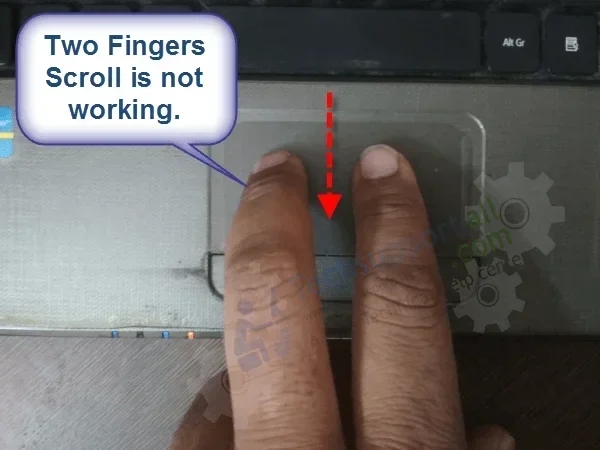
A touch screen laptop not scrolling can be frustrating, but the good news is that most causes are simple to fix. Whether your touchscreen is unresponsive, lagging, or only scrolling in one direction, this guide covers every solution you need. We break down the most common reasons your touch screen laptop not scrolling and walk you through step-by-step fixes that anyone can follow.
Have you ever tried to scroll through a webpage or document on your laptop, only to find that your touch screen laptop not scrolling? It is one of those annoying problems that can slow you down fast. You tap and swipe, but nothing happens. Your screen just sits there, frozen or unresponsive.
The good news? Most of the time, this is not a big hardware problem. It is usually a software glitch, a driver hiccup, or a simple settings issue. In this article, we will walk you through every reason your touch screen laptop not scrolling might happen and show you exactly how to fix it. By the end, you will know what to check, what to try first, and when it is time to call for help.
Key Takeaways
- Driver issues are the #1 cause of touch screen scrolling problems and are usually easy to fix.
- Windows touch settings control how your screen responds to gestures and scrolling.
- Simple fixes like recalibration and restarting solve most scrolling issues.
- Using a mouse with your touch screen laptop can be a great workaround while you troubleshoot.
- Hardware damage is rare but possible if your screen has been dropped or exposed to moisture.
📑 Table of Contents
- Why Your Touch Screen Laptop Won’t Scroll
- Common Causes of Touch Screen Scrolling Problems
- How to Fix Touch Screen Laptop Scrolling Issues
- When to Use a Mouse Instead
- How to Prevent Touch Screen Scrolling Problems
- When to Seek Professional Help
- Quick Tips for Faster Fixes
- Expert Insights on Touch Screen Scrolling
- Key Takeaways
- Conclusion
Why Your Touch Screen Laptop Won’t Scroll
Before you start fixing anything, it helps to understand what could be going wrong. A touch screen laptop not scrolling can come from several different places. Some causes are software-related, and others are tied to hardware. Let us look at the big ones.
Software and Driver Problems
Your laptop relies on drivers to talk to the touchscreen. Think of drivers as translators. They tell your screen how to read your fingers. When a driver gets outdated, corrupted, or missing, your screen stops responding properly. This is the single most common reason for touch screen scrolling not working.
Sometimes a Windows update breaks things. Other times, a driver just gets old and needs a refresh. Either way, the result is the same: your touchscreen gestures stop working, and you cannot scroll through anything.
Touch Settings Gone Wrong
Windows has built-in touch settings that control how your screen handles gestures. These include scrolling, pinching to zoom, and tapping. If these settings get turned off or changed, your touchscreen might stop scrolling altogether. This is a sneaky cause because it does not show any error message. You just suddenly cannot scroll anymore.
Calibration Drift
Over time, your touchscreen can lose its calibration. This means the screen no longer knows exactly where your finger is touching. When calibration drifts, scrolling becomes jumpy, unresponsive, or completely stuck. This is more common on older laptops or screens that have been bumped or stressed.
Hardware Issues
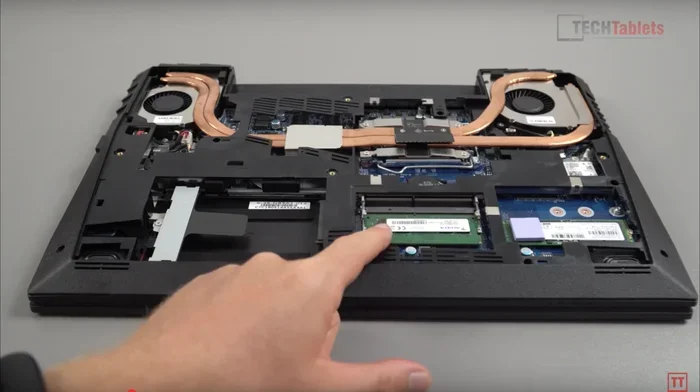
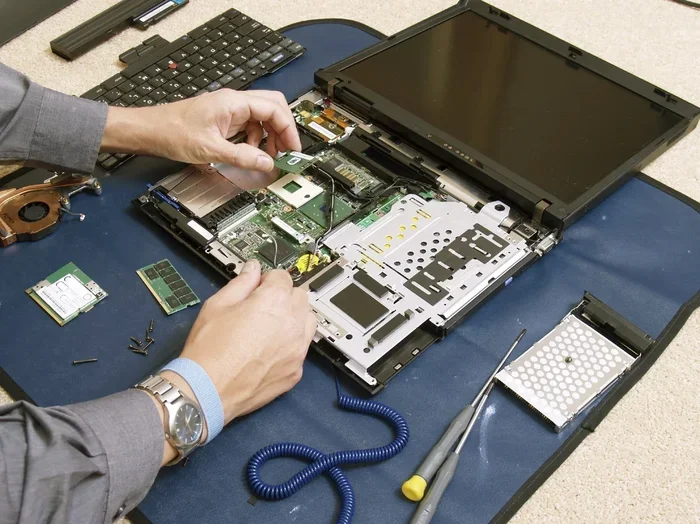
While less common, hardware problems can also cause touch screen laptop not scrolling. A cracked screen, loose cable, or damaged digitizer can all stop your touchscreen from working. If your screen has been dropped or exposed to liquid, hardware damage is a real possibility.
Common Causes of Touch Screen Scrolling Problems
Let us zoom in on the specific reasons your touch screen laptop not scrolling might be happening. Understanding the root cause helps you pick the right fix.
Outdated or Corrupted Touch Drivers
Your touchscreen needs a special driver called a HID-compliant touch screen driver. When this driver is outdated or corrupted, gestures like scrolling stop working. This happens after Windows updates, driver conflicts, or simply after a long period of use.
Windows Touch Gestures Disabled
Windows lets you turn touch gestures on and off. If scrolling gestures got accidentally disabled, you would not be able to scroll with your finger. This can happen after a system reset or a change in tablet mode settings.
Palm Rejection Conflicts
Modern touchscreens have palm rejection technology. This prevents your screen from responding to your palm while you type. But sometimes this feature goes haywire. It starts blocking your fingers when you try to scroll, making it feel like your touch screen laptop not scrolling at all.
Touchscreen Calibration Loss
Calibration ensures your screen knows where your finger touches. When calibration drifts, scrolling becomes inaccurate. You might swipe up, but the screen scrolls sideways. Or you swipe and nothing happens at all.
Background Apps Interfering
Some apps run in the background and can interfere with touchscreen input. Antivirus software, screen recorders, and even certain games can grab control of your touch input. This leaves your scrolling broken until you sort it out.
How to Fix Touch Screen Laptop Scrolling Issues
Now let us get into the fixes. These steps are ordered from easiest to most advanced. Start at the top and work your way down. Most people solve the problem in the first few steps.
Step 1: Restart Your Laptop
This sounds too simple, but it works more often than you think. A restart clears temporary glitches and resets your touch drivers. Just power down your laptop completely, wait 30 seconds, and turn it back on. Check if touch screen laptop not scrolling is resolved.
Step 2: Update Your Touchscreen Driver
Outdated drivers are the number one cause of scrolling problems. Here is how to update yours:
- Right-click the Start button and select Device Manager.
- Expand the Human Interface Devices section.
- Look for HID-compliant touch screen.
- Right-click it and select Update driver.
- Choose Search automatically for drivers.
Windows will search online for the latest driver. If it finds one, install it and restart your laptop. This alone fixes the problem for many users.
Step 3: Check Your Touch Settings
Make sure your touch gestures are turned on. Here is how:
- Go to Settings > Bluetooth & Devices > Touchpad.
- Look for the Touch gestures section.
- Make sure scrolling is enabled.
- Also check Settings > Devices > Touch input for any disabled options.
If scrolling was turned off, switch it back on and test your screen again.
Step 4: Recalibrate Your Touchscreen
Recalibration fixes drift and accuracy problems. The process varies by laptop brand, but here is the general idea:
- Go to your laptop manufacturer’s support website.
- Search for touchscreen calibration tools.
- Download and run the calibration utility.
- Follow the on-screen prompts to retrain your screen.
For some laptops, you can find calibration options in the display settings or the manufacturer’s control panel. Check your brand’s support page for specific instructions.
Step 5: Run the Windows Troubleshooter
Windows has a built-in troubleshooter for touch problems. Here is how to use it:
- Go to Settings > System > Troubleshoot > Other troubleshooters.
- Find Hardware and Devices and click Run.
- Follow the on-screen instructions.
- Let Windows detect and fix any issues it finds.
This tool can catch problems you might miss, especially hidden driver conflicts.
Step 6: Uninstall Recent Updates
If your scrolling broke right after a Windows update, the update might be the culprit. You can uninstall recent updates by going to Settings > Windows Update > Update History > Uninstall Updates. Pick the most recent update and remove it. Then restart your laptop and check if scrolling works again.
Step 7: Roll Back or Reinstall the Driver
If updating did not work, try rolling back the driver to an older version. In Device Manager, right-click your touch screen device, select Properties, go to the Driver tab, and click Roll Back Driver. If that option is greyed out, try uninstalling the driver completely, then restart your laptop. Windows will reinstall a fresh driver automatically.
Step 8: Check for Hardware Damage
If none of the software fixes work, it is time to consider hardware. Look closely at your screen for cracks, dead spots, or areas that do not respond to touch. If you see any damage, your touchscreen digitizer might be broken. In this case, you will need professional repair or a screen replacement.
When to Use a Mouse Instead
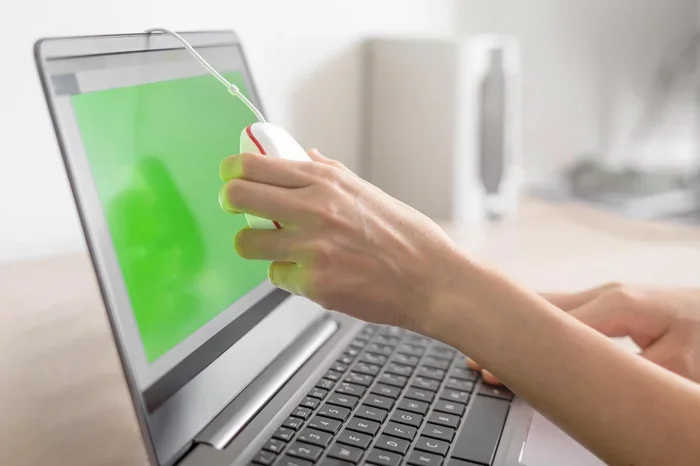
While you are fixing your scrolling issue, you do not have to stop working. Using a mouse with a touch screen laptop is a great workaround. A USB mouse or wireless mouse lets you scroll and navigate just like normal. This keeps you productive while you troubleshoot the touchscreen.
If you are shopping for accessories or a backup option, check out the options for using a mouse with a touch screen laptop. It is a smart move to have a mouse ready, especially if your touchscreen issues keep coming back.
How to Prevent Touch Screen Scrolling Problems
Once you fix the issue, you want to keep it from coming back. Here are some simple habits that help:
- Keep your drivers updated. Set a monthly reminder to check for driver updates. This prevents most scrolling problems before they start.
- Avoid touching the screen with sharp objects. Pens, fingernails, and jewelry can scratch or damage the digitizer over time.
- Keep your screen clean. Dirt and oil buildup can interfere with touch responsiveness. Use a soft microfiber cloth to wipe your screen regularly.
- Be gentle with gestures. Aggressive swiping or pressing too hard can strain the touchscreen over time.
- Restart your laptop weekly. Regular restarts clear out temporary glitches and keep everything running smoothly.
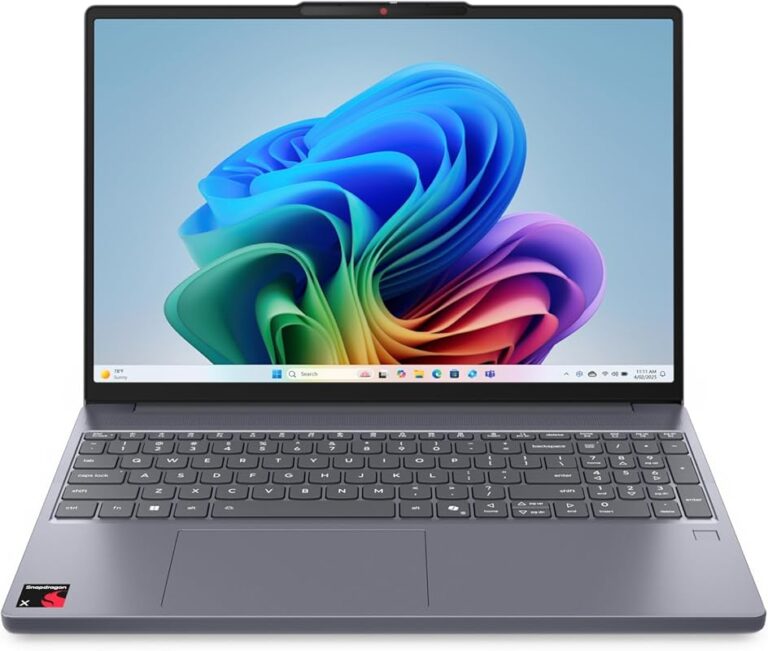
If you own a touch screen laptop with 16 GB RAM or more, these maintenance steps are even more important because you likely rely on your screen for heavy multitasking and demanding workflows.
When to Seek Professional Help
Most touch screen laptop not scrolling issues can be fixed at home. But there are times when you need a professional. Here is when to call for help:
- Your screen has visible cracks or damage.
- Touch input works in some areas but not others.
- You have tried all the software fixes and nothing works.
- Your laptop was recently dropped or exposed to liquid.
- The touchscreen completely stops responding, even after a full driver reinstall.
A professional can run deeper diagnostics and check for hardware failures. Many repair shops offer free diagnostics, so it costs you nothing to get a professional opinion.
Quick Tips for Faster Fixes
Here are some quick tips to keep in mind:
- Always restart before trying anything else. A simple reboot solves more problems than people realize.
- Check your Windows version. Some touch issues only affect specific Windows versions. Make sure you are on the latest build.
- Disable tablet mode. Sometimes tablet mode changes how touch gestures work. Go to Settings > System > Tablet Mode and turn it off.
- Try a different app. If scrolling works in some apps but not others, the problem is app-specific, not a touchscreen issue.
- Check for malware. Rarely, malware can interfere with touch input. Run a full antivirus scan just to be safe.
Expert Insights on Touch Screen Scrolling
From years of troubleshooting, the most common pattern we see is this: users ignore early warning signs. Maybe the scrolling gets a little laggy, or a swipe sometimes does not register. They brush it off. Then one day, scrolling stops completely. Catching small signs early and acting on them can save you from a full-blown touch screen laptop not scrolling situation.
Another insight is that Windows updates are both a blessing and a curse. They bring security fixes and new features, but they can also break drivers. If your touchscreen scrolling breaks after an update, do not wait. Roll back or update the driver right away. The longer you wait, the more your workflow suffers.
Finally, remember that not every scrolling problem is a touchscreen problem. Sometimes the issue is with a specific app, a browser extension, or even a corrupted file. Before assuming the worst, test scrolling in a different browser or app. This simple check can save you hours of unnecessary troubleshooting.
Key Takeaways
Let us recap the most important points:
- Driver issues cause most scrolling problems. Updating or reinstalling the touch driver fixes the issue in most cases.
- Touch settings can accidentally get turned off. Always check your gesture settings first.
- Calibration drift is common over time. Recalibrating your screen restores accurate touch response.
- Restarting is the simplest and most overlooked fix. Always try it before anything else.
- Hardware damage is rare but real. If your screen was dropped or cracked, seek professional repair.
- Using a mouse as a backup keeps you productive while you fix the touchscreen. You can learn more about using a mouse with a touch screen laptop as a temporary solution.
- Regular maintenance prevents most issues. Keep drivers updated and your screen clean.
Conclusion
A touch screen laptop not scrolling is a frustrating problem, but it is almost always fixable. Start with the simple stuff. Restart your laptop, update your drivers, and check your touch settings. These steps solve the problem for most users. If those do not work, move on to recalibration, troubleshooting, and driver rollbacks. And remember, using a mouse while you troubleshoot keeps you from losing productivity.
Most importantly, do not panic. Your touchscreen is not broken beyond repair in most cases. With the right approach, you can get scrolling again in minutes. Keep this guide bookmarked for the next time your touch screen laptop not scrolling problem strikes.
For more help with related issues, check out these resources on our site: touch screen laptop with 16 GB RAM for specs and compatibility tips, and learn about the best laptops with touch screen if you are considering an upgrade.
Frequently Asked Questions
Why is my touch screen laptop not scrolling at all?
The most common reason is an outdated or corrupted touchscreen driver. Windows updates often break touch drivers, which stops scrolling gestures from working. Start by updating your driver through Device Manager and restart your laptop to see if the problem is resolved.
Can I fix touch screen scrolling without technical skills?
Absolutely. Most fixes are simple and do not require any technical knowledge. Restarting your laptop, checking touch settings, and updating drivers are all things you can do in just a few minutes. You do not need to be a tech expert to get your scrolling working again.
How do I know if the problem is hardware or software?
Try all the software fixes first, like updating drivers and recalibrating the screen. If scrolling still does not work and you see cracks, dead spots, or unresponsive areas on the screen, it is likely a hardware issue. A professional can confirm this with a full diagnostic test.
Does a dirty screen cause scrolling problems?
Yes, it can. Dirt, oil, and moisture on the screen can interfere with touch responsiveness. This is especially true for laptops without palm rejection. Wipe your screen with a soft microfiber cloth before assuming something is broken.
Will using a mouse fix the scrolling problem?
A mouse will let you continue working while you fix the touchscreen, but it does not repair the scrolling issue itself. However, using a mouse is a great workaround. Check out how to use a mouse on a touch screen laptop to stay productive during repairs.
How often should I update my touchscreen driver?
It is a good habit to check for driver updates once a month. Windows usually handles updates automatically, but manual checks catch what the system misses. If you notice scrolling getting laggy or unresponsive, update your driver right away before the problem gets worse.