Toshiba Laptop Wireless Not Working
Dealing with Toshiba laptop wireless not working is frustrating but fixable. This guide walks you through the most common reasons your WiFi or Bluetooth stops working on a Toshiba laptop and gives you clear, actionable steps to solve the problem. From driver updates to hardware checks, you will find the solution that gets you back online quickly.
There is nothing more annoying than sitting down at your desk, opening your Toshiba laptop, and realizing the wireless connection is not working. Whether you need to check email, stream a show, or finish work on time, a dead WiFi connection throws everything off. The good news is that Toshiba laptop wireless not working is a common problem with clear solutions. You do not need to be a tech expert to fix it. In this guide, we break down every possible cause and walk you through the fixes step by step.
Many people search for answers when their Toshiba laptop WiFi stops working out of nowhere. Sometimes the wireless icon disappears from the taskbar. Other times, your laptop connects but has no internet access. Whatever the symptom, this article covers it all. We will look at software issues, driver problems, settings mistakes, and even hardware failures. By the end, you will know exactly what to do to get your Toshiba laptop back online.
Key Takeaways
- Driver issues are the #1 cause: Outdated or corrupted wireless drivers are the most common reason for Toshiba laptop wireless not working.
- Simple fixes work first: Restarting your laptop and toggling the wireless switch often resolves the problem in seconds.
- Check your network settings: Incorrect network configurations can block your WiFi even when the hardware is fine.
- Hardware problems need attention: A faulty wireless card or antenna may require professional repair or replacement.
- Prevention saves time: Regular driver updates and proper shutdown habits keep your Toshiba wireless connection stable.
📑 Table of Contents
- Why Your Toshiba Laptop Wireless Might Stop Working
- Common Signs of Wireless Problems on Toshiba Laptops
- Step-by-Step Fixes for Toshiba Wireless Issues
- When to Update or Reinstall Wireless Drivers
- Hardware Issues That Cause Wireless Failures
- Preventing Wireless Problems on Your Toshiba Laptop
- When to Seek Professional Help
- Conclusion
Why Your Toshiba Laptop Wireless Might Stop Working
Understanding the root cause makes fixing the problem much easier. When your Toshiba laptop wireless not working, there is usually a clear reason behind it. Let us look at the most common culprits.
Outdated or Corrupted Wireless Drivers
Your laptop uses a wireless driver to communicate with your router. Think of the driver as a translator between your Toshiba laptop and the WiFi network. If that translator gets corrupted or becomes outdated, the connection breaks. This is the single most common reason for Toshiba laptop wireless not working. Windows updates sometimes replace drivers with incompatible versions. Other times, drivers simply wear out over time.
Wireless Switch or Function Key Accidentally Turned Off
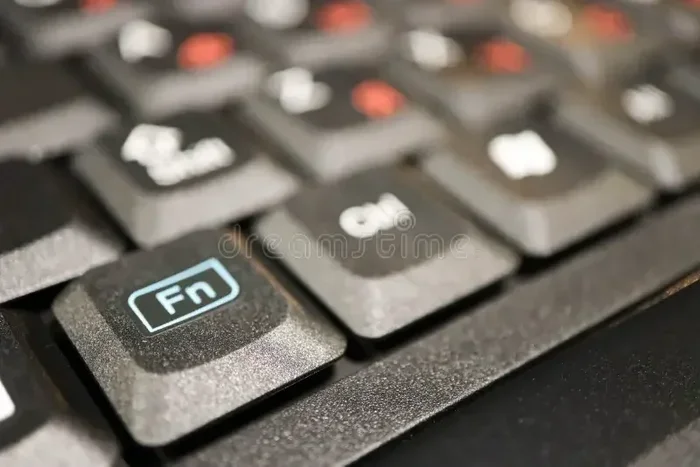
Many Toshiba laptops have a physical wireless switch on the side or front. You might also have a function key combo, like pressing Fn plus F8 or F12, that toggles wireless off. It is very easy to hit this by accident. When wireless is turned off this way, your laptop will not see any available networks. This simple mistake trips up many users every day.
Network Settings Got Corrupted
Your laptop stores network profiles for every WiFi network you connect to. Sometimes these profiles get corrupted. When that happens, your Toshiba laptop might refuse to connect even if the network is perfectly fine. This can happen after a major Windows update or if you recently changed your router settings.
IP Address Conflicts
Every device on your network needs a unique IP address. If two devices end up with the same IP, neither can connect properly. This is called an IP conflict and it can make your Toshiba laptop wireless not working even though the signal is strong.
Hardware Failure
In some cases, the wireless card inside your Toshiba laptop simply fails. This can happen due to age, physical damage, or a power surge. If the wireless card is dead, no software fix will bring it back. You will need to replace the card or use a USB wireless adapter as a workaround.
Common Signs of Wireless Problems on Toshiba Laptops
Before you start troubleshooting, it helps to identify the exact symptom. Different signs point to different causes. Here are the most common issues people face.
- No wireless icon in the taskbar: This usually means the wireless adapter is disabled or the driver is missing entirely.
- WiFi connects but no internet: Your laptop sees the network but cannot reach the internet. This points to a DNS or IP problem.
- Bluetooth also stops working: Since Bluetooth and WiFi often share the same adapter, both failing at once suggests a hardware or driver issue.
- Frequent disconnections: If your Toshiba laptop keeps dropping the WiFi connection, the wireless card or router might be the problem.
- Slow wireless speeds: This could be a signal issue, but it can also mean your wireless driver needs updating.
If you also notice that your wireless mouse not working with laptop at the same time, the problem likely involves your wireless adapter or a shared driver. Similarly, if you are dealing with broader connectivity issues, understanding why your laptop mouse not working can give you clues about the root cause since both rely on the same wireless hardware.
Step-by-Step Fixes for Toshiba Wireless Issues
Now let us get into the fixes. Work through these steps in order. Most people solve the problem by step three or four.
Step 1: Restart Your Laptop and Router
This sounds too simple, but it works more often than you think. Restarting clears temporary glitches in both your laptop and your router. Turn off your Toshiba laptop, unplug it, wait 30 seconds, and turn it back on. Then restart your router too. Check if the wireless connection comes back.
Step 2: Check the Wireless Switch and Function Keys
Look at the side of your Toshiba laptop for a physical wireless switch. Make sure it is in the “On” position. Then try pressing the function key combo, usually Fn plus one of the F keys at the top of your keyboard. Look for an icon that looks like a radio wave or airplane. If airplane mode is on, wireless will not work.
Step 3: Run the Windows Network Troubleshooter
Windows has a built-in tool that can detect and fix many common network problems. Go to Settings, then Network and Internet, then click on the troubleshooter. Let Windows scan for issues and follow any prompts it gives you. This is a great first step before trying anything more advanced.
Step 4: Update or Reinstall the Wireless Driver
Outdated drivers are the top cause of Toshiba laptop wireless not working. Here is how to update yours:
- Right-click on the Start button and select Device Manager.
- Expand the Network adapters section.
- Right-click on your wireless adapter and select Update driver.
- Choose “Search automatically for drivers.”
- Follow the on-screen instructions and restart your laptop.
If updating does not work, try uninstalling the driver. In Device Manager, right-click the wireless adapter and select Uninstall device. Then restart your laptop. Windows will automatically reinstall a fresh driver.
Step 5: Reset Your Network Settings
If the driver update did not fix the problem, resetting your network settings can help. This clears all saved network profiles and restores default settings. Go to Settings, then Network and Internet, then scroll down to Network Reset. Click “Reset Now” and confirm. Your laptop will restart and you will need to reconnect to your WiFi network.
Step 6: Check for Windows Updates
Microsoft regularly releases updates that fix network bugs. Go to Settings, then Update and Security, then Windows Update. Click “Check for updates” and install anything that is available. Restart your laptop after the update completes.
Sometimes the issue goes beyond basic software fixes. If you are also experiencing problems with your laptop mouse or touchpad, checking out why your mouse on laptop not working might reveal a shared underlying issue that affects both your wireless connectivity and input devices.
When to Update or Reinstall Wireless Drivers
Drivers are the software that lets your Toshiba laptop talk to its wireless hardware. Keeping them up to date is one of the best ways to prevent Toshiba laptop wireless not working issues.
You should update your wireless driver if:
- Your laptop just stopped connecting to WiFi after a Windows update.
- The wireless icon shows a yellow warning triangle in Device Manager.
- Your laptop connects to WiFi but has no internet access.
- You get error messages about network adapters when you try to connect.
To manually download the latest driver, visit the Toshiba support website. Enter your laptop model number and look for the wireless network adapter driver. Download the latest version and install it. This is often more reliable than using Windows Update alone.
If you are using an older Toshiba model, the driver might not show up in Windows Update. In that case, you can download it directly from the Toshiba website or use a third-party driver update tool. Just be sure to download from trusted sources only.
Hardware Issues That Cause Wireless Failures
Not every wireless problem is software-related. Sometimes the hardware itself is to blame. Here are the hardware issues you should know about.
Faulty Wireless Card
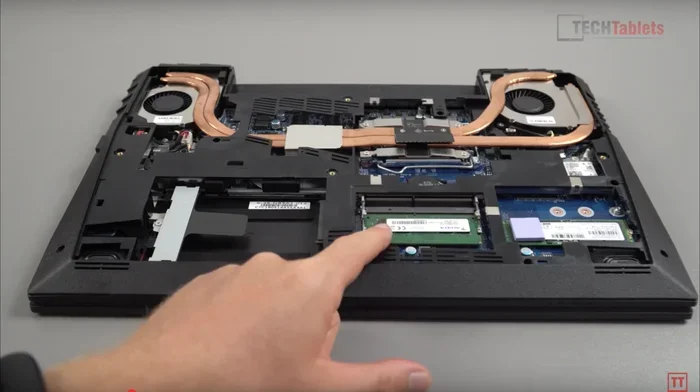
The wireless card is the small circuit board inside your laptop that handles WiFi and Bluetooth. Over time, these cards can wear out or fail. If you have tried every software fix and your Toshiba laptop wireless not working problem persists, the wireless card might be dead. You can check this by using a USB wireless adapter. If the USB adapter works fine, your internal card is likely the problem.
Damaged Antenna
Inside your laptop, the wireless card connects to small antennas that pick up WiFi signals. These antennas can break if the laptop is dropped or opened too forcefully. A damaged antenna causes weak signals, frequent disconnections, or a complete inability to connect.
Loose Internal Connections
The cables that connect the wireless card to the motherboard can become loose over time, especially if you frequently open and close your laptop. This is more common in older Toshiba models. Opening the laptop and reseating the connections can sometimes fix the issue, but this should only be done if you are comfortable working inside your device.
If you suspect a hardware problem, it is best to take your Toshiba laptop to a certified repair center. They can test the wireless card and replace it if needed. Trying to replace internal components yourself can void your warranty and risk damaging other parts of the laptop.
Preventing Wireless Problems on Your Toshiba Laptop
Prevention is always better than cure. A few simple habits can keep your Toshiba laptop wireless connection strong and reliable.
- Update your drivers regularly: Set a reminder to check for driver updates once a month. This keeps your wireless adapter running smoothly.
- Shut down properly: Always use the Start menu to shut down your laptop. Force power-offs can corrupt system files and drivers.
- Keep your laptop away from interference: Microwaves, cordless phones, and other electronics can interfere with your WiFi signal. Keep your router and laptop at a reasonable distance from these devices.
- Restart your router regularly: A quick router restart once a week can prevent many connectivity issues.
- Use a surge protector: Power surges can damage your laptop’s internal components, including the wireless card. A cheap surge protector can save you hundreds in repair costs.
If you are also dealing with a situation where your mouse on my laptop not working alongside wireless issues, it is worth checking if both problems share the same root cause. A failing wireless adapter can affect both your internet connection and Bluetooth peripherals.
Similarly, if your external devices are not connecting properly, understanding why external mouse not working on laptop can provide useful context since external wireless devices depend on the same underlying wireless hardware in your Toshiba laptop.
When to Seek Professional Help
Most Toshiba wireless issues can be fixed at home with the steps above. However, there are times when professional help is the right call. If you have tried every fix in this guide and your laptop still will not connect to WiFi, it is time to see an expert. Also, if you notice a burning smell, unusual heat, or physical damage near the wireless card area, stop using the laptop and get it checked immediately.
Toshiba has official support channels and authorized service centers. They can run diagnostic tests that pinpoint exactly what is wrong. In many cases, the fix might be a simple part replacement that costs very little compared to buying a new laptop.
Conclusion
Toshiba laptop wireless not working is a common but solvable problem. Most of the time, the fix is simple, like updating a driver, resetting network settings, or checking a function key. By working through the steps in this guide, you can save time and money. Start with the basics and work your way up to more advanced fixes. If nothing works, a professional technician can diagnose hardware issues that are not visible on the surface.
Remember to keep your drivers updated and your laptop properly maintained. These small habits go a long way in keeping your Toshiba laptop wireless connection strong and reliable. Now you have everything you need to get back online and stay connected.
Frequently Asked Questions
Why did my Toshiba laptop wireless stop working suddenly?
The most common reason is a driver update or Windows update that corrupted your wireless adapter settings. Other causes include the wireless switch being turned off accidentally or a corrupted network profile. Try restarting your laptop and running the network troubleshooter first.
How do I know if my Toshiba wireless card is broken?
If every software fix has failed and your laptop still cannot detect any WiFi networks, the wireless card may be faulty. You can confirm this by using a USB wireless adapter. If the USB adapter works, your internal card is likely damaged and needs replacement.
Can I fix Toshiba laptop wireless not working without technical skills?
Absolutely. Most fixes in this guide require no technical expertise. Steps like restarting your laptop, checking the wireless switch, and updating drivers are simple and safe. Even resetting network settings is a one-click process in Windows.
How often should I update my Toshiba laptop wireless driver?
You should check for driver updates at least once a month. If you notice wireless problems after a Windows update, check for driver updates immediately. Keeping your drivers current prevents most connectivity issues.
Will resetting network settings delete my saved WiFi passwords?
Yes. Resetting network settings removes all saved WiFi profiles and passwords. You will need to reconnect to your networks and re-enter your passwords after the reset. Make sure you know your WiFi passwords before running a network reset.
Is it safe to use a USB wireless adapter as a permanent fix?
Yes, using a USB wireless adapter is a safe and reliable workaround if your internal wireless card is dead. USB adapters are affordable and easy to set up. They plug into any USB port and provide WiFi connectivity right away without any complex installation.