Why Does the Macbook Air Not Have a Usb Port
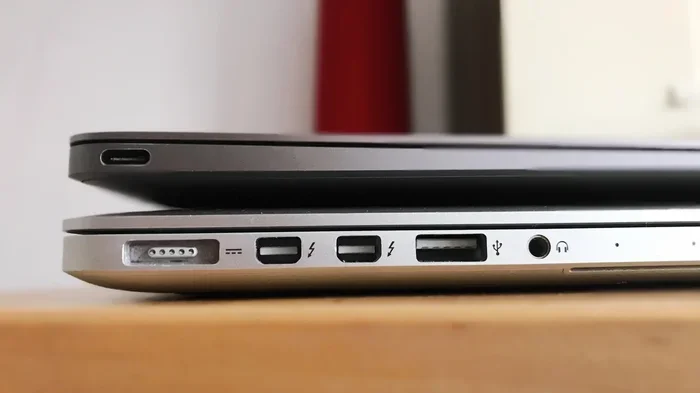
The Macbook Air dropped traditional USB ports to become thinner, lighter, and more modern. Apple replaced old USB-A ports with USB-C and Thunderbolt technology. This shift means you need adapters or dongles to connect older devices like flash drives and mice.
The Macbook Air is one of the most popular laptops on the market. It is thin, light, and powerful. But there is one thing that frustrates many people. The Macbook Air does not have a traditional USB port. If you have been using laptops for years, this can feel strange. You reach for your flash drive or your old mouse and find no USB-A port in sight. So why did Apple make this choice? And what can you do about it?
This guide explains everything. We will look at the real reasons behind the design. We will also cover what you can use instead. You will learn how to stay connected without a traditional port. Let us dive in.
Key Takeaways
- Apple removed USB-A ports to make the Macbook Air thinner and more portable.
- USB-C and Thunderbolt offer faster speeds and more functionality than old USB ports.
- Adapters and docking stations let you connect legacy USB devices to your Macbook Air.
- Wireless peripherals like Bluetooth mice reduce the need for USB ports entirely.
- The design change reflects Apple’s vision of a portless, minimalist future for laptops.
- Most users adapt quickly once they invest in a few simple accessories.
📑 Table of Contents
- The History of USB Ports in Laptops
- Why Apple Removed the Traditional USB Port
- How USB-C and Thunderbolt Changed Everything
- How to Connect Your Old Devices to the Macbook Air
- Common Problems When Using USB-C on the Macbook Air
- Is the Portless Future Good for Laptops?
- Tips for Making the Transition Easier
- The Bottom Line
The History of USB Ports in Laptops
For many years, every laptop came with USB-A ports. These are the flat, rectangular ports you plug your flash drive into. They have been around since the late 1990s. Almost every device used them. Printers, keyboards, external hard drives, and phone chargers all relied on USB-A.
But technology moves fast. Newer standards like USB-C and Thunderbolt came along. These ports are smaller and much faster. They can carry data, video, and power all at once. Apple saw this shift early. They decided to lead the change rather than follow it.
The Shift to USB-C
Apple first introduced USB-C on the Macbook in 2015. At the time, many people complained. They did not understand the new port. But Apple believed in the future. USB-C is reversible, meaning you can plug it in either way. It is also much faster than USB-A. Data transfers happen in seconds instead of minutes.
By 2018, Apple had fully committed to USB-C on the Macbook Air. There were no USB-A ports left. This was a bold move. Some people loved it. Others were confused. But the trend in the industry was clear. USB-C is the future.
Why Apple Removed the Traditional USB Port
Apple did not remove the USB port just to be difficult. There are real reasons behind this decision. Let us look at them one by one.
Thinner and Lighter Design
The Macbook Air is known for being incredibly thin. Removing the bulky USB-A port helped Apple shave off precious millimeters. Every bit of space inside the laptop matters. A thinner design means a lighter laptop. And a lighter laptop is easier to carry around all day.
If Apple kept the old USB-A port, the Macbook Air would be thicker. It would also be heavier. That goes against the whole idea of the Air. The name itself says it all. It should feel like air in your bag.
Faster Data Transfer Speeds
USB-C is much faster than USB-A. The latest USB-C standards support speeds up to 40 Gbps. That is thanks to Thunderbolt 3 and Thunderbolt 4 technology. A USB-A port maxes out at around 5 Gbps with USB 3.0. The difference is huge.
What does this mean for you? You can transfer a full movie in seconds. You can back up huge files in moments. External drives work much faster too. So even though the port looks the same size, it is far more powerful.
One Port Does the Job of Many
USB-C is a multi-purpose port. It can charge your laptop. It can connect to external monitors. It can transfer data. It can even connect to docking stations. One USB-C port can replace several old ports. This simplifies the design and reduces clutter.
Apple wanted the Macbook Air to be clean and simple. Fewer ports mean fewer holes in the body. Fewer holes mean better structural integrity. The laptop stays strong and rigid.
How USB-C and Thunderbolt Changed Everything
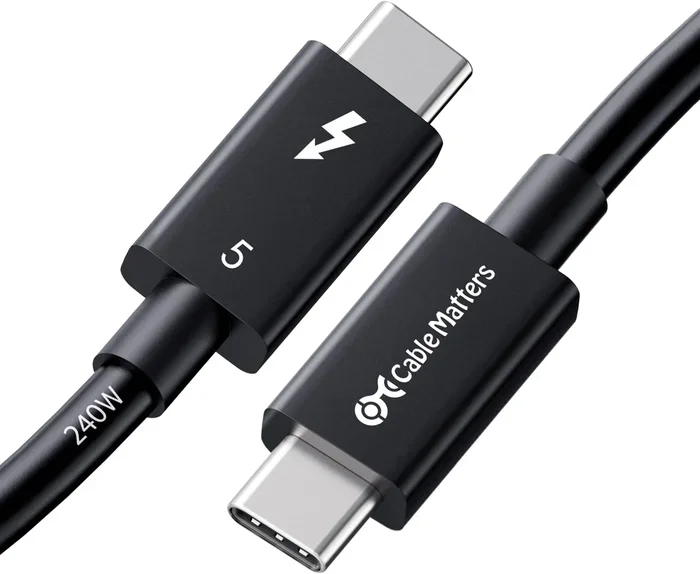
Thunderbolt technology deserves its own mention. It was developed by Intel and Apple together. Thunderbolt combines data and display output in one cable. Thunderbolt 3 uses the USB-C connector. Thunderbolt 4 builds on that foundation.
Here is what Thunderbolt can do:
- Connect to 4K or 5K displays directly from your Macbook Air.
- Charge your laptop at full speed while using data.
- Connect external GPUs for better graphics performance.
- Chain multiple devices together using a single port.
This is why Apple made the switch. The old USB port could not do all of this. Thunderbolt and USB-C opened up a whole new world of possibilities. The Macbook Air became more capable, not less.
How to Connect Your Old Devices to the Macbook Air
So what do you do if your device only has a USB-A connector? You need an adapter. This is the most common question people ask. The good news is that the solution is simple and affordable.
USB-C Adapters and Dongles
A USB-C to USB-A adapter is a small, inexpensive gadget. You plug it into your Macbook Air. Then you plug your old device into the adapter. It works just like a regular USB port. You can use it with flash drives, keyboards, and printers.
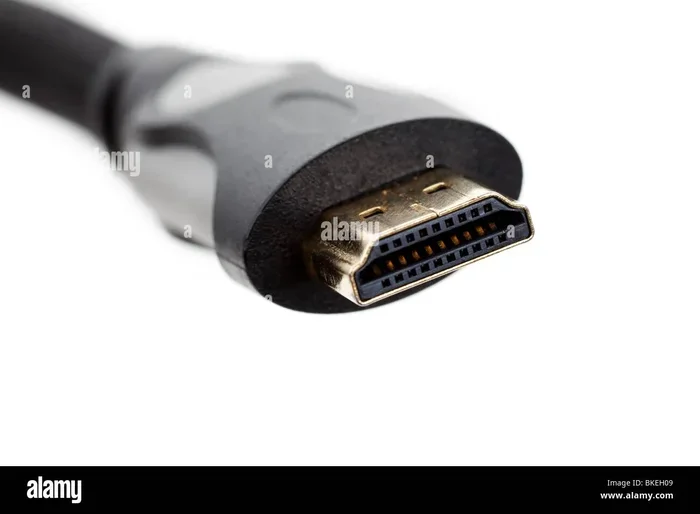
There are also multi-port adapters. These give you several ports in one device. You get USB-A ports, HDMI output, SD card slots, and more. These are perfect for people who need to connect many devices at once.
Docking Stations
If you use your Macbook Air as a desktop replacement, a docking station is a great choice. A docking station connects to your laptop through one USB-C cable. It gives you multiple ports on your desk. You get Ethernet, USB-A, HDMI, and audio jacks all in one.
Docking stations are especially useful for office setups. They turn your Macbook Air into a full workstation. You can connect a monitor, a mouse, a keyboard, and an external hard drive all at once.
Wireless Alternatives
Not everything needs a cable anymore. Many modern devices connect wirelessly. Bluetooth mice and keyboards work great with the Macbook Air. You can also use cloud storage instead of flash drives. Services like iCloud, Google Drive, and Dropbox make file sharing easy.
If you have been struggling with a mouse not connecting to your laptop, a wireless Bluetooth mouse might be the answer. You can also check out this guide on why your mouse might not be connecting to your laptop for troubleshooting tips. Similarly, if your wireless mouse is not showing up on screen, you can learn more about why your mouse is not showing up on your laptop and how to fix it.
USB Hubs for Everyday Use
A USB hub is another great option. It plugs into your Macbook Air’s USB-C port. It gives you multiple USB-A ports to use at once. Hubs are small and portable. You can keep one in your laptop bag and use it whenever you need it.
Some hubs also include an HDMI port. This lets you connect an external monitor easily. Others include an Ethernet port for wired internet. There is a hub for almost every need.
Common Problems When Using USB-C on the Macbook Air
Switching to USB-C is not always smooth. Many people run into issues. Here are the most common problems and how to fix them.
Device Not Recognized
Sometimes you plug in a USB device and nothing happens. This can be frustrating. First, check if the adapter is working. Try a different adapter or cable. Sometimes the cable itself is the problem. Cheap cables may not support data transfer.
If you are using a USB mouse and it is not working, this could be a driver or connection issue. You can read more about why your USB mouse might not be working on your laptop for detailed troubleshooting steps.
Slow Data Transfer Speeds
Not all USB-C cables are the same. Some only support charging, not data. If your file transfers are slow, check the cable specification. Look for USB 3.0 or higher. Thunderbolt cables offer the fastest speeds.
Also, make sure your external drive supports USB-C. Older drives with USB-A will need an adapter, and the speed may be limited by the adapter quality.
Adapter Compatibility Issues
Not all adapters work perfectly with the Macbook Air. Cheap adapters may cause flickering screens or disconnections. It is best to buy adapters from trusted brands. Apple’s own adapters are reliable but expensive. Third-party options from Anker, Belkin, and Satechi are also good.
Peripheral Devices Not Showing Up
If you plug in a device and it does not appear on your screen, try a few things. Restart your Macbook Air. Check System Preferences for the device. Make sure the device is powered on. Sometimes simply unplugging and replugging the adapter fixes the issue.
If you are still stuck, learning how to make your mouse work on a laptop can help you get your peripheral up and running again.
Is the Portless Future Good for Laptops?
Apple is not the only company moving away from traditional ports. Many laptop makers now use USB-C as the main port. This trend is growing. But is it a good thing?
There are pros and cons. On the positive side, laptops become thinner and more streamlined. One port can do the job of five old ports. Charging and data happen through the same cable. This is convenient for travel.
On the downside, you always need adapters. If you forget your dongle, you cannot connect your devices. This can be a real headache in meetings or classrooms. The cost of adapters adds up too. A good docking station can cost as much as the laptop itself in some cases.
Overall, the portless trend is here to stay. It is up to each user to decide if the trade-off is worth it. For most people, the benefits outweigh the inconvenience.
Tips for Making the Transition Easier
Switching from a laptop with USB-A ports to a USB-C-only laptop takes a little adjustment. Here are some tips to make it smoother.
- Buy a good multi-port adapter. This should be your first purchase. It gives you the most flexibility for the least money.
- Get a Thunderbolt cable. It is the fastest and most reliable cable for your Macbook Air.
- Switch to wireless peripherals. A Bluetooth mouse and keyboard eliminate the need for USB ports entirely.
- Use cloud storage. Store your files online instead of on flash drives. This is faster and safer.
- Label your adapters. If you have several, label them so you always know which one is which.
- Keep a spare adapter in your bag. You never know when you will need it. Being prepared saves stress.
These small steps make a big difference. Within a week, using USB-C will feel completely normal. You will wonder how you ever lived with bulky USB-A ports.
The Bottom Line
The Macbook Air does not have a traditional USB port because Apple chose a better design. USB-C and Thunderbolt offer faster speeds, more functionality, and a cleaner look. Yes, you need adapters. Yes, there is a learning curve. But the benefits are real and lasting.
Once you get used to the new setup, you will not want to go back. The Macbook Air is a modern laptop for a modern world. And that means letting go of old ports to make room for better ones.
If you ever run into issues with your mouse or other peripherals, remember that help is always available. Whether it is a connection problem or a compatibility issue, there are simple solutions. The key is to stay patient and invest in the right accessories.
Frequently Asked Questions
Why did Apple remove USB-A ports from the Macbook Air?
Apple removed USB-A ports to make the Macbook Air thinner, lighter, and more modern. The new USB-C and Thunderbolt ports offer faster speeds and more functionality in a smaller space. This design choice reflects Apple’s commitment to a cleaner and more streamlined laptop.
Can I still use a USB flash drive on the Macbook Air?
Yes, you can. You just need a USB-C to USB-A adapter or a USB hub. These are inexpensive and widely available. Simply plug the adapter into your Macbook Air and then connect your flash drive to the adapter.
Is USB-C the same as Thunderbolt?
Not exactly. USB-C is a connector type, while Thunderbolt is a technology that uses the USB-C connector. Thunderbolt is faster and more powerful. It supports data transfer, video output, and charging through a single cable. All Thunderbolt ports use USB-C, but not all USB-C ports support Thunderbolt.
Do I need to buy expensive adapters for my Macbook Air?
No, you do not need expensive adapters. Basic USB-C to USB-A adapters cost just a few dollars. More advanced docking stations cost more but offer extra ports and features. Start with a simple adapter and upgrade only if you need more connectivity options.
Can I connect an external monitor to the Macbook Air without USB-C?
You need a USB-C to HDMI adapter or a Thunderbolt-compatible display. Most modern monitors support USB-C input. If your monitor only has HDMI or VGA, you will need an adapter. This is one of the most common accessories Macbook Air users buy.
Will future Macbook Air models still use USB-C?
It is very likely. Apple has fully embraced USB-C and Thunderbolt across its entire laptop lineup. The Macbook Air with Apple Silicon uses USB-C exclusively. This trend is expected to continue. Apple sees USB-C as the standard for the future of laptops.