Why Does the Cursor on Laptop Jump Around
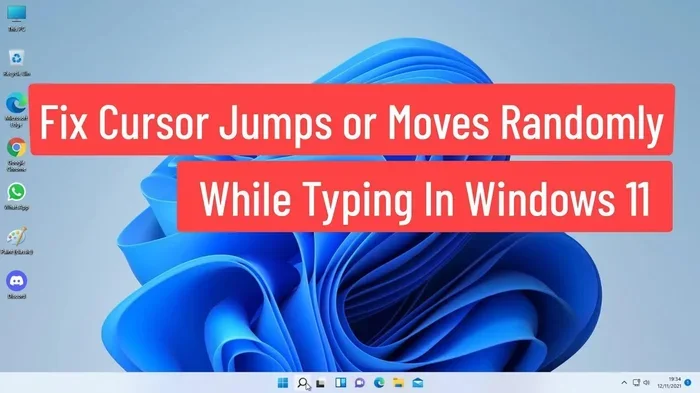
The cursor on your laptop jumping around is a common frustration caused by several factors, including touchpad sensitivity, outdated drivers, and accidental palm touches. This guide walks you through the real reasons your mouse pointer keeps moving on its own and gives you easy, step-by-step fixes you can try right now. Whether you are dealing with a glitchy cursor or a jumping mouse pointer, you will find the solution that works for your laptop.
Have you ever been typing an email and suddenly your cursor on laptop jumps to a completely different part of the screen? It is frustrating, right? You are not alone. Thousands of laptop users deal with this annoying problem every single day. The good news is that you can fix it.
This article breaks down exactly why does the cursor on laptop jump around and gives you clear, practical steps to stop it. We will cover everything from touchpad settings to driver updates. By the end, you will know exactly what to do.
Let us dive in and get your cursor behaving the way it should.
Key Takeaways
- Touchpad Sensitivity Issues: The most common reason for cursor jumping is an overly sensitive touchpad or palm rejection problems.
- Outdated or Corrupt Drivers: Old or damaged mouse and trackpad drivers can cause erratic cursor behavior on your laptop.
- Software Conflicts: Sometimes third-party apps or recent system updates interfere with normal cursor movement.
- Hardware Problems: Dirt, moisture, or physical damage to the touchpad can make the cursor jump unexpectedly.
- Easy Fixes Exist: Most cursor jumping issues can be resolved with simple settings changes, driver updates, or basic cleaning.
📑 Table of Contents
What Causes the Cursor on Laptop to Jump Around
Before you fix the problem, you need to understand what is causing it. There are several reasons why your mouse pointer keeps moving on its own. Let us look at the top causes.
Touchpad Sensitivity Is Too High
The touchpad on your laptop is very sensitive by design. This helps you navigate quickly. But sometimes, the sensitivity is set too high. When that happens, even a light touch or a stray hand movement can send the cursor flying across the screen.
Think of it like a car accelerator. If it is too sensitive, the car jerks forward every time you barely touch it. The same thing happens with your cursor movement when the touchpad gain is too high.
Palm Rejection Is Not Working Properly
Modern laptops have a feature called palm rejection. It is designed to ignore touches from your palm while you type. But when this feature fails, your laptop thinks your palm is a deliberate click or swipe. The result? Your cursor jumping randomly while you type.
This is one of the most common reasons people ask why does the cursor on laptop jump around. If it happens mainly while you are typing, palm rejection is likely the culprit.
Outdated or Corrupt Drivers
Your laptop uses drivers to communicate with the touchpad and mouse. These drivers need to stay up to date. When they become outdated or corrupt, your laptop mouse may start behaving strangely.
You might notice the cursor stuttering, jumping, or moving in weird patterns. This is the laptop struggling to understand the signals from the touchpad. Updating the driver often fixes this completely.
Software Conflicts and Background Apps
Sometimes, other programs on your laptop interfere with cursor movement. Apps that control mouse behavior, gaming software, or even antivirus tools can create conflicts. These software conflicts cause the cursor to jump or freeze unexpectedly.
If you recently installed a new app and noticed cursor problems, that app might be the cause. This is a common but overlooked reason for erratic mouse pointer behavior.
Dirt, Moisture, or Physical Damage
Your touchpad is a sensitive surface. Dirt, oil from your fingers, or moisture can interfere with its ability to read touches accurately. Over time, this buildup causes the cursor to jump or move without any input from you.
Physical damage is another possibility. If you have dropped your laptop or pressed too hard on the touchpad, the internal sensors may be affected. This type of hardware problem usually requires professional repair.
How to Fix a Cursor That Keeps Jumping on Your Laptop
Now that you know the causes, let us get into the fixes. These steps are easy to follow and do not require technical expertise.
Adjust Touchpad Sensitivity Settings
The first thing you should try is adjusting the touchpad sensitivity. Here is how:
- Open the Settings app on your laptop.
- Go to Bluetooth and Devices or Touchpad settings.
- Look for the sensitivity or speed slider.
- Reduce the sensitivity to a medium level.
- Test your cursor to see if the jumping stops.
This simple change fixes the issue for many users. It takes less than a minute and requires no technical skill.
Update Your Touchpad and Mouse Drivers
Keeping your drivers current is one of the best ways to prevent cursor jumping. Here is what to do:
- Right-click the Start button and select Device Manager.
- Expand the Mice and other pointing devices section.
- Right-click your touchpad device and select Update Driver.
- Choose Search automatically for drivers.
- Restart your laptop after the update completes.
If Windows does not find a new driver, visit your laptop manufacturer’s website. They often have the latest drivers available for download. This alone can solve many mouse pointer issues.
Turn Off Palm Rejection Temporarily to Test
You can test whether palm rejection is causing the problem by turning it off temporarily. Go to your touchpad settings and disable palm rejection. Then type for a few minutes and see if the cursor still jumps.
If the jumping stops when palm rejection is on, you know that is your issue. You may need to adjust the palm rejection settings or update the touchpad driver to fix it properly.
Clean Your Touchpad
Grab a soft, dry cloth and gently wipe your touchpad. Remove any visible dirt or oils. If the touchpad is sticky or damp, use a slightly damp cloth and then dry it thoroughly.
Regular cleaning prevents many cursor issues. Make it a habit to wipe your touchpad at least once a week. This small step goes a long way in keeping your cursor movement smooth and accurate.
Check for Software Conflicts
If you recently installed new software, try uninstalling it to see if the cursor jumping stops. You can also boot your laptop in Safe Mode. This disables all third-party apps and helps you identify if a program is causing the issue.
To boot in Safe Mode:
- Hold the Shift key and click Restart.
- Go to Troubleshoot > Advanced Options > Startup Settings.
- Click Restart and select Safe Mode.
- Test your cursor in Safe Mode.
If the cursor behaves normally in Safe Mode, a background app is likely the cause.
When to Seek Professional Help
Most cursor jumping issues are easy to fix at home. But some situations require professional help. If you have tried all the steps above and the cursor still jumps, there may be a deeper problem.
Signs that you need professional repair include:
- The cursor jumps even when you are not touching the touchpad at all.
- There is visible physical damage to the touchpad surface.
- The touchpad works intermittently or not at all.
- You notice the issue started after a drop or liquid spill.
In these cases, it is best to take your laptop to a certified technician. They can diagnose and repair hardware problems safely. Trying to fix hardware issues yourself can sometimes make things worse.
Preventing Cursor Jumping in the Future
Once you fix the issue, you want to keep it from coming back. Here are some simple habits that help:
- Keep your drivers updated: Check for updates at least once a month. This prevents many laptop mouse issues before they start.
- Clean your touchpad regularly: A quick wipe every few days keeps the surface clean and responsive.
- Avoid eating over your laptop: Crumbs and spills can damage the touchpad over time.
- Use a wrist rest: This reduces accidental touches and palm interference while typing.
- Restart your laptop weekly: Regular restarts clear temporary glitches and keep everything running smoothly.
These small habits make a big difference. They keep your mouse pointer stable and your laptop running at its best.
Final Thoughts
Dealing with a cursor that jumps around can be really annoying. But now you know exactly why does the cursor on laptop jump around and what you can do about it. From adjusting touchpad sensitivity to updating drivers, most fixes are simple and quick.
Start with the easiest solutions first. Adjust the sensitivity, clean the touchpad, and update your drivers. If those do not work, dig deeper into software conflicts or hardware issues. Remember, you are not alone in dealing with this problem. It is a very common laptop issue with well-known solutions.
Take action today. Your cursor should move smoothly and predictably. You deserve a laptop that works the way you expect it to.
If you are also dealing with a mouse that keeps freezing, check out our guide on why does the mouse on my laptop keep freezing for more troubleshooting tips.
And if your mouse stopped working completely, our article on why does my mouse stop working on my laptop covers that issue in detail.
For broader help with laptop peripherals, you might also find our piece on why is the mouse on the laptop not working helpful for understanding other mouse-related problems.
Frequently Asked Questions
Why does my cursor jump around when I type?
This is usually caused by palm rejection not working properly. Your laptop mistakes your palm for a deliberate touch on the touchpad. Adjusting the palm rejection settings or updating the touchpad driver often fixes this issue completely.
Can a dirty touchpad cause the cursor to jump?
Yes, absolutely. Dirt, oil, and moisture on the touchpad surface interfere with its ability to read touches accurately. This leads to erratic cursor movement. Regular cleaning with a soft cloth can prevent this problem.
How do I stop my cursor from jumping on a Windows laptop?
Start by reducing the touchpad sensitivity in your settings. Then update your touchpad drivers through Device Manager. If the issue persists, check for software conflicts by booting in Safe Mode. Most users find a fix within these steps.
Is cursor jumping a sign of a virus or malware?
It is rare, but possible. Some malware can interfere with input devices. However, cursor jumping is much more commonly caused by touchpad settings, driver issues, or hardware problems. Always rule out the common causes first before suspecting malware.
Should I disable the touchpad and use an external mouse?
Using an external mouse is a great workaround while you troubleshoot. It lets you continue working without frustration. However, it does not fix the underlying issue. You should still address the root cause to restore full laptop functionality.
Can a laptop drop cause the cursor to start jumping?
Yes, physical impact can damage the touchpad’s internal sensors. If the cursor started jumping after you dropped the laptop, there may be a hardware issue. In this case, professional inspection and repair is the best course of action.
=== CONCLUSION ===
Dealing with a jumping cursor on your laptop is frustrating, but it is almost always fixable. You now know the main causes, from touchpad sensitivity to driver problems and palm rejection failures. You also have a clear set of steps to try at home. Start with the simple fixes and work your way up if needed.
Remember to keep your drivers updated, your touchpad clean, and your laptop free from software conflicts. These habits prevent most cursor issues from returning. If nothing works, do not hesitate to seek professional help. Your laptop deserves to work smoothly, and so do you.
Take the steps today to fix your cursor jumping issue. You will be glad you did.