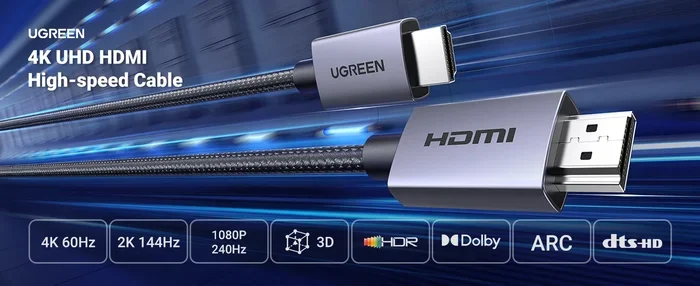
Why Wont My Hdmi to Rca Converter Work
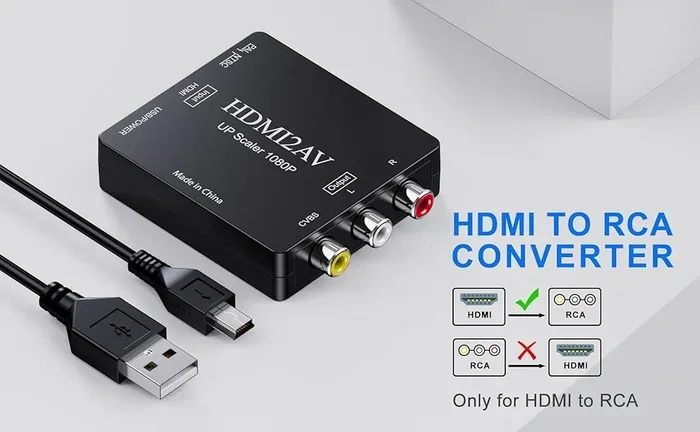
An HDMI to RCA converter not working is a common frustration, but the fix is usually simpler than you think. Whether your display shows no signal, flickers, or produces no audio, the root cause typically comes down to cables, compatibility, or power supply. This guide walks you through every reason your HDMI to RCA converter might fail and gives you actionable steps to solve it fast.
You plug in your HDMI to RCA converter, hit play, and… nothing. No picture. No sound. Maybe you get a flickering screen or a black box where the video should be. It’s incredibly frustrating, especially when you just want to connect a modern device to an older TV or monitor.
The good news is that a converter not working almost always has a fix. Most of the time, the problem is something simple like a loose cable, a wrong setting, or a power issue. In this article, we’ll go through every possible reason your HDMI to RCA adapter isn’t working and give you clear steps to fix each one.
Whether you’re trying to connect a laptop, gaming console, or streaming device to an older TV, this guide has you covered. Let’s get into it.
Key Takeaways
- Check your cables first: Loose or damaged HDMI and RCA cables are the number one cause of converter failure.
- Verify device compatibility: Not every HDMI output works seamlessly with every RCA input, especially with older devices.
- Power matters: Many converters need their own power source, and a missing power adapter can cause total failure.
- Resolution and signal settings count: Your source device may output a signal the converter cannot process.
- Try a different converter: If troubleshooting doesn’t help, the converter unit itself may be faulty or incompatible.
- Audio and video are separate: A converter might handle video fine but fail on audio, or vice versa.
📑 Table of Contents
- Why Your HDMI to RCA Converter Might Not Work
- Check Your Cables and Connections First
- Device Compatibility Issues
- Power Supply Problems
- Signal and Resolution Mismatches
- How to Fix Your HDMI to RCA Converter
- Quick Tips for Better Converter Performance
- Common Mistakes People Make with HDMI to RCA Converters
- Expert Insights on Display Conversion
- When to Consider Alternatives to RCA
- Conclusion
Why Your HDMI to RCA Converter Might Not Work
Before you start swapping cables or buying new gear, it helps to understand what’s actually happening. A converter not working usually comes down to one of a few common culprits. Let’s break them down.
Loose or Damaged Cables
This is the most common reason by far. Your HDMI cable or RCA composite cable might not be seated properly. Even a millimeter of wiggle can break the connection. Over time, cables wear out, especially if you unplug and replug them often.
Check both ends of every cable. Make sure the HDMI connector clicks firmly into place. For RCA jacks, confirm the red, white, and yellow plugs are pushed all the way into their matching ports. If any cable looks frayed, bent, or discolored, replace it. A damaged cable can cause signal loss even if the converter itself is fine.
Incompatible Devices
Not every HDMI output plays nice with every RCA input. Some devices output a signal that older converters simply can’t translate. This happens a lot with newer laptops and gaming consoles that use updated HDMI standards.
For example, if your source device outputs HDMI 2.0 or higher and your converter only supports HDMI 1.4, you may run into problems. The signal conversion fails because the converter can’t handle the newer format. Always check the specs of both your source device and the converter before assuming everything is compatible.
Missing or Faulty Power Supply
Many HDMI to RCA converters need external power. They don’t draw enough power from the HDMI connection alone. If your converter has a USB power port or a wall adapter, make sure it’s plugged in and working.
Try a different USB port or power adapter if you suspect the supply is the issue. A converter without power will either show nothing at all or produce a very weak signal. This is one of those things that’s easy to overlook but causes big problems.
Check Your Cables and Connections First
Before diving into deeper troubleshooting, start with the basics. A cable and connection check solves more than half of all converter issues. Here’s exactly what to do.
- Unplug the HDMI cable from both the source device and the converter. Wait ten seconds, then plug it back in firmly.
- Do the same with the RCA composite cables. Make sure the yellow plug goes into the video port and the red and white plugs go into the audio ports.
- Try a different HDMI cable. Cables can fail silently without visible damage.
- Try a different set of RCA cables. Old RCA cables lose their shielding over time, which leads to signal interference.
- Clean the connector tips with a dry cloth. Dust and dirt can block the electrical connection.
If you’ve checked all the cables and the converter still won’t work, move on to the next section. Don’t skip this step, though. It’s the fastest way to rule out simple problems.
Device Compatibility Issues
Compatibility is one of the trickiest parts of using an HDMI to RCA converter. The converter bridges two very different signal types, and not every combination works perfectly.
Understanding HDMI and RCA Signal Types
HDMI carries both audio and video in a single digital signal. RCA carries them as separate analog signals. The converter has to translate from digital to analog, and this process isn’t always seamless.
Some devices use HDCP (High-bandwidth Digital Content Protection), which is a copy-protection system. Older converters often can’t handle HDCP signals, and the result is a black screen or no signal at all. If you’re trying to play copyrighted content like movies or streaming services, this could be your problem.
Which Devices Work Best with RCA Converters?
Older devices tend to work better with HDMI to RCA adapters. Think of older DVD players, retro gaming consoles, or legacy computers. Newer devices like 4K Blu-ray players or the latest gaming consoles may have trouble.
If you’re connecting a modern device, check whether your converter supports the right HDMI version. Some converters are specifically designed for newer standards and will work with modern devices. Others are built for older equipment and will struggle with newer outputs.
Power Supply Problems
A converter not working is often a power issue. Many people assume the HDMI port provides enough electricity, but that’s not always true.
Look at your converter. Does it have a micro-USB port or a USB-C port for power? If yes, you need to connect it to a power source. Some converters come with a wall adapter. Others can use a USB port from your TV or a phone charger.
Try these steps if you suspect a power problem:
- Unplug the converter’s power cable and plug it back in.
- Try a different USB port on your TV or a different wall charger.
- Check if the converter has any indicator lights. No lights usually means no power.
- If the converter has a replaceable fuse or internal battery, check those too.
A converter that doesn’t get enough power will still look like it’s working. The lights might be on. But the signal conversion will be weak or nonexistent. Always make sure your converter has stable power before blaming anything else.
Signal and Resolution Mismatches
Your source device might be sending a signal that’s too strong, too new, or in the wrong format for your converter to handle. This is a signal conversion problem, and it’s surprisingly common.
Resolution Settings
Modern devices default to high resolutions like 1080p or 4K. Many HDMI to RCA converters can’t process these high resolutions. The result is a black screen or no signal.
Try lowering the resolution on your source device before connecting the converter. Go into your display settings and drop the output to 720p or even 480p. This simple change can make the converter work again.
Refresh Rate Issues
Refresh rate is another hidden culprit. If your device outputs at 60Hz or higher and the converter only supports 30Hz or lower, the picture won’t display correctly. Some converters handle this fine, but budget models often don’t.
Check your device’s display settings and try lowering the refresh rate to 30Hz. This is especially important when connecting PCs or laptops to older TVs through a converter.
How to Fix Your HDMI to RCA Converter
Now that you know the common causes, here’s a step-by-step troubleshooting guide to get your HDMI to RCA converter working again.
Step 1: Restart Everything
Unplug the converter, the source device, and the TV. Wait at least thirty seconds. Plug everything back in and power on the devices in this order: TV first, then converter, then source device. A simple restart fixes more issues than people realize.
Step 2: Try a Different TV or Monitor
Sometimes the problem isn’t the converter at all. It might be the TV or monitor you’re using. Try connecting the converter to a different display to rule this out. If it works on the second display, the problem is with your original TV’s RCA inputs.
Step 3: Update or Change Output Settings
Go into the settings menu of your source device. Look for display or output options. Change the HDMI output to a lower resolution and refresh rate. This often solves the problem immediately.
Step 4: Test with Different Cables
Swap out your HDMI cable and RCA cables one at a time. Test after each swap. This helps you identify exactly which cable is causing the problem. Don’t try to swap everything at once. You won’t know what fixed it.
Step 5: Check for Firmware Updates
Some converters have firmware that can be updated. Check the manufacturer’s website for any available updates. A firmware update can fix compatibility issues with newer devices.
Step 6: Replace the Converter
If none of the above steps work, the converter itself may be faulty. Budget converters are especially prone to failure after a few months of use. Consider purchasing a higher-quality HDMI to RCA adapter from a reputable brand. A better converter will handle signal conversion more reliably and last longer.
Quick Tips for Better Converter Performance
- Always use cables that are shorter than six feet. Longer cables lose signal strength.
- Keep your converter away from other electronics that produce heat or electromagnetic interference.
- Store your converter in a cool, dry place when not in use.
- Don’t force any connector into a port. If it doesn’t fit easily, check the orientation.
- Label your cables so you always know which one goes where.
Common Mistakes People Make with HDMI to RCA Converters
Avoid these common pitfalls that cause converter not working situations:
- Skipping the power connection. Many converters need external power. Skipping this step is the fastest way to get no signal.
- Plugging RCA cables into the wrong ports. The yellow port is for video only. Red and white are for audio. Mixing them up causes sound or picture problems.
- Using a damaged cable. A cable that looks fine on the outside can be broken on the inside. Always test with a known-good cable.
- Ignoring HDCP. If your source device has HDCP enabled, it may block the signal entirely. Try disabling HDCP in your device settings if possible.
- Assuming all converters are the same. Converters vary widely in quality and capability. Cheap models often can’t handle modern signals.
Expert Insights on Display Conversion
When you’re dealing with display conversion between digital HDMI and analog RCA, the signal quality depends on several factors. The converter’s internal chip matters a lot. Better chips handle signal conversion more accurately and produce a cleaner picture. Budget converters often use low-quality chips that introduce noise, color distortion, or lag.
If you use your converter regularly, invest in a mid-range or high-end model. The extra cost pays for itself in reliability and better picture quality. Also, keep in mind that RCA is an analog format. It will never match the sharpness of a digital HDMI connection. That’s just the nature of the technology. Manage your expectations, and you’ll be much happier with the results.
When to Consider Alternatives to RCA
If you’re struggling with your HDMI to RCA adapter and can’t get it to work reliably, it might be time to explore alternatives. Many modern TVs and monitors now have HDMI inputs built in. If you can add an HDMI input to your display, you’ll skip the converter entirely and get a much better picture.
Another option is to use an HDMI splitter or switcher. These devices can help you manage multiple inputs without needing a converter. They’re especially useful if you have both modern and older devices in your setup.
For audio-only connections, consider using an HDMI audio extractor. This device pulls the audio signal from HDMI and sends it to RCA or optical outputs while passing the video through separately. It’s a clean solution for setups where you need better sound from an older system.
Conclusion
A HDMI to RCA converter not working is almost always fixable. Start with the simple stuff: check your cables, make sure the converter has power, and verify compatibility between your devices. If those steps don’t help, dig deeper into resolution settings, refresh rates, and HDCP issues.
Most of the time, the problem is something small and easy to fix. But if your converter is old or low-quality, it might be time for a replacement. A better HDMI to RCA adapter will save you a lot of frustration in the long run.
Use the tips in this guide, and you’ll have your display connection back up and running in no time. Don’t let a simple converter issue stop you from enjoying your content on whatever screen you have.
Frequently Asked Questions
Why does my HDMI to RCA converter show no signal at all?
The most common reason is a loose cable or missing power supply. Check that all cables are firmly connected and that your converter is receiving power. If you’re still getting nothing, try a different HDMI cable or RCA cable to rule out a damaged cord.
Can I use any HDMI to RCA converter with any device?
Not always. Compatibility depends on the HDMI version your device outputs and the converter’s supported standards. Check the specs of both devices before purchasing. Some converters don’t handle newer HDMI signals, which causes a black screen or no output.
Why does my converter work for video but not audio?
This usually happens when the RCA audio cables aren’t plugged into the correct ports. Make sure the red and white RCA plugs go into the audio input ports on your TV. Also, check your source device’s audio output settings to make sure audio is set to go through the HDMI connection.
Do I need a powered HDMI to RCA converter?
Many converters require external power because the HDMI port alone can’t supply enough electricity. If your converter has a USB or DC power input, always use it. A converter without adequate power may light up but fail to convert the signal properly.
What should I do if my converter keeps overheating?
Overheating usually means the converter is working too hard or has poor ventilation. Make sure it’s not enclosed in a tight space. If it keeps overheating, the internal components may be failing, and you should replace the unit. Using a converter with a higher-quality chip runs cooler and lasts longer.
Is it normal for the picture quality to look bad through an HDMI to RCA converter?
Yes, to some extent. RCA is an analog format, so it can’t match the clarity of digital HDMI. However, excessive noise, heavy color distortion, or a very blurry picture usually means your cables are low quality or the converter itself is cheap. Upgrading to a better converter and shielded cables improves picture quality significantly.