Is Hdmi to Hdmi Better Than Usb C

HDMI to HDMI delivers reliable, high-quality audio and video for home theaters and displays. USB C offers versatility, faster data transfer, and works with multiple devices. Choosing between them depends on your specific needs. Both have unique strengths that make them better for different use cases.
When you plug in a cable to connect your laptop to a screen or your console to a TV, the choice matters more than most people think. HDMI to HDMI and USB C are two of the most common ways to move video and audio from one device to another. But which one is actually better for your setup?
The answer is not as simple as picking one over the other. HDMI to HDMI connections have been around for a long time and are built for one main job: delivering clean audio and video. USB C is a newer connector that does a lot more. It can carry video, data, and even power through a single cable. Both have real strengths, and both have limits. In this guide, we break it all down so you can make the right choice without the confusion.
Whether you are setting up a home theater, connecting a laptop to a monitor at work, or just trying to figure out which cable to buy, this article has you covered. Let us dive into the details of HDMI to HDMI versus USB C and see which one fits your needs best.
Key Takeaways
- HDMI to HDMI is king for pure audio and video quality on TVs, monitors, and projectors without extra adapters.
- USB C is the most versatile connector and handles video, data, and power delivery in one cable.
- USB C with Thunderbolt or USB4 offers faster speeds than standard HDMI in many scenarios.
- HDMI 2.1 supports higher resolutions and refresh rates for gaming and 4K content.
- The best choice depends on your devices and what you plan to connect.
- Adapters exist for both sides, so you are rarely stuck with just one option.
📑 Table of Contents
What Is HDMI to HDMI?
HDMI to HDMI means using an HDMI cable to connect two devices that both have HDMI ports. This is the most common setup for TVs, gaming consoles, Blu-ray players, and desktop monitors. The cable carries both uncompressed video and audio signals in one go.
HDMI has been the standard for home entertainment for over 15 years. Almost every TV, projector, and monitor made in the last decade has at least one HDMI port. The connection is plug and play. You do not need drivers or software. Just plug it in, and your screen lights up.
HDMI Versions and What They Mean
Not all HDMI cables are the same. The version matters a lot for performance. Here is a quick look at the main versions:
- HDMI 1.4: Supports 4K at 30Hz. Good for basic 4K content and most everyday use.
- HDMI 2.0: Supports 4K at 60Hz. Great for smooth video and gaming at higher refresh rates.
- HDMI 2.1: Supports up to 10K resolution and refresh rates up to 120Hz or higher. Built for next-gen gaming and high-end displays.
When you use a pure HDMI to HDMI connection, you get the best possible audio and video quality that the cable and port can handle. There is no conversion needed. The signal stays clean from start to finish. This is why many home theater enthusiasts prefer it for watching movies and playing games on a big screen.
What Is USB C?
USB C is a small, reversible connector that has become the standard on modern laptops, tablets, phones, and even some monitors. Unlike HDMI, USB C is not just for video. It can handle data transfer, charging, and audio and video output all at the same time.
The versatility of USB C is its biggest selling point. One cable can replace several. You can charge your laptop, connect an external display, and transfer files from a hard drive all using the same port. This makes it incredibly convenient for people who travel or work with multiple devices.
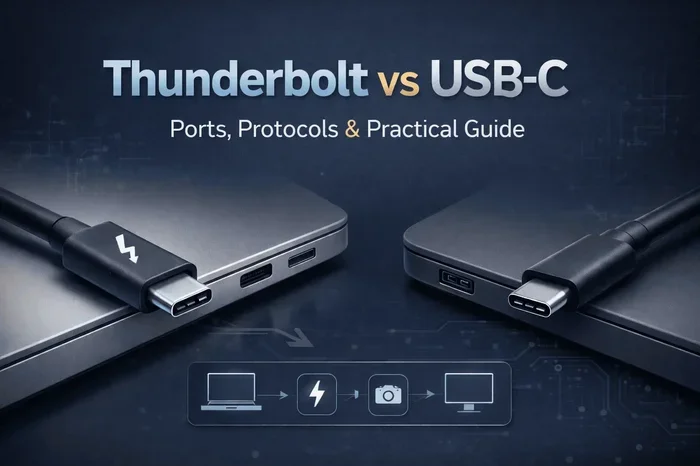
USB C also supports something called Alternate Mode, which allows it to carry HDMI or DisplayPort signals. This means a USB C port can output video to an HDMI display using the right cable or adapter. Some USB C connections also support Thunderbolt 3 or Thunderbolt 4, which dramatically increases data transfer speeds.
USB C Speeds and Capabilities
Not every USB C port is built the same. Here is what you need to know:
- USB 3.1 Gen 1 (5 Gbps): Fine for basic data transfer and single 4K displays.
- USB 3.1 Gen 2 (10 Gbps): Handles dual 4K displays and fast file transfers.
- Thunderbolt 3 (40 Gbps): Supports dual 4K at 60Hz or a single 5K display. Excellent for professionals.
- Thunderbolt 4 (40 Gbps): Same speed as Thunderbolt 3 but with stricter compatibility and security standards.
- USB4 (40-80 Gbps): The newest standard. Offers even higher bandwidth for demanding tasks.
For people who need a single cable to do everything, USB C is hard to beat. You can even use a USB C enclosure to connect external storage and get blazing fast speeds for video editing or backups.
HDMI to HDMI vs USB C: Head-to-Head Comparison
Let us put both connection types side by side. This comparison helps you see where each one shines and where it falls short.
Video and Audio Quality
HDMI to HDMI gives you a direct, uncompressed signal. The audio and video stay in their original format. This means no quality loss from conversion. For watching movies or playing games on a TV, this is the gold standard.
USB C can match or exceed HDMI quality when using the right protocol. USB C with DisplayPort Alt Mode or Thunderbolt delivers excellent video. But there is a catch. The signal often needs to be converted if the display only has HDMI inputs. That conversion can sometimes cause minor quality issues or add latency.
Data Transfer Speed
This is where USB C pulls ahead. Standard HDMI does not carry data at all. It only sends audio and video. USB C can transfer files at speeds up to 40 or 80 Gbps with Thunderbolt or USB4. If you need to move large files between devices while also using a display, USB C is the clear winner.
For example, you can plug in an external SSD like the Sandisk Extreme Portable 2TB through USB C and get both storage and display output from the same connection. With HDMI, you would need a separate cable for data.
Compatibility and Convenience
HDMI to HDMI works with almost every TV, monitor, and projector made since 2003. The ports are everywhere. You never have to worry about whether your display supports the connection.
USB C is newer, and not every display has it yet. Many TVs still only have HDMI inputs. However, more and more monitors now come with USB C ports, especially in the business and creative spaces. If your laptop only has USB C, you will need an adapter to connect to an HDMI-only TV.
| Feature | HDMI to HDMI | USB C |
|---|---|---|
| Video Quality | Excellent, direct signal | Excellent with Alt Mode or Thunderbolt |
| Audio Quality | Uncompressed, multi-channel | Good, but may need conversion |
| Data Transfer | None | Up to 80 Gbps |
| Power Delivery | No | Yes, up to 240W with USB PD |
| Device Compatibility | Very high (TVs, consoles) | Growing (laptops, phones, newer monitors) |
| Cable Cost | Low to moderate | Low to high (varies by standard) |
| Ease of Use | Plug and play | Plug and play, but may need adapters |
When to Choose HDMI to HDMI
There are clear situations where a straight HDMI to HDMI connection is the better choice. Here are the main ones:
- Home theater setups: If you are connecting a gaming console, streaming box, or Blu-ray player to a TV, HDMI is the way to go. You get the best quality without any extra gear.
- Gaming on a big screen: HDMI 2.1 supports high refresh rates and features like Variable Refresh Rate (VRR). This is essential for next-gen gaming on consoles like the PS5 or Xbox Series X.
- Simple, no-fuss connections: HDMI requires no drivers, no adapters, and no extra software. Just plug it in and go.
- Legacy devices: Older devices often only have HDMI ports. If your soundbar, cable box, or older laptop has HDMI, use it.
If your main goal is the best picture and sound with zero hassle, HDMI to HDMI wins every time. It is the reliable workhorse of the connection world.
When to Choose USB C
USB C is the better choice in several other scenarios. Here is when it makes the most sense:
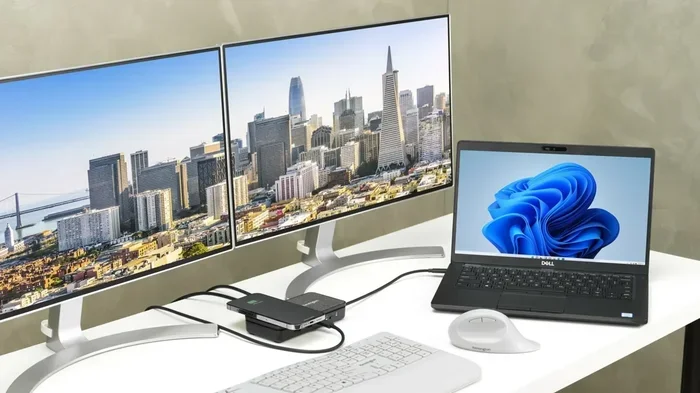
- Laptop-to-monitor connections: Many modern laptops only have USB C ports. Using a single USB C cable gives you video, data, and power in one connection. This is perfect for a clean, clutter-free desk setup.
- Mobile devices and tablets: Phones and tablets increasingly use USB C. You can connect them directly to compatible monitors for screen mirroring or extended displays.
- Professional workflows: Video editors, designers, and photographers benefit from the high-speed data transfer USB C offers. You can edit footage from an external drive while viewing it on an external monitor.
- Travel and minimalism: Carrying one USB C cable that charges your laptop, connects to a display, and transfers files is much lighter than carrying multiple cables. You might also carry a USB adapter for quick access to your files on the go.
USB C is the future of connectivity. As more devices adopt it, the need for multiple cable types shrinks. If you are building a modern setup or buying new gear, USB C should be at the top of your list.
Common Mistakes People Make
Even when you pick the right cable, mistakes can hurt your experience. Here are the most common ones to avoid:
- Buying cheap cables: A $3 HDMI or USB C cable might work for basic tasks, but it may not support 4K, high refresh rates, or fast data transfer. Always buy from reputable brands.
- Assuming all USB C is the same: A USB C port on a cheap charger is not the same as a Thunderbolt 4 port. Check what your port actually supports before expecting high performance.
- Forgetting about adapters: If your display only has HDMI and your laptop only has USB C, you need a USB 3.1 adapter or a USB C to HDMI adapter. Without it, you will not get a picture.
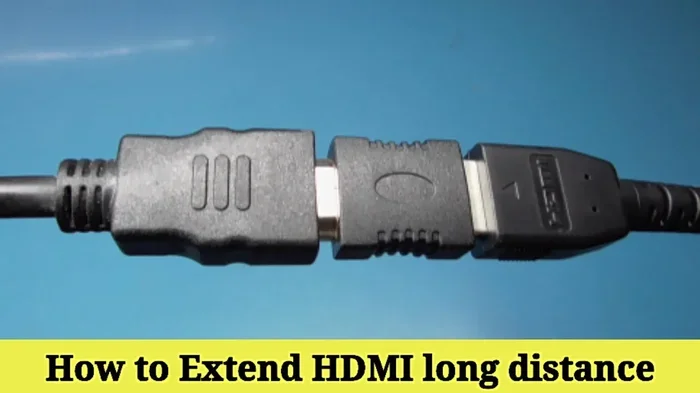
- Ignoring cable length: Longer cables can weaken the signal. Keep HDMI and USB C cables under 6 feet for best results unless you use an active or amplified cable.
- Not checking power delivery: USB C can charge your device, but not all cables support the same wattage. Make sure your cable and charger match your device’s power needs.
Quick Tip
Before buying any cable, check what your devices support. Look at the port labels and the manufacturer’s specs. A quick check can save you from buying the wrong cable and dealing with frustrating connection problems.
Expert Insights
Technology experts generally agree that the best connection is the one that works with your devices without extra fuss. For pure entertainment setups, HDMI to HDMI remains the top pick. For productivity and multi-purpose use, USB C is the clear winner.
If you are still deciding, here is a simple rule of thumb: Use HDMI for your TV and console. Use USB C for your laptop and modern devices. This way, you get the best performance from each connection type. Many people end up using both in the same setup, and that is perfectly fine.
One thing to keep in mind is that USB C technology is evolving fast. New standards like USB4 and Thunderbolt 5 are coming. These will make USB C even more powerful and capable of handling everything HDMI can do, and more. If you are buying new gear today, investing in USB C devices gives you a future-proof setup.
Also, if you run into issues with your USB C devices, problems like a USB mouse not working on laptop can sometimes point to a broader USB C port or cable issue. Always test with known-good cables and adapters before assuming a device is faulty.
Final Verdict
So, is HDMI to HDMI better than USB C? The honest answer is: it depends on what you need. They are not really competitors. They are tools for different jobs.
HDMI to HDMI is the best choice when you want the simplest, highest-quality audio and video connection for entertainment devices. It is reliable, widely supported, and requires no extra gear.
USB C is the best choice when you want one cable to handle video, data, and power. It is versatile, future-proof, and perfect for modern laptops and mobile devices.
If you can, use both. Let HDMI handle your TV and console connections. Let USB C handle your laptop, tablet, and data needs. This gives you the best of both worlds and ensures every device in your setup performs at its best.
At the end of the day, the right cable is the one that fits your devices and your workflow. Now that you know the strengths of each, you can make a confident choice and enjoy a better connection experience.
Frequently Asked Questions
Can USB C replace HDMI completely?
USB C can carry video and audio just like HDMI, but it cannot fully replace HDMI everywhere yet. Many TVs and projectors still only have HDMI ports. However, for laptops and modern monitors, USB C is replacing HDMI more and more each year.
Is USB C faster than HDMI for video?
For video quality, both can deliver excellent results. USB C with Thunderbolt 4 or USB4 can support higher resolutions and refresh rates than older HDMI versions. However, HDMI 2.1 matches or beats most USB C implementations in raw video performance for home entertainment.
Do I need a special cable for USB C to HDMI?
Yes. You need a USB C cable that supports video output, or a USB C to HDMI adapter. Not all USB C cables carry video signals. Check the cable specs to make sure it supports DisplayPort Alt Mode or Thunderbolt before buying.
Which is better for gaming: HDMI to HDMI or USB C?
For console gaming on a TV, HDMI to HDMI is better because it offers direct, low-latency connections with features like VRR. For PC gaming with a laptop, USB C with Thunderbolt can deliver excellent performance and even support external GPU enclosures for enhanced graphics.
Can I use a USB C cable to connect two TVs directly?
No. TVs do not have USB C video input ports in most cases. You would need a USB C to HDMI adapter on each end, or simply use a standard HDMI cable for TV-to-TV connections.
Is one connection more durable than the other?
Both HDMI and USB C connectors are well-built. USB C has a slightly more robust design and is reversible, which reduces wear from plugging and unplugging. HDMI connectors are also durable but can be more fragile if the cable is pulled at an angle.