Do Hdmi to Usb Cables Exist

Direct HDMI to USB cables do not exist as simple plug-and-play cables because HDMI and USB use completely different signals and protocols. However, you can absolutely connect HDMI devices to USB ports using adapters, capture cards, and USB-C to HDMI adapters. This guide explains exactly what works, what does not, and how to solve your connectivity problems the right way.
Key Takeaways
- No direct HDMI to USB cable exists: HDMI carries video and audio signals while USB carries data, so a simple cable cannot bridge the two.
- Adapters and capture cards solve the problem: USB-C to HDMI adapters and HDMI capture cards let you connect HDMI sources to USB-enabled devices.
- USB-C to HDMI adapters are the most common solution: They work great for connecting laptops to external monitors and displays.
- HDMI capture cards are ideal for streaming: They convert HDMI video into USB data that your computer can record or stream.
- Always check your port type: USB-A and USB-C behave very differently when it comes to video output and adapter compatibility.
- Avoid cheap no-name adapters: They often fail to support the right resolutions or refresh rates.
📑 Table of Contents
- Do HDMI to USB Cables Exist? The Short Answer
- Why a Simple HDMI to USB Cable Cannot Work
- How HDMI to USB Adapters and Solutions Actually Work
- Common Uses for HDMI to USB Connections
- What to Look for When Buying an Adapter or Capture Card
- Quick Tips for Getting the Best Results
- Common Mistakes People Make with HDMI and USB Adapters
- Expert Insights on HDMI and USB Connectivity
- Final Verdict: Do You Need an HDMI to USB Solution?
Do HDMI to USB Cables Exist? The Short Answer
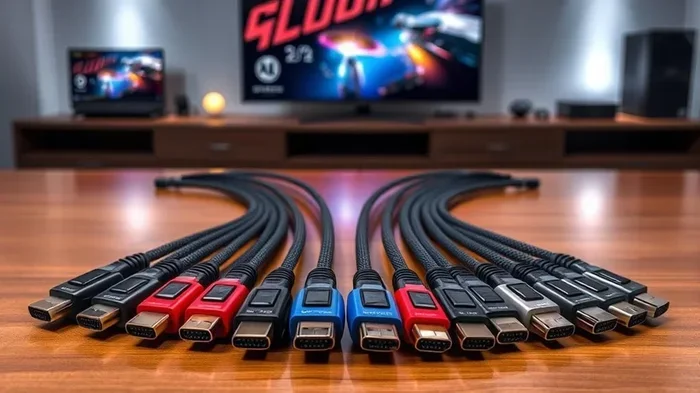
If you have been searching online, you have probably seen products marketed as “HDMI to USB cables.” They look like simple cables with an HDMI plug on one end and a USB plug on the other. It is very tempting to buy one and solve your connection problem in seconds. But here is the truth: a true HDMI to USB cable does not exist in the way most people imagine it.
HDMI and USB are two completely different technologies. HDMI carries uncompressed video and audio signals from a source like a laptop, game console, or Blu-ray player to a display like a TV or monitor. USB carries data between devices like computers, phones, and peripherals. These signals work in fundamentally different ways. You cannot simply merge them into one cable and expect it to work.
So what do people actually mean when they say “HDMI to USB cable”? Usually, they need one of two things. They either want to connect an HDMI output to a USB input for display purposes, or they want to capture HDMI video through a USB connection. Both of these are possible, but they require the right adapter or device, not a simple cable. Let us break down exactly how this works.
Why a Simple HDMI to USB Cable Cannot Work
To understand why a direct HDMI to USB cable is impossible, you need to understand the basic difference between these two connection types. HDMI is a high-speed digital interface designed specifically for audio and video. It sends a continuous stream of uncompressed data from a source device to a display. USB, on the other hand, is a general-purpose data interface designed for transferring files, powering devices, and connecting peripherals.
Different Protocols, Different Purposes
The HDMI protocol is built around transmitting pixel data, refresh rates, color depth, and audio channels all at once. A USB cable simply cannot handle this kind of real-time video signal. USB was designed for data transfer, not for driving a display directly. Even USB 3.0 and USB 3.1, which have higher bandwidth than older versions, are not designed to carry uncompressed video signals the way HDMI does.
Think of it like this. HDMI is a highway built specifically for cars (video and audio data). USB is a highway built for trucks (general data). You cannot just put a car on a truck highway and expect it to work the same way. You need a bridge, a converter, or an adapter to connect the two systems properly.
What About USB-C?
You might be thinking about USB-C, because USB-C can carry video signals. This is true. USB-C supports DisplayPort Alt Mode, which means it can output video to a display. Some USB-C ports also support Thunderbolt 3 or Thunderbolt 4, which can carry HDMI signals through a dock or hub. But even with USB-C, you still need an adapter or a converter. There is no magical cable that turns a USB-C port into an HDMI port by itself.
If you are looking for a USB-C to HDMI adapter, that is a completely different product than an “HDMI to USB cable.” The adapter converts the USB-C signal to HDMI, not the other way around. We will talk more about this below.
How HDMI to USB Adapters and Solutions Actually Work
While a direct cable does not exist, there are several real solutions that let you connect HDMI devices to USB-enabled computers. These solutions use different technologies to bridge the gap between the two protocols. Let us look at each one.
USB-C to HDMI Adapters
This is the most popular and straightforward solution for most people. A USB-C to HDMI adapter plugs into your laptop or tablet’s USB-C port and gives you a standard HDMI output. This lets you connect your computer to a monitor, TV, or projector. The adapter takes the USB-C video signal and converts it into an HDMI signal that the display can understand.
These adapters work great for presentations, extended desktop setups, and watching videos on a bigger screen. Most modern laptops with USB-C ports support video output, so a simple adapter is all you need. Just make sure your laptop’s USB-C port supports video output before buying one.
HDMI Capture Cards
If you want to go the other direction, from an HDMI source to a USB computer input, you need an HDMI capture card. This is a small device that receives an HDMI signal and converts it into USB data that your computer can process. Capture cards are extremely popular among streamers, content creators, and anyone who wants to record or live-stream HDMI sources.
You plug your HDMI source, like a camera or game console, into the capture card. Then you plug the capture card into your computer’s USB port. Your computer sees the capture card as a video input device. You can then use software like OBS Studio to record or stream the footage. Capture cards are the real answer to the question of how to get HDMI video into a USB-connected computer.
USB 3.0 HDMI Capture Adapters
Some adapters combine HDMI input with a USB 3.0 output in a single compact device. These are essentially small capture cards that you can carry around in your bag. They are handy for quick setups, presentations, or capturing HDMI footage on the go. While they are not cables, they serve the same practical purpose that most people are looking for when they search for an HDMI to USB solution.
Common Uses for HDMI to USB Connections
Now that you know the real solutions, let us talk about why people need them in the first place. Understanding the use cases will help you pick the right product for your situation.
Connecting a Laptop to an External Monitor
This is the number one reason people search for HDMI to USB solutions. Many modern laptops only have USB-C ports and no traditional HDMI output. A USB-C to HDMI adapter solves this problem instantly. You plug the adapter into your laptop, connect an HDMI cable from the adapter to your monitor, and you are done. It is a simple and reliable setup that works for work, gaming, and entertainment.
Streaming and Recording Gameplay
Gamers who want to stream their gameplay from a console like PlayStation or Xbox to a computer need an HDMI capture solution. A capture card with an HDMI input and a USB output connects the console to the computer. The computer can then record or stream the gameplay using broadcasting software. This has become a standard setup for content creators and casual streamers alike.
Using HDMI Cameras with Computers
Many professional cameras and camcorders output video through HDMI. If you want to use one of these cameras as a webcam or for video conferencing, you need a way to get that HDMI signal into your computer. A capture card or HDMI-to-USB capture adapter makes this possible. The camera connects via HDMI to the capture device, and the capture device connects via USB to your computer.
Setting Up a Dual Display or Extended Desktop
If you want to extend your laptop screen to a second monitor, you need a way to send video from your laptop to the external display. USB-C to HDMI adapters make this very easy. You can also use a USB-C hub that includes HDMI output along with other ports. Some hubs even include USB 3.0 ports, an SD card reader, and an Ethernet port all in one compact device.
What to Look for When Buying an Adapter or Capture Card
Not all adapters and capture cards are created equal. If you go shopping, you will find hundreds of options at every price point. Here is what you should look for to make sure you get a product that actually works.
Check Your Port Type
Before buying anything, check what ports your device has. Is it USB-C or USB-A? Does your USB-C port support video output? Some older USB-C ports only support data and charging, not video. Look up your device specifications to confirm. If your laptop only has USB-A ports, you will need a different type of adapter than someone with a USB-C laptop.
Resolution and Refresh Rate Support
Make sure the adapter or capture card supports the resolution and refresh rate you need. If you want 4K at 60Hz, you need a product that explicitly supports those specs. Cheaper adapters often only support 1080p at 30Hz or 60Hz, which may not be enough for gaming or professional video work. Always check the product specifications before purchasing.
Build Quality and Brand Reputation
Avoid cheap no-name adapters from unknown brands. They often have poor build quality, unreliable signal transmission, and limited compatibility. Stick with reputable brands and read user reviews before buying. A slightly more expensive adapter from a trusted brand will save you a lot of frustration in the long run.
Driver and Software Compatibility
Some capture cards require specific drivers or software to work properly. Before you buy, check if the product is compatible with your operating system. Most modern capture cards work with Windows and macOS, but some are designed for specific platforms only. Check the manufacturer’s website for compatibility information.
Quick Tips for Getting the Best Results
- Always use a high-quality HDMI cable between your source device and the adapter or capture card. A cheap HDMI cable can cause signal issues even if your adapter is excellent.
- Plug USB adapters directly into your computer rather than through a USB hub when possible. Hubs can sometimes cause bandwidth issues or power problems.
- Update your graphics drivers before connecting an external display. Updated drivers often fix compatibility issues with new adapters.
- Test your setup at the highest resolution first and then lower it if you experience any flickering or signal loss.
- Keep your adapter drivers up to date, especially for capture cards. Manufacturers frequently release firmware updates that improve performance and fix bugs.
Common Mistakes People Make with HDMI and USB Adapters
Even with the right adapter, people often run into problems because of simple mistakes. Here are the most common ones to avoid.
- Buying the wrong adapter direction: A USB-C to HDMI adapter sends video from your computer to a display. An HDMI capture card sends video from an HDMI source to your computer. They are not interchangeable. Make sure you buy the right one for your use case.
- Using a USB 2.0 port for video capture: USB 2.0 does not have enough bandwidth for smooth video capture. Always use a USB 3.0 or USB 3.1 port for capture cards and video adapters. You can also look into how to get extra ram on laptop with usb if you are exploring USB connectivity options for performance upgrades.
- Ignoring audio settings: Some adapters handle video but not audio, or they route audio differently than expected. Check the audio settings on your computer after connecting a new adapter.
- Assuming all USB-C ports support video: Not every USB-C port on every laptop supports video output. Some are data-only ports. Always verify your laptop specifications before purchasing a USB-C to HDMI adapter.
Expert Insights on HDMI and USB Connectivity
The world of adapters and connectivity is constantly evolving. USB-C is becoming the universal standard, and new protocols like USB4 are bringing even more capabilities to a single port. As USB-C continues to replace older ports, the need for adapters will change, but they will not disappear anytime soon.
One thing that remains constant is the importance of buying quality products. Whether you are looking at a simple USB-C to HDMI adapter or a more complex capture card, investing in a reliable product from a trusted brand will always pay off. Avoid the temptation to buy the cheapest option you can find. A $15 adapter that fails after two months costs more than a $40 adapter that lasts for years.
Also, keep in mind that your USB adapter needs may change over time. If you upgrade your laptop or add new devices, you may need different adapters or hubs. Some users find that a USB-C hub with multiple ports, including HDMI output, gives them the most flexibility for connecting different devices. Others prefer dedicated single-purpose adapters for simplicity and reliability.
One thing worth noting is that some USB enclosures and adapters for storage devices, like M.2 NVMe SSD in USB enclosures, use similar USB connectivity principles. Understanding how USB handles different types of data, whether video or storage, helps you make better purchasing decisions across the board.
Final Verdict: Do You Need an HDMI to USB Solution?
If you have been wondering whether HDMI to USB cables exist, the answer is no, not as a simple cable. But the good news is that real solutions exist that accomplish the same goal. Whether you need to connect your laptop to an external monitor, capture HDMI video for streaming, or use an HDMI camera with your computer, there is a product that fits your needs.
The key is understanding what you actually need. If you want to send video from your computer to a display, get a USB-C to HDMI adapter. If you want to bring HDMI video into your computer, get an HDMI capture card. Do not waste money on products that promise the impossible. With the right adapter or device, you can connect any HDMI source to any USB-enabled computer quickly and easily.
Take a few minutes to check your device ports, confirm your resolution needs, and invest in a quality product. You will have a reliable connection that works every time. The world of HDMI and USB connectivity is simpler than it seems once you know what to look for.
Frequently Asked Questions
Can I plug an HDMI cable directly into a USB port?
No, you cannot plug an HDMI cable directly into a USB port and expect it to work. HDMI and USB use completely different signals and protocols. You need an adapter or a capture card to bridge the gap between the two. A USB-C to HDMI adapter or an HDMI capture card will do the job depending on what you are trying to accomplish.
What is the difference between a USB-C to HDMI adapter and an HDMI capture card?
A USB-C to HDMI adapter sends video from your computer’s USB-C port to an external display. It goes from USB to HDMI. An HDMI capture card receives an HDMI signal from an external source and sends it to your computer via USB. It goes from HDMI to USB. They work in opposite directions and serve completely different purposes.
Do USB-C to HDMI adapters support 4K resolution?
Many USB-C to HDMI adapters do support 4K resolution, but not all of them. Check the product specifications carefully before buying. Some adapters only support 1080p or 4K at 30Hz, while higher-quality ones support 4K at 60Hz. Your source device and display must also support the resolution you want to use.
Can I use a USB hub with an HDMI adapter?
Yes, you can use a USB hub with an HDMI adapter, but it is best to plug the adapter directly into your computer when possible. USB hubs can sometimes cause bandwidth limitations or power issues that affect video performance. If you must use a hub, choose a powered USB hub for the most reliable results.
Why does my HDMI capture card show no signal?
There are several reasons an HDMI capture card might show no signal. First, make sure your HDMI source is turned on and outputting a signal. Check that the HDMI cable is firmly connected on both ends. Try a different HDMI cable if the current one is damaged. Also, make sure you have installed any required drivers or software that came with the capture card.
Are there wireless alternatives to HDMI to USB adapters?
Yes, there are wireless display solutions that can replace wired adapters in some situations. Products like wireless HDMI transmitters or screen mirroring tools let you send video from one device to another without cables. However, wireless solutions often have more latency and lower image quality compared to wired adapters. For gaming or professional video work, a wired connection is always better.