Should Hdmi Cec Be on or Off
HDMI CEC lets your TV and connected devices talk to each other through a single remote. Keeping it on offers convenience like automatic power control and device switching, but it can sometimes cause conflicts. This guide covers when to turn HDMI CEC on, when to turn it off, and how to fix common issues.
HDMI CEC is a feature that many people never think about until something goes wrong. It stands for Consumer Electronics Control, and it allows devices connected through HDMI cables to communicate with each other. But should you keep it on or turn it off? The answer depends on your setup and what you want from your devices.
If you have a TV, soundbar, streaming box, or game console connected via HDMI, HDMI CEC can make your life much easier. It lets you control multiple devices with a single remote. However, it can also cause annoying issues like devices turning on or off at the wrong time. In this article, we will walk you through everything you need to know about HDMI CEC. We will cover the benefits, the drawbacks, and how to troubleshoot common problems.
By the end of this guide, you will know exactly whether you should keep HDMI CEC on or off for your specific setup. Let us dive in.
Key Takeaways
- HDMI CEC enables seamless control of multiple devices with one remote, making your home entertainment setup simpler and more convenient.
- Turning HDMI CEC off can help if you experience device conflicts, unwanted power changes, or control issues between connected devices.
- Different TV brands use different names for HDMI CEC, such as Anynet+ on Samsung, Simplink on LG, and BRAVIA Sync on Sony.
- Common issues like unresponsive controls can often be fixed with simple troubleshooting steps like restarting devices or updating firmware.
- HDMI CEC works best when all devices are compatible and properly configured, so check settings on each device in your chain.
- You can keep HDMI CEC on for most setups and only turn it off if problems arise that affect your daily viewing experience.
📑 Table of Contents
What Is HDMI CEC and How Does It Work?
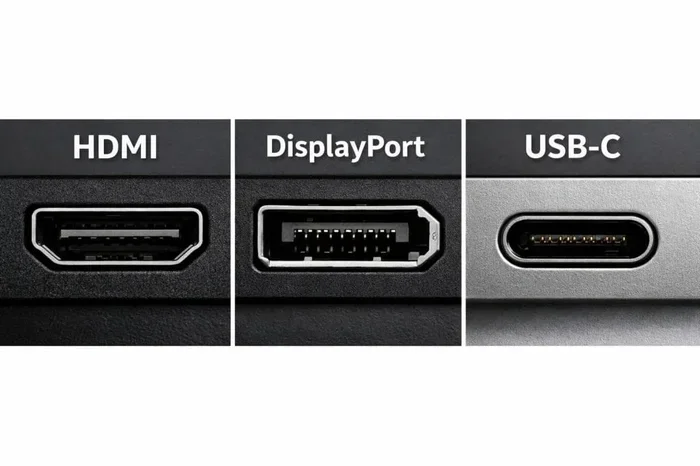
HDMI CEC is a built-in feature that comes with the HDMI standard. It allows devices connected through HDMI cables to send and receive basic commands to each other. Think of it as a simple language that your TV, soundbar, and other devices can understand without any extra setup.
When HDMI CEC is enabled, your devices can do things like turn on together when you power on your TV. They can also switch audio output to a soundbar automatically. The feature works behind the scenes, and you might not even notice it is active most of the time.
Different brands call HDMI CEC by different names. Samsung calls it Anynet+. LG uses Simplink. Sony calls it BRAVIA Sync. Panasonic uses VIERA Link. Despite the different names, they all use the same HDMI CEC standard. This means your Samsung TV can still communicate with a Sony soundbar through HDMI CEC, even though they use different brand names for the feature.
The HDMI CEC protocol uses a single wire within the HDMI cable to send control signals. It does not need a separate connection or Wi-Fi. This is one reason why HDMI CEC is so convenient. It works automatically as long as your devices support it and the feature is turned on.
Benefits of Keeping HDMI CEC On
There are several good reasons to keep HDMI CEC enabled on your devices. Let us look at the main benefits that make this feature worth using.
One Remote to Control Everything
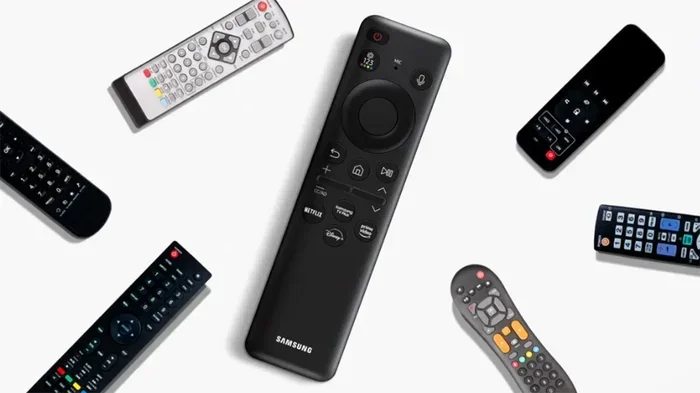
One of the biggest advantages of HDMI CEC is that it lets you use a single remote to control multiple devices. Instead of juggling four different remotes for your TV, soundbar, streaming stick, and game console, HDMI CEC lets your TV remote handle most of the work.
For example, when you press the power button on your TV remote, HDMI CEC can signal your soundbar and streaming box to turn on as well. You can also use your TV remote to adjust the volume on your soundbar or navigate the menu on your streaming device. This is a huge convenience for anyone who wants a clean and simple setup.
If you have a surround sound system, you might also want to check that your speakers are positioned correctly. The proper speaker height can make a big difference in sound quality, and HDMI CEC can help manage audio routing between your TV and speakers automatically.
Automatic Device Switching
HDMI CEC also handles device switching for you. When you turn on your Blu-ray player, HDMI CEC can automatically switch your TV input to the correct HDMI port. You do not need to manually change the input every time you want to watch a movie. This saves time and removes one more step from your viewing experience.
The feature also works in reverse. When you turn off your TV, HDMI CEC can signal your connected devices to power down as well. This helps save energy and reduces wear on your devices. It is a small feature that adds up to a lot of convenience over time.
Better Audio Routing
HDMI CEC also improves audio routing between your devices. When you connect a soundbar or home theater system through HDMI, HDMI CEC can automatically switch your TV audio output to that device. You do not need to go into the TV settings every time you want to use your soundbar.
Proper speaker placement matters too. The speaker spacing in your room affects how well HDMI CEC audio routing sounds. Once your speakers are positioned correctly, HDMI CEC can handle the rest of the audio management for you.
When You Should Turn HDMI CEC Off
While HDMI CEC has many benefits, it is not always the best choice. There are situations where turning HDMI CEC off can save you from frustration. Let us look at when you should consider disabling this feature.
Device Conflicts and Control Issues
The most common reason to turn HDMI CEC off is device conflicts. When multiple devices are connected through HDMI, they can sometimes send conflicting commands to each other. For example, your TV might try to turn off your soundbar when you only want to turn off the TV. Or your streaming box might change the TV input when you are trying to use the TV remote.
These conflicts can be annoying, especially if they happen frequently. If you find that HDMI CEC is causing more problems than it solves, turning it off is a simple fix. You can always turn it back on later if you change your mind.
When CEC Causes Unwanted Power Changes
HDMI CEC power control can sometimes cause unexpected behavior. Your devices might turn on or off at random times, especially if one device in the chain has a glitch. This can be frustrating, especially if your soundbar turns on in the middle of the night or your game console shuts off unexpectedly.
If you experience these issues, disabling HDMI CEC on the affected device or on your TV can stop the unwanted behavior. You will lose some convenience, but you gain more control over when your devices power on and off.
When You Are Upgrading Your Hardware
If you are planning to upgrade your hardware, such as upgrading your CPU or GPU, you might want to review your HDMI CEC settings as well. New hardware can sometimes change how HDMI CEC behaves, especially if you are switching to a different graphics card or monitor setup. It is worth checking your CEC settings after any major hardware change to make sure everything still works as expected.
HDMI CEC On vs Off: Comparison Table
| Feature | HDMI CEC On | HDMI CEC Off |
|---|---|---|
| Device Control | Control multiple devices with one remote | Each device requires its own remote |
| Power Management | Devices turn on and off together | Devices power independently |
| Input Switching | Automatic input switching | Manual input selection required |
| Audio Routing | Automatic audio output switching | Manual audio setting changes needed |
| Risk of Conflicts | Possible device conflicts | No CEC-related conflicts |
| Setup Complexity | Simple, automatic setup | More manual configuration |
HDMI CEC on Different TV Brands
Every TV brand handles HDMI CEC a little differently. The feature works the same way under the hood, but the settings menus and names vary. Here is a quick look at how HDMI CEC works on some of the most popular TV brands.
Samsung HDMI CEC Settings
Samsung TVs call HDMI CEC Anynet+. You can find the setting in the General menu under External Device Manager. From there, you can turn HDMI CEC on or off and manage which devices can control your TV. Samsung TVs are generally good at handling HDMI CEC, but some users report issues with certain soundbars and streaming devices.
LG HDMI CEC Settings
LG TVs use the name Simplink for HDMI CEC. You can find it in the Settings menu under General. LG Simplink works well with most LG devices and many third-party products. If you are using an LG TV with an LG soundbar, HDMI CEC tends to work seamlessly out of the box.
Sony HDMI CEC Settings
Sony TVs use BRAVIA Sync for HDMI CEC. You can enable it in the Settings menu under HDMI CEC. Sony devices tend to work very well together through HDMI CEC, but compatibility with non-Sony devices can sometimes be hit or miss.
Other Brands
Other brands like Panasonic (VIERA Link), Toshiba (CEC), and Philips (EasyLink) all use HDMI CEC under their own brand names. The setup process is similar across all of them. You will usually find the HDMI CEC setting in your TV’s general or external device settings menu. If you cannot find it, check your TV manual or search online for your specific model.
HDMI CEC Troubleshooting Common Issues
Even when HDMI CEC is working well, you might run into problems from time to time. Here are some common issues and how to fix them.
Quick Tips for HDMI CEC Troubleshooting
- Check your HDMI cable: A damaged or low-quality cable can prevent CEC signals from passing through. Try a different cable first.
- Enable CEC on all devices: Make sure HDMI CEC is turned on not just on your TV but on every connected device.
- Restart your devices: Unplug all devices, wait 30 seconds, and plug them back in. This often resolves CEC communication issues.
- Update firmware: Check for software updates on your TV and connected devices. Updates often fix HDMI CEC bugs.
- Reset CEC settings: Many TVs have an option to reset HDMI CEC to factory defaults. Try this if other steps do not work.
Common Mistakes to Avoid
One common mistake is assuming that HDMI CEC will work perfectly with every device. In reality, compatibility can vary widely between brands and models. Another mistake is only enabling CEC on your TV while leaving it off on other devices. For HDMI CEC to work, it needs to be active on all devices in the chain.
Some users also make the mistake of using very long HDMI cables for CEC-dependent setups. While HDMI CEC can work over long cables, signal degradation over long distances can interfere with CEC communication. Keep your HDMI cable runs as short as possible for the best results.
Expert Insights on HDMI CEC
According to home theater experts, HDMI CEC has improved significantly over the years. Earlier versions of the standard had more compatibility issues, but modern implementations are much more reliable. The key is to ensure all your devices are relatively recent and support the latest HDMI standards.
Experts also recommend taking the time to read through your TV’s CEC settings menu. Many TVs offer granular control over which devices can send commands through HDMI CEC. By customizing these settings, you can get the benefits of CEC while minimizing the drawbacks. If you are setting up a new home theater system, proper configuration of HDMI CEC can save you hours of frustration down the road.
Controlling Peripheral Devices
Sometimes HDMI CEC conflicts with peripheral devices like mice and keyboards connected to your laptop or other devices. If you notice that your mouse is causing issues with your HDMI setup, you might want to learn how to turn off your mouse on a laptop to eliminate potential interference with your HDMI CEC device control chain.
Final Verdict: Should You Keep HDMI CEC On or Off?
For most people, the answer is simple. Keep HDMI CEC on. The convenience of controlling multiple devices with one remote and having them power on and off together is hard to beat. HDMI CEC works well in the majority of setups, and most users never run into significant problems.
However, if you are experiencing frequent device conflicts, unwanted power changes, or control issues, turning HDMI CEC off is a perfectly valid option. You can always manage your devices manually, and you will avoid the quirks that sometimes come with CEC.
The best approach is to start with HDMI CEC on and see how it works in your setup. If everything runs smoothly, great. If you run into issues, you can always go back and turn it off. HDMI CEC is a useful feature, but it is not essential. Your setup should work for you, not the other way around.
Remember that proper device placement and configuration also play a role in how well HDMI CEC works. Make sure your HDMI cables are good quality and that your devices are properly positioned. If you have a surround sound system, take the time to set it up correctly. A well-configured setup will make HDMI CEC work much better.
In the end, HDMI CEC is all about making your life easier. When it works, it works beautifully. When it does not, it can be frustrating. But with the tips and troubleshooting steps in this guide, you should be well equipped to handle whatever HDMI CEC throws your way.
Frequently Asked Questions
What does HDMI CEC stand for?
HDMI CEC stands for Consumer Electronics Control. It is a feature built into the HDMI standard that allows devices connected through HDMI to communicate and control each other. You can use one remote to manage multiple devices like your TV, soundbar, and streaming box.
Is HDMI CEC the same as HDMI ARC?
No, HDMI CEC and HDMI ARC are different features. HDMI ARC (Audio Return Channel) sends audio from your TV to a soundbar or receiver through the HDMI cable. HDMI CEC handles device control commands like power and input switching. Many devices support both features at the same time, and they often work together to improve your setup.
Can I use HDMI CEC with any HDMI cable?
Yes, HDMI CEC works with standard HDMI cables. You do not need a special or premium cable for CEC to function. The CEC signal travels through the same HDMI cable that carries your video and audio. However, a good quality cable can help prevent connection issues that might affect HDMI CEC performance.
Why does my TV turn on by itself with HDMI CEC?
This happens when a connected device sends a power-on signal through HDMI CEC. It could be your soundbar, streaming box, or game console. To fix this, you can turn off HDMI CEC on the specific device that is causing the issue, or disable CEC on your TV entirely. Check your device settings to find the CEC option and adjust it accordingly.
Does HDMI CEC work with all devices?
HDMI CEC is a standard feature, but not all devices implement it the same way. Most modern TVs, soundbars, and streaming devices support HDMI CEC. However, some budget devices or older models may not have it. Check your device specifications or manual to confirm whether HDMI CEC is supported before relying on it for device control.
How do I find the HDMI CEC setting on my TV?
The HDMI CEC setting is usually found in your TV’s general or external device settings menu. Samsung calls it Anynet+, LG calls it Simplink, and Sony calls it BRAVIA Sync. If you cannot find it, try searching your TV menu for “CEC” or check your TV manual for the exact location. Most TVs make it easy to toggle the feature on or off.
=== CONCLUSION ===
HDMI CEC is a small feature that can make a big difference in how you enjoy your home entertainment setup. When it works, it saves you time and removes the hassle of juggling multiple remotes. When it does not work, it can cause confusion and frustration. The key is to understand what HDMI CEC does and how it fits into your specific setup.
For most users, keeping HDMI CEC on is the right choice. The convenience outweighs the occasional hiccup. But if you run into persistent issues, turning it off is always an option. You have full control over your devices, and that is what matters most.
Take a few minutes to check your HDMI CEC settings today. Make sure your devices are compatible and properly configured. With the right setup, HDMI CEC can make your entertainment experience smoother and more enjoyable. You will wonder how you ever managed without it.