Is Displayport Better Than Usb C
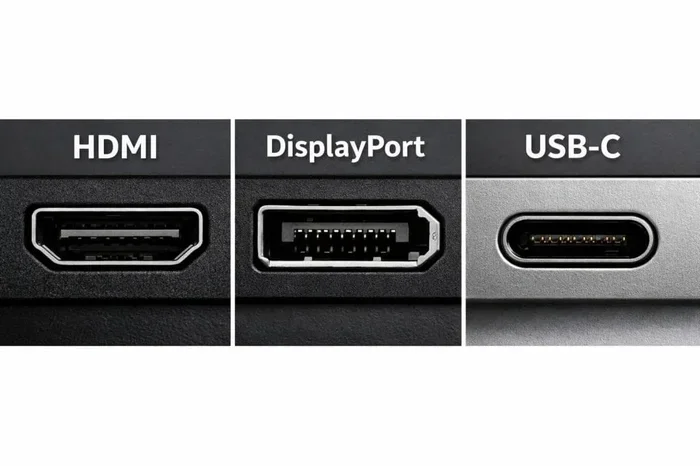
DisplayPort and USB-C are both powerful connection standards, but they serve different needs. DisplayPort excels at high-resolution video output and refresh rates, while USB-C offers versatility for data, video, and charging through a single cable. Understanding their strengths helps you choose the right port for your setup.
When you plug in a monitor or connect your laptop to a display, the cable you choose matters more than you might think. Two connectors dominate the market today: DisplayPort and USB-C. Both carry video signals, but they work in very different ways. If you have ever wondered which one is truly better, you are in the right place.
This guide breaks down everything you need to know about DisplayPort vs USB-C. We will look at speed, video quality, compatibility, and real-world use cases. By the end, you will know exactly which port fits your needs best.
Key Takeaways
- DisplayPort delivers superior video bandwidth: It is built specifically for display output and supports higher resolutions and refresh rates.
- USB-C is a versatile all-in-one connector: It handles video, data transfer, and power delivery through one cable.
- Thunderbolt 3 and 4 use USB-C: These offer DisplayPort capability alongside faster data speeds.
- Compatibility matters: Not all USB-C ports support video output, so check your device specs.
- Adapters bridge the gap: You can convert between DisplayPort and USB-C easily with the right adapter.
📑 Table of Contents
What Is DisplayPort?
DisplayPort is a display interface developed by VESA. It was designed specifically for sending video signals from a source to a monitor. Unlike USB-C, DisplayPort has one main job: deliver stunning visual performance.
The current version, DisplayPort 2.1, offers massive bandwidth. It can support resolutions up to 16K with high refresh rates. Many gamers and professionals prefer it because it was built from the ground up for screens.
Key Features of DisplayPort
- High bandwidth: Up to 80 Gbps in version 2.1.
- Multi-monitor support: You can daisy-chain several monitors from one port.
- Adaptive Sync: Technologies like FreeSync and G-Sync work natively.
- No licensing fees: This makes it popular among monitor manufacturers.
- Long track record: DisplayPort has been around since 2006 and is well established.
DisplayPort connectors come in two main sizes: standard and Mini DisplayPort. The standard size is most common on desktop monitors and graphics cards. You will often see it on dedicated GPUs from both NVIDIA and AMD.
What Is USB-C?
USB-C is a connector type, not a protocol. This is a key distinction many people miss. USB-C refers to the physical shape of the plug. It is small, reversible, and compact. But what it can do depends on what protocol runs through it.
A USB-C port can handle many tasks at once. It can transfer data, deliver video, and charge devices. A single USB-C cable can replace multiple cables on your desk. This convenience is why USB-C has become so popular in laptops, tablets, and phones.
What Makes USB-C So Versatile?
- Data transfer: USB 3.2 Gen 2 offers up to 10 Gbps. USB4 pushes this to 40 Gbps or even 80 Gbps.
- Video output: USB-C can carry DisplayPort signals through Alt Mode.
- Power delivery: USB Power Delivery can supply up to 240W with USB PD 3.1.
- Peripheral support: You can connect external drives, audio gear, and even USB-C headphones through one port.
- Reversible design: No more flipping the cable to get it right.
However, not every USB-C port is created equal. Some only support data and charging. Others support video output. And some, like Thunderbolt 3 or Thunderbolt 4 ports, support everything at top speed. This is where confusion often starts.
DisplayPort vs USB-C: Head-to-Head Comparison
Let us compare both standards side by side. This table covers the most important factors you care about.
| Feature | DisplayPort | USB-C |
|---|---|---|
| Max Bandwidth | 80 Gbps (DP 2.1) | 80 Gbps (USB4) |
| Video Support | Yes, native | Yes, via Alt Mode |
| Max Resolution | 16K | Up to 16K (USB4) |
| Data Transfer | No | Yes |
| Power Delivery | No | Yes, up to 240W |
| Daisy Chaining | Yes | No (native) |
| Gaming Performance | Excellent | Good (with USB4) |
| Adapter Availability | Widely available | Widely available |
As you can see, both standards have strengths. DisplayPort wins in native video performance and multi-monitor setups. USB-C wins in versatility and convenience. The best choice depends on what you need from your connection.
When Should You Use DisplayPort?
DisplayPort shines in specific scenarios. If any of these apply to you, it is likely the better choice.
You Are a Serious Gamer
Gamers need high refresh rates and low latency. DisplayPort 1.4 and 2.1 support refresh rates up to 480Hz at 1080p and 240Hz at 4K. These numbers are hard to match with standard USB-C connections. If you are playing competitive games like Fortnite or Valorant, every millisecond counts.
You Use Multiple Monitors
One of DisplayPort’s best features is daisy chaining. You can connect several monitors in a chain from a single port. This keeps your desk cleaner and reduces cable clutter. USB-C does not support this natively, so you would need a docking station for the same setup.
You Work in Professional Video or Design
Video editors and graphic designers need accurate color and high resolution. DisplayPort supports high bit-depth color and HDR formats. It is a reliable choice for color-critical work on a professional monitor.
Quick Tips for DisplayPort Users
- Always check the DisplayPort version on your GPU and monitor.
- Use DisplayPort 1.4 or higher for 4K at 144Hz or higher.
- Keep cables short for best signal quality at high resolutions.
- If your monitor only has HDMI, use a quality DisplayPort to HDMI adapter.
When Should You Use USB-C?
USB-C is the go-to choice when versatility matters most. Here are the situations where it makes the most sense.
You Want a Clean, Minimal Setup
With USB-C, one cable can charge your laptop, send video to your monitor, and connect peripherals. This is a game changer for people who travel or work from multiple locations. A single USB-C cable replaces three or four cables on your desk.
You Use a Docking Station
USB-C docking stations are incredibly popular. They let you connect multiple monitors, external storage, and accessories through one port. Many modern laptops only have USB-C ports, so a docking station becomes essential. You can even connect an external SSD enclosure through USB-C for fast file transfers.
You Need Power and Data Together
USB-C with Power Delivery can charge your laptop at up to 240W while simultaneously transferring data and video. No other single cable standard offers this level of convenience. It is perfect for people who work on the go.
Quick Tips for USB-C Users
- Check if your USB-C port supports video output before buying a monitor.
- Look for USB4 or Thunderbolt 4 for the best performance.
- Use certified cables to avoid damage and ensure full speeds.
- Consider an M.2 NVMe to USB-C SSD enclosure for fast external storage.
Can You Use Both Together?
Yes, absolutely. Many people use both DisplayPort and USB-C in the same setup. For example, you might connect your primary monitor via DisplayPort for the best gaming performance. Then you use a USB-C port for a secondary monitor or a docking station.
This dual approach gives you the best of both worlds. You get the raw video power of DisplayPort and the convenience of USB-C. It is a smart setup for anyone who wants maximum flexibility.
Adapters also make it easy to switch between the two. You can use a USB-C to DisplayPort adapter or a DisplayPort to USB-C adapter depending on what your devices support. These adapters are affordable and widely available.
The Future of Display Connections
Both standards are evolving. DisplayPort 2.1 pushes the boundaries of what is possible in video output. Meanwhile, USB-C continues to grow through the USB4 protocol, which natively carries DisplayPort signals.
In the near future, USB-C may handle almost everything. It already supports the highest video resolutions and data speeds. But for now, DisplayPort remains the gold standard for dedicated display connections. The two will likely coexist for years to come, each serving its own strengths.
What to Watch For
- USB4 adoption: More devices will support USB4, bringing DisplayPort Alt Mode to every USB-C port.
- DisplayPort 2.1 monitors: These are becoming more affordable and widely available.
- Cable improvements: New cables support higher bandwidths for both standards.
- Universal docking: USB-C docks are replacing traditional display-only setups.
The bottom line is that neither standard is going away anytime soon. Both have a strong future ahead of them. Your choice should depend on your specific needs and devices.
Common Mistakes People Make
Avoid these common pitfalls when choosing between DisplayPort and USB-C:
- Assuming all USB-C ports support video: Some only handle data and charging. Always check your device manual.
- Using cheap cables: Low-quality cables can cause signal loss, flickering, or no signal at all.
- Ignoring bandwidth limits: Running a 4K 144Hz signal on an older cable or port can cause issues.
- Forgetting about adapter quality: Cheap adapters can downgrade your signal or introduce lag.
- Mixing up USB-C with Thunderbolt: Thunderbolt uses the USB-C shape but offers much more capability.
Expert Insights
Industry experts generally agree on one thing: the right choice depends on your use case. For pure display performance, DisplayPort is hard to beat. For all-in-one convenience, USB-C is the clear winner.
Many professionals recommend using DisplayPort for your primary gaming or design monitor and USB-C for everything else. This approach balances performance and convenience perfectly. It also future-proofs your setup as both standards continue to improve.
If you are still unsure, look at what your devices support. Check your laptop, GPU, and monitor specs. Once you know what is available, the decision becomes much easier.
Conclusion
So, is DisplayPort better than USB-C? The answer is not a simple yes or no. DisplayPort is better for pure video performance, high refresh rates, and multi-monitor setups. USB-C is better for versatility, convenience, and all-in-one connectivity.
Both standards have earned their place in the tech world. The best choice is the one that matches your specific needs. Now that you understand the differences, you can make a confident decision for your next setup.
Take a moment to check your current devices. See which ports you have and what they support. Then plan your connections accordingly. A well-planned setup makes a huge difference in daily productivity and enjoyment.
Frequently Asked Questions
Is DisplayPort or USB-C better for gaming?
DisplayPort is generally better for gaming because it offers higher refresh rates and lower latency. DisplayPort 1.4 and 2.1 support refresh rates well above what standard USB-C can handle. However, USB-C with USB4 or Thunderbolt 4 is catching up fast.
Can I use a USB-C cable for my monitor?
Yes, but only if your USB-C port supports video output. Look for DisplayPort Alt Mode or USB4 on your device. Not all USB-C ports carry video signals, so always check before purchasing a cable.
Do I need a special cable for 4K at 120Hz?
Yes, you need a cable that supports enough bandwidth. DisplayPort 1.4 or USB4 with USB-C can handle 4K at 120Hz. Standard USB 3.2 cables cannot, so make sure you use the right one.
Is Thunderbolt the same as USB-C?
Thunderbolt uses the USB-C connector shape but is a different protocol. Thunderbolt 3 and 4 offer faster data speeds and better video performance than standard USB-C. All Thunderbolt ports are USB-C, but not all USB-C ports are Thunderbolt.
Can I connect a DisplayPort monitor to a USB-C port?
Yes, you can use a USB-C to DisplayPort adapter or cable. This works as long as your USB-C port supports video output. It is a simple and affordable way to connect a DisplayPort monitor to a laptop with USB-C only.
Which is better for a docking station, DisplayPort or USB-C?
USB-C is far better for docking stations. A single USB-C connection can power your laptop, charge your devices, and output video to a monitor. DisplayPort does not carry power or data, so it cannot replace a docking station.