Is There an Alternative to Hdmi
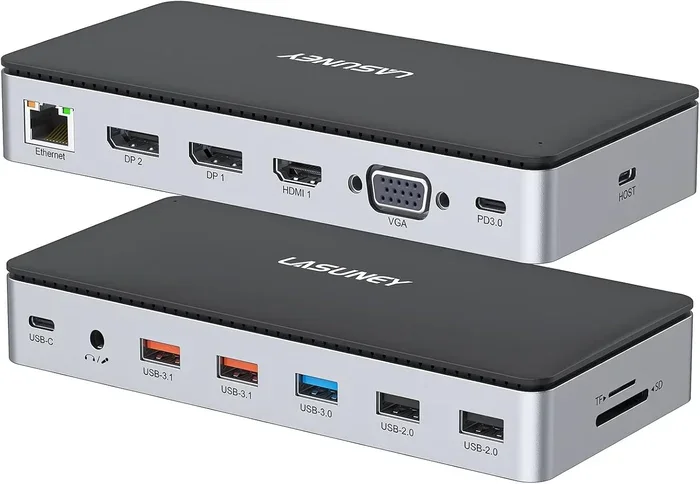
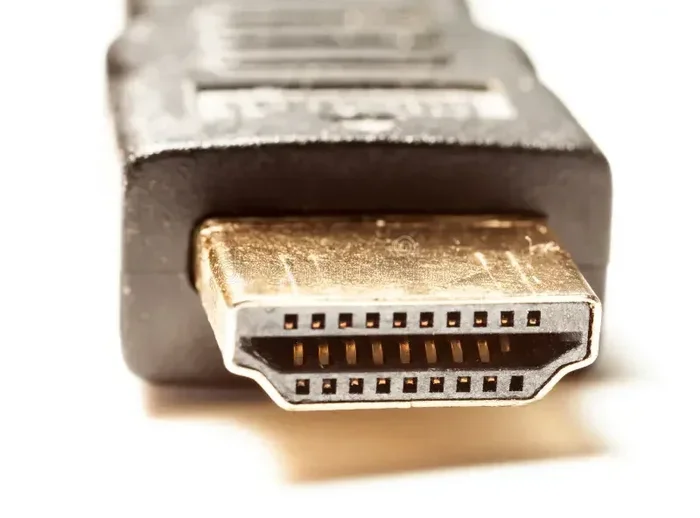
HDMI is the most common connection for TVs and monitors, but it is not the only option. Several reliable alternatives like DisplayPort, USB-C, VGA, and DVI offer different benefits for different setups. This guide breaks down each HDMI alternative so you can pick the best one for your needs.
Most of us plug in an HDMI cable without thinking twice. It works with our TVs, monitors, laptops, and gaming consoles. But what happens when your device does not have an HDMI port? Or when you need a better connection for your setup?
The good news is that you have options. There are several alternatives to HDMI that work just as well, if not better, depending on what you need. Whether you are setting up a home theater, connecting a monitor for work, or building a gaming rig, knowing your choices matters. Let us walk through the best HDMI alternative options available today.
Key Takeaways
- DisplayPort delivers high performance: It supports high resolutions and refresh rates, making it ideal for gaming and professional monitors.
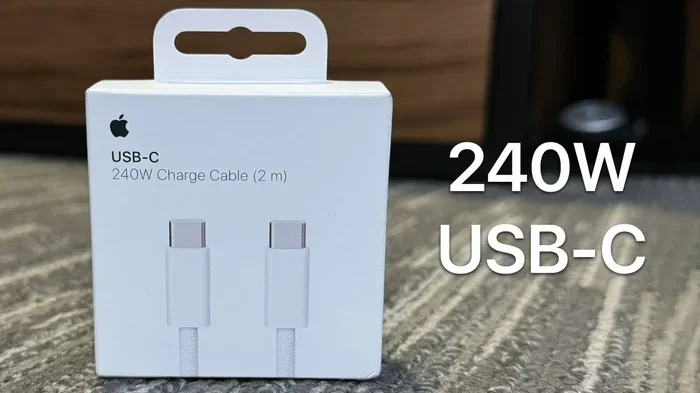
- USB-C is versatile and modern: It handles video, data, and power through a single cable, which is great for laptops and docking stations.
- VGA and DVI are older but still useful: They work well with legacy equipment and older monitors.
- Adapters make any connection possible: You can convert between HDMI and other ports using simple adapter cables.
- Your choice depends on your devices: Check what ports your TV, monitor, or laptop supports before buying a cable.
📑 Table of Contents
- Why You Might Need an HDMI Alternative
- DisplayPort: The Best HDMI Alternative for Monitors
- USB-C: The Modern All-in-One Connection
- VGA: The Old Reliable for Legacy Devices
- DVI: A Bridge Between Old and New
- Other HDMI Alternatives Worth Considering
- How to Choose the Right HDMI Alternative
- Common Mistakes to Avoid When Choosing a Cable
- Quick Tips for a Better Connection
- Final Thoughts
Why You Might Need an HDMI Alternative
HDMI cables are everywhere. They are the standard for most TVs, streaming boxes, and game consoles. But they are not perfect for every situation. Some devices simply do not have HDMI ports. Others need features that HDMI cannot provide.
For example, many modern laptops now use USB-C ports instead of HDMI. Some monitors come with DisplayPort connections for better performance. Older projectors and TVs may only have VGA or DVI inputs. In all these cases, you need a different cable or an adapter to get your screen working.
Understanding your options helps you avoid buying the wrong cable. It also saves you money and frustration. Let us look at the most common alternatives to HDMI and what makes each one special.
DisplayPort: The Best HDMI Alternative for Monitors
DisplayPort is one of the strongest competitors to HDMI. It was designed specifically for displaying video and audio from computers. If you are connecting a PC monitor or a high-end display, DisplayPort is often the better choice.
What Makes DisplayPort Stand Out
DisplayPort offers several advantages over HDMI. It supports very high resolutions and refresh rates. The latest version, DisplayPort 2.1, can handle 8K resolution at high frame rates. This makes it perfect for gaming setups and professional workstations.
Here are some key benefits of DisplayPort:
- High bandwidth: It can carry more data than older HDMI versions.
- Multi-monitor support: You can daisy-chain multiple monitors with one cable.
- FreeSync and G-Sync: It works well with adaptive sync technologies for smooth gaming.
- No copy protection: Unlike HDMI, it does not enforce HDCP on all connections.
DisplayPort cables come in different versions. Make sure to check which version your devices support. A DisplayPort to HDMI adapter is also widely available if you need to connect a DisplayPort source to an HDMI display.
When to Use DisplayPort
Use DisplayPort when you are connecting a desktop PC to a monitor. It is also great for ultrawide monitors and high refresh rate displays. If you are building a gaming setup or doing video editing, DisplayPort gives you the bandwidth you need.
USB-C: The Modern All-in-One Connection
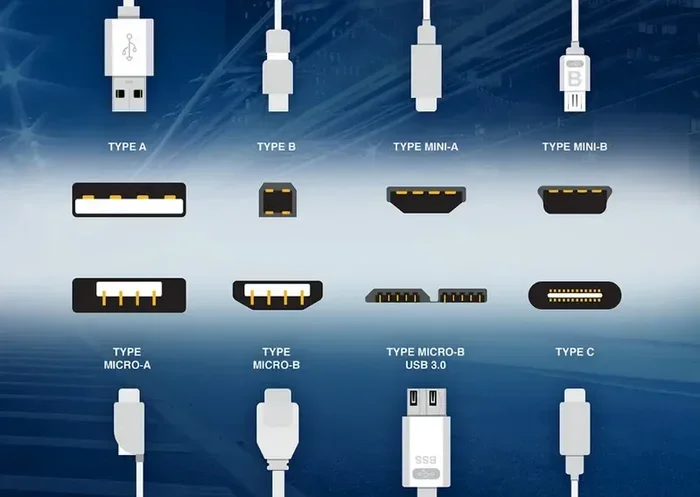
USB-C has become one of the most popular ports on modern devices. Laptops, tablets, and even some smartphones now use USB-C. This small, reversible connector can do more than just charge your device.
How USB-C Handles Video
USB-C can carry video signals through a technology called DisplayPort Alt Mode. This means you can connect a USB-C laptop directly to a monitor or TV. You can also use a USB-C to HDMI adapter or cable to bridge the gap between USB-C and HDMI displays.
Here is what makes USB-C so appealing as an HDMI alternative:
- Video and data in one cable: You can charge your laptop, transfer files, and connect to a display all at once.
- Compact size: The small connector works well with thin laptops and tablets.
- Wide compatibility: Most modern devices support USB-C video output.
- Power delivery: USB-C can supply up to 100 watts of power, so you may not even need a separate charger.
Not all USB-C cables support video output, though. Make sure the cable you buy is rated for DisplayPort Alt Mode or Thunderbolt. A standard USB-C cable may only carry data and power.
USB-C Adapters and Hubs
One of the best things about USB-C is the ecosystem of adapters. You can get a USB-C hub that adds HDMI ports, USB-A ports, SD card readers, and more. This makes USB-C a very flexible choice for people who need to connect multiple devices. Setting up a new USB-C connection is similar to how you would set up new hardware with an adapter — the right adapter makes all the difference.
VGA: The Old Reliable for Legacy Devices
VGA stands for Video Graphics Array. It is one of the oldest video output standards still in use. VGA cables carry an analog video signal, which means they do not support audio.
When VGA Still Makes Sense
You will find VGA ports on older projectors, monitors, and some business equipment. If you are working with legacy devices, VGA may be your only option. It is not the best choice for modern setups, but it gets the job done in a pinch.
Here are some things to know about VGA:
- Analog signal: The image quality is not as sharp as digital connections like HDMI or DisplayPort.
- No audio support: You will need a separate audio cable if your device requires sound.
- Widely available: VGA cables and adapters are still easy to find and very affordable.
- Good enough for basic use: For presentations or simple displays, VGA works fine.
If you are connecting an older laptop to a projector, VGA is often the go-to option. Just keep in mind that the picture quality will not match what you get from a digital connection.
DVI: A Bridge Between Old and New
DVI stands for Digital Visual Interface. It was created as a step up from VGA when digital displays became popular. DVI comes in three types: DVI-A (analog), DVI-D (digital), and DVI-I (integrated, which supports both).
DVI vs HDMI: What is the Difference?
DVI and HDMI look similar, but they are not the same. DVI does not carry audio, while HDMI does. DVI also has a lower maximum resolution than modern HDMI versions. However, DVI still provides a solid digital picture for monitors and projectors.
Consider DVI if:
- Your monitor only has a DVI input.
- You do not need audio through the cable.
- You are working with older hardware that does not support HDMI.
A DVI to HDMI adapter is a simple and inexpensive way to connect a DVI source to an HDMI display. This makes DVI a practical stopgap if you are not ready to upgrade your equipment.
Other HDMI Alternatives Worth Considering
Beyond the main options above, there are a few more connections worth mentioning. Each one serves a specific niche or use case.
Thunderbolt 3 and Thunderbolt 4
Thunderbolt uses the USB-C connector but offers much faster speeds. Thunderbolt 3 supports 4K video at 120Hz, and Thunderbolt 4 can handle 8K. If your laptop or motherboard has a Thunderbolt port, you have a powerful HDMI alternative built in.
S/PDIF and Optical Audio
If you only need audio and not video, S/PDIF (also called optical audio) is an option. It is commonly used to connect soundbars, AV receivers, and audio interfaces. It does not carry video, so it is not a full HDMI replacement, but it handles the audio side well.
Composite and Component Video
These are very old analog standards. Composite uses a single yellow RCA connector, while component uses three (red, green, blue). You will find these on older TVs, VCRs, and retro gaming consoles. They are not ideal for modern use, but they still work for vintage equipment.
How to Choose the Right HDMI Alternative
With so many options, picking the right one can feel overwhelming. Here is a simple guide to help you decide.
First, check the ports on your devices. Look at your laptop, monitor, TV, and any other equipment you want to connect. Identify which ports are available. This tells you which cable type you need.
Next, think about what you need the connection for. Are you gaming? Working from home? Watching movies? Each use case has different requirements for resolution, refresh rate, and audio.
Finally, consider whether you need an adapter. Many devices today use different ports than the ones on your display. A good adapter solves this problem. Just like choosing the right USB adapter for storage devices, picking the right video adapter ensures a reliable connection.
| Connection Type | Best For | Supports Audio | Max Resolution |
|---|---|---|---|
| DisplayPort | PC monitors, gaming | Yes | 8K |
| USB-C | Laptops, docks, modern devices | Yes | 4K–8K |
| VGA | Older projectors, legacy devices | No | Up to 2048×1536 |
| DVI | Older monitors, projectors | No | Up to 2560×1600 |
| Thunderbolt 3/4 | High-performance laptops, workstations | Yes | 8K |
Common Mistakes to Avoid When Choosing a Cable
Buying the wrong cable is easy, especially with so many options on the market. Here are some mistakes to watch out for.
Assuming all USB-C cables support video. Not every USB-C cable carries a video signal. Look for cables that explicitly state they support DisplayPort Alt Mode or Thunderbolt.
Ignoring cable length. Longer cables can weaken the signal. For best results, use the shortest cable that fits your setup. If you need a longer run, consider an active cable or a signal booster.
Buying outdated versions. HDMI has several versions (HDMI 1.4, 2.0, 2.1). Similarly, DisplayPort has different versions. Always check that your cable supports the resolution and refresh rate you need.
Forgetting about adapters. Sometimes the simplest solution is an adapter. A DisplayPort to HDMI adapter or a USB-C to VGA adapter can save you from buying a new monitor or device.
Quick Tips for a Better Connection
- Check your ports first: Know what your devices support before buying any cable.
- Buy certified cables: Look for cables that are certified by DisplayPort or USB-IF for reliable performance.
- Keep adapters clean: Dust in ports can cause connection issues. Clean them gently with compressed air.
- Update your drivers: Sometimes display issues are caused by outdated graphics drivers, not the cable itself.
- Test before you commit: If possible, test the connection before making a permanent setup.
Getting the right connection is like setting up a new piece of hardware. The right cable or adapter makes everything work smoothly. Whether you go with DisplayPort, USB-C, VGA, or DVI, each option has its place in modern setups.
Final Thoughts
HDMI is not going anywhere. It remains the most widely used connection for TVs and streaming devices. But it is far from the only option. DisplayPort, USB-C, VGA, DVI, and Thunderbolt all serve as excellent HDMI alternatives depending on your needs.
The best choice depends on your devices, your budget, and what you want to do. A gaming enthusiast will gravitate toward DisplayPort or Thunderbolt. A professional working from home may prefer USB-C for its versatility. Someone with older equipment might rely on VGA or DVI.
The key is to understand what your devices support and what you need from the connection. With the right cable or adapter, you can connect anything to anything. Do not let a missing HDMI port stop you from getting the display setup you want.
Take a look at your devices today. Check the ports. Consider your needs. Then pick the HDMI alternative that works best for you. You will be surprised at how easy it is to get everything connected and working perfectly.
Frequently Asked Questions
Can I use a USB-C cable instead of HDMI?
Yes, if your devices support it. Many modern laptops and monitors use USB-C for video output. You may need a USB-C to HDMI adapter or a cable that supports DisplayPort Alt Mode. Check your device specifications to confirm video support.
Is DisplayPort better than HDMI?
It depends on your use case. DisplayPort generally offers higher bandwidth and better support for high refresh rates and resolutions. For PC monitors and gaming, DisplayPort is often the better choice. For TVs and home entertainment, HDMI remains the standard.
Do I need a special cable for USB-C video output?
Not necessarily, but not all USB-C cables support video. Look for cables labeled as supporting DisplayPort Alt Mode or Thunderbolt. A standard charging cable may only handle power and data, not video signals.
Can I connect an old VGA monitor to a new laptop?
Yes, you can use a USB-C to VGA adapter or a DisplayPort to VGA adapter. This lets you connect older monitors to modern laptops. The image quality will be limited by the VGA standard, but it works for basic tasks.
Does DVI support audio?
No, DVI does not carry audio. You will need a separate audio connection if your setup requires sound. This is one of the main differences between DVI and HDMI.
What is the best HDMI alternative for gaming?
DisplayPort is the best choice for gaming on a PC. It supports high refresh rates and adaptive sync technologies. Thunderbolt 4 is also excellent for high-performance setups. Both offer more bandwidth than standard HDMI for smooth, high-quality gaming.
=== CONCLUSION ===
HDMI is the most common connection, but it is not the only one. Whether you need a DisplayPort for gaming, a USB-C cable for versatility, or a VGA adapter for older equipment, there is an HDMI alternative that fits your needs. Understanding these options helps you make smarter buying decisions and get the best performance from your devices. Pick the right connection, grab the right adapter, and enjoy your setup.